Start a Saved Team From Your Phone
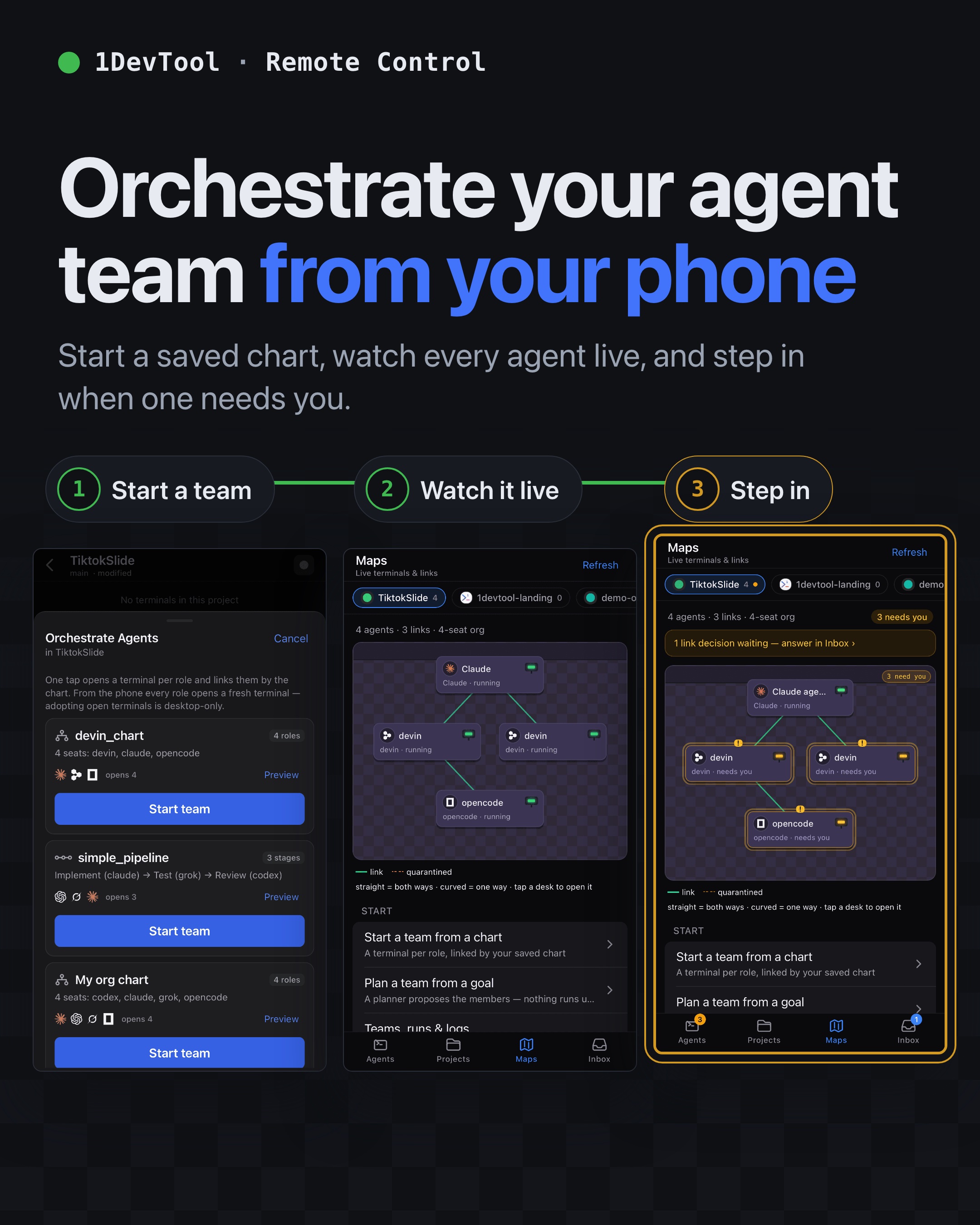
Start any org chart or pipeline you saved in the desktop Builder from your phone with one tap: every seat opens as a fresh terminal, already linked the way the chart says. A team that is already running is never replaced from the phone.
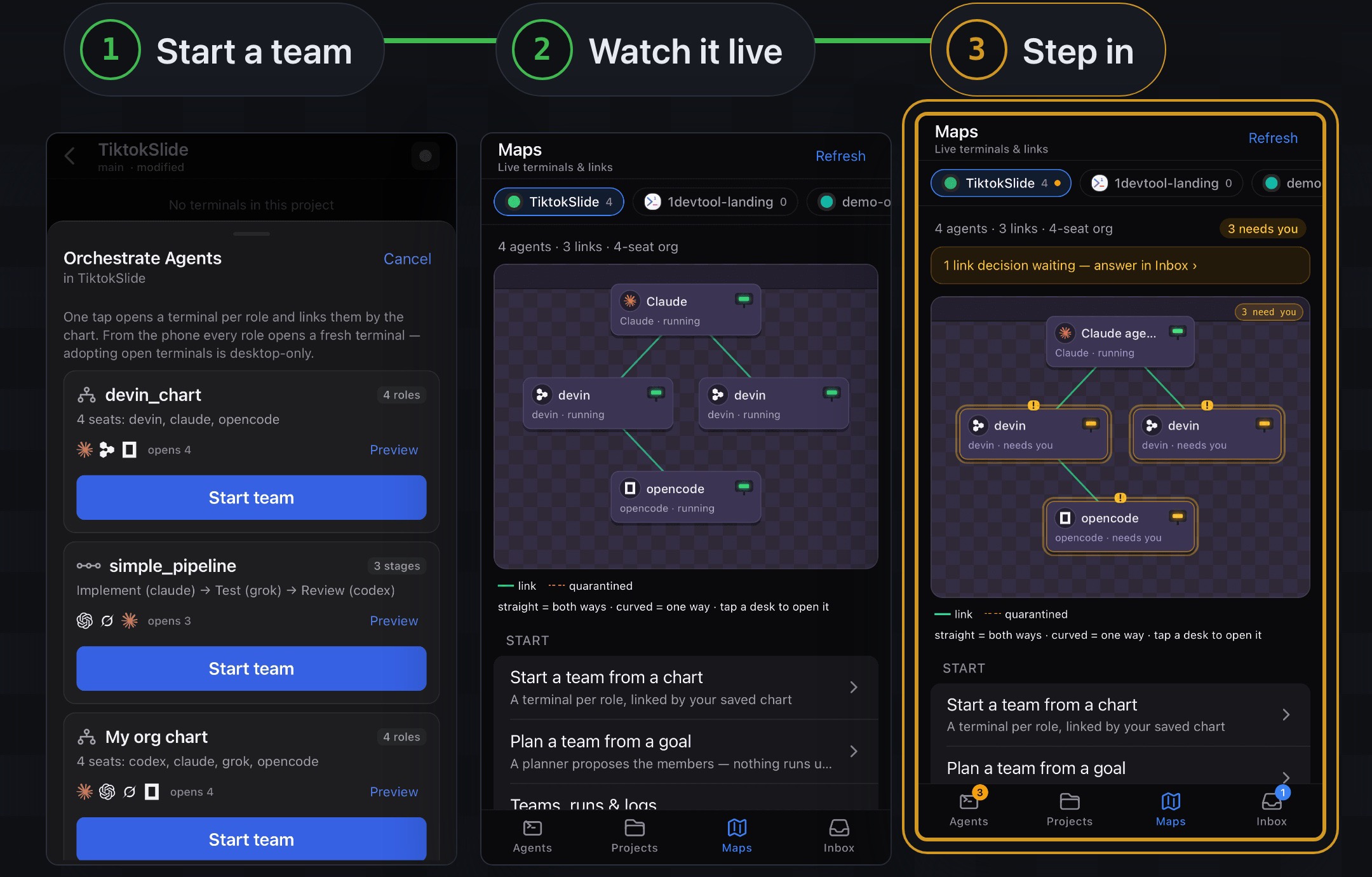
More Screenshots
Click any image to zoom in
Why You Need This
How this feature boosts your daily productivity
A saved chart is a team you have already designed: the roles, the agents and who reports to whom. Until now it could only be started from the desktop, so a run you wanted going before you got back to the desk simply waited. From the phone you can now pick the chart, check its preview, and start it on whichever project is open on the desktop. The phone always opens fresh terminals, never takes over ones you have open, and stands down if that chart already has live seats in the project.
How It Works
Get started in 4 simple steps
Open Orchestrate Agents
From a project on the phone open the Orchestrate Agents sheet, or use Add Terminal → Orchestration, or Start a team from a chart on the Maps tab.
Pick a saved chart
Each card shows its roles or stages and how many terminals it opens. Preview draws the role cards and reporting lines, or the numbered pipeline stages.
Tap Start team
Every seat opens as a fresh terminal, linked by the chart, while the button counts Opening 2/4 terminals…
Watch it on the map
The new team appears on the Maps tab, where desks that need you are marked and each one opens with a tap.
Without 1DevTool
The manual way vs. the 1DevTool way
The Hard Way
The 1DevTool Way
Key Capabilities
Everything included with Start a Saved Team From Your Phone
Why It Matters
The productivity impact of having project management built into your workspace
Start the Run Before You're Back
A team you already designed in the Builder no longer waits for you to sit down; start it from wherever you are.
One Tap Can't Clobber a Run
If the chart already has live seats in the project, the start button stands down and names the chart holding it.
Nothing You Had Open Is Touched
From the phone every seat opens as a new terminal, so a session you left running is never taken over.
More in Project Management
Other features in this category you might find useful
Multi-Project Workspace
Work on multiple projects simultaneously with instant switching. Entire workspace state is preserved per project.
Smart File Explorer
Real-time file tree with type icons, .gitignore filtering, search, and right-click context menus.
Per-Project Code Intelligence
Spawn real typescript-language-server, gopls, pyright, rust-analyzer, clangd, solargraph, intelephense, or sourcekit-lsp for the projects you opt into — with project-aware errors and zero false positives.
Color-Coded Projects
Assign accent colors to each project for instant visual identification across your workspace.
Ready to boost your workflow?
Download 1DevTool for free and experience Start a Saved Team From Your Phone along with 319 other features — all in one app.