Git Accounts
Multiple GitHub, GitLab, या Bitbucket accounts connect करें और हर repo के लिए कौन सा use करें चुनें।
एक से ज़्यादा Git account use करते हैं — personal GitHub और work GitHub — तो 1DevTool सब connect करके हर repository के लिए कौन सा account use करना है चुनने देता है। Accounts switch करने या misconfigured remotes की झंझट खत्म।
Git Account जोड़ें
- Settings खोलें — bottom-left में gear icon click करें या Cmd+, दबाएं
- Git Accounts section पर जाएं
- + Add Account click करें
- Provider चुनें: GitHub, GitLab, या Bitbucket
- दो तरीकों में से एक से authenticate करें:
- OAuth — "Sign in with GitHub/GitLab/Bitbucket" click करें और browser login complete करें। 1DevTool automatically token receive करता है।
- Personal Access Token — provider के settings में generate किया token paste करें। GitHub इन्हें Settings → Developer settings के नीचे "Fine-grained personal access tokens" कहता है।
Connect होने पर account username और avatar के साथ Git Accounts list में दिखता है। जितने चाहें accounts जोड़ें — कोई limit नहीं।
Per-Repo Account Selection
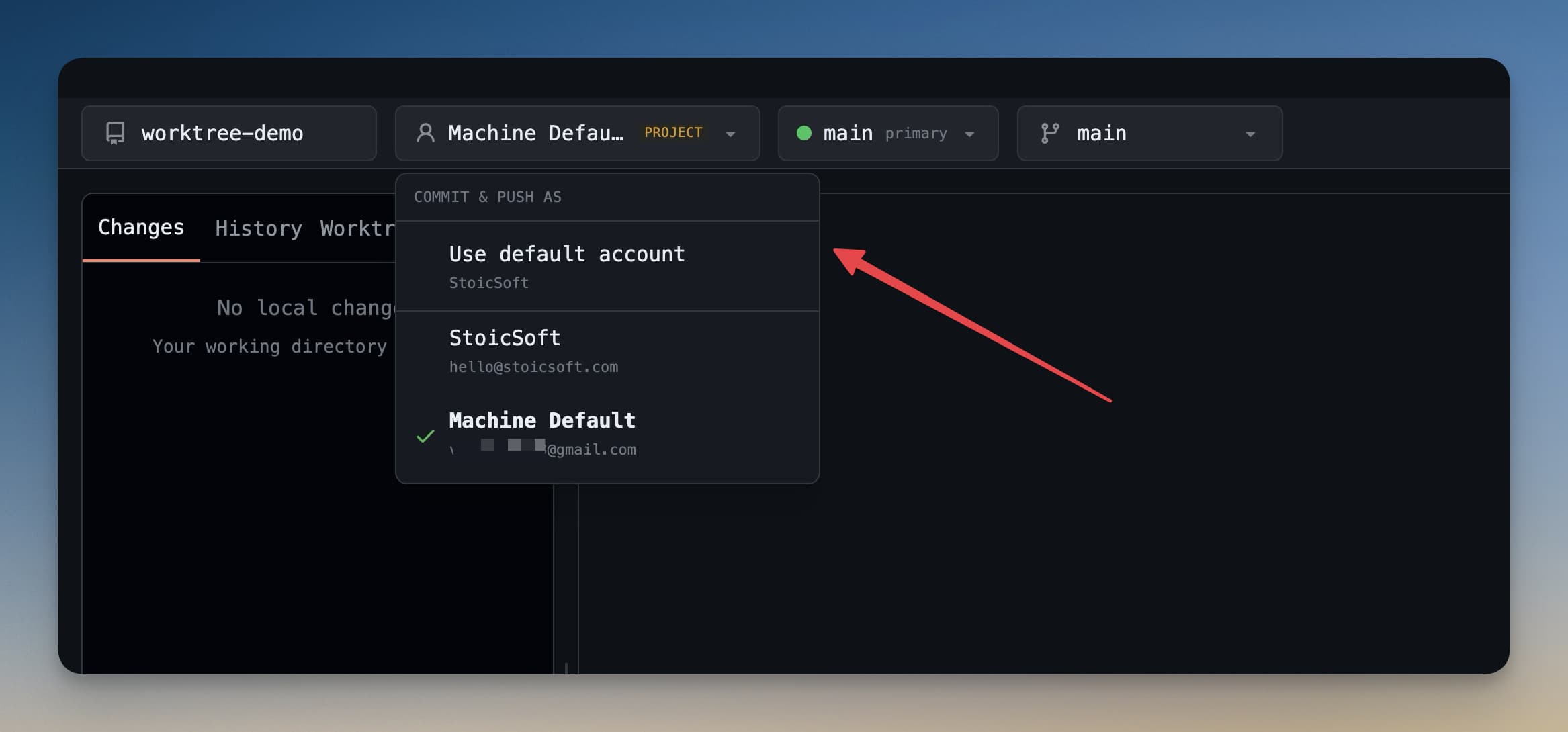
Multiple accounts connected हों तो हर repository के लिए कौन सा use करना है चुन सकते हैं। Work और personal projects completely अलग रखने के लिए useful।
- किसी भी project में Git panel खोलें (Cmd+G)
- Panel के ऊपर account badge देखें — इस repo के लिए currently active account दिखाता है
- Badge click करें connected accounts की dropdown खोलने के लिए
- इस repository के लिए जो account use करना हो select करें
Selection per-repository save होती है। अगली बार project खोलने पर 1DevTool automatically same account use करता है। Pushes, pulls, और authentication सब selected account के credentials use करते हैं।
यह खासकर तब useful है जब:
- Open source और side projects के लिए personal GitHub
- Employer के repos के लिए work GitHub (या GitHub Enterprise)
- Client project के लिए GitLab account
SSH Key Auto-Scan
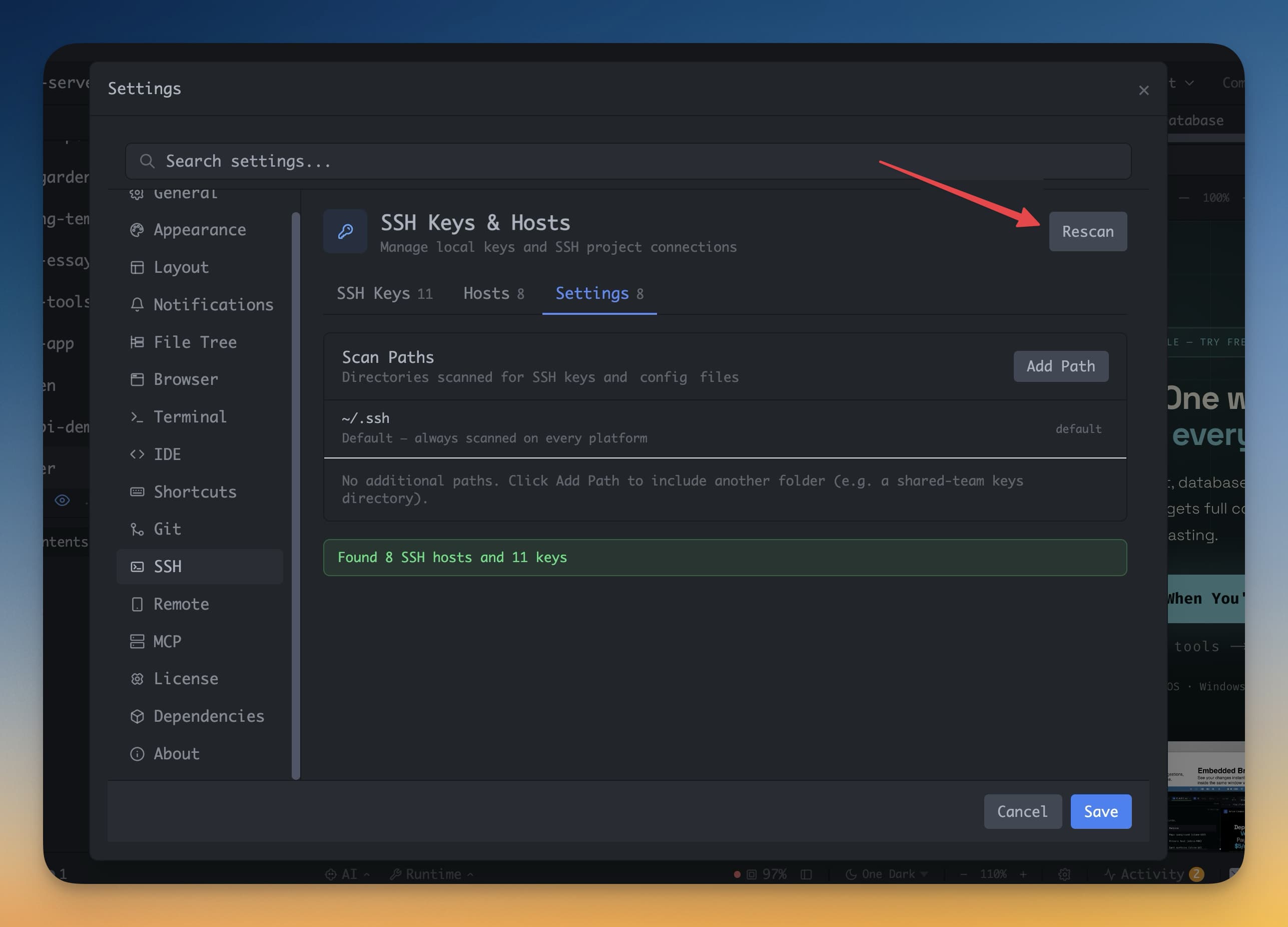
इस machine पर पहले git use किया है तो likely ~/.ssh में SSH keys हैं। 1DevTool पहली बार खोलने पर वो folder automatically scan करता है और existing key pairs detect करता है।
Detected keys Settings → SSH Keys में list होती हैं। किसी भी key के बगल में Add to Agent click करें activate करने के लिए — 1DevTool इसे SSH-based git operations के लिए use करेगा।
नई SSH Key Generate करें
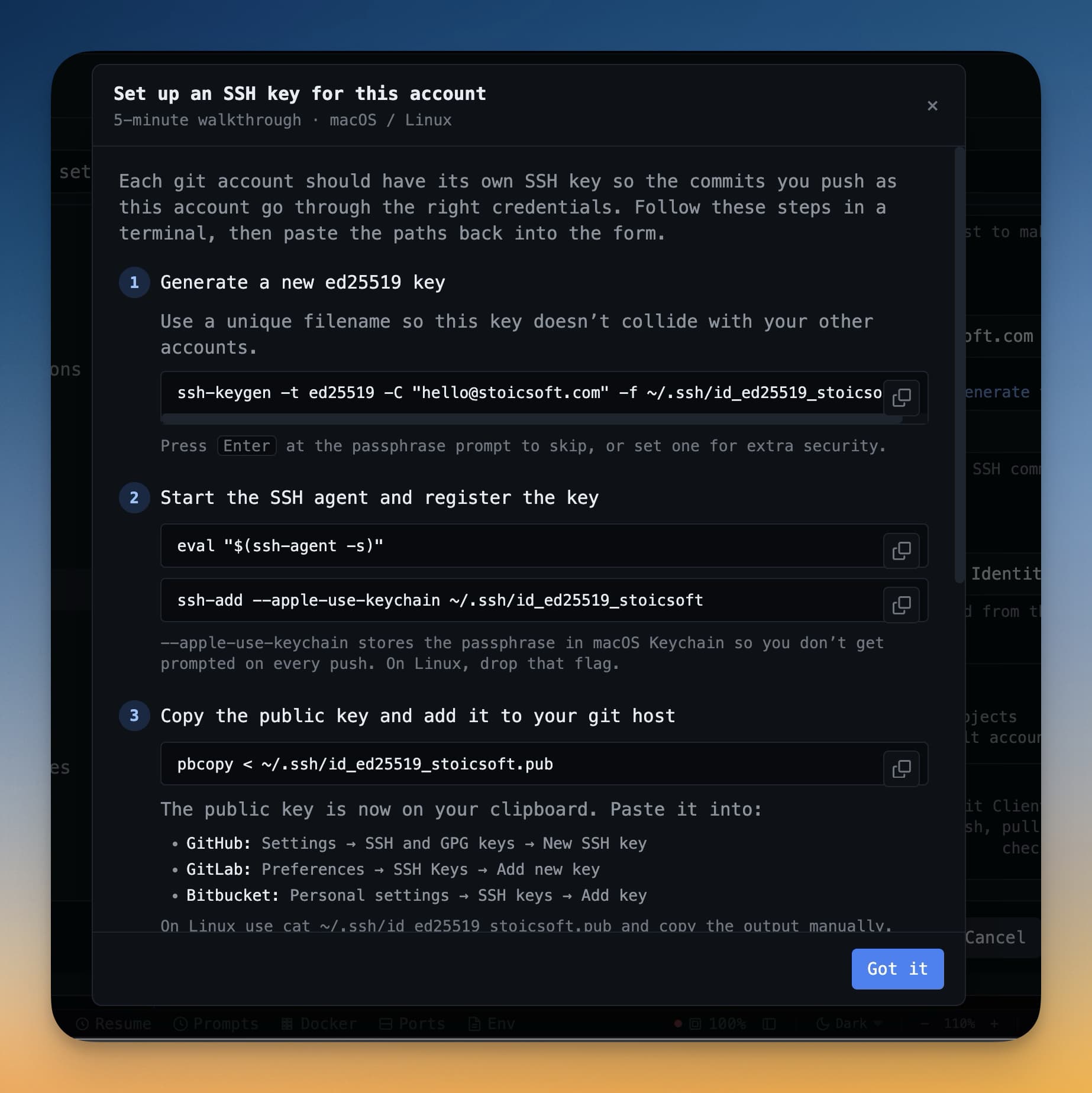
SSH key नहीं है, या 1DevTool के लिए dedicated key बनाना हो:
- Settings → SSH Keys पर जाएं
- Generate Key click करें
- Key type चुनें (Ed25519 recommended है) और optionally passphrase set करें
- Generate click करें — key pair create होती है और
~/.sshमें save होती है - Copy Public Key click करें
.pubkey clipboard पर copy करने के लिए - Browser में जाएं GitHub → Settings → SSH and GPG Keys → New SSH Key
- Public key paste करें और save करें
उसके बाद SSH पर git operations automatically authenticate होते हैं। कोई password prompts नहीं, कोई token expiry नहीं।