Terminal Tips & Tricks
Recording, colors, reader mode, और terminals के लिए power features।
Terminals जोड़ने और agents चलाने की basics comfortable हो जाएं, तो ये features 1DevTool से और भी ज़्यादा निकालने में मदद करेंगे। हर एक किसी specific pain point को solve करता है जो serious AI-assisted development में आता है।
Terminal Recording
कभी-कभी terminal session में exactly क्या हुआ save करना हो — debugging के लिए, teammate के साथ share करने के लिए, या बस record रखने के लिए। Terminal recording सब कुछ capture करता है: output का हर character, हर command, हर agent response, precise timing के साथ।
Recordings .cast files के रूप में save होती हैं, जो asciinema का standard format है। इसका मतलब इन्हें कहीं भी playback किया जा सकता है, animated recordings के रूप में share किया जा सकता है, या दूसरों के देखने के लिए upload किया जा सकता है।
Recording शुरू करने के लिए:
Terminal के header bar में record button click करें। Red indicator confirm करेगा कि recording active है।
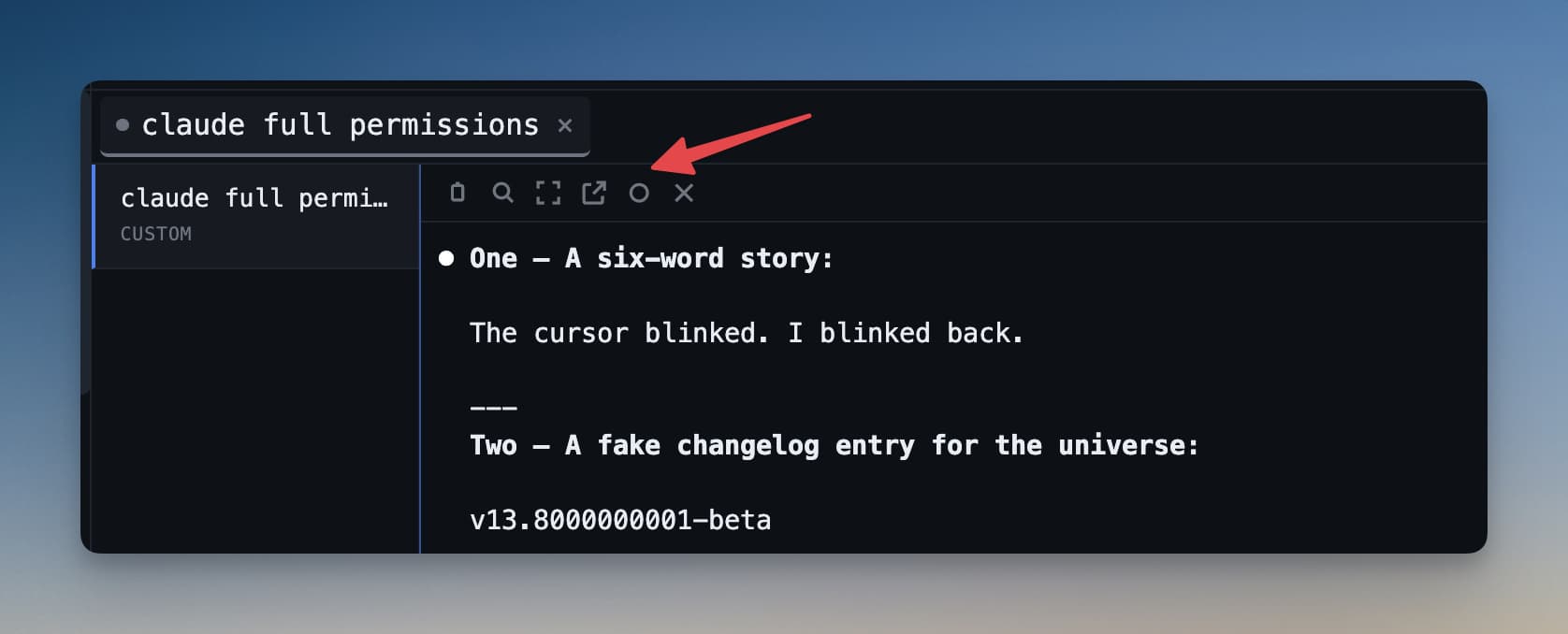
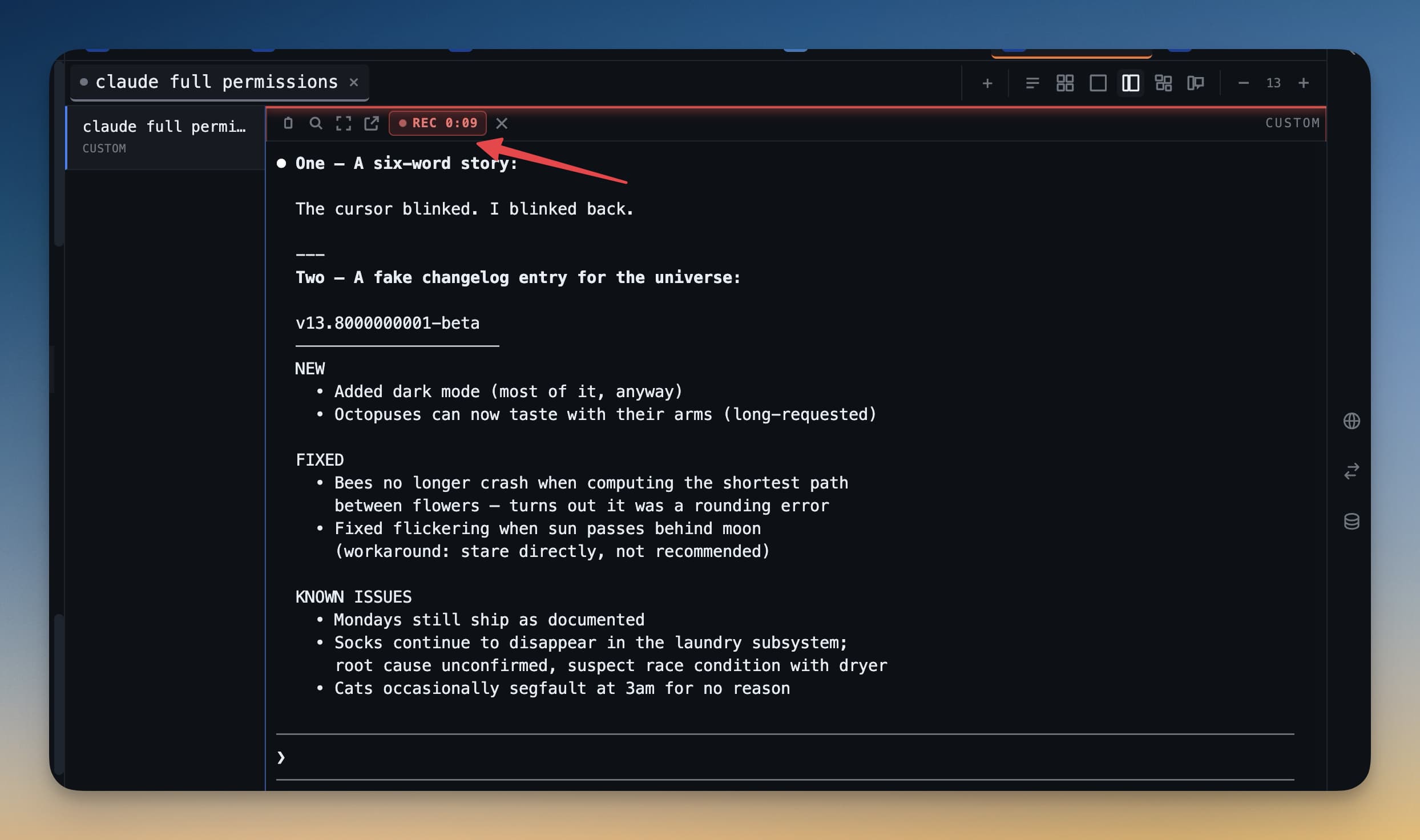
Recording रोकने के लिए:
Record button फिर click करें। 1DevTool .cast file save करता है और preview खोलता है।
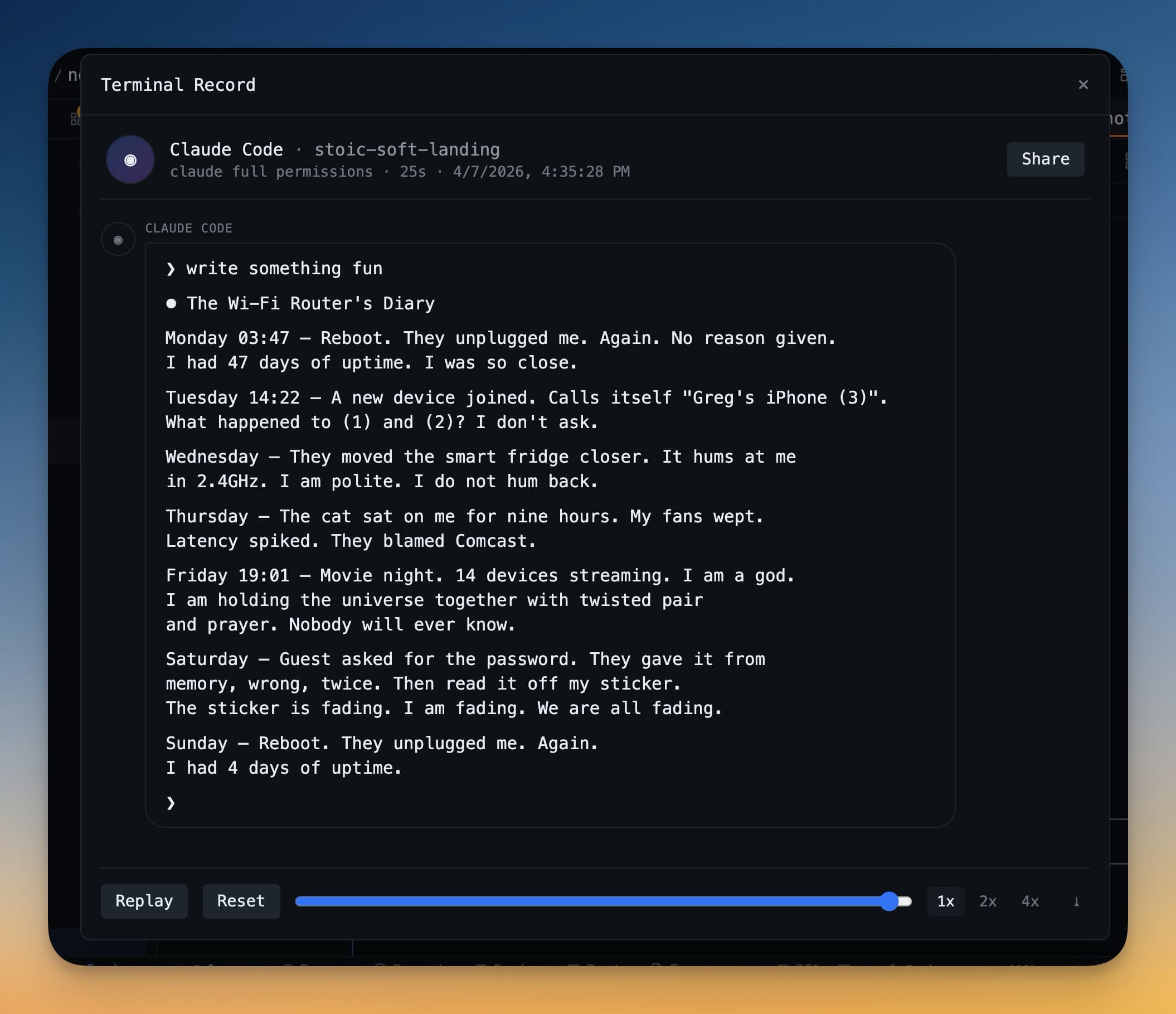
Preview से recording playback कर सकते हैं, अपनी choice की location पर export कर सकते हैं, या discard कर सकते हैं।
Terminal Color Themes
Default terminal colors ठीक हैं, पर 1DevTool के छह built-in color palettes आते हैं जो terminals को long sessions में पढ़ने में आसान और देखने में pleasant बनाते हैं।
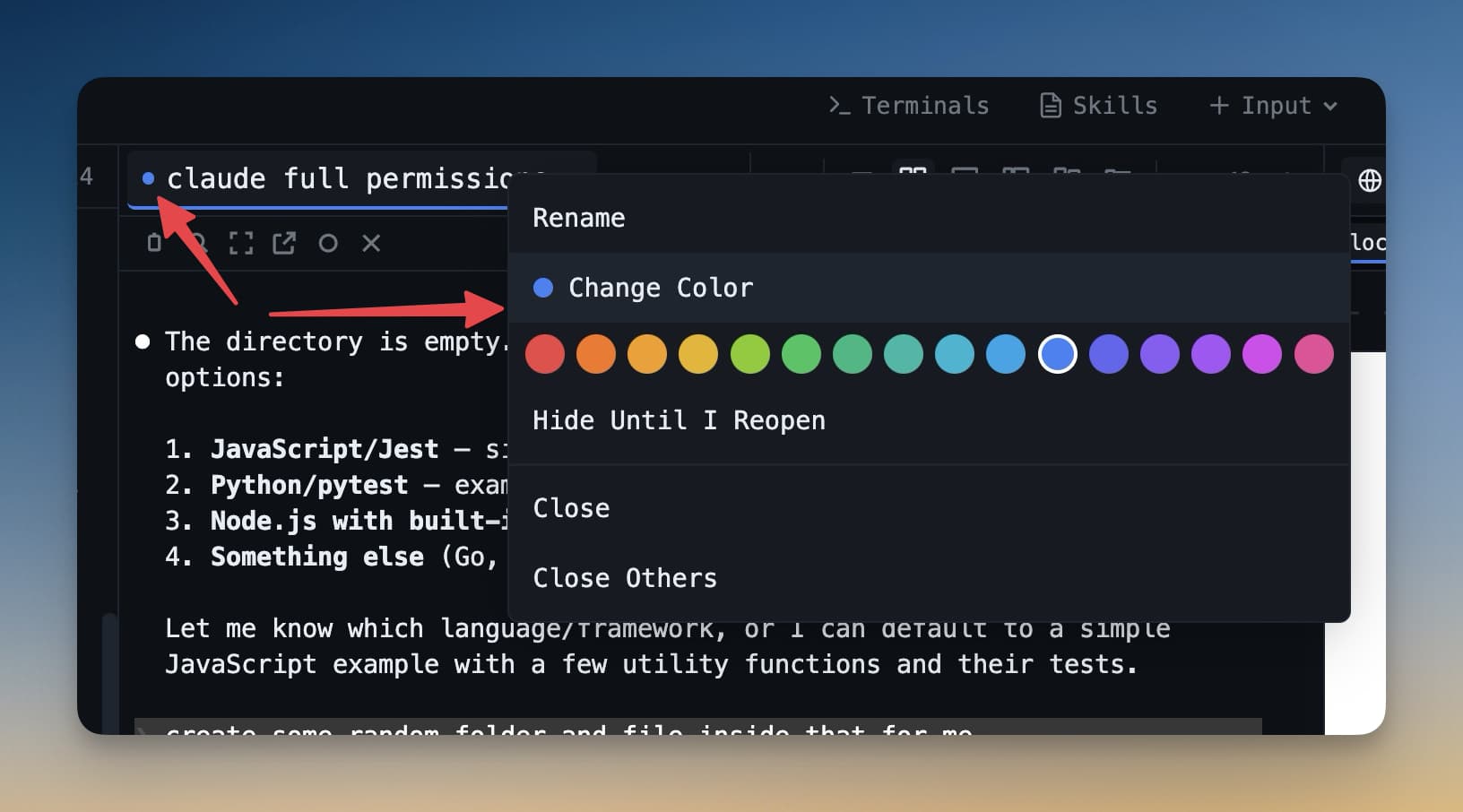
Terminal का color theme बदलने के लिए:
- Terminal panel के अंदर right-click करें।
- Context menu से Color theme चुनें।
- छह palettes में से एक pick करें — commit करने से पहले instantly preview दिखता है।
Color themes per terminal set होती हैं, इसलिए हर agent को अलग look दे सकते हैं।
Reader Mode
AI agents बहुत output produce करते हैं। जब agent लंबी explanation लिखे, file summary generate करे, या detailed plan दिखाए, तो raw terminal output पढ़ना मुश्किल हो सकता है — text घना, monospaced, और control characters से mixed।
Reader mode terminal के text output को clean, readable prose में reformat करता है। Formatting characters strip करता है, proper line spacing जोड़ता है, और content को terminal dump की बजाय document की तरह display करता है।
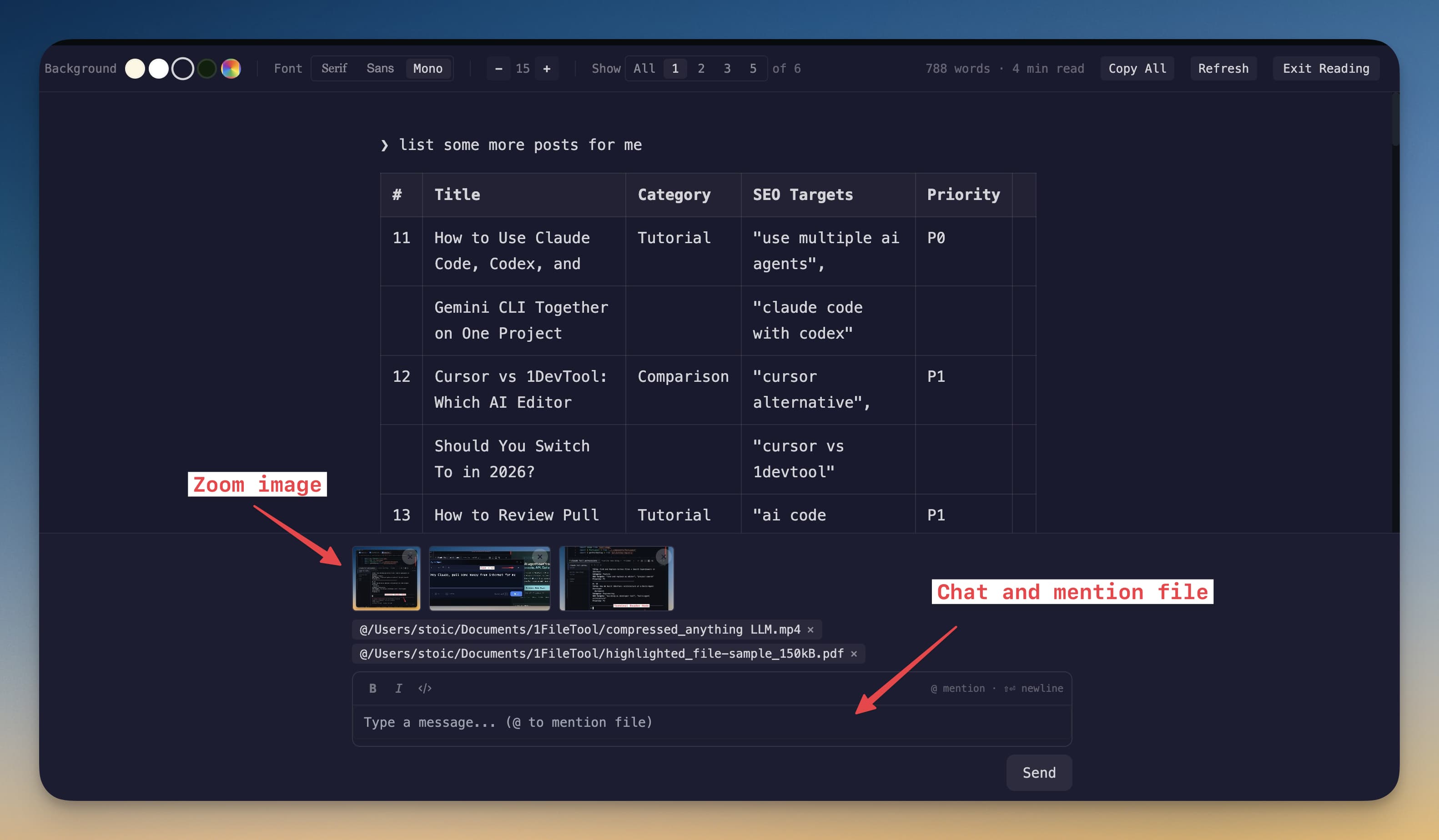
Terminal के header bar में reader icon click करके reader mode on या off करें। यह text-heavy output पर सबसे अच्छा काम करता है। Interactive sessions के लिए reader mode off रखें।
Agent को File Path भेजना
जब agent को specific file देखनी हो, path manually type करने की ज़रूरत नहीं। IDE Strip या system file explorer से file drag करें और Agent Input Overlay में drop करें।
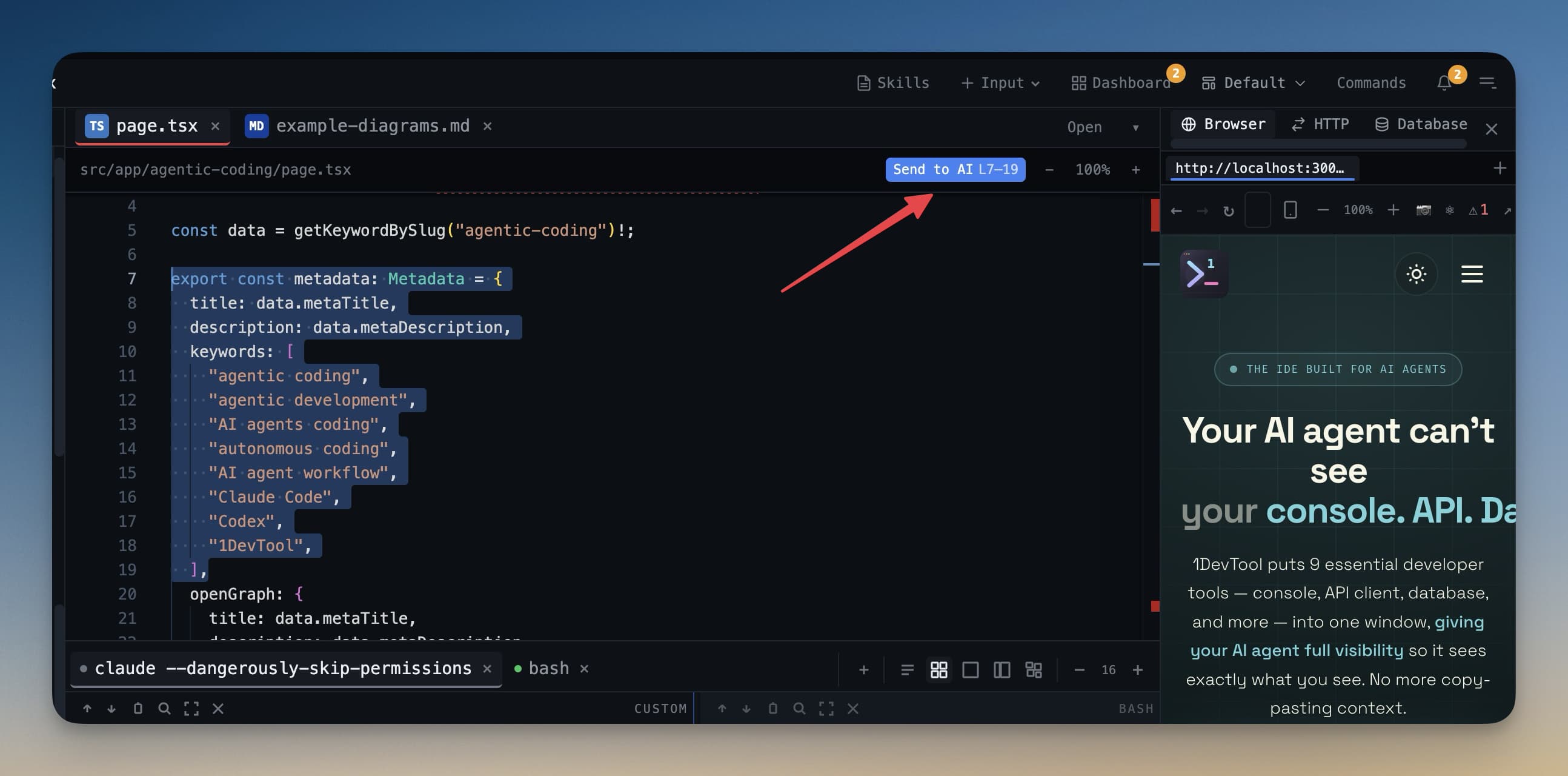
File का path automatically input field में insert हो जाता है। भेजने से पहले context जोड़ सकते हैं — जैसे: "Review the logic in [path/to/file.ts] and suggest optimizations."
इससे समय बचता है और file paths में typos नहीं होते।
Sessions Combine करना
अगर दो related terminals को single panel में side by side देखना हो, combine sessions feature उन्हें split view में merge करने देता है।
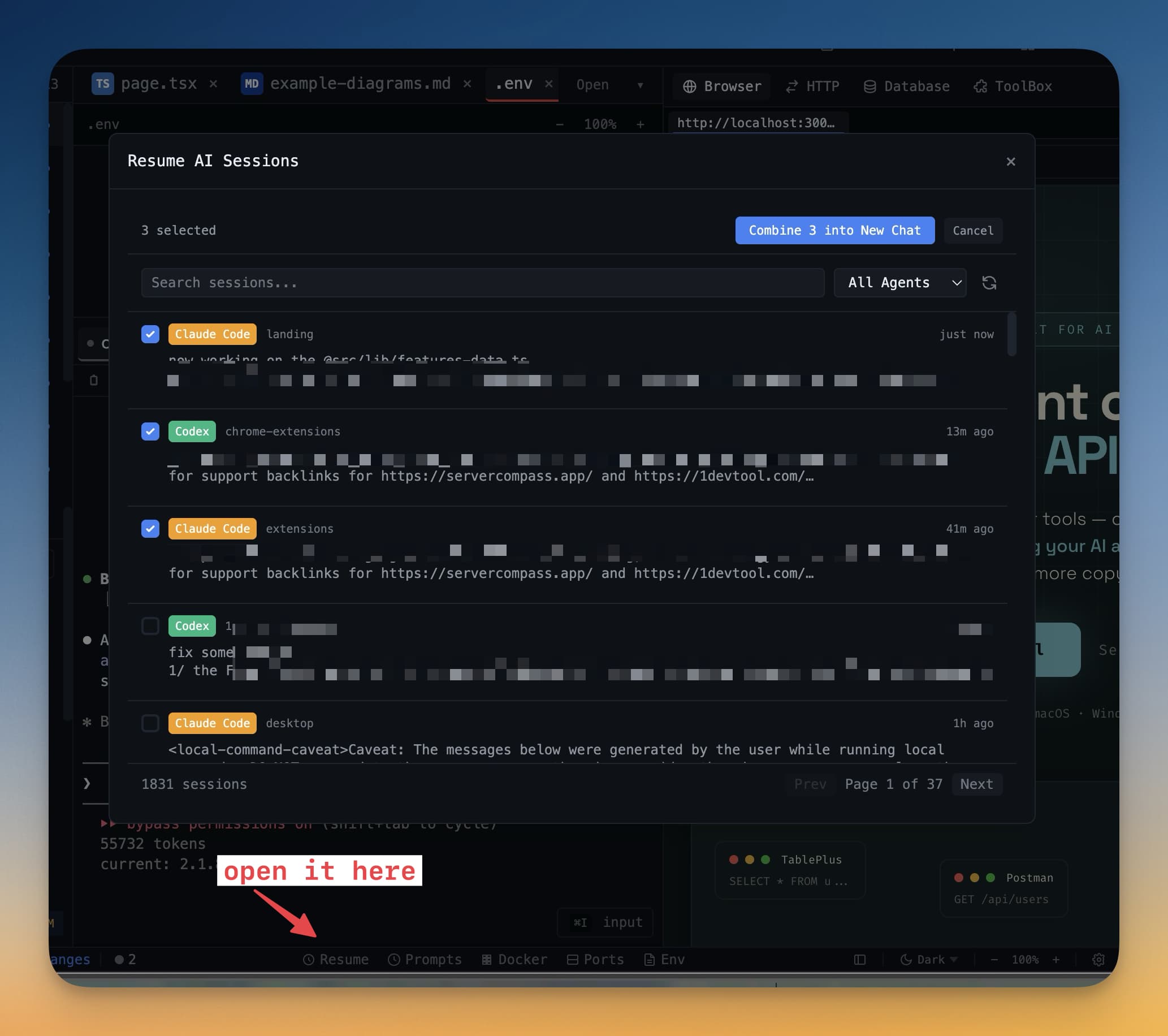
दो terminals combine करने के लिए:
- Terminal header में combine icon click करें (दो overlapping rectangles जैसा दिखता है)।
- दूसरा terminal session select करें जिसे pair करना हो।
दोनों terminals same panel slot में vertically stacked दिखती हैं। दोनों से independently interact कर सकते हैं। यह तब useful है जब similar tasks पर काम कर रहे दो agents का output compare करना हो।
Terminal Fonts
घंटों terminal output पढ़ना comfortable font से बहुत आसान हो जाता है। 1DevTool terminal font को किसी भी system setting से independently बदलने देता है।
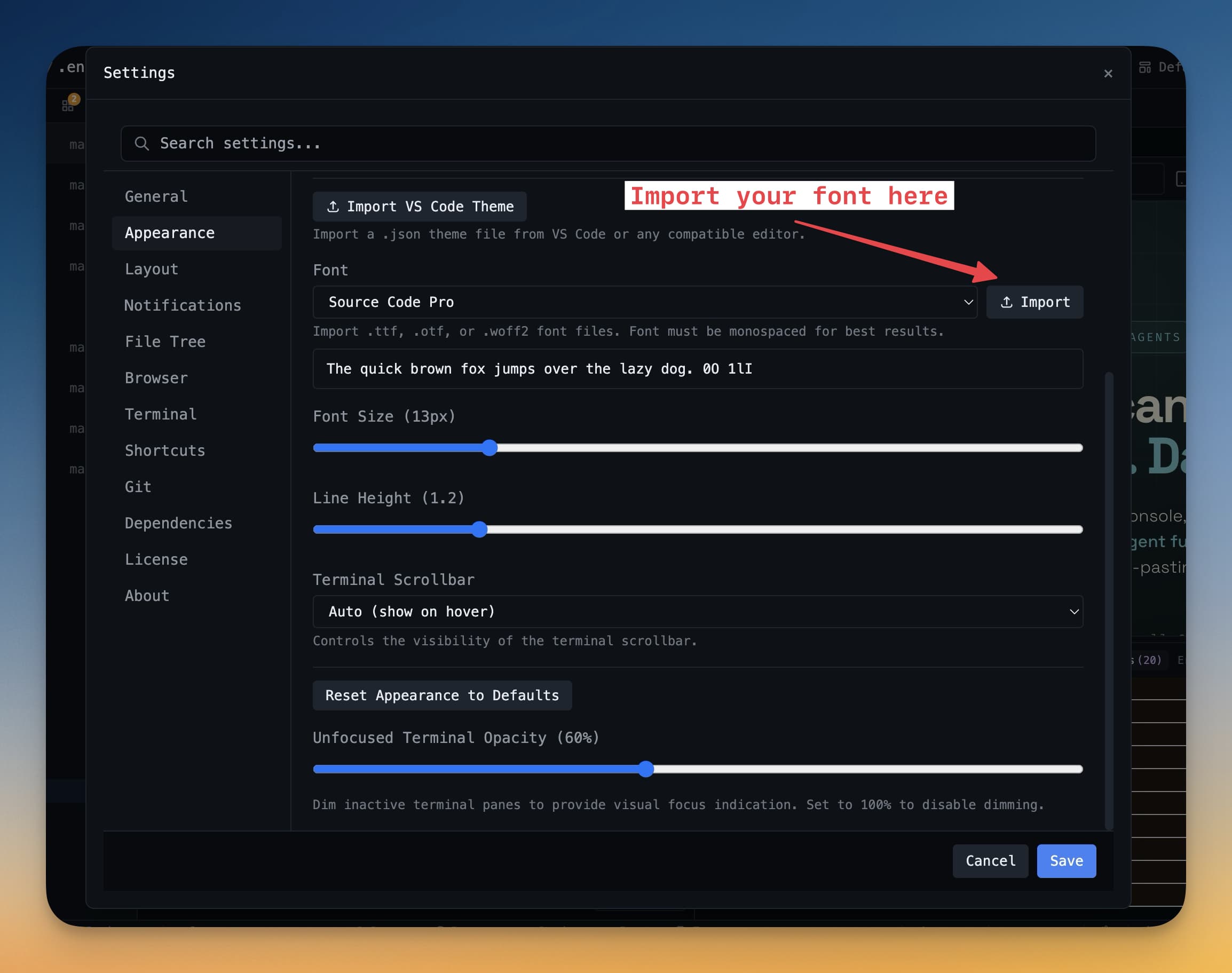
Terminal font बदलने के लिए:
- Settings खोलें (sidebar में gear icon, या
Cmd+,/Ctrl+,)। - Terminal → Font पर जाएं।
- Available monospace fonts की list से चुनें, या system पर installed किसी font का नाम type करें।
- Font picker के बगल में size slider से font size adjust करें।
Changes तुरंत सभी terminals पर apply होते हैं।