Markdown Editor
Split editor से Markdown लिखें और preview करें — README files, docs, और notes के लिए।
IDE Strip में .md file खोलने पर plain text editor से ज़्यादा मिलता है। Split view आता है: left side raw Markdown source दिखाता है जिसे edit कर सकते हैं, और right side live rendered preview दिखाता है जो type करते वक्त update होता है। कोई save-and-refresh cycle नहीं — changes preview में instantly दिखते हैं।
Split View
Left pane Markdown syntax highlighting के साथ full Monaco editor है। Headings, bold text, code blocks, और links सब distinctly colored हैं ताकि source preview के बिना भी readable रहे।
Right pane Markdown को exactly ऐसे render करता है जैसे browser में दिखेगा। Left pane में type करते वक्त right पर preview real time में catch up करती है।
दो panes के बीच divider drag करके split resize करें। Writing पर focus करना हो तो editor को ज़्यादा room देने के लिए right पर drag करें। Rendered output पढ़ना हो तो fully left पर drag करें।
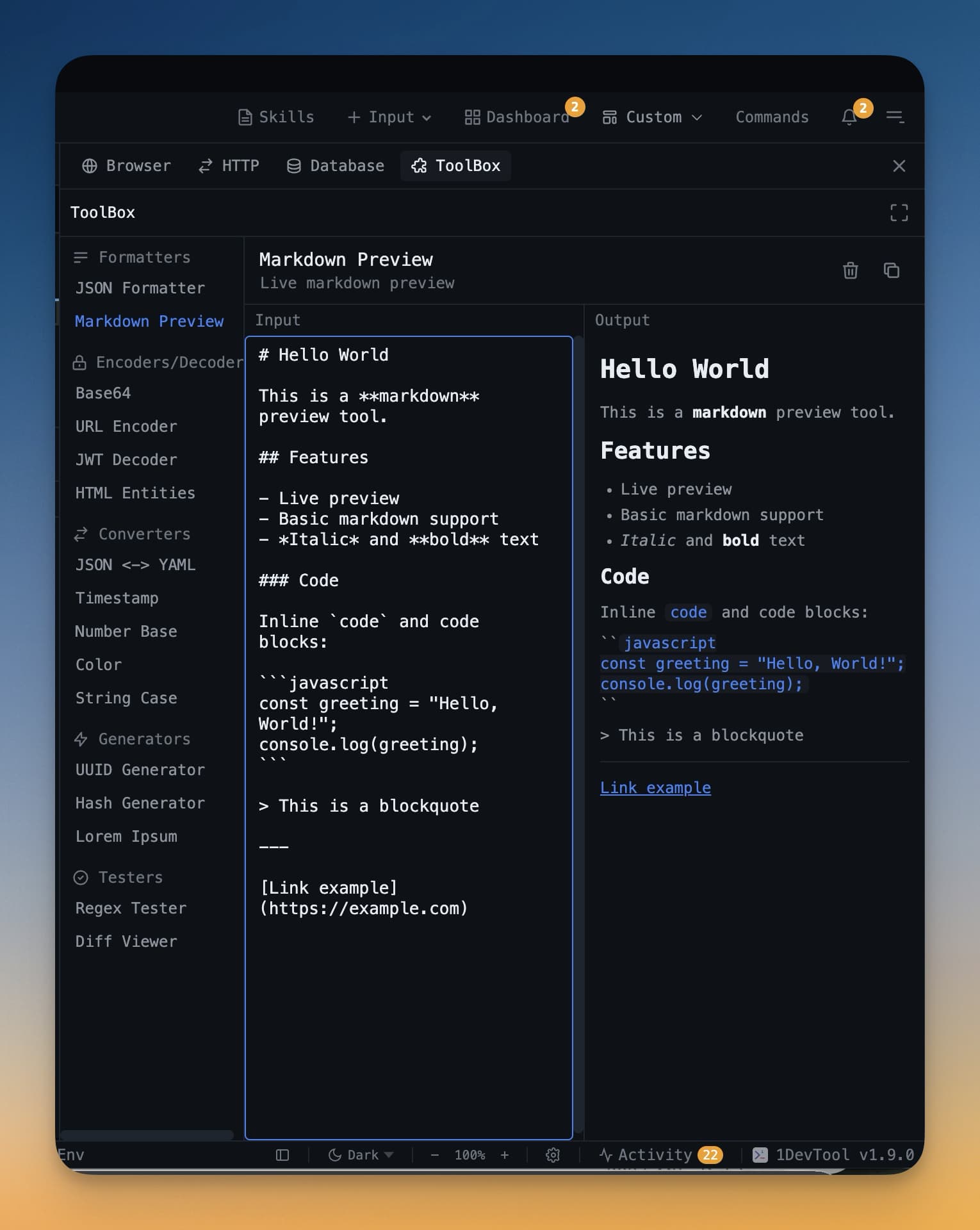
क्या Render होता है
Preview सभी standard Markdown syntax support करता है:
- Headings (
# H1,## H2,### H3) - Bold और italic (
**bold**,*italic*,***both***) - Bullet और numbered lists
- Code blocks syntax highlighting के साथ — triple backtick के बाद language specify करें:
```python - Inline code backticks से
- Tables
- Links और images
- Blockquotes (
> text) - Horizontal rules (
---) - Task lists —
- [ ] itemऔर- [x] doneसे rendered checkboxes
Task lists काम track करने के लिए खासकर useful हैं। Markdown file में checklist बनाएं, IDE Strip में खोलें, और preview में checkboxes click करके items check off करें।
Sticky Notes
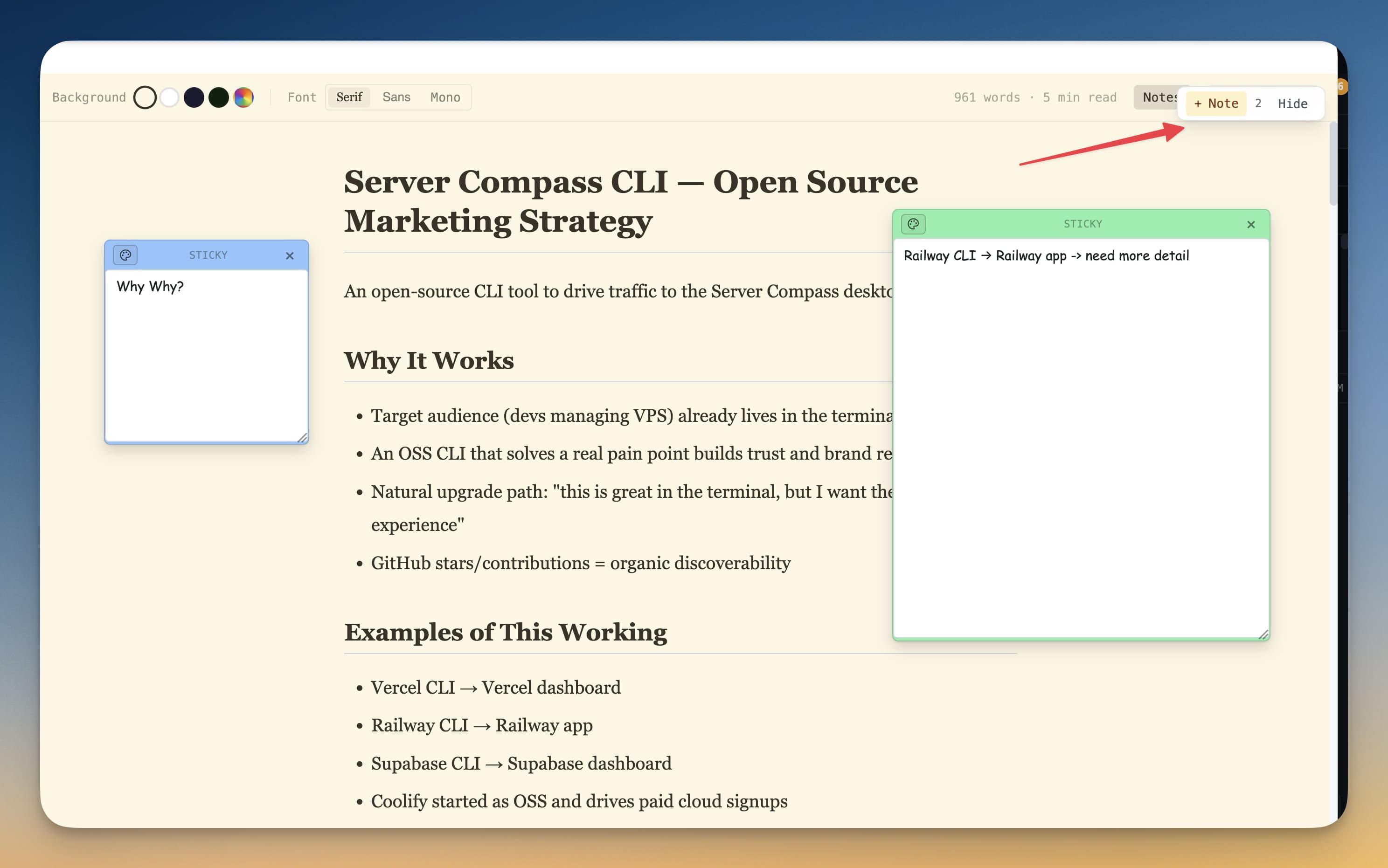
Reading mode (preview-focused) में document के sections annotate करने के लिए floating sticky notes जोड़ सकते हैं। README या spec पर comments छोड़ने के लिए useful जो actual file content में embed नहीं करने।
Add Note button click करें और sticky note preview पर कहीं भी रखें। Notes file से अलग store होते हैं, इसलिए कोई और same file खोले तो नहीं दिखेंगे।
Common Use Cases
- README files — commit करने से पहले project README edit और preview करें
- Project specs — feature spec Markdown में लिखें और code के साथ formatted output review करें
- Changelogs — Markdown format में running changelog रखें और update करते preview करें
- Meeting notes — planning session में quick structured notes, sharing के लिए formatted
Tip: AI agent Markdown document generate करे तो IDE Strip में file खोलें terminal output में raw text की बजाय nicely formatted version पढ़ने के लिए।