Files खोलें
File tree से project की कोई भी file open, browse, और edit करें।
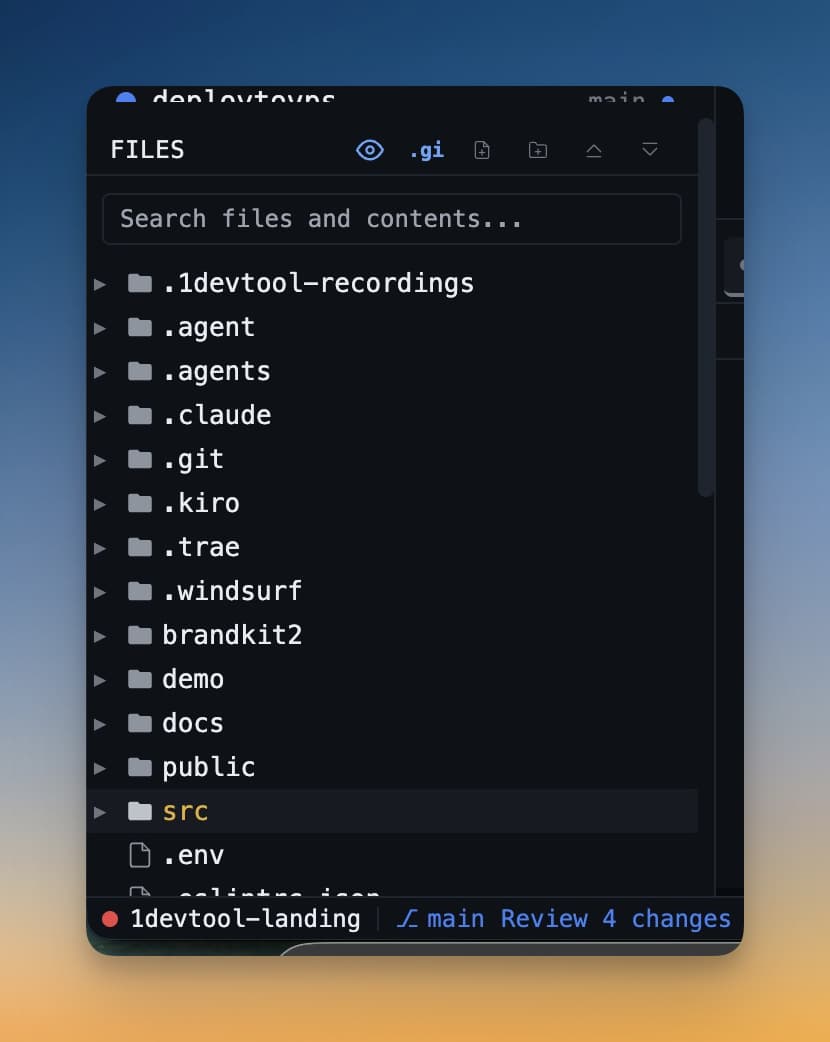
Left sidebar में file tree project का पूरा directory structure दिखाता है। यहां से folders browse कर सकते हैं, IDE Strip में files खोल सकते हैं, और file paths terminals में drag कर सकते हैं। Codebase navigate करने के लिए जो चाहिए सब एक click में।
File Tree Browse करना
File tree automatically load होती है जब project folder selected हो। Folders expandable हैं — folder name के पास arrow click करके expand या collapse करें। Tree सभी files और folders दिखाता है, hidden ones जैसे .env और .gitignore भी।
IDE Strip में खोलने के लिए कोई भी file click करें। File तुरंत नए tab में खुलती है, file extension के हिसाब से syntax highlighting के साथ।
Tabs के साथ काम करना
Multiple files खोलने पर IDE Strip के ऊपर tabs के रूप में दिखती हैं। किसी tab पर click करके switch करें। Tabs left या right drag करके reorder करें।
Unsaved file अपने tab में नाम के पास small dot (●) दिखाती है। Quick visual reminder कि changes हैं जो disk पर अभी write नहीं हुए।
- Save:
Cmd+S(macOS) याCtrl+S(Windows/Linux) दबाएं - Tab बंद करें: Tab पर × click करें, या
Cmd+Wदबाएं
Quick File Open
Tree में hunt नहीं करना? Cmd+P (macOS) या Ctrl+P (Windows/Linux) दबाएं quick file search खोलने के लिए। Filename का कोई भी हिस्सा type करें और matching results तुरंत आते हैं। यह fuzzy search है — exact name type करने की ज़रूरत नहीं, बस narrow down करने के लिए enough characters। Selected file खोलने के लिए Enter दबाएं।
File Paths Terminals में Drag करना
File tree के साथ सबसे useful tricks में से एक: file tree से कोई भी file या folder drag करके terminal के input में drop करें। Editor में file खोलने की बजाय, यह terminal में full absolute path paste करता है। AI agent को specific file पर काम करवाना हो तो यह समय बचाता है — manually path type करने की बजाय drag करें।
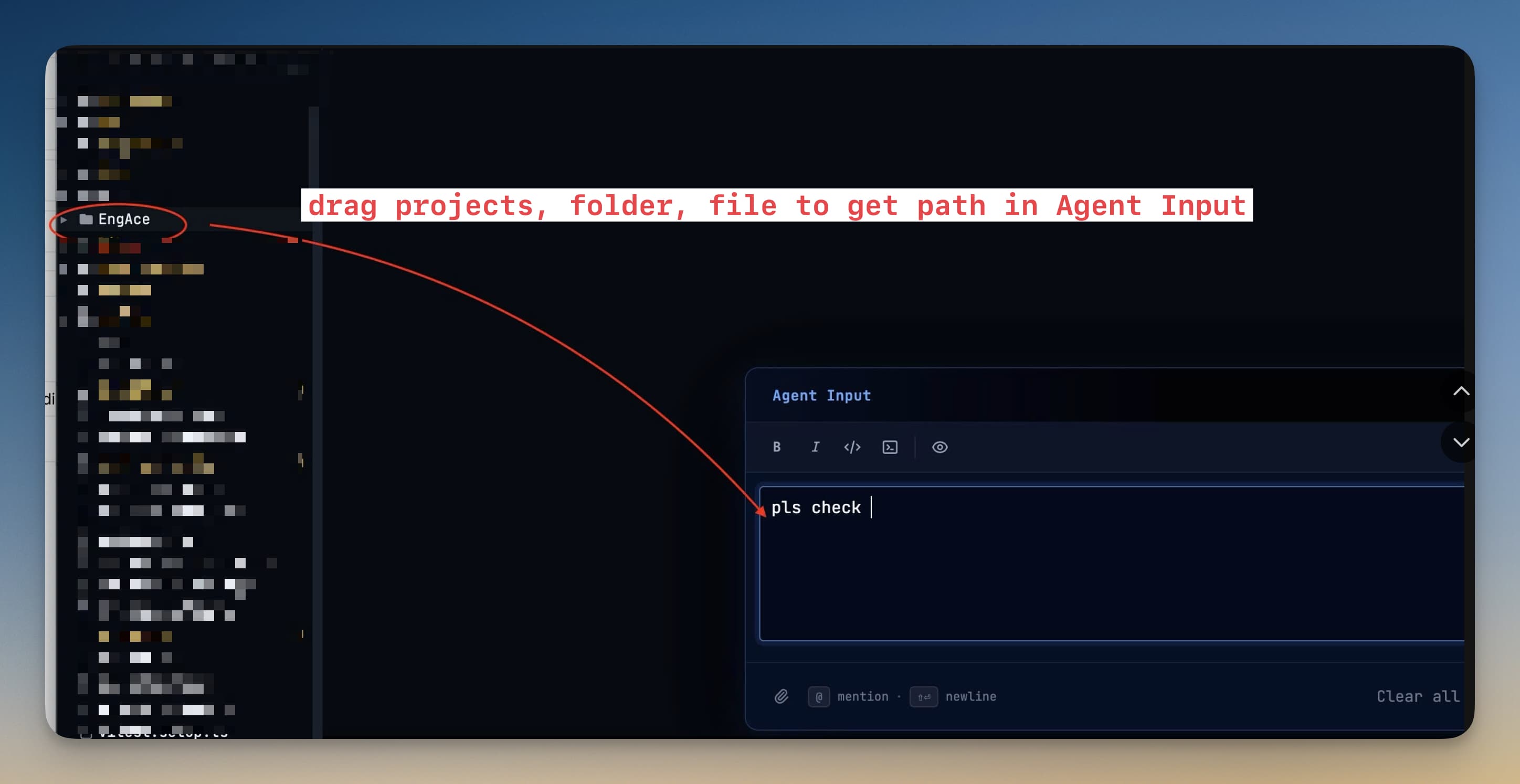
उदाहरण के लिए, src/components/LoginForm.tsx को Claude Code terminal में drag करें और type करें "refactor this component to use React hooks" — agent को exact path मिलती है बिना कुछ manually copy किए।
Tips
- Unsaved changes tab switches में persist होते हैं, इसलिए file A edit करें, file B पर switch करें, और file A पर वापस आएं बिना edits खोए।
- File tree automatically update होती है जब agents files create या delete करते हैं — refresh की ज़रूरत नहीं।
- File पर right-click करें Copy Path, Reveal in Finder, और Delete जैसे options access करने के लिए।