वर्कस्पेस अवलोकन
1DevTool के तीन ज़ोन को समझें और जानें कि पैनल एक साथ कैसे काम करते हैं।
जब आप पहली बार 1DevTool खोलते हैं, तो स्क्रीन तीन अलग-अलग ज़ोन में बंटी होती है। हर ज़ोन का एक खास काम होता है, और एक बार जब आपको पता चल जाए कि कहाँ क्या है, तो कुछ ही मिनटों में आप सहज महसूस करने लगेंगे।
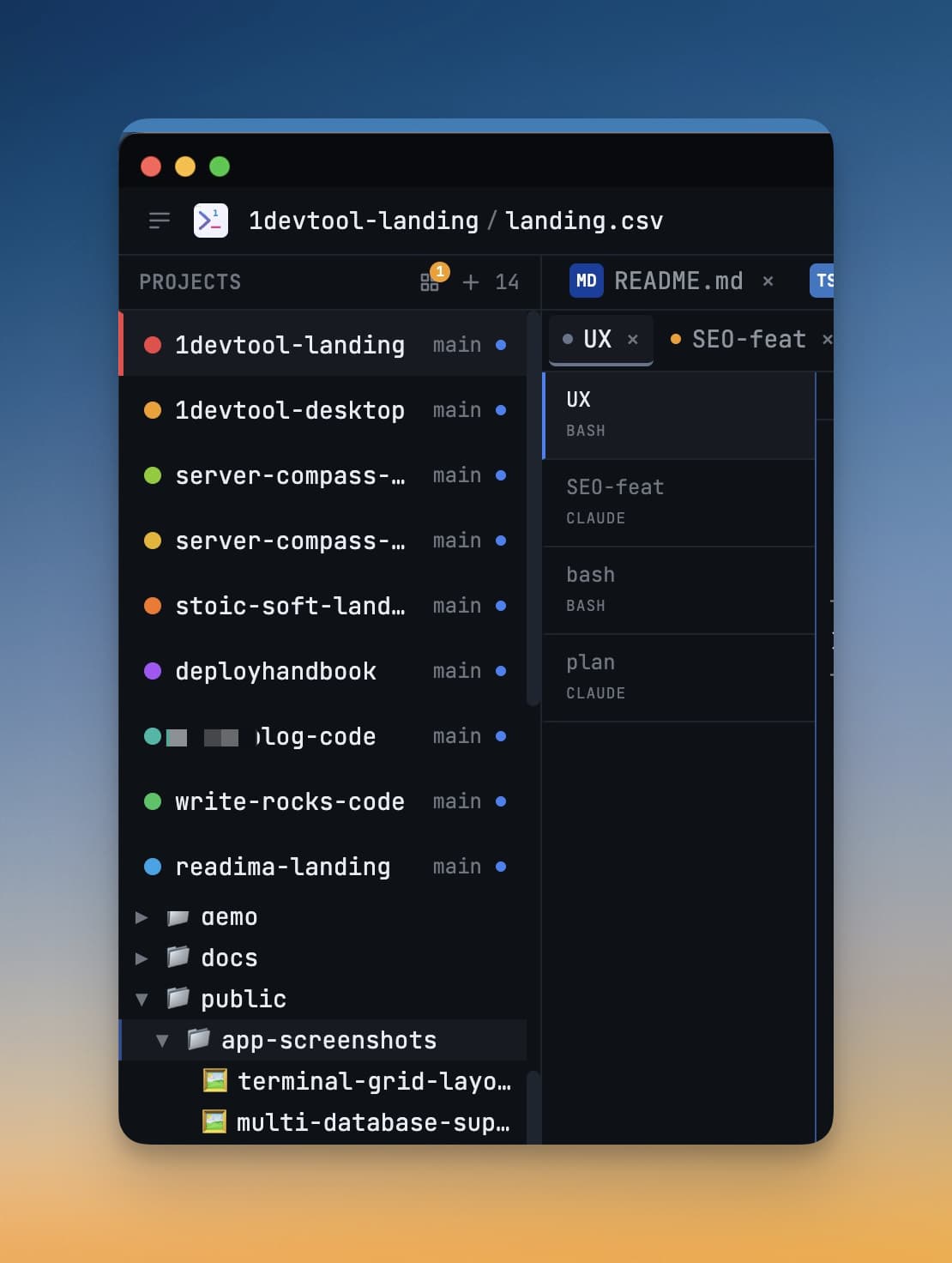
तीन ज़ोन
बायाँ साइडबार
बायाँ साइडबार आपका प्रोजेक्ट हब है। यह रंग-कोडेड आइकनों का एक वर्टिकल स्टैक दिखाता है — हर प्रोजेक्ट के लिए एक आइकन। रंग की वजह से आप बिना कोई टेक्स्ट पढ़े, एक नज़र में अपने प्रोजेक्ट्स को आसानी से पहचान सकते हैं।
साइडबार के नीचे आपको ग्लोबल सेटिंग्स, सेशन मैनेजर, और अन्य ऐप-लेवल कंट्रोल्स के लिए नेविगेशन आइकन मिलेंगे।
प्रोजेक्ट बदलने के लिए, बस किसी भी प्रोजेक्ट आइकन पर क्लिक करें। 1DevTool तुरंत उन्हीं पैनलों और टर्मिनलों को बहाल कर देता है जो आपने उस प्रोजेक्ट में पिछली बार काम करते समय खोले थे। आपका पिछला प्रोजेक्ट बैकग्राउंड में चुपचाप चलता रहता है — कुछ भी बंद नहीं होता।
मुख्य क्षेत्र
मुख्य क्षेत्र वह बड़ा केंद्रीय हिस्सा है जहाँ सब कुछ होता है। यह पैनलों से बना है — अलग-अलग विंडो जिनमें से हर एक का एक ही मकसद होता है। आप एक साथ कई पैनल खोल सकते हैं, चाहे साथ-साथ हों या ग्रिड में व्यवस्थित हों।
1DevTool में उपलब्ध पैनल प्रकार यहाँ दिए गए हैं:
| पैनल | क्या करता है |
|---|---|
| टर्मिनल्स | पूरे टर्मिनल जहाँ आप AI एजेंट (Claude Code, Codex, Gemini CLI, Grok, Cursor…) या कोई भी शेल कमांड चला सकते हैं |
| File Tree + Editor | एक ही वर्कस्पेस में प्रोजेक्ट ब्राउज़ करें और फाइलें एडिट करें — या स्टैंडअलोन File Explorer के साथ इन्हें अलग कर दें |
| Mission Control | लाइव orchestration कॉकपिट — प्रतिभागी, काउंटर, और एक-क्लिक रिकवरी |
| Quota Center | प्रत्येक प्रोवाइडर के लिए लाइव AI उपयोग और कोटा |
| Database | बिना किसी अलग GUI ऐप के अपने डेटाबेस को विज़ुअली ब्राउज़ और क्वेरी करें |
| HTTP Client | API रिक्वेस्ट भेजें और रिस्पॉन्स जाँचें, बिल्ट-इन Postman की तरह |
| Git | बदलाव स्टेज करें, कमिट मैसेज लिखें, और डिफ देखें — अगर आपके प्रोजेक्ट में हैं तो कई रिपॉज़िटरी में भी |
| Browser | एक असली ब्राउज़र पैनल ताकि आप अपने ऐप को बनाते समय प्रीव्यू कर सकें — और किसी एजेंट को इसे चलाने दें |
| ToolBox | छोटे-छोटे डेवलपर यूटिलिटीज़ — JSON, JWT, हैश, पासवर्ड, कन्वर्टर |
| Mobile | फोन साइज़ में अपने ऐप को जाँचने के लिए एक मोबाइल एमुलेटर |
| AI Diff | देखें कि किसी एजेंट ने फाइल-दर-फाइल क्या बदला |
पैनल आपके लेआउट के हिसाब से रखे जाते हैं। कोई भी पैनल विंडो पर फुलस्क्रीन हो सकता है और Escape दबाकर वापस आ सकता है, और दाएँ साइडबार में मौजूद पैनल ग्रुप अपना-अपना एक्टिव टैब याद रखते हैं।
फुल-विंडो वर्कस्पेस — Tasks, Git क्लाइंट, Orchestration Dashboard — किसी स्लॉट में नहीं बल्कि पूरी विंडो पर खुलते हैं।
स्टेटस बार
विंडो के सबसे नीचे मौजूद पतली पट्टी स्टेटस बार है। आप जो भी कर रहे हों, यह हमेशा दिखाई देती है और यह दिखाती है:
- वर्तमान प्रोजेक्ट का नाम
- कितने टर्मिनल सेशन एक्टिव हैं
- सिस्टम रिसोर्स उपयोग (CPU और मेमोरी)
- सेशन मैनेजर आइकन — सभी प्रोजेक्ट्स में चल रहे हर टर्मिनल सेशन को देखने के लिए इस पर क्लिक करें
पैनलों के साथ काम करना
पैनल जोड़ना
पैनल पिकर खोलने के लिए किसी भी पैनल के हेडर में + बटन पर क्लिक करें। जो पैनल टाइप चाहिए उसे चुनें और वह मुख्य क्षेत्र में अगले उपलब्ध स्लॉट में दिखाई देगा।
आप मुख्य क्षेत्र के ऊपर मौजूद टूलबार का भी इस्तेमाल कर सकते हैं — इसमें हर पैनल टाइप के लिए क्विक-ऐड बटन होते हैं ताकि आपको मेन्यू खोजने की ज़रूरत न पड़े।
पैनलों का आकार बदलना
अपने कर्सर को दो पैनलों के बीच के डिवाइडर पर ले जाएँ। कर्सर एक रीसाइज़ हैंडल (दो सिरों वाला तीर) में बदल जाएगा। जिस पैनल को ज़्यादा जगह देनी हो, उसके लिए क्लिक करके खींचें।
टिप: थोड़ी देर के लिए फोकस करने के लिए, एक्टिव पैनल को पूरे मुख्य क्षेत्र में फैलाने के लिए
Cmd+Shift+F(Mac) याCtrl+Shift+F(Windows) दबाएँ। पिछले लेआउट पर वापस जाने के लिए वही शॉर्टकट फिर से दबाएँ।
पैनल बंद करना
पैनल के टैब पर × पर क्लिक करें, या पैनल फोकस में होने पर Cmd+W (Mac) / Ctrl+W (Windows) दबाएँ। पैनल बंद करने से उसके अंदर चल रही कोई भी प्रक्रिया बंद नहीं होती। टर्मिनल बैकग्राउंड में चलते रहते हैं और स्टेटस बार में मौजूद सेशन मैनेजर से कभी भी दोबारा कनेक्ट किए जा सकते हैं।
प्रोजेक्ट्स के बीच स्विच करना
प्रोजेक्ट बदलने के लिए बाएँ साइडबार में किसी भी आइकन पर क्लिक करें। 1DevTool कॉन्टेक्स्ट स्विच को तुरंत संभाल लेता है:
- नए प्रोजेक्ट के लिए आपके पैनल बिल्कुल वैसे ही बहाल होते हैं जैसे आपने उन्हें छोड़ा था
- पिछले प्रोजेक्ट के टर्मिनल सेशन बैकग्राउंड में चलते रहते हैं
- स्टेटस बार अपडेट होकर नए एक्टिव प्रोजेक्ट को दिखाता है
दिखाई देने वाले टर्मिनल सबसे पहले बहाल होते हैं, एडिटर ग्रुप, खुले हुए फोल्डर, और Git स्टेटस से पहले — ताकि भारी पैनलों के लोड होने के दौरान भी आप एक चल रहे एजेंट को देख सकें।
आप किसी प्रोजेक्ट पर उसकी साइडबार में मौजूद पोज़िशन के आधार पर सीधे जाने के लिए Cmd+1 से Cmd+9 (Mac) या Ctrl+1 से Ctrl+9 (Windows) भी दबा सकते हैं — माउस की ज़रूरत नहीं।
जब साइडबार आपकी पसंद की जगह पर न हो, तो इसके लिए दो शॉर्टकट हैं:
- इसे 40-पिक्सेल रेल तक छोटा करें और हर प्रोजेक्ट का अवतार, रंग, और इमोजी उसी क्रम में दिखता रहेगा। साइडबार को दोबारा खोले बिना स्विच करने के लिए किसी एक पर क्लिक करें।
- प्रोजेक्ट्स को विंडो के ऊपर एक पट्टी में पूरी तरह ले जाने के लिए Horizon लेआउट का इस्तेमाल करें।
हर प्रोजेक्ट रो में क्विक एक्शन भी होते हैं — पहले प्रोजेक्ट बदले बिना और फिर पैनल ढूँढ़े बिना, सीधे File Tree, Git Client, नए टर्मिनल, Browser, या Mission Control पर जाएँ।
टॉप टूलबार
टूलबार मुख्य क्षेत्र के ऊपर स्थित है और आपको सबसे आम एक्शन तक तेज़ी से पहुँच देता है:
- लेआउट पिकर — हर बिल्ट-इन लेआउट और आपके सेव किए हुए लेआउट भी (देखें Layout Modes)
- Tasks, Notes, Templates, Draw — फुल-विंडो वर्कस्पेस
- Orchestration, MCP, Memory, Skills, AI Diff — AI टूलबेल्ट
- Terminals — सभी प्रोजेक्ट्स में चल रही हर चीज़ की सूची
- Commands — कमांड पैलेट (
Cmd+K/Ctrl+K)