AI Agent चलाएं
कोई भी समर्थित कोडिंग Agent शुरू करें — Claude Code, Codex, Gemini, Grok, Antigravity और अन्य — और उसे अपना प्रोजेक्ट बनाते हुए देखें।
1DevTool में AI कोडिंग Agent चलाना सीधा है: एक Terminal खोलें, एक Agent चुनें, एक Prompt टाइप करें, और Agent काम पर लग जाता है। यह पेज उस पूरी प्रक्रिया को बताता है, जिसमें वे टूल्स भी शामिल हैं जो Agents को चलते समय मैनेज करना आसान बनाते हैं।
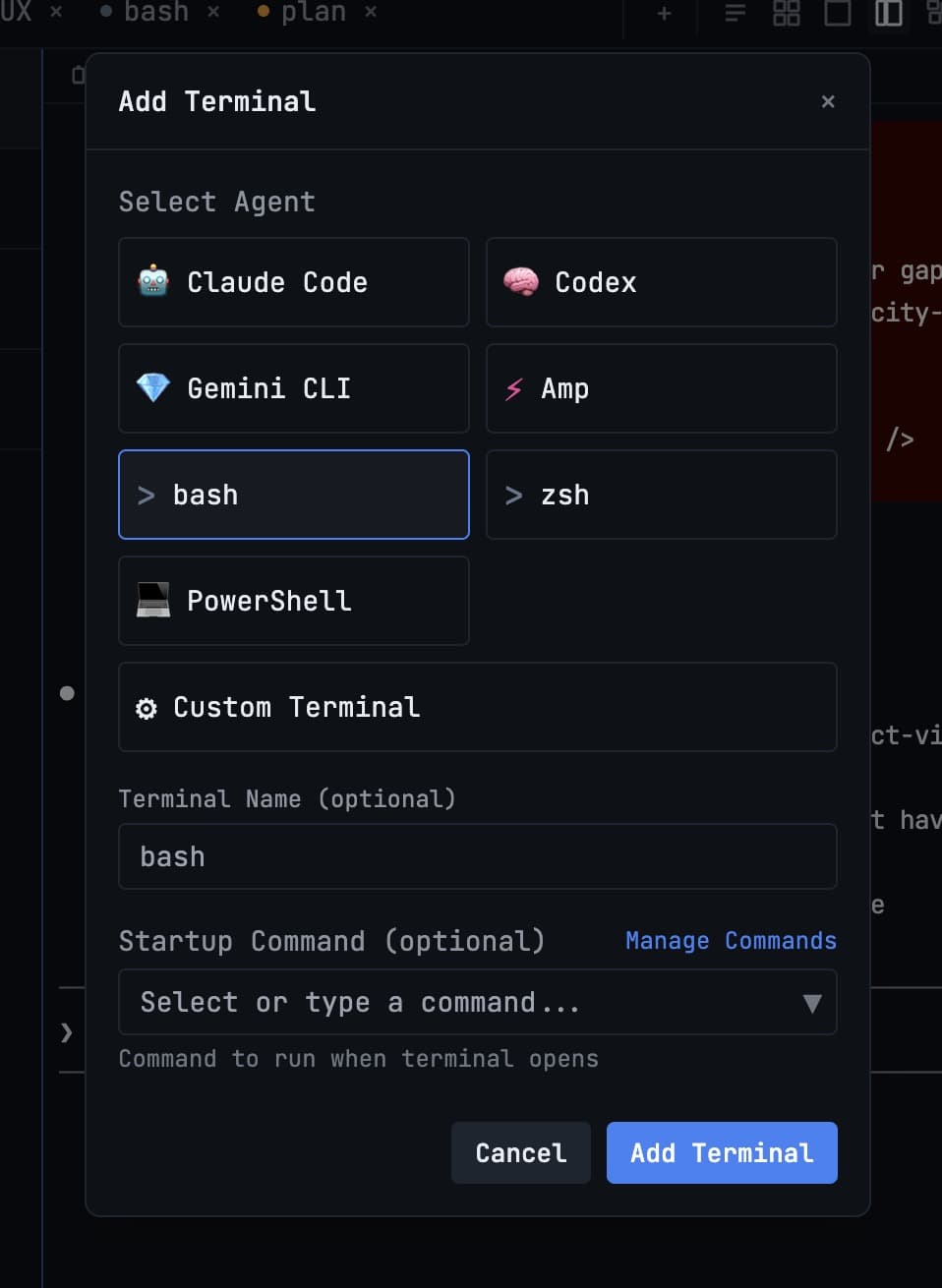
Agent चुनना
1DevTool हर समर्थित कोडिंग Agent को first-class Terminal के रूप में मानता है — चाहे आप कोई भी चुनें, एक ही Prompt handling, session resume और usage tracking लागू होती है। जब आप Terminal जोड़ते हैं, तो इनमें से चुनें:
- Claude Code (Anthropic)
- Codex (OpenAI)
- Gemini CLI (Google)
- Grok (xAI)
- Antigravity (Google)
- Amp (Sourcegraph)
- Kimi Code (Moonshot)
- Pi
- Cursor CLI, Hermes Agent, OpenCode, Qwen Code, Cline, Qoder, और Windsurf
- एक सादा Bash, zsh, या PowerShell shell जब आप सिर्फ एक Terminal चाहते हैं
जिन Agents आपने अभी तक install नहीं किए हैं, वे टूटे Terminal launch होने के बजाय Setup badge दिखाते हैं — खाली workspace से Scan My Machine या Settings → System का उपयोग करें ताकि वे CLI detect हो जाएं जो आपके पास पहले से हैं। सूची में मौजूद नहीं कोई भी command एक custom agent के रूप में जोड़ी जा सकती है, ताकि वह भी पूरी AI handling के साथ launch हो।
नए Agents को भी उतना ही महत्व दिया जाता है जितना पहले से ship हुए — model chips, slash commands, skills, headless sends, team delegation, Resume, और Sub-agent History सभी एक ही तरह काम करते हैं:
- Kimi Code —
kimiCLI install करें, फिर उसे Add Terminal, Change AI, Vibe Coder, या किसी अन्य Agent picker से खोलें। Design, Prototype, और MCP surfaces Kimi को target कर सकते हैं जब यह install हो। - Pi —
piCLI install करें और उसे उसी तरह खोलें। पिछली Pi sessions Resume panel से resume होती हैं और Sub-agent History में turn by turn पढ़ी जा सकती हैं।
Cursor ने अपना command rename किया है। हाल की Cursor installs CLI को
agentके रूप में ship करती हैं; पुरानी installscursor-agentship करती हैं। 1DevTool दोनों को macOS, Linux, और Windows पर recognize करता है, Cursor को अन्य टूल्स से अलग बताता है जो उसी नाम का command install करते हैं, और दोनों को real AI Terminal मानता है — agent overlay, session detection, और resume के साथ। सादाcursoreditor launcher है और कभी agent नहीं होता।
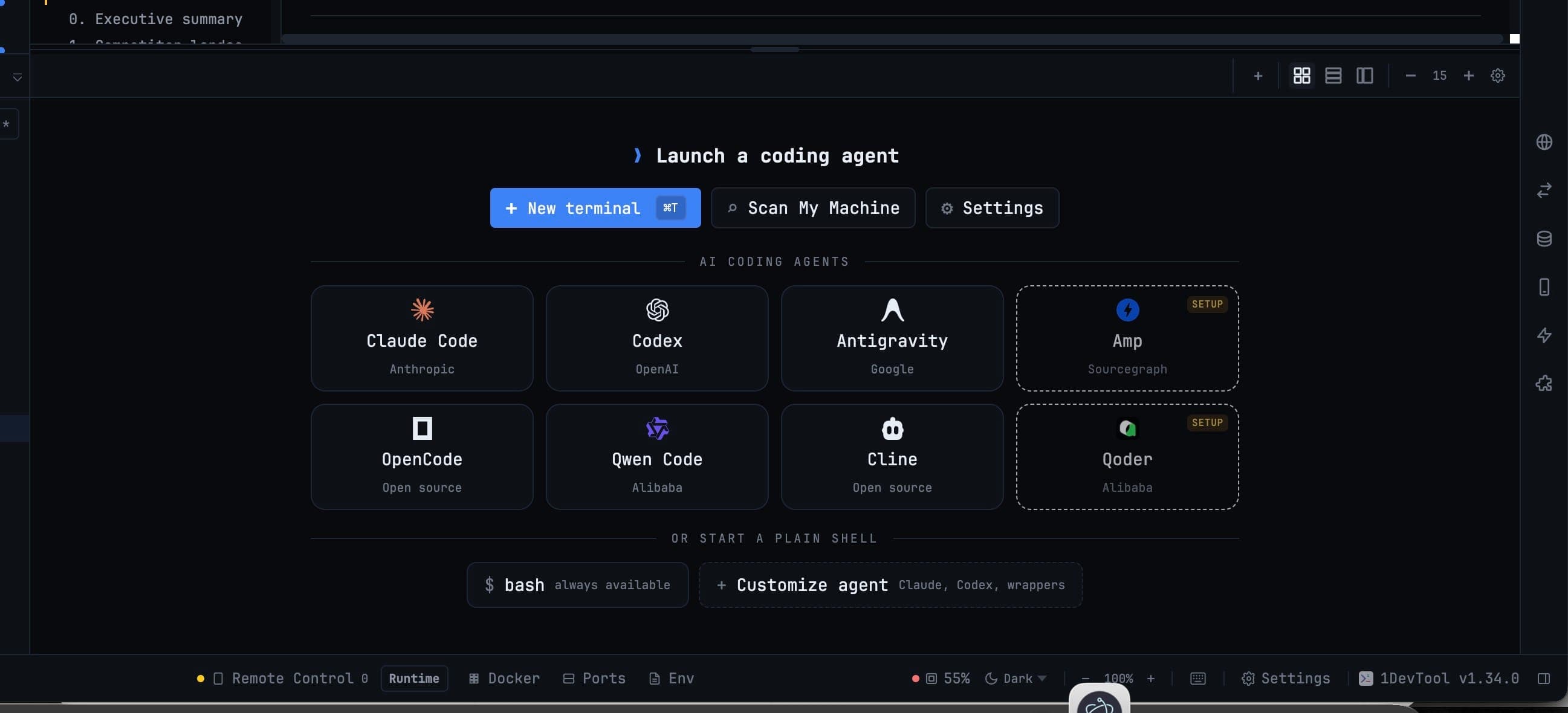
Agent शुरू करना
जब आप एक नया Terminal जोड़ते हैं और Agent type चुनते हैं, Terminal स्वचालित रूप से आपके project's root folder में खुल जाता है। आपको वहां navigate करने की जरूरत नहीं है — 1DevTool उस folder का उपयोग करता है जो आपने sidebar में project जोड़ते समय set किया था।
Agent शुरू होता है और अपना welcome prompt दिखाता है, आपकी पहली instruction का इंतजार करते हुए।
Prompt टाइप करना
Terminal के अंदर क्लिक करके focus करें, फिर अपना Prompt वैसे ही टाइप करें जैसे किसी भी Terminal में करते हैं। AI Agents natural language स्वीकार करते हैं, इसलिए कोई special syntax याद रखने की जरूरत नहीं है। बस बताएं कि आप क्या चाहते हैं:
Add a search bar to the homepage that filters the product list in real time
Prompt भेजने के लिए Enter दबाएं। Agent आपकी codebase पढ़ता है, अपना approach plan करता है, और बदलाव करना शुरू कर देता है। आप उसे real time में काम करते हुए देख सकते हैं — वह files जो edit कर रहा है और commands जो run कर रहा है, दिखाता है।
Agent Input composer
AI agent terminals एक full-screen text interface (TUI) का उपयोग करते हैं जो normal keyboard input को take over कर लेता है, इसलिए cursor movement, paste, और multi-line editing Terminal के अंदर unpredictable behave करते हैं।
Agent Input आपको Terminal के बाहर एक real text box देता है। macOS पर Cmd+I दबाएं, या Windows और Linux पर Ctrl+Alt+I। अपना Prompt normal editing shortcuts के साथ लिखें, फिर Cmd+Enter / Ctrl+Enter से भेजें।
यह float और resize होता है, unsent drafts रखता है, @ mentions लेता है files, agents, terminals, templates, और skills के लिए, और verify करता है कि आपका Prompt वास्तव में composer से निकला इससे पहले कि run को started report किया जाए। पूरी जानकारी Agent Input में।
Context कितना full है, यह जानना
एक context chip model chip के बगल में Terminal tabs और pane headers पर बैठता है, जो दिखाता है कि पिछले turn ने context window का कितना हिस्सा इस्तेमाल किया। यह progress ring के रूप में draw होता है, 80% पर amber और 90% पर red हो जाता है, tooltip में token counts बताता है, और साफ कहता है जब window size unknown हो।
जब एक long session worse answers देना शुरू करती है, तो यही कारण आम तौर पर होता है।
Live run timers
एक चल रहा Agent अपने tab पर एक elapsed timer दिखाता है, ताकि आप "thinking hard" और "stuck" में अंतर बता सकें बिना उस पर switch किए। Timers सिर्फ visible होने पर update होते हैं और 1DevTool background में होने पर pause हो जाते हैं।
Prompt History
आपके द्वारा Agent को भेजा हर Prompt आपकी prompt history में save होता है। पिछले prompts को scroll back करने और reuse या edit करने के लिए Cmd+Up (Mac) या Ctrl+Up (Windows/Linux) दबाएं।
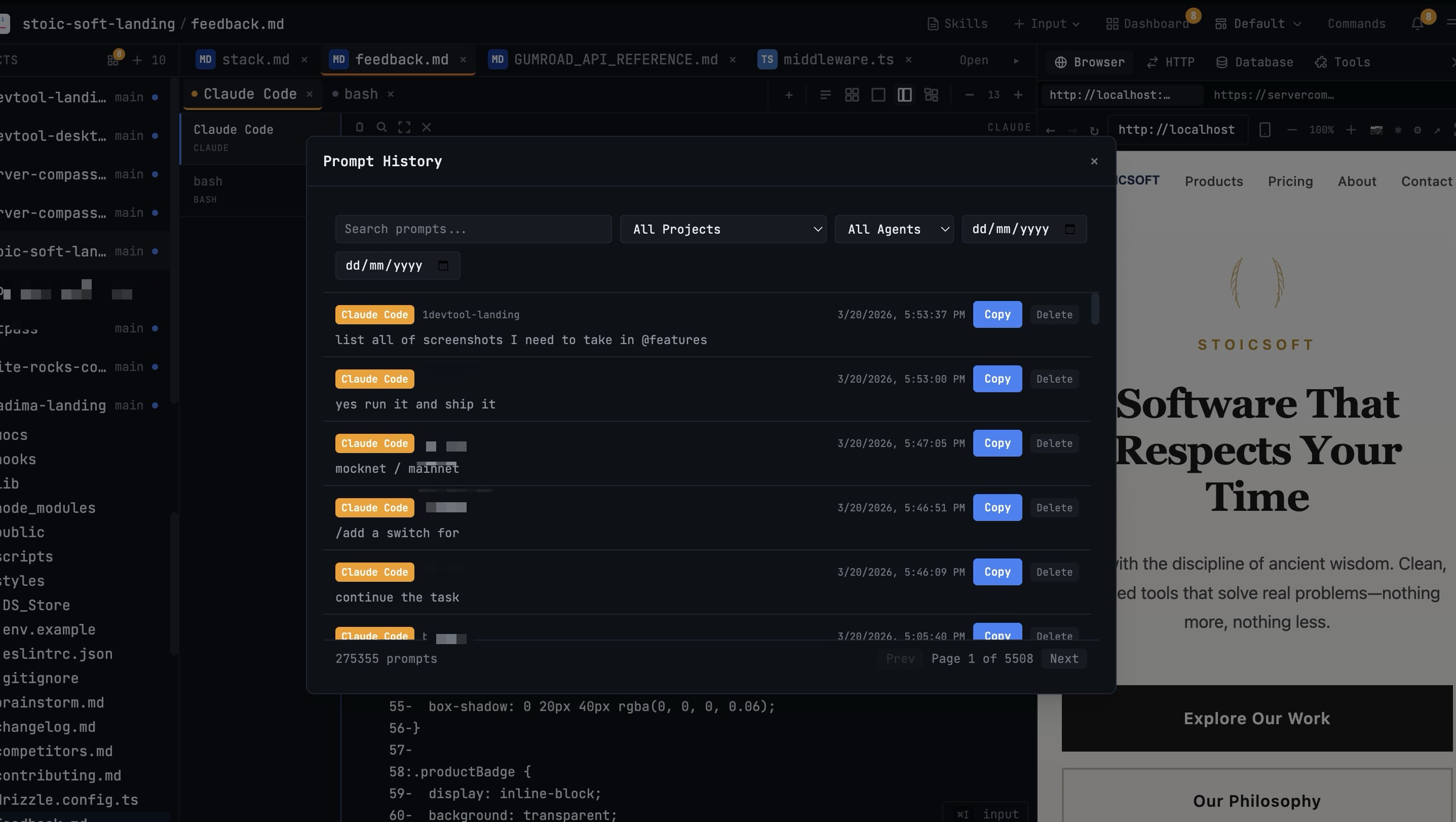
यह तब काम आता है जब आप किसी task पर iterate कर रहे हों और पहले से टाइप किए Prompt का थोड़ा modified version re-send करना चाहें, बिना scratch से लिखे। History में आगे बढ़ने के लिए Cmd+Down / Ctrl+Down दबाएं।
Session के बीच में Agents बदलना
आप जिस Agent से शुरू किए थे, उसमें lock नहीं हैं। Terminal से आप दूसरे AI Agent पर switch कर सकते हैं और उसी tab में continue कर सकते हैं — useful जब आप एक ही problem पर दूसरे model की राय चाहते हों, या जब एक Agent wall पर hit कर जाए। आपकी recent session agents के बीच resume हो सकती है जहां matching conversation मौजूद हो, इसलिए thread नहीं खोता।
AI Terminal tabs current session के नाम से अपना नाम रखते हैं, इसलिए चल रहे Agents की एक पंक्ति पढ़ने पर पता चलता है कि हर एक क्या कर रहा है, "Terminal 2, Terminal 3" के बजाय।
Command preset पर जीतता है। जब एक saved preset एक Agent का नाम लेता है लेकिन startup command दूसरा launch करता है, 1DevTool command follow करता है — ताकि label, readiness check, prompt delivery, और resume सभी एक ही Agent पर agree करें, इसके बजाय कि कोई एक उस composer का इंतजार करे जो exist नहीं करता।
Agents के बीच Delegation
बड़े tasks के लिए, एक Agent दूसरे को काम delegate कर सकता है। Agent Input में एक open AI Terminal का mention करें और आपका Prompt उस live Agent में deliver हो जाता है, आपके पास reply channel के साथ — Linked Terminals देखें। बड़े jobs के लिए, Agent Team या Swarm शुरू करें।
एक delegated run एक sub-agent badge के रूप में दिखता है ताकि आप किसने क्या किया, इस chain को follow कर सकें, और Mission Control पूरी picture live दिखाता है।
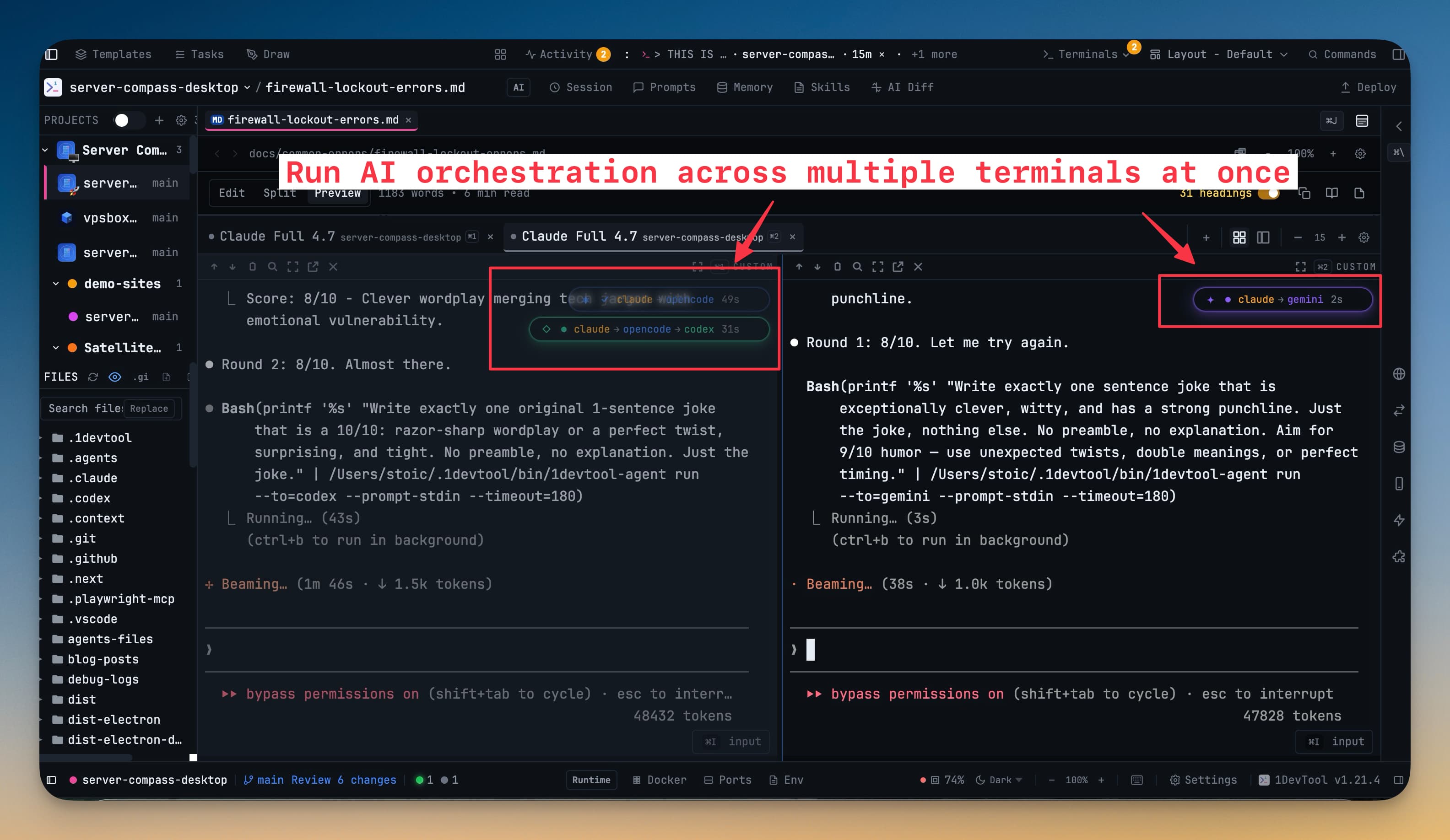
Multiple Agents Simultaneously चलाना
यही वह feature है जो 1DevTool को एक regular Terminal app में AI Agents चलाने से fundamentally अलग बनाती है।
आप कई Agents एक साथ चला सकते हैं — हर एक अपने Terminal panel में, हर एक आपके प्रोजेक्ट के अलग हिस्से पर काम कर रहा है। उदाहरण के लिए:
- Top-left: Claude Code एक नया API endpoint add कर रहा है
- Top-right: Codex उस feature के लिए tests लिख रहा है जो उसने पहले बनाया
- Bottom-left: एक Bash Terminal आपका dev server run कर रहा है ताकि आप changes live देख सकें
- Bottom-right: एक Browser panel app को update होते हुए दिखाता है
चारों simultaneously active हैं। आप किसी भी Agent को किसी भी समय नया Prompt भेज सकते हैं, दूसरे का output check कर सकते हैं, और browser में app update देख सकते हैं — सब बिना windows switch किए या context खोए।
2×2 grid layout विशेष रूप से इस तरह के parallel work के लिए design किया गया है। Setup करने का तरीका Layout Modes में देखें।
Usage पर नजर रखना
जब आप कई paid Agents एक साथ चलाते हैं, तो quota कितना बचा है यह track करना आसानी से भूल जाता है। 1DevTool live usage और reset times सीधे status bar में दिखाता है — AI Usage & Quota देखें — और आपके हर account को Spend & Quota Center (Cmd+Shift+U) में इकट्ठा करता है। और जब आप अपनी desk से दूर हों, तो Remote Control के जरिए अपने phone से इन्हीं Agents को Prompt करना जारी रख सकते हैं।