Git Worktrees
Stash किए बिना एक साथ multiple branches पर काम करें — हर एक अपने folder में।
Worktrees day-to-day development की सबसे frustrating problems में से एक solve करते हैं: किसी काम के बीच में branches switch करना। Worktrees से switch नहीं करते — दूसरे folder में दूसरी branch खोलते हैं और दोनों में एक साथ काम करते हैं।
Git Worktree क्या है?
आमतौर पर git repository का एक working directory होता है — वो folder जहां files रहती हैं। किसी भी moment में exactly एक branch उस folder में checked out होती है। अलग branch देखनी हो तो checkout करना पड़ता है, जो files उस branch के version से replace कर देता है। अगर current काम commit नहीं किया तो पहले stash करना होता है, जो annoying और error-prone है।
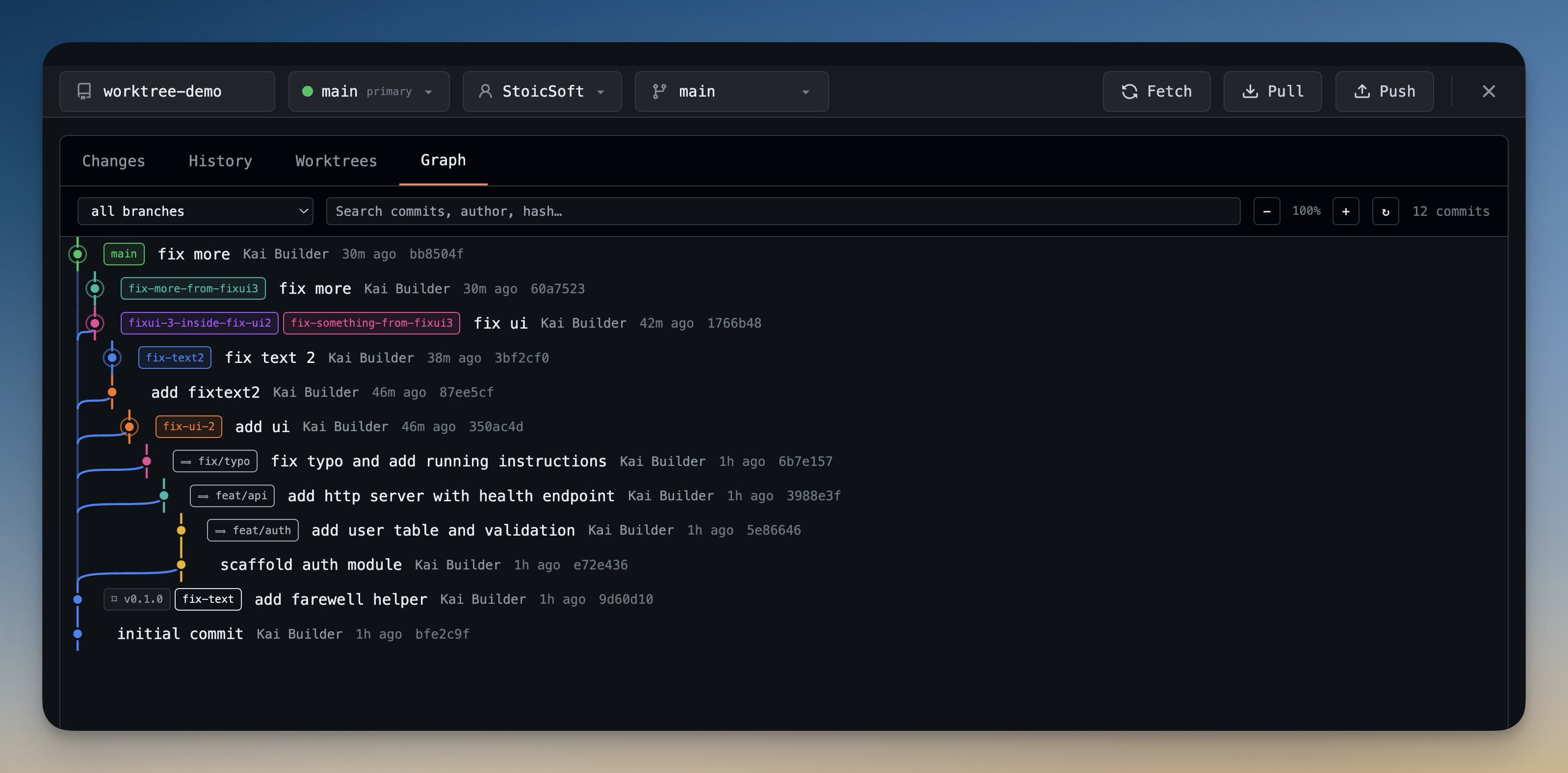
Worktree एक दूसरा (या तीसरा, या चौथा) working directory है जो उसी git repository से linked है। हर worktree में अपनी branch checked out होती है, अपनी file state, अपनी history। सब same .git folder और commit history share करते हैं — बस same repo के अलग windows हैं।
Concrete example: AI agent feature/payments पर नई feature build कर रहा है। Colleague fix/login-bug पर PR review करने को कहते हैं। Feature काम stash करने की बजाय fix/login-bug के लिए अलग folder में worktree create करें। वहां PR review करें जबकि feature branch original folder में untouched रहती है।
Worktree Create करें
- Git panel खोलें — Cmd+G दबाएं
- Panel के ऊपर Worktrees tab click करें
- + Add Worktree click करें
- Branch चुनें — list से existing branch या नई branch name type करके create करें
- नए worktree के लिए folder location चुनें (default में 1DevTool current project folder के बगल में folder suggest करता है)
- Create click करें — 1DevTool
git worktree addचलाता है और नया worktree folder active workspace के रूप में खोलता है
नया worktree अब Worktrees tab में main worktree के साथ listed है।
Worktree Terminals
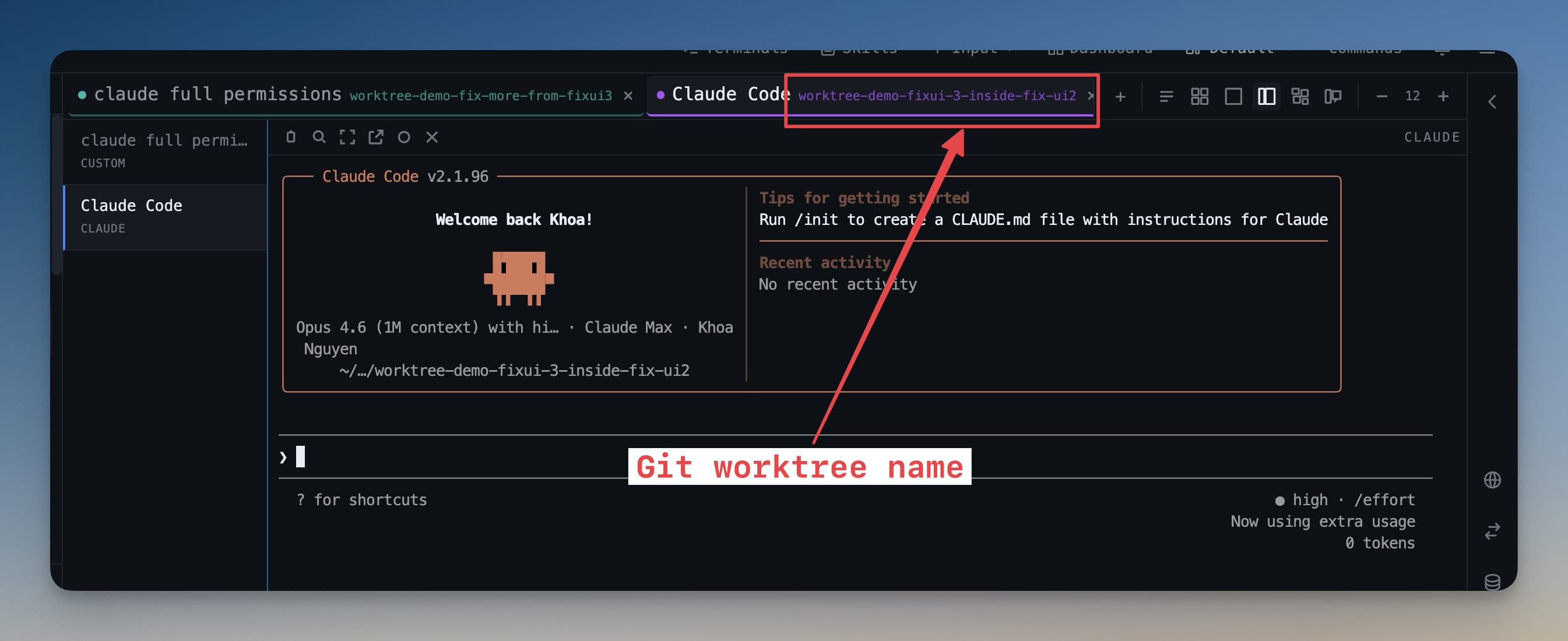
1DevTool worktree create करने पर उस worktree के folder scoped नया terminal भी खोलता है। Terminal title में branch name दिखती है ताकि हमेशा पता रहे किस branch में काम हो रहा है।
उस terminal में AI agent worktree folder में operate करता है — files पढ़ और लिख सकता है, commands चला सकता है, और उस branch पर changes कर सकता है बिना दूसरी branches से कोई interference।
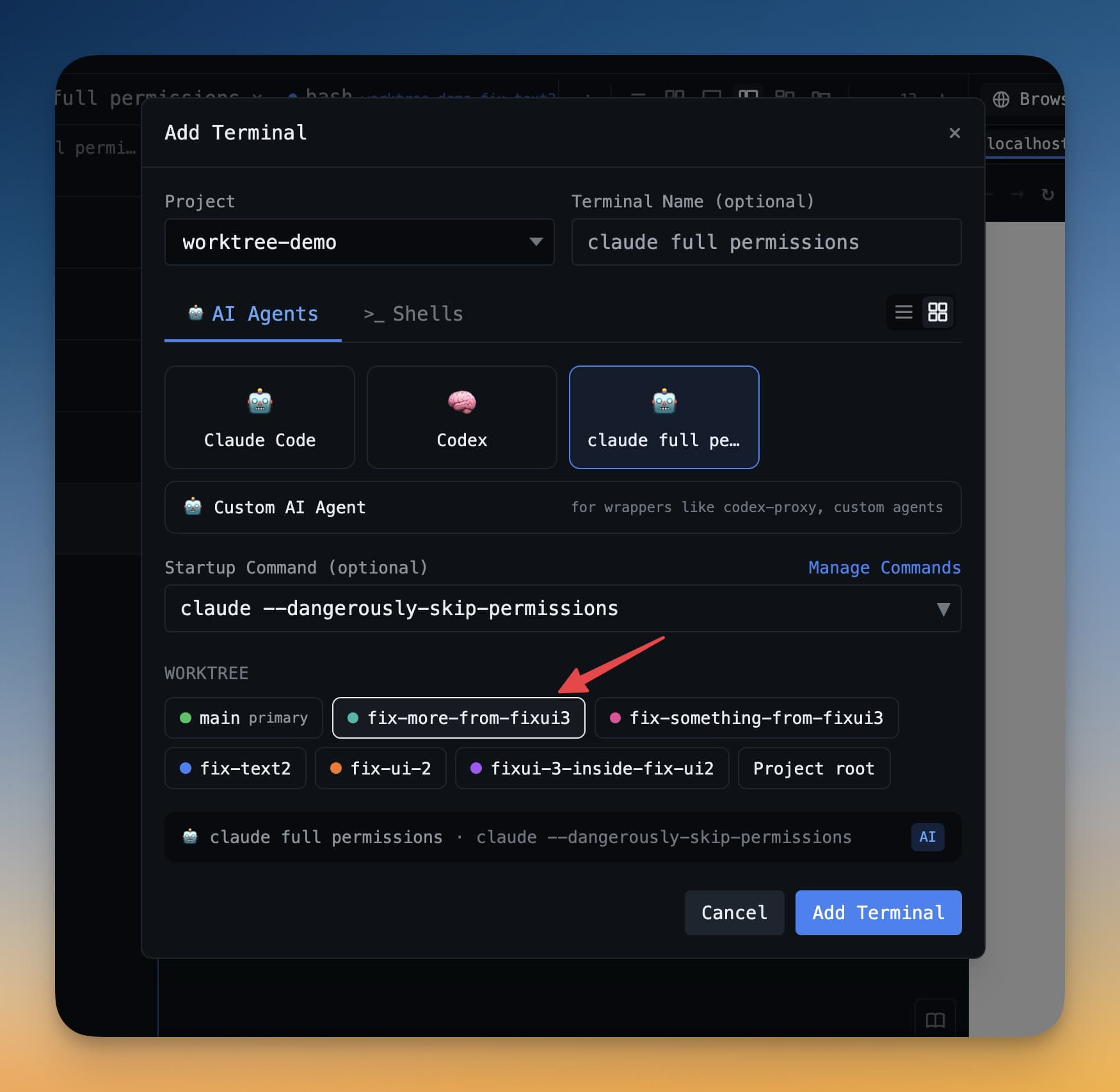
Multiple worktrees में एक साथ agents चला सकते हैं। एक agent payments feature पर काम करे जबकि दूसरा अलग branch पर bug fix करे। दोनों agents का अपना terminal है, अपना file context है, अपनी branch है — वो conflict नहीं कर सकते।
Worktree Remove करें
Worktree से काम हो जाए — PR merge हो गया, branch delete हो गया — तो cleanly remove करें:
- Git panel खोलें और Worktrees tab पर जाएं
- जो worktree remove करना हो वो ढूंढें
- उसके बगल में trash icon click करें
- Deletion confirm करें
यह worktree folder remove करता है और git से deregister करता है (git worktree remove के equivalent)। Branch खुद delete नहीं होती — सिर्फ working directory। ज़रूरत पड़े तो बाद में worktree फिर create कर सकते हैं।
Tip: AI agent को feature branch पर चलाने के लिए worktrees use करें जबकि main stable रहे। Agent accidentally main branch नहीं तोड़ सकता।
Worktrees git के सबसे कम use होने वाले features में से हैं। AI-assisted development के context में — जहां agent मिनटों में दर्जनों file changes कर सकता है — हर agent के काम को अपनी branch और folder में isolate करना एक significant safety net है।