DevTools
Elements inspect करने, JavaScript debug करने, और network requests monitor करने के लिए Chrome DevTools खोलें।
Embedded browser full Chrome DevTools का access देता है — वही inspector, console, और network monitor जो regular Chrome window में use करते हैं। AI agent ने जो build किया उसे debug करने, JavaScript errors check करने, या request कैसे बनती है inspect करने के लिए use करें।
DevTools खोलना
Browser panel header में DevTools button (🔧) click करें। Chrome DevTools workspace के साथ separate window में खुलता है। इस window को जहां convenient हो रखें — ज़्यादातर developers second monitor पर या browser panel के नीचे dock करते हैं।
DevTools Chrome की तरह भी खोल सकते हैं: browser panel के अंदर page पर कहीं भी right-click करें और Inspect चुनें। DevTools Elements tab के साथ खुलता है जो right-clicked element पर focused होता है।
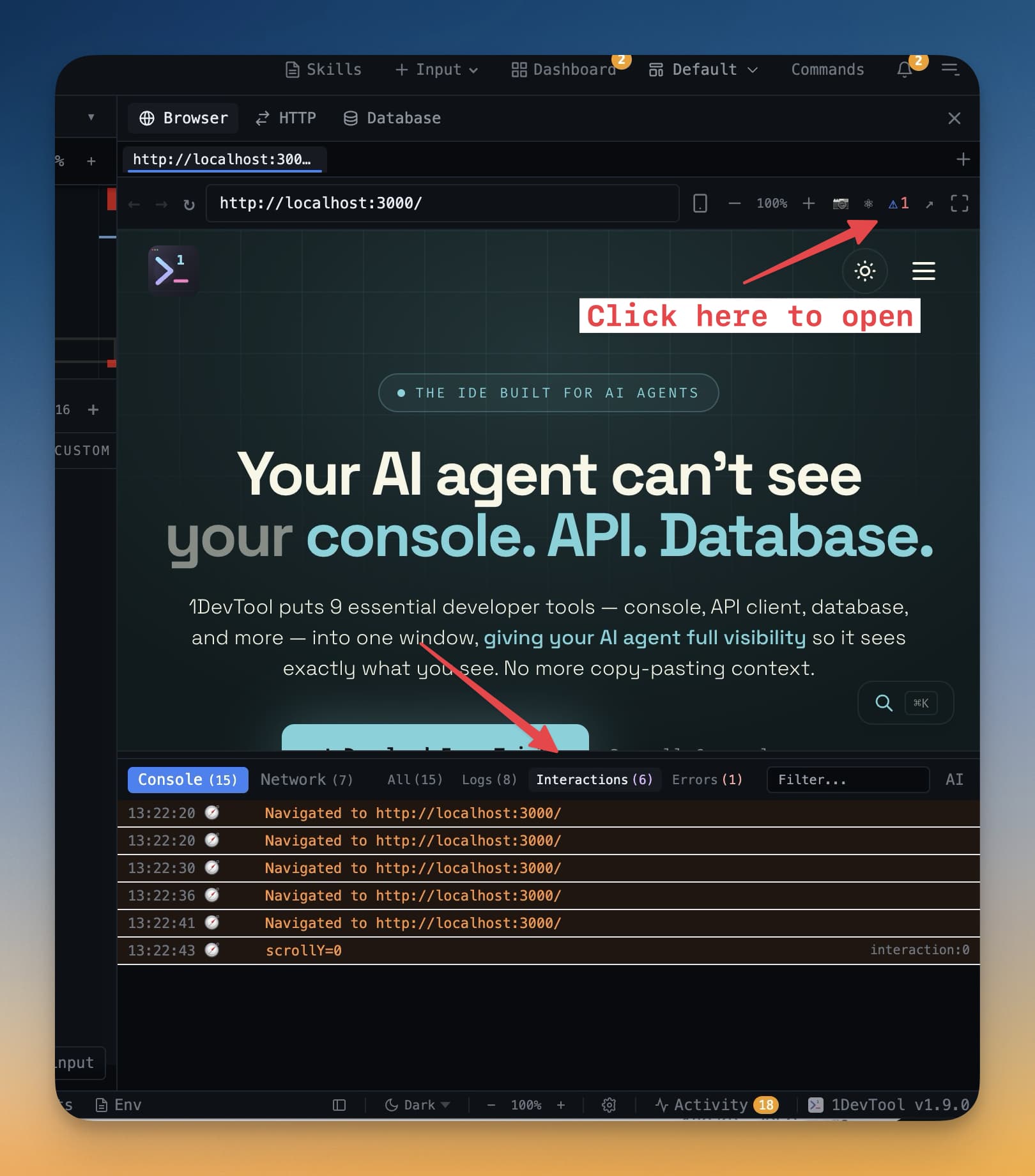
क्या-क्या Available है
Full DevTools toolset available है:
- Elements — page पर किसी भी element का HTML और CSS inspect और modify करें। Tree में element click करके browser में highlight करें, या page पर element click करके tree में ढूंढें। Source files touch किए बिना styles inline edit करें।
- Console —
console.logoutput, JavaScript errors, और warnings देखें। Files edit किए बिना चीज़ें test करने के लिए console में directly JavaScript expressions चलाएं। - Network — app के हर HTTP request monitor करें। Request headers, response bodies, timing, और status codes देखें। API calls correctly send हो रही हैं और responses ठीक लग रहे हैं check करने के लिए।
- Sources — breakpoints से JavaScript step through करें। Breakpoint set करें, browser में action trigger करें, और execution pause हो जाती है variable values inspect करने के लिए।
- Application — local storage, session storage, cookies, और IndexedDB inspect करें। Authentication state या browser में stored कुछ भी debug करने के लिए।
Common Debugging Scenarios
AI agent ने क्या build किया check करना: Elements panel खोलें और HTML structure explore करें। यह बताता है agent ने चीज़ें correctly wire की हैं या नहीं — correct class names, proper nesting, और right attributes।
JavaScript errors ढूंढना: Page load करने से पहले Console खोलें। कोई भी uncaught errors यहां file name और line number के साथ दिखती हैं। Error message AI agent के साथ share करें ताकि वो root cause fix करे।
API calls debug करना: Network tab खोलें और app में वो action click करें जो request trigger करे (जैसे login button click करना)। Request list में दिखेगी। Click करें full request और response देखने के लिए — authentication issues या malformed request bodies diagnose करने के लिए useful।
Tip: AI agent changes कर रहा हो तब Console tab खुला रखें। Errors page पर visible होने से पहले यहां दिखती हैं, जिससे क्या fix करना है इसकी earlier feedback मिलती है।