Keyboard Shortcuts
1DevTool के हर keyboard shortcut — जो सबसे ज़्यादा use हों उन्हें याद करें।
Keyboard shortcuts 1DevTool में move करने का सबसे तेज़ तरीका है। जो shortcuts सबसे ज़्यादा use करते हैं वो एक बार सीख लें, तो mouse की शायद ही ज़रूरत पड़ेगी। यह page app के हर shortcut list करती है।
सभी Shortcuts
| Action | macOS | Windows / Linux |
|---|---|---|
| Command Palette खोलें | Cmd+K | Ctrl+K |
| Terminal जोड़ें | Cmd+T | Ctrl+T |
| Project 1–9 पर switch करें | Cmd+1 … Cmd+9 | Ctrl+1 … Ctrl+9 |
| Database Panel खोलें | Cmd+D | Ctrl+D |
| HTTP Client खोलें | Cmd+H | Ctrl+H |
| Git Panel खोलें | Cmd+G | Ctrl+G |
| Sidebar toggle करें | Cmd+B | Ctrl+B |
| Layout Mode toggle करें | Cmd+Shift+L | Ctrl+Shift+L |
| Agent Input Overlay | Cmd+I | Ctrl+I |
| History में पिछला Prompt | Cmd+Up | Ctrl+Up |
| History में अगला Prompt | Cmd+Down | Ctrl+Down |
| Panel बंद करें | Cmd+W | Ctrl+W |
| Active Panel Fullscreen | Cmd+Shift+F | Ctrl+Shift+F |
| Quick Open File | Cmd+P | Ctrl+P |
| नया Project | Cmd+N | Ctrl+N |
पहले सीखने लायक Shortcuts
1DevTool में नए हैं तो सब एक साथ सीखने की कोशिश न करें। इन पांच से शुरू करें — ये रोज़ का ज़्यादातर काम cover करते हैं:
Cmd+K/Ctrl+K— Command Palette app के हर action की searchable list है। जब shortcut याद न हो, palette खोलें और जो ढूंढ रहे हैं वो type करें। Menus में ढूंढने से तेज़ है।Cmd+T/Ctrl+T— तुरंत नया terminal जोड़ें। Agents spin up करते वक्त यह बार-बार करेंगे।Cmd+I/Ctrl+I— Agent Input Overlay खोलें। AI terminal UIs keyboard takeover कर लेते हैं, इसलिए यह overlay long prompts type करने के लिए अलग comfortable जगह देता है।Cmd+1–9/Ctrl+1–9— Sidebar position से directly किसी project पर jump करें। Keyboard से project switch करना mouse तक पहुंचने से बहुत तेज़ है।Cmd+Shift+L/Ctrl+Shift+L— Layout modes cycle करें। Toolbar छुए बिना grid view से column view या fullscreen पर जाएं।
Shortcuts Customize करना
1DevTool के हर shortcut को अपने लिए natural लगने वाले में बदल सकते हैं।
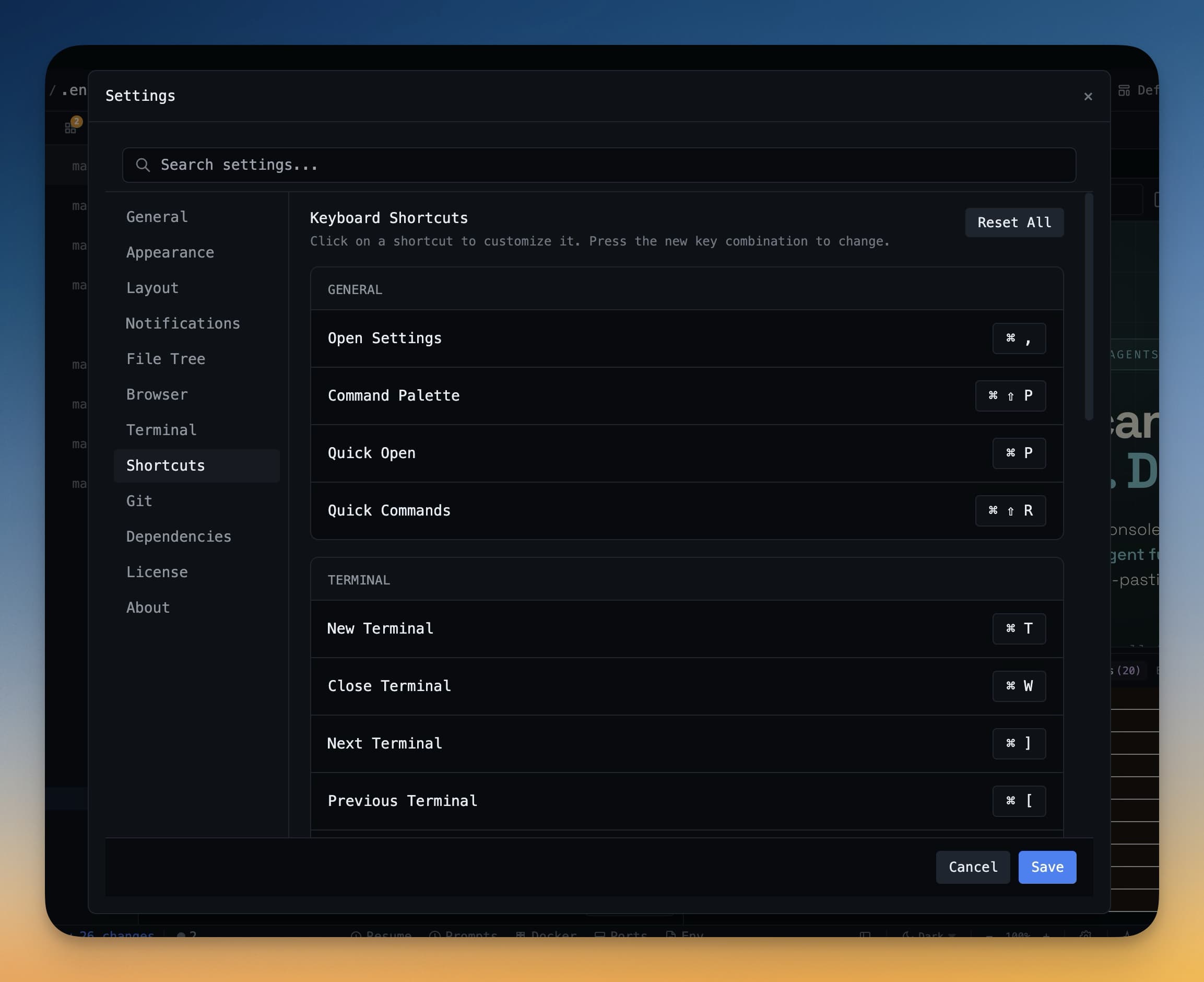
Shortcut customize करने के लिए:
- Settings खोलें (sidebar में gear icon click करें, या
Cmd+,/Ctrl+,दबाएं)। - Keyboard tab पर जाएं।
- जो action remap करना है उसे ढूंढें। उसके पास shortcut field click करें।
- जो नया key combination use करना हो वो दबाएं।
- Save click करें।
अगर जो combination चुनी वो किसी और action से पहले से ली गई है, 1DevTool warn करेगा और पूछेगा किसे priority मिले। Keyboard settings page के नीचे Reset to defaults button से कभी भी सब shortcuts default पर reset कर सकते हैं।
Tip: अगर कोई shortcut काम नहीं कर रहा, check करें कि आपका operating system या कोई और app उस combination को globally ले चुका हो। System-level shortcuts को app-level shortcuts पर priority मिलती है।