Schema Browser
Database structure explore करें — tables, columns, indexes, और relationships।
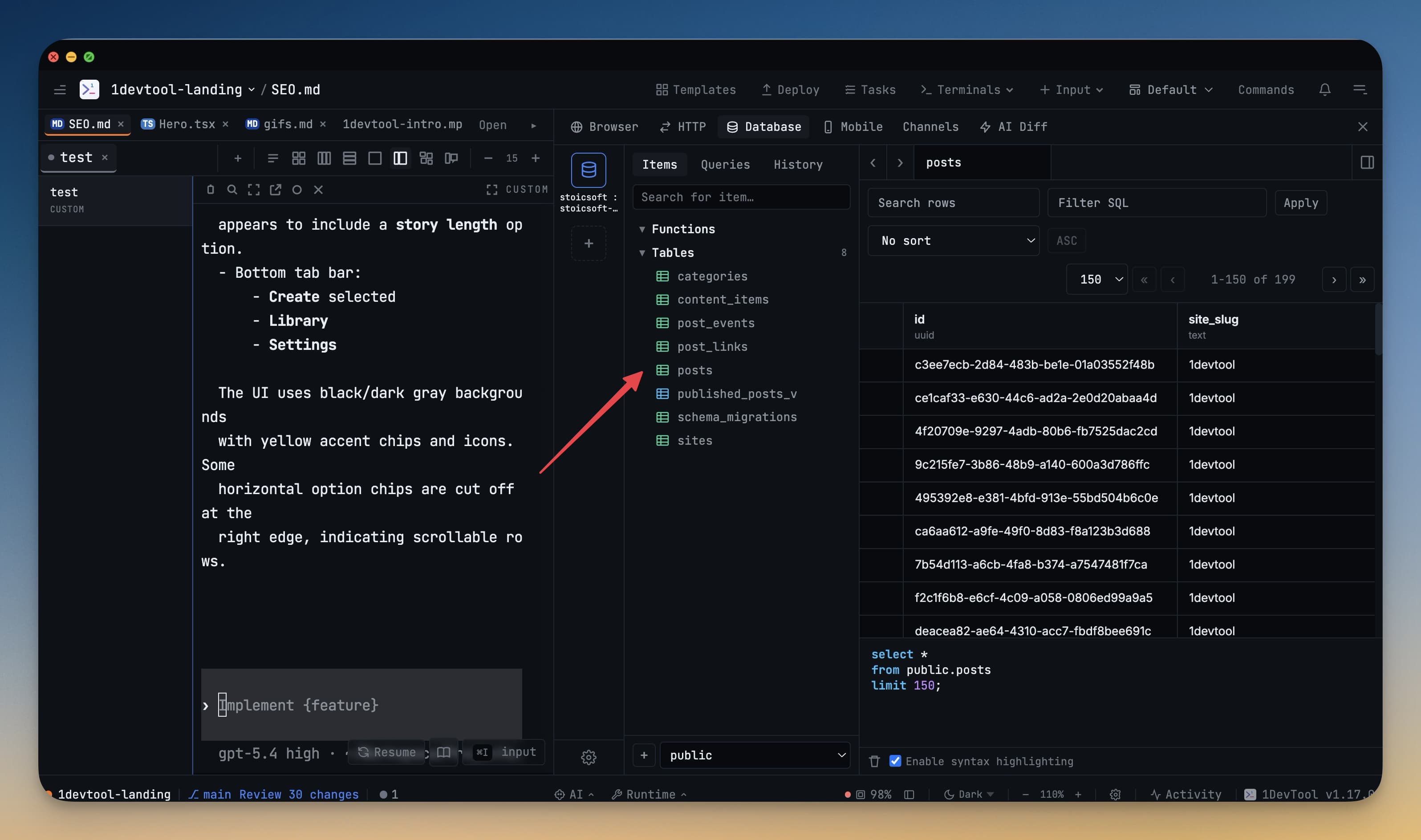
Schema browser database panel के अंदर left sidebar है। यह बिना single query लिखे database structure का live, navigable view देता है। Database के बारे में सब कुछ — tables, columns, data types, indexes, और keys — एक-दो clicks में।
Schema Browser क्या दिखाता है
Database से connect होने पर schema browser automatically load करके दिखाता है:
- Schemas (PostgreSQL के लिए) — top-level namespaces जैसे
public,auth, याstorage - Tables — schema में हर table, alphabetically listed
- Views — saved query से defined virtual tables
- Indexes — हर table के indexes, slow queries के missing indexes spot करने के लिए useful
किसी भी table के पास arrow click करें columns देखने के लिए।
Table Structure Explore करना
Sidebar में कोई भी table name click करें right पर structure panel खोलने के लिए। दिखेगा:
- Column names क्रम में listed
- Data types — जैसे
integer,varchar(255),boolean,timestamp,jsonb - Constraints — कौन से columns
NOT NULLहैं, किनके default values हैं - Primary key — key icon से marked
- Foreign keys — arrow icon से shown जो बताता है कौन सी table और column reference हो रही है
यह तब खासकर useful है जब queries लिख रहे हों और exact column name याद करना हो या समझना हो कि WHERE clause में कौन सा data type pass करना है।
Quick Data Preview
Table में क्या है झांकने के लिए हमेशा query लिखने की ज़रूरत नहीं। Schema browser में किसी भी table पर right-click करें और context menu से "SELECT * LIMIT 100" चुनें। 1DevTool तुरंत वो query चलाएगा और results grid में पहले 100 rows दिखाएगा। Table में data है या कैसा दिखता है check करने का सबसे तेज़ तरीका।
Columns पर Hover करना
Expanded table view में किसी भी column name पर mouse cursor hover करें और tooltip में additional details देखें: full data type, column null values accept करता है या नहीं, और अगर default value set है तो वो। इससे सिर्फ एक detail confirm करने के लिए \d tablename या अलग information schema query चलाने की ज़रूरत नहीं।
Table Search करना
Database में बहुत tables हों तो hand से scroll करना slow है। Schema browser के ऊपर search box click करें और table name type करना शुरू करें। List real time में filter होती है, सिर्फ matching names दिखती हैं। Search clear करने के लिए Escape दबाएं।
Schema Refresh करना
Migration run करने या terminal में नई table बनाने पर schema browser automatically update नहीं होता। Sidebar के ऊपर Refresh button (circular arrow icon) click करें schema reload करने के लिए। Updated table list तुरंत दिखती है।