Pipelines & Issues
The Repo panel puts GitHub and GitLab CI runs and issues beside your terminals — re-run or cancel a pipeline, read job logs, work the issue list, and hand an issue to an AI agent with the context you choose.
The Repo panel resolves GitHub or GitLab from the git remote of the project you have open, and gives you two sub-tabs: Pipelines and Issues.
If you do not see it, check that Repo is enabled in Extensions.
Pipelines
Runs for the current repo and branch, expandable to their jobs, plus the checks on HEAD. The list refreshes while you are looking at it and pauses when you are not.
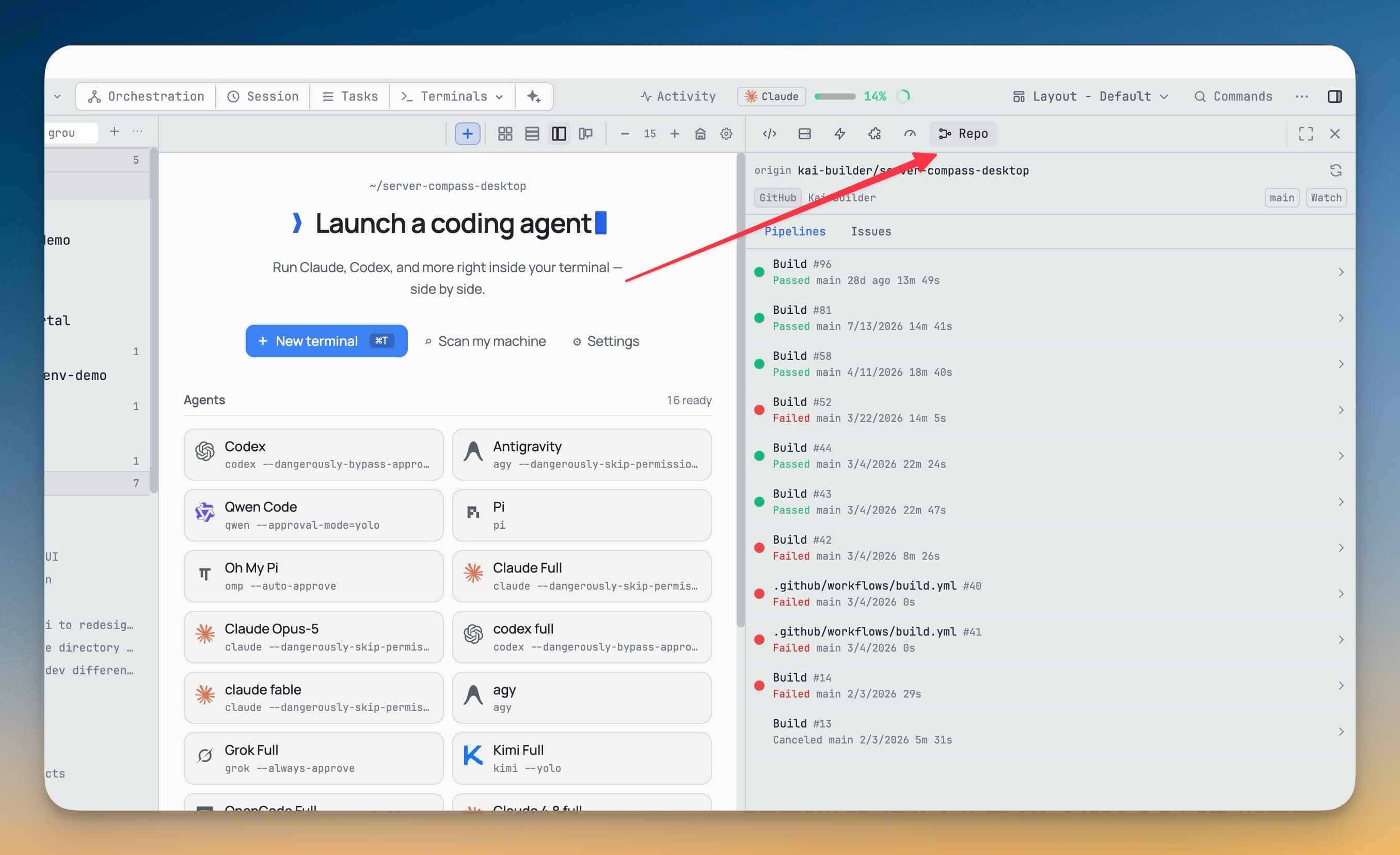
Each run offers:
- Re-run
- Re-run failed — only on a run that actually failed
- Cancel — only on a run that is still going
Each one confirms inline before it fires. The confirm is inline rather than a modal because the panel is a 300px sidebar and a dialog over it would hide the run you are acting on.
A job's log opens in a searchable viewer with its colors intact. Copy it, or jump to it in the browser.
Issues
Filter by state, then open one to read its rendered Markdown body and its comments. From there you can create, comment, close, reopen, and change labels and assignees.
Sending an issue to an agent
This is the part that closes the loop. Instead of copying an issue into your clipboard and pasting it into a terminal with half the context missing:
- Choose Send to AI on an issue or a single comment.
- Write a prompt —
@mentions files and folders from the indexed project. - Tick what travels with it: the issue URL, all comments, or individual comments.
- Attach screenshots or project files if you want them.
- Pick the target terminal.
- Read the preview — the exact text the agent will receive — then Send to Terminal.
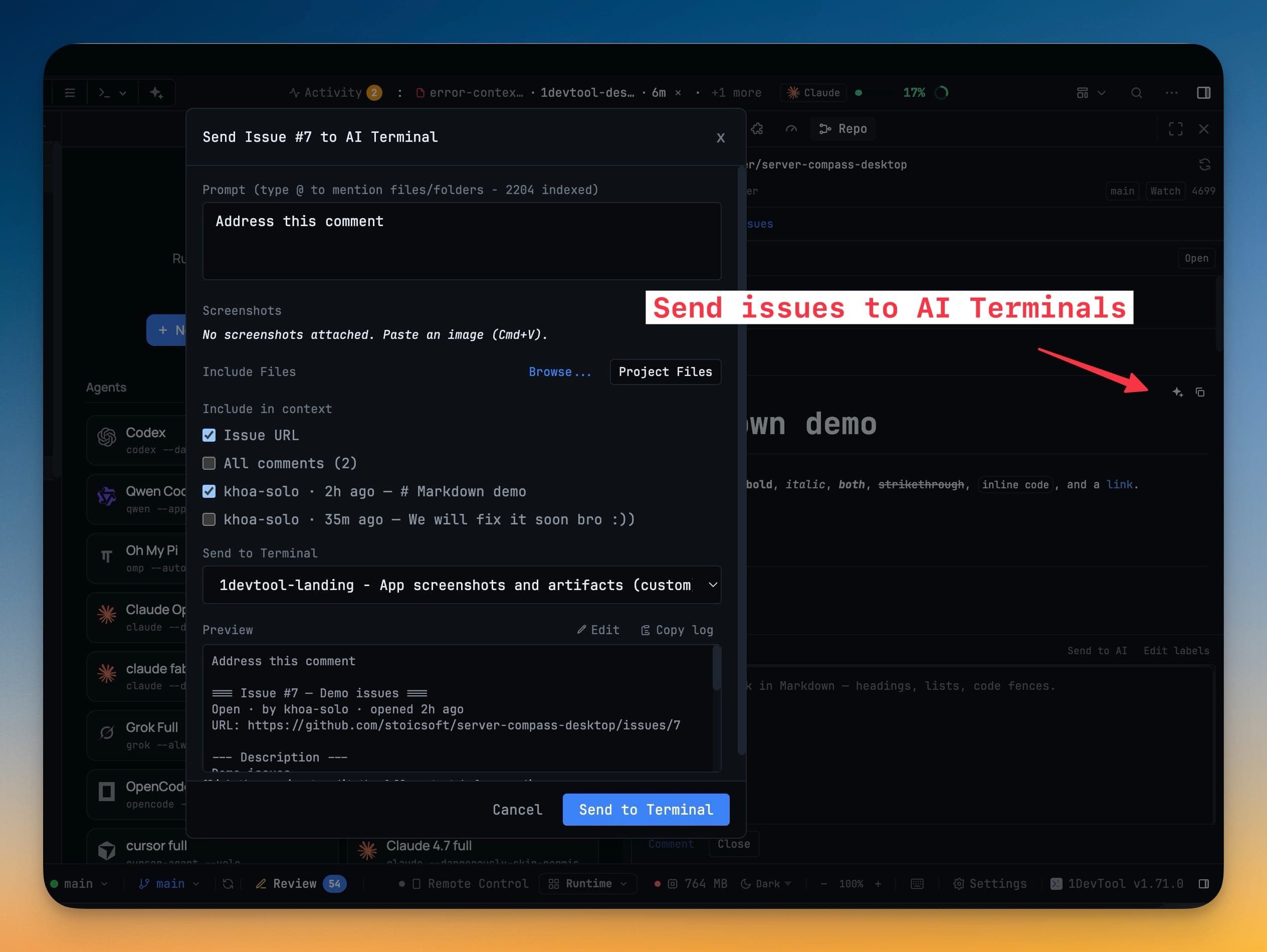
The text lands in that agent's composer, so you can still edit it before it runs.
Watching a project
Watch in the panel header opts one project into a background check. A run that goes from passing to failing raises a desktop notification that focuses the project when you click it.
Nothing is watched by default, and a project with no watch costs nothing while the panel is closed.