Custom Agents
Register any coding CLI as a first-class agent — with its own logo, resumable sessions and memory files — without waiting for a 1DevTool release.
1DevTool ships integrations for Claude, Codex, Gemini, Grok, Kimi, OpenCode and others. Custom agents cover everything else: a fork, an in-house wrapper, or a CLI that shipped last week.
You describe the CLI once and it behaves like a built-in agent everywhere — Add Terminal, the empty-state launcher cards, Change AI, Prompt History, Resume and Memory.
Register a command as an agent
- Open Settings → Terminal → Commands (or Manage Commands)
- Add or edit the command, and set Run mode to AI agent
- Expand Agent integration and tick Register <name> as a custom agent
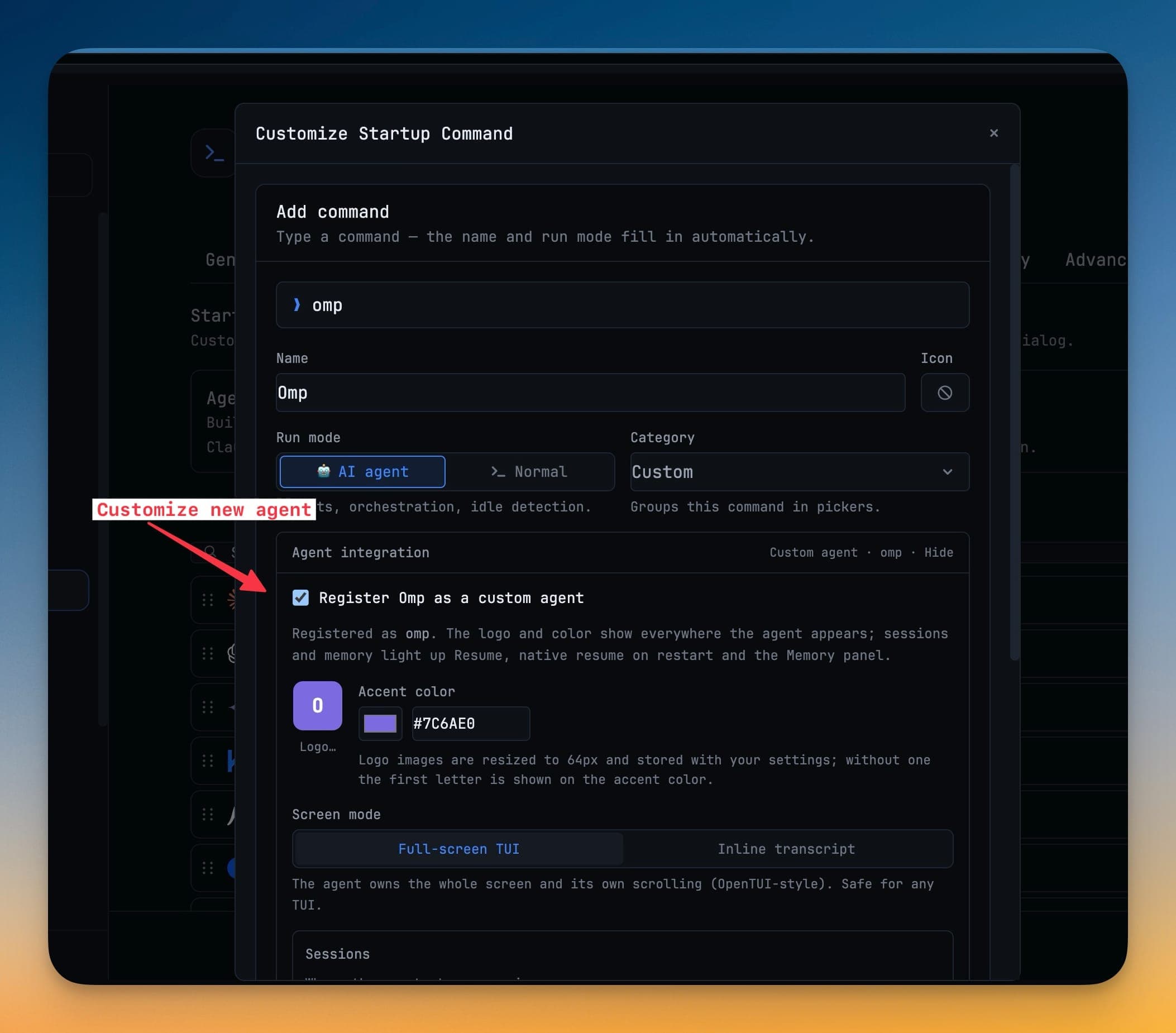
Setting Run mode to AI agent is what gives the terminal prompts, orchestration and idle detection. Registering it on top of that adds the branding, session continuity and memory wiring described below.
The agent's stable id comes from the executable in the command, so omp stays omp even if you edit its flags later.
Name, colour and logo
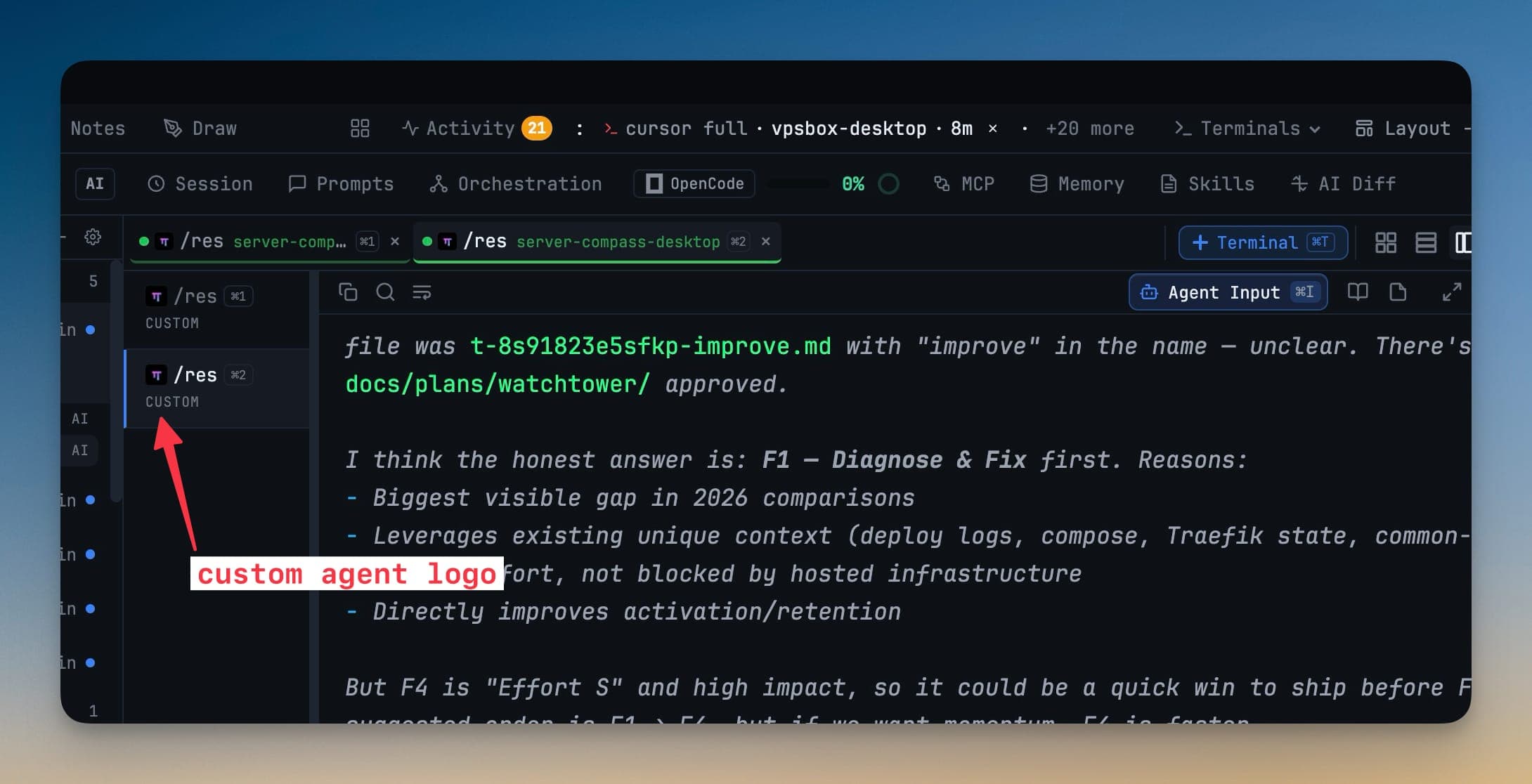
Give the agent a display name and an accent colour. A logo is optional — images are downscaled to 64px and stored with your settings, never referenced as a file path. Without one, the first letter of the name sits on the accent colour.
Screen mode
| Mode | Use it when | What it does |
|---|---|---|
| Full-screen TUI | The agent draws its own full-screen interface | The agent owns the alternate screen and its own scrolling (OpenTUI-style). The safe default for an unknown TUI. |
| Inline transcript | The agent prints a transcript, like Claude or Codex | The alternate screen is blocked so scrollback stays in the 1DevTool terminal. |
If you are unsure, start with Full-screen TUI — it does no harm to an agent that draws its own screen. Switch to Inline transcript if you find your scrollback disappearing.
Sessions
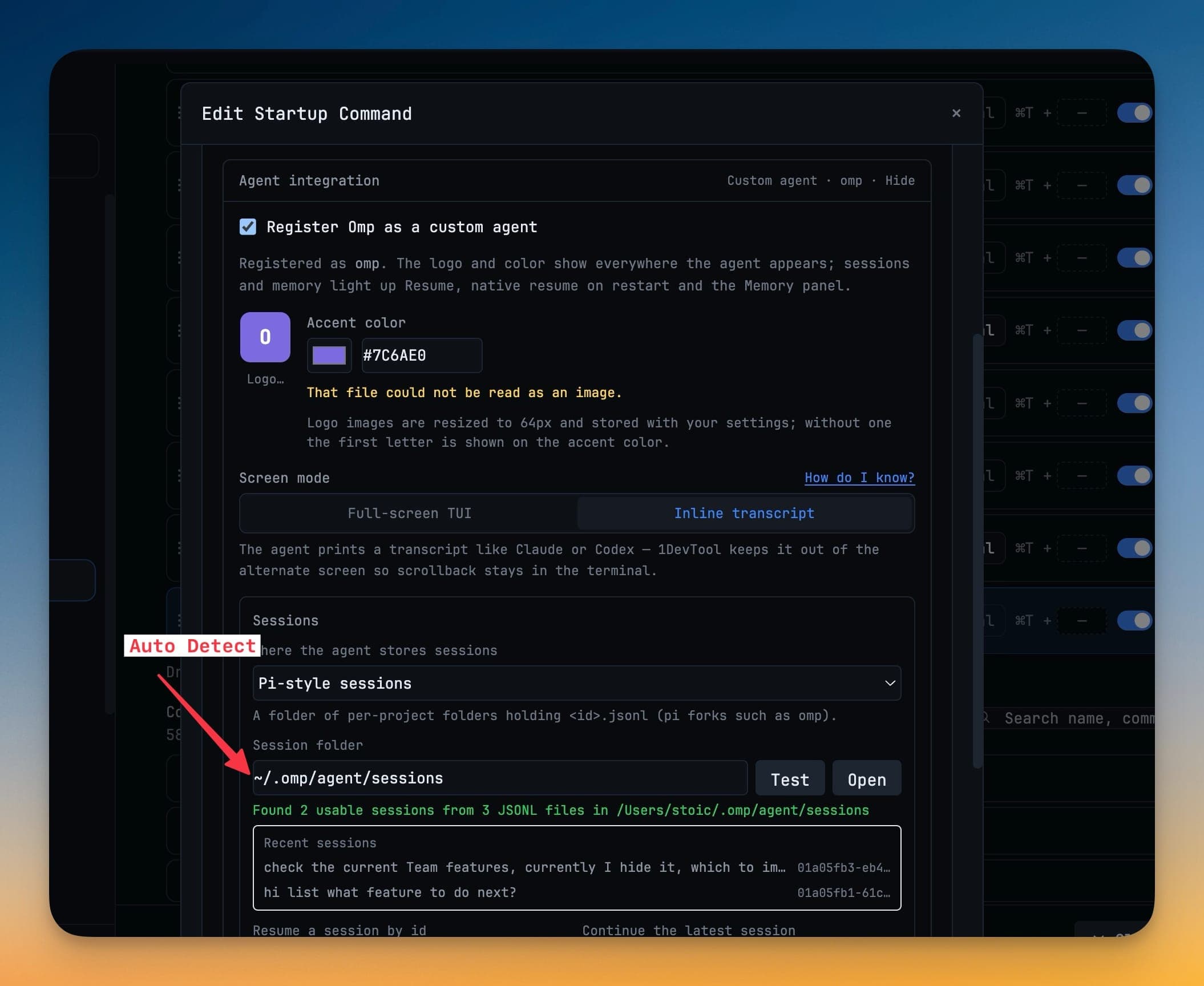
Point 1DevTool at the folder where the CLI writes its transcripts and pick the layout that matches:
- Pi-style sessions — a folder of per-project folders holding
<id>.jsonl - Claude-style projects —
<root>/projects/<encoded-cwd>/<id>.jsonl - Flat JSONL folder — one directory of
*.jsonlfiles - None — no scanning; use the picker or continue-latest only
Press Test before you save. It reports what it found — Found 2 usable sessions from 3 JSONL files in /Users/you/.omp/agent/sessions — and previews the actual conversations. Open reveals the folder in your file manager when the path is wrong.
Resume templates
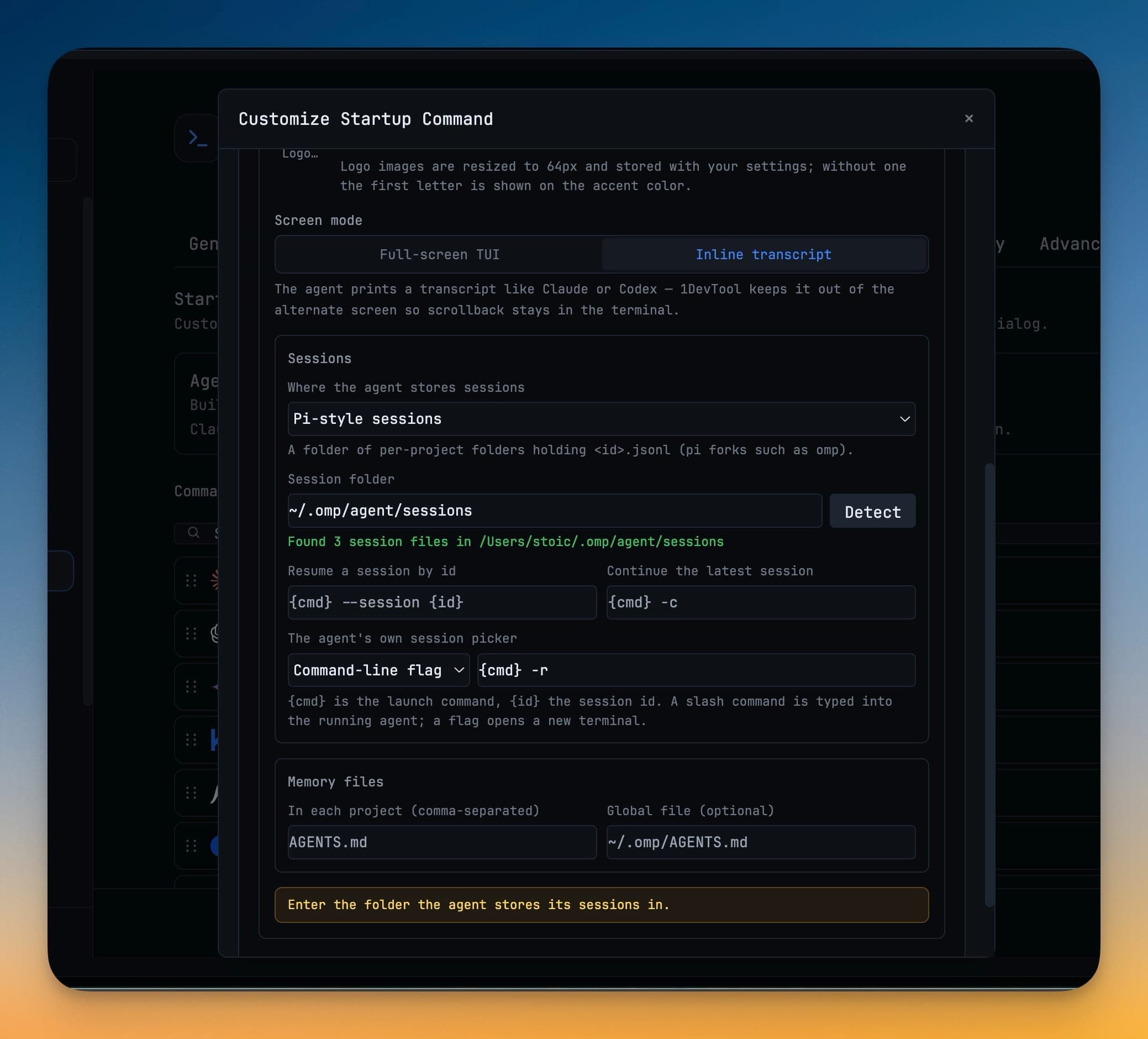
Every CLI spells resumption differently, so you supply the shapes. {cmd} is the launch command and {id} is the session id:
| Field | Example |
|---|---|
| Resume a session by id | {cmd} --session {id} |
| Continue the latest session | {cmd} -c |
| The agent's own picker | a slash command typed into the running TUI, or a flag such as {cmd} -r |
A slash command is typed into the agent that is already running; a flag opens a new terminal.
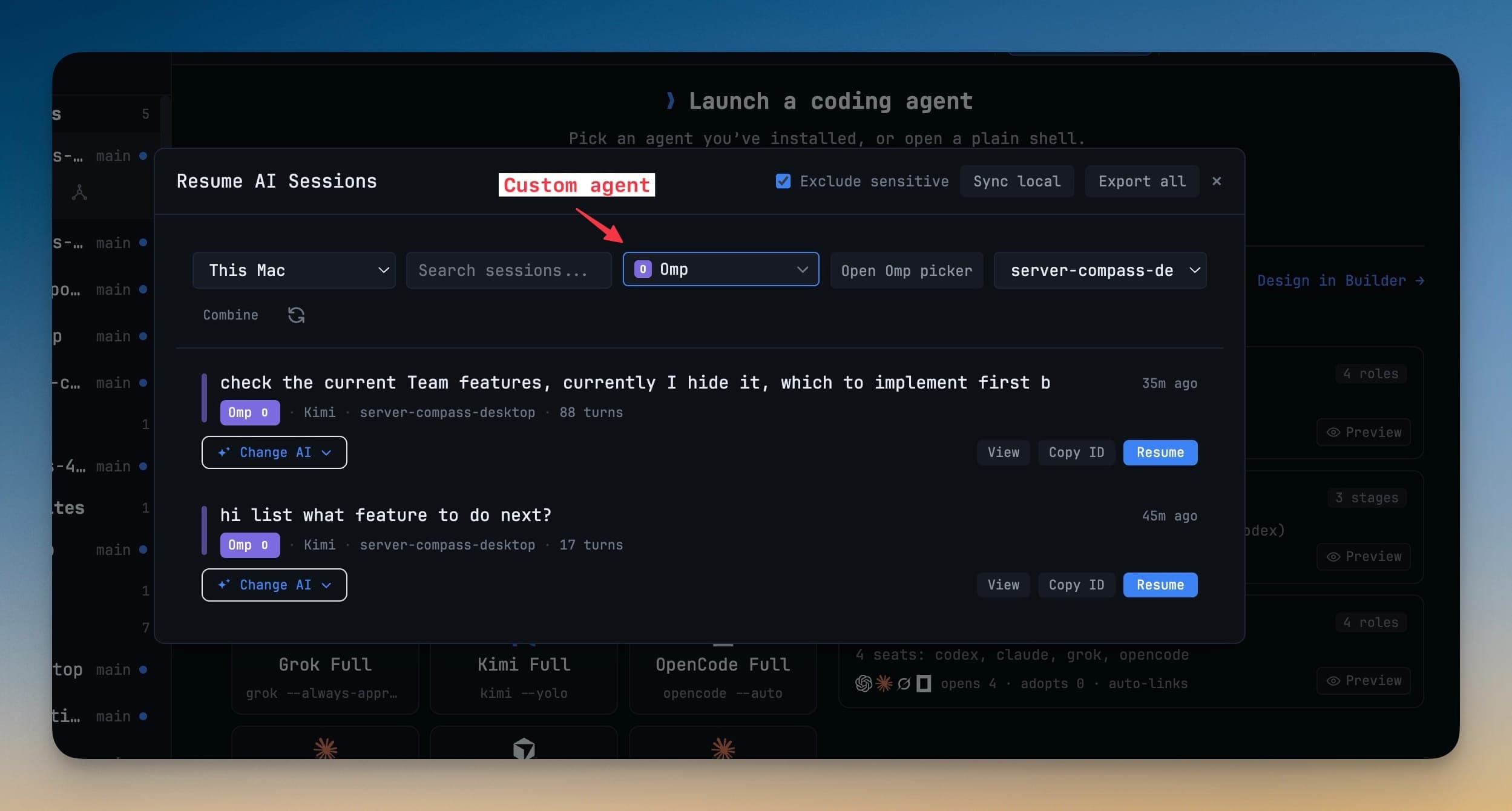
Once sessions are wired, the agent appears in Resume AI Sessions with its own badge, and Change AI can hand one of its transcripts to a different agent.
Memory files
List the memory files the agent reads in each project — AGENTS.md, for example — plus an optional global file such as ~/.omp/AGENTS.md. Those are the files the Memory panel will show and edit for this agent.
Rules and limits
- Built-in names are reserved. You cannot register over Claude, Codex, or any CLI 1DevTool already ships.
- Custom agents sit in the same Settings list as the built-ins, with the same Show toggle and drag order.
- Deleting the command asks whether to drop the registration. Terminals that are already open keep working either way.