DevTools
Open Chrome DevTools to inspect elements, debug JavaScript, and monitor network requests.
The embedded browser gives you access to the full Chrome DevTools — the same inspector, console, and network monitor you use in a regular Chrome window. Use it to debug what your AI agent built, check for JavaScript errors, or inspect how a request is formed.
Opening DevTools
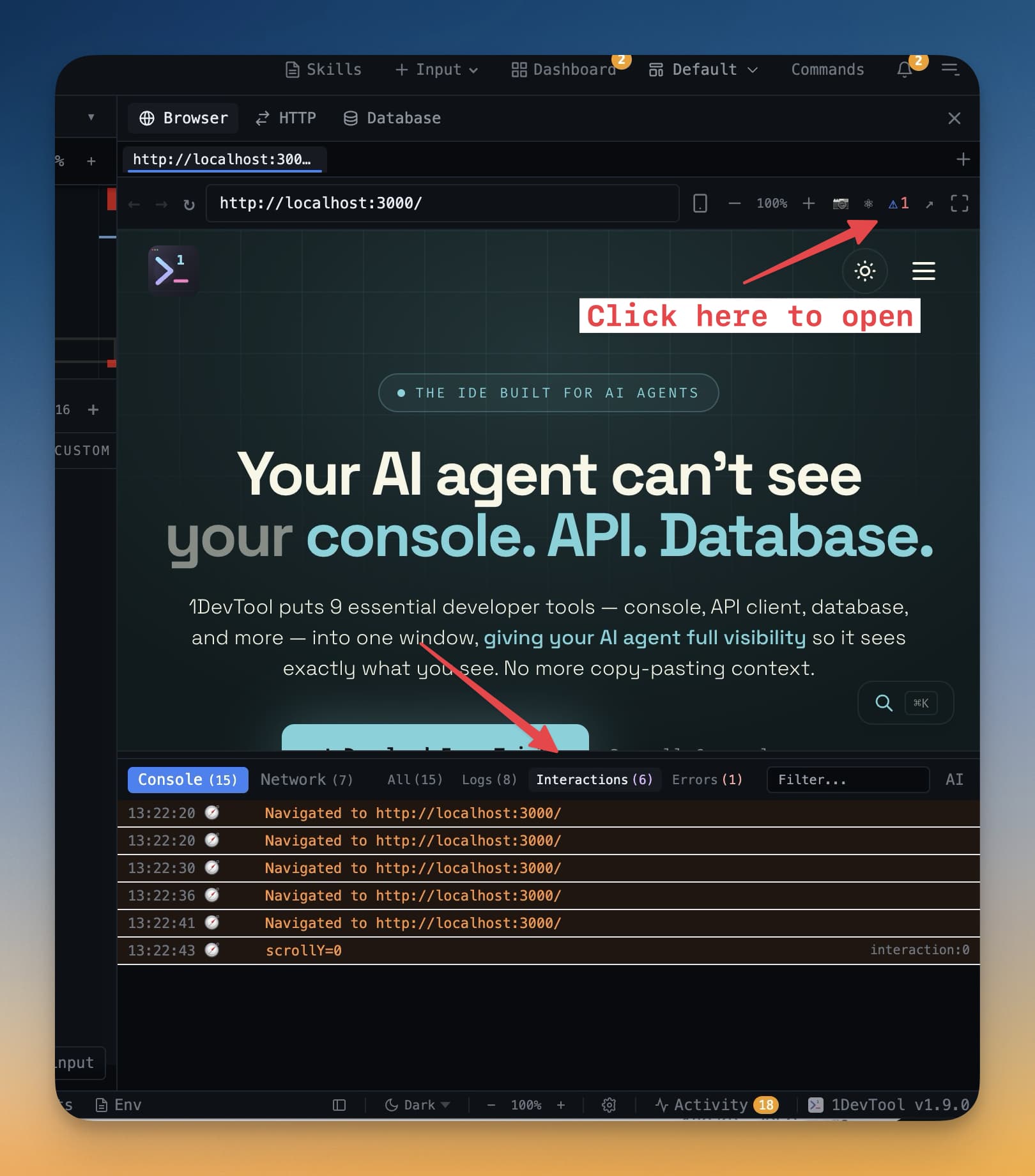
Click the DevTools button (🔧) in the browser panel header. Chrome DevTools opens in a separate window alongside your workspace. You can position this window wherever is convenient — most developers put it on a second monitor or dock it below the browser panel.
You can also open DevTools the way you would in Chrome: right-click anywhere on the page inside the browser panel and select Inspect. DevTools opens with the Elements tab focused on the element you right-clicked.
What's Available
The full DevTools toolset is available:
- Elements — inspect and modify the HTML and CSS of any element on the page. Click an element in the tree to highlight it in the browser, or click an element on the page to find it in the tree. Edit styles inline to try changes without touching the source files.
- Console — view
console.logoutput, JavaScript errors, and warnings. Run JavaScript expressions directly in the console to test things without editing files. - Network — monitor every HTTP request your app makes. See request headers, response bodies, timing, and status codes. Useful for checking that API calls are being sent correctly and that responses look right.
- Sources — step through JavaScript with breakpoints. Set a breakpoint, trigger the action in the browser, and execution pauses so you can inspect variable values.
- Application — inspect local storage, session storage, cookies, and IndexedDB. Useful for debugging authentication state or anything stored in the browser.
Common Debugging Scenarios
Checking what an AI agent built: Open the Elements panel and explore the HTML structure. This tells you whether the agent wired things up correctly — correct class names, proper nesting, and the right attributes.
Finding JavaScript errors: Open the Console before loading the page. Any uncaught errors appear here with a file name and line number. Share the error message with your AI agent so it can fix the root cause.
Debugging API calls: Open the Network tab and click the action in your app that triggers a request (like clicking a login button). The request appears in the list. Click it to see the full request and response — useful for diagnosing authentication issues or malformed request bodies.
Tip: Keep the Console tab open while an AI agent is making changes. Errors surface here before they're visible on the page, giving you earlier feedback on what needs fixing.