Git Worktrees
Work on multiple branches simultaneously without stashing — each in its own folder, switchable from the status bar.
Worktrees solve one of the most frustrating problems in day-to-day development: needing to switch branches when you're in the middle of something. With worktrees, you don't switch — you open another branch in a second folder and work in both at the same time.
What is a Git Worktree?
Normally, a git repository has one working directory — the folder where your files live. At any moment, exactly one branch is checked out in that folder. If you want to look at a different branch, you have to check it out, which replaces your files with that branch's version. If you haven't committed your current work, you have to stash it first, which is annoying and error-prone.
A worktree is a second (or third, or fourth) working directory linked to the same git repository. Each worktree has its own branch checked out, its own file state, and its own history. They all share the same .git folder and commit history — they're just different windows into the same repo.
A concrete example: your AI agent is halfway through building a new feature on feature/payments. A colleague asks you to review their PR on fix/login-bug. Instead of stashing your feature work, you create a worktree for fix/login-bug in a separate folder. You review the PR there while your feature branch stays untouched in its original folder.
Create a Worktree
- Open the Git panel — press Cmd+G
- Click the Worktrees tab at the top of the panel
- Click + Add Worktree
- Choose a branch — either an existing branch from the list or type a new branch name to create one
- Choose a folder location for the new worktree (by default, 1DevTool suggests a folder next to your current project folder)
- Click Create — 1DevTool runs
git worktree addand opens the new worktree folder as an active workspace
The new worktree is now listed in the Worktrees tab alongside your main worktree.
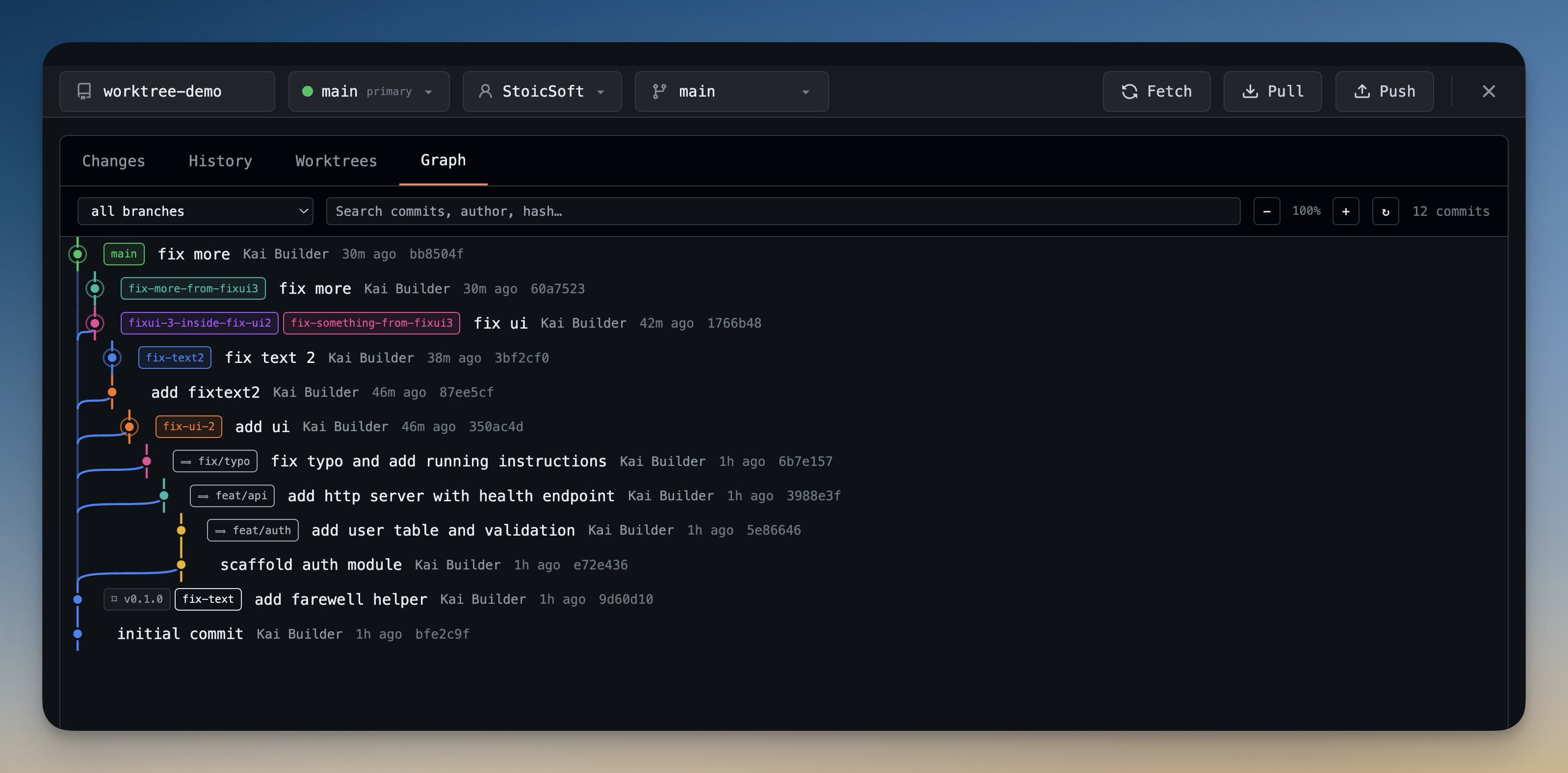
Worktree Terminals
When 1DevTool creates a worktree, it also opens a new terminal scoped to that worktree's folder. The branch name appears in the terminal title so you always know which branch you're working in.
Your AI agent in that terminal operates in the worktree folder — it can read and write files, run commands, and make changes on that branch without any awareness of or interference with your other branches.
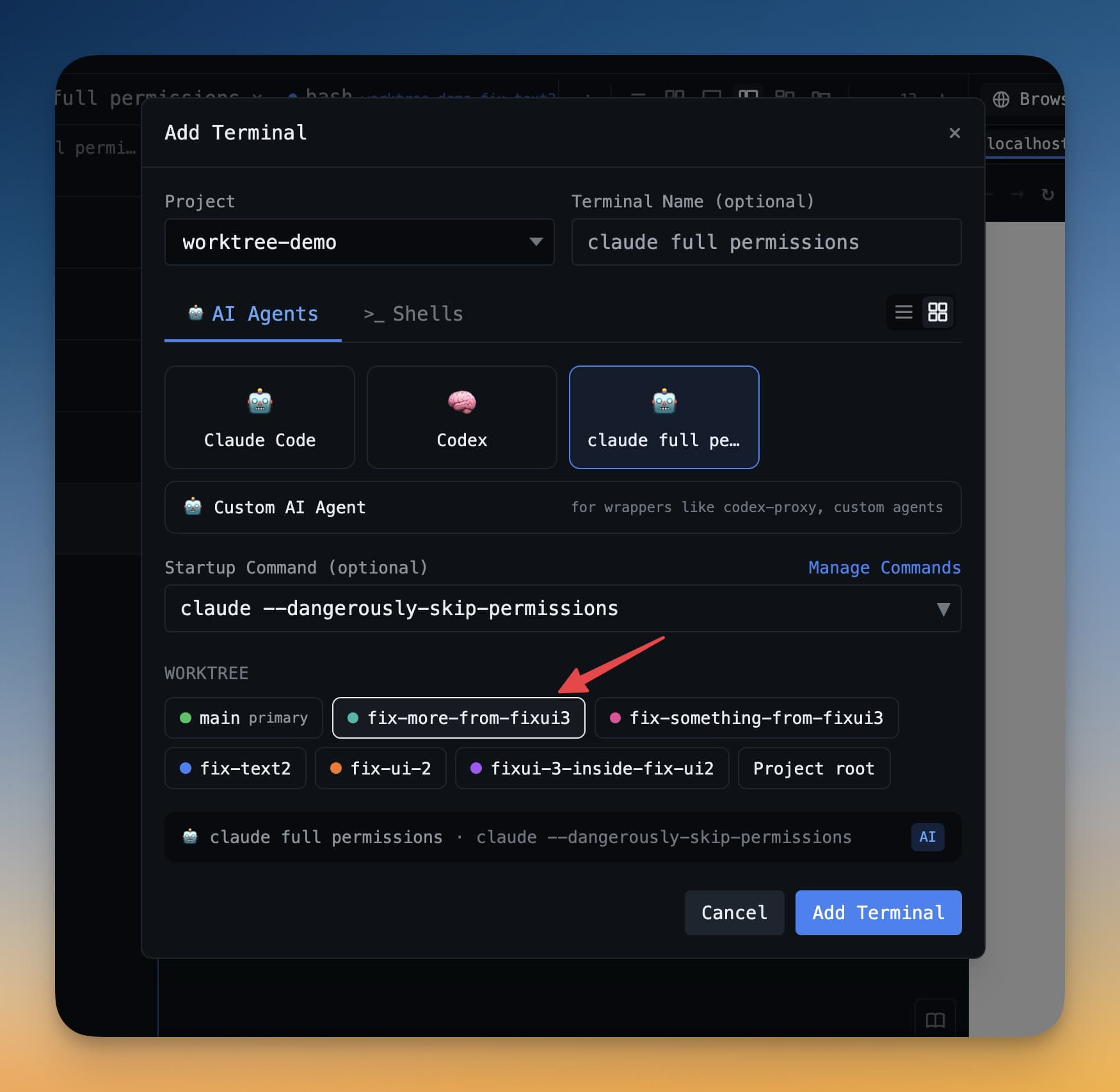
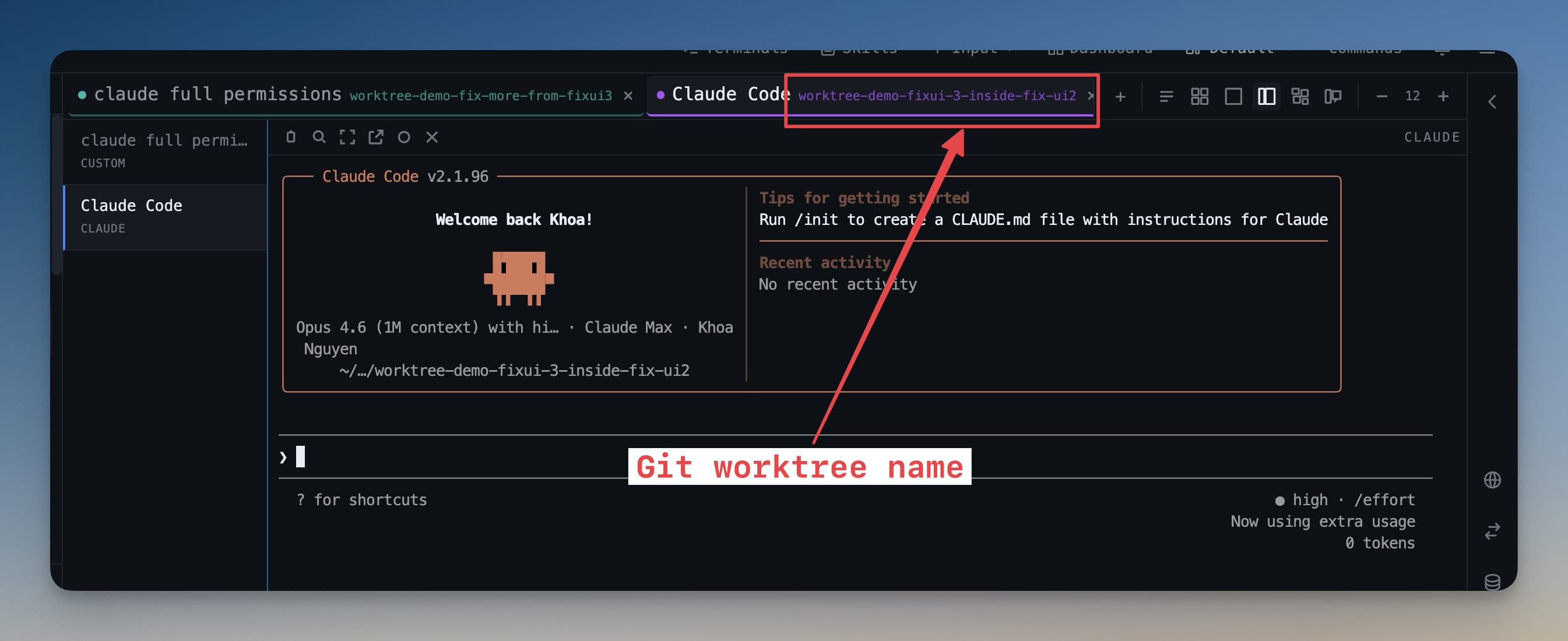
You can run agents in multiple worktrees simultaneously. One agent works on the payments feature while another fixes a bug on a different branch. Both agents have their own terminal, their own file context, and their own branch — they can't conflict with each other.
Switch Worktrees From the Status Bar
When a project has linked worktrees, the status bar names the active checkout next to the branch chip — with its colour and its primary, locked and dirty marks — and switches between them without opening Git Client.
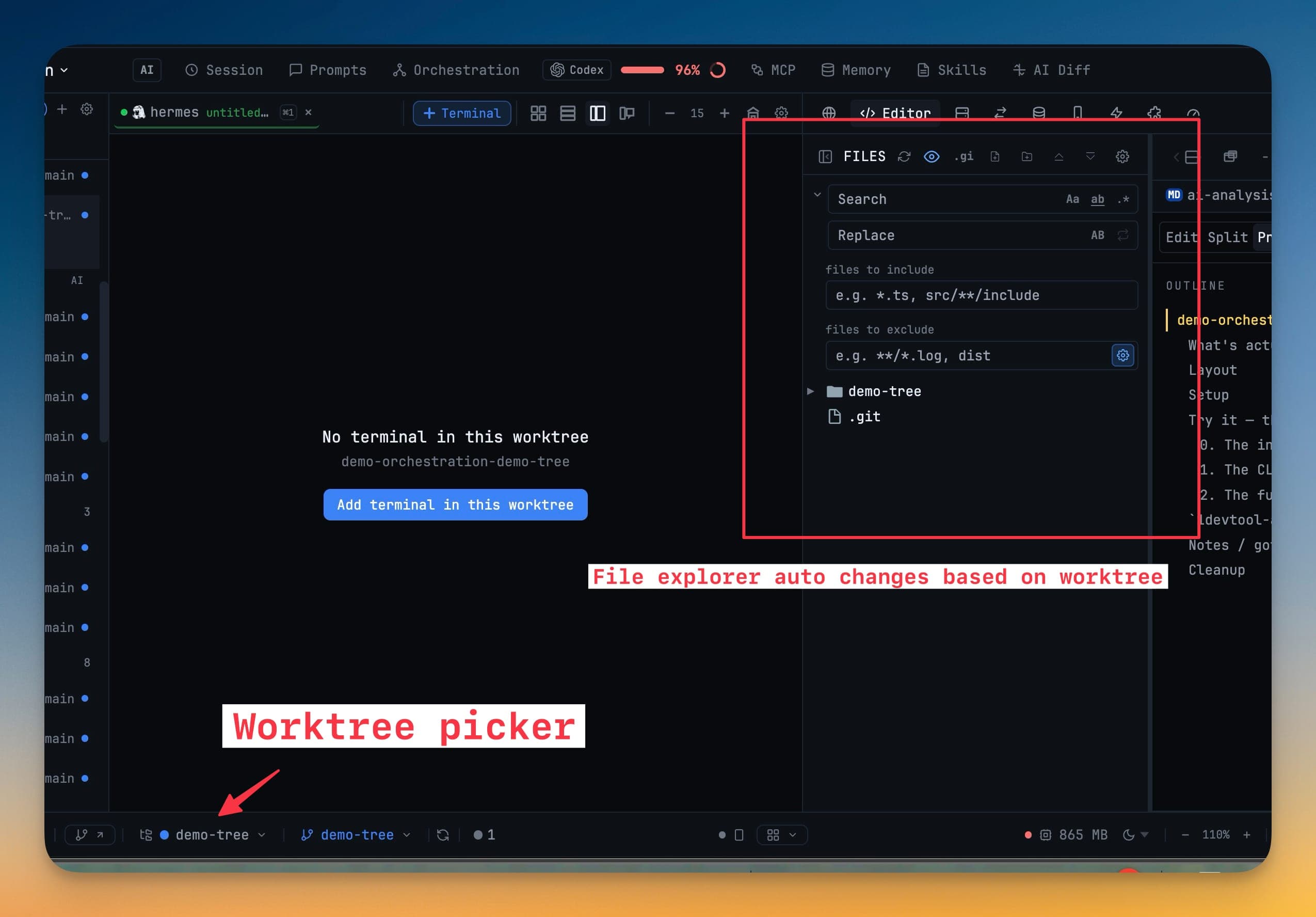
Two things make the switch land where you expect:
- A terminal that belongs to the worktree comes forward. You are not left on a tab from a different checkout — the most common way a command ends up running in the wrong tree.
- An empty worktree says so. A checkout with no visible terminals shows No terminal in this worktree and an Add terminal in this worktree button, instead of a leftover pane from somewhere else.
The file explorer follows the active worktree too, so the tree you are browsing matches the tree your commands run in.
Remove a Worktree
When you're done with a worktree — the PR is merged, the branch is deleted — you can remove it cleanly:
- Open the Git panel and go to the Worktrees tab
- Find the worktree you want to remove
- Click the trash icon next to it
- Confirm the deletion
This removes the worktree folder and deregisters it from git (equivalent to git worktree remove). The branch itself is not deleted — just the working directory. You can recreate the worktree later if needed.
Tip: Use worktrees to run your AI agent on a feature branch while keeping main stable. The agent can't accidentally break your main branch.
Worktrees are one of git's most underused features. In the context of AI-assisted development — where an agent might make dozens of file changes in minutes — being able to isolate each agent's work to its own branch and folder is a significant safety net.