Git Accounts
Connect multiple GitHub, GitLab, or Bitbucket accounts and choose which one to use per repo.
If you use more than one Git account — a personal GitHub and a work GitHub, for example — 1DevTool lets you connect all of them and choose which account to use for each repository. No more switching accounts or misconfigured remotes.
Add a Git Account
- Open Settings — click the gear icon in the bottom-left or press Cmd+,
- Go to the Git Accounts section
- Click + Add Account
- Choose your provider: GitHub, GitLab, or Bitbucket
- Authenticate using one of two methods:
- OAuth — click "Sign in with GitHub/GitLab/Bitbucket" and complete the browser login. 1DevTool receives a token automatically.
- Personal Access Token — paste a token you generated in your provider's settings. GitHub calls these "Fine-grained personal access tokens" under Settings → Developer settings.
Once connected, the account appears in your Git Accounts list with your username and avatar. You can add as many accounts as you need — there's no limit.
Per-Repo Account Selection
When you have multiple accounts connected, you can choose which one to use for each repository. This is useful for keeping work and personal projects completely separate.
- Open the Git panel (Cmd+G) in any project
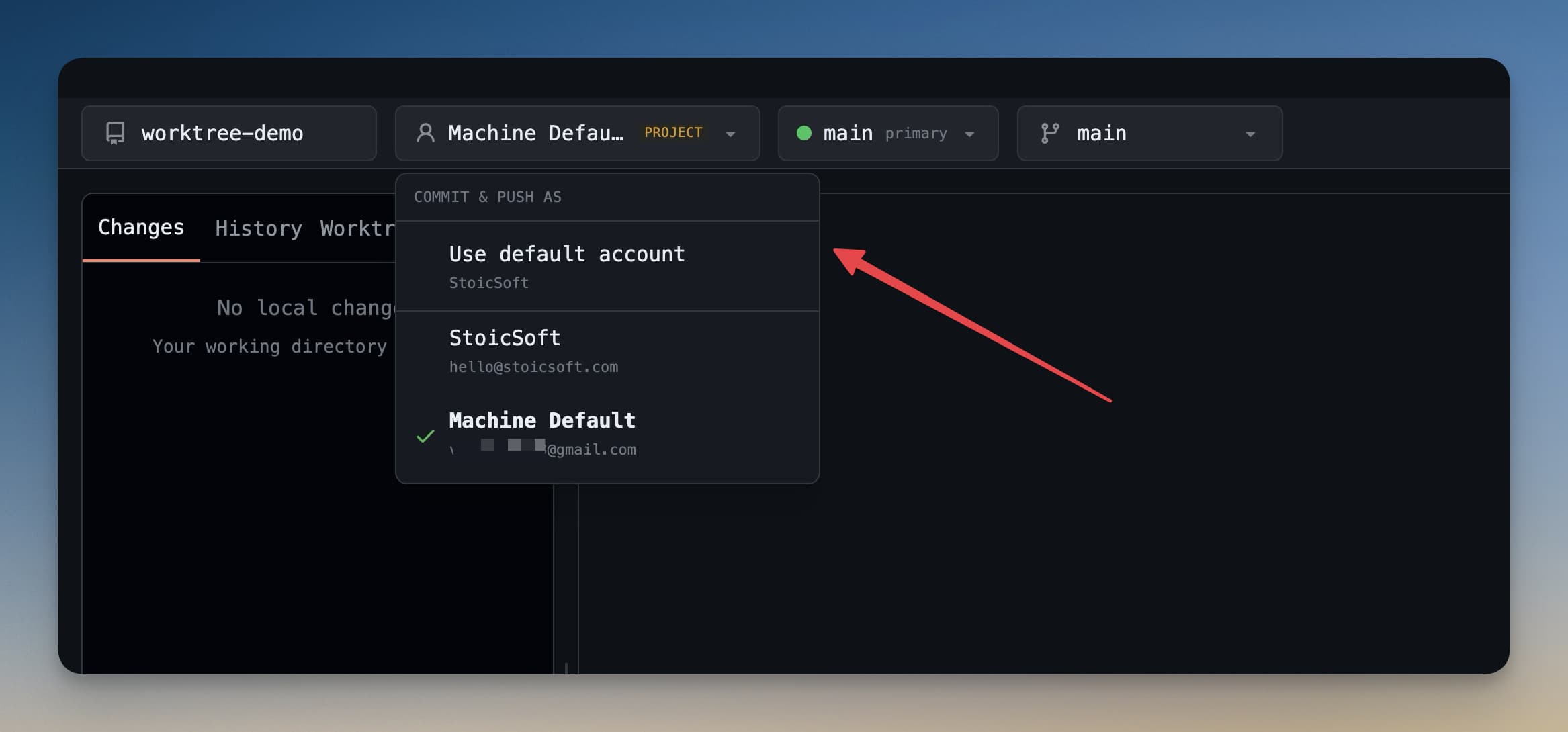
- Look for the account badge at the top of the panel — it shows the currently active account for this repo
- Click the badge to open a dropdown of all your connected accounts
- Select the account you want to use for this repository
The selection is saved per-repository. Next time you open this project, 1DevTool uses the same account automatically. Pushes, pulls, and authentication all use the selected account's credentials.
This is especially useful when you have:
- A personal GitHub for open source and side projects
- A work GitHub (or GitHub Enterprise) for your employer's repos
- A GitLab account for a client project
SSH Key Auto-Scan
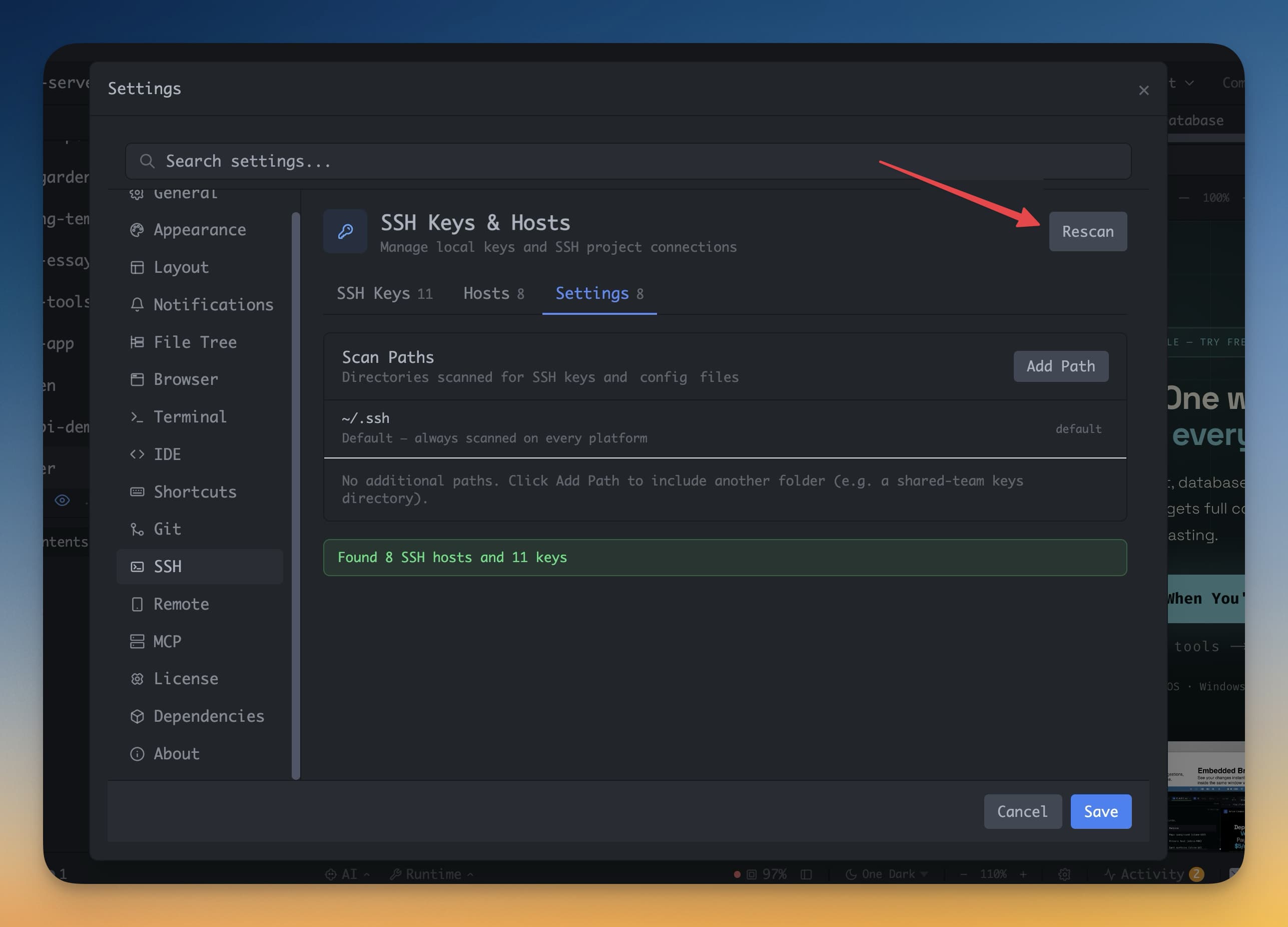
If you've used git on this machine before, you likely already have SSH keys in ~/.ssh. When you first open 1DevTool, it scans that folder automatically and detects any existing key pairs.
Detected keys are listed in Settings → SSH Keys. Click Add to Agent next to any key to activate it — 1DevTool will use it for SSH-based git operations (cloning, pushing, pulling via [email protected] URLs).
Generate a New SSH Key
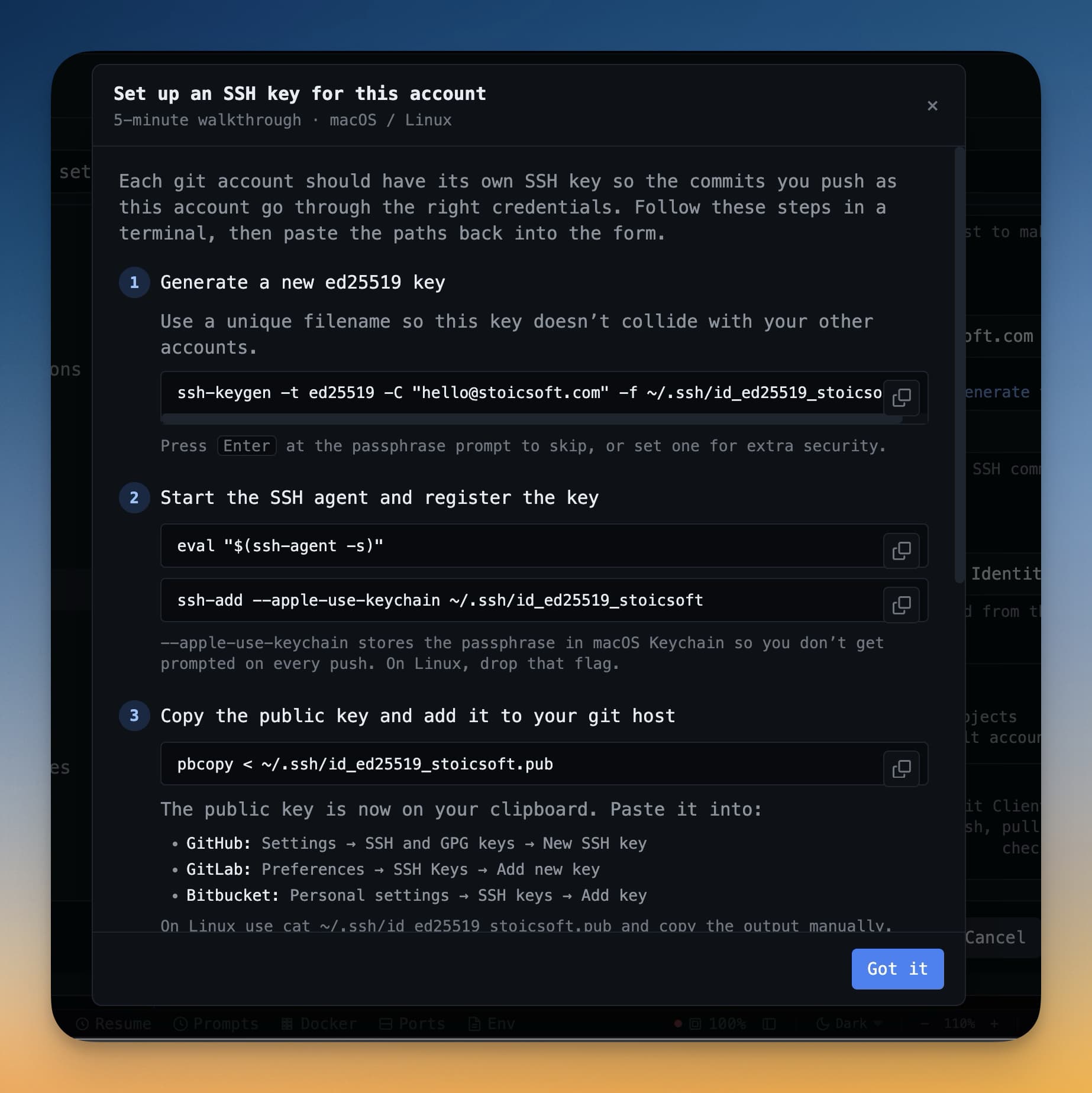
If you don't have an SSH key yet, or you want to create a dedicated key for use with 1DevTool:
- Go to Settings → SSH Keys
- Click Generate Key
- Choose the key type (Ed25519 is recommended) and optionally set a passphrase
- Click Generate — the key pair is created and saved to
~/.ssh - Click Copy Public Key to copy the
.pubkey to your clipboard - In a browser, go to GitHub → Settings → SSH and GPG Keys → New SSH Key
- Paste the public key and save it
From that point on, git operations over SSH are authenticated automatically. No password prompts, no token expiry.