View Git Diff
See exactly what your AI agent changed — file by file, line by line.
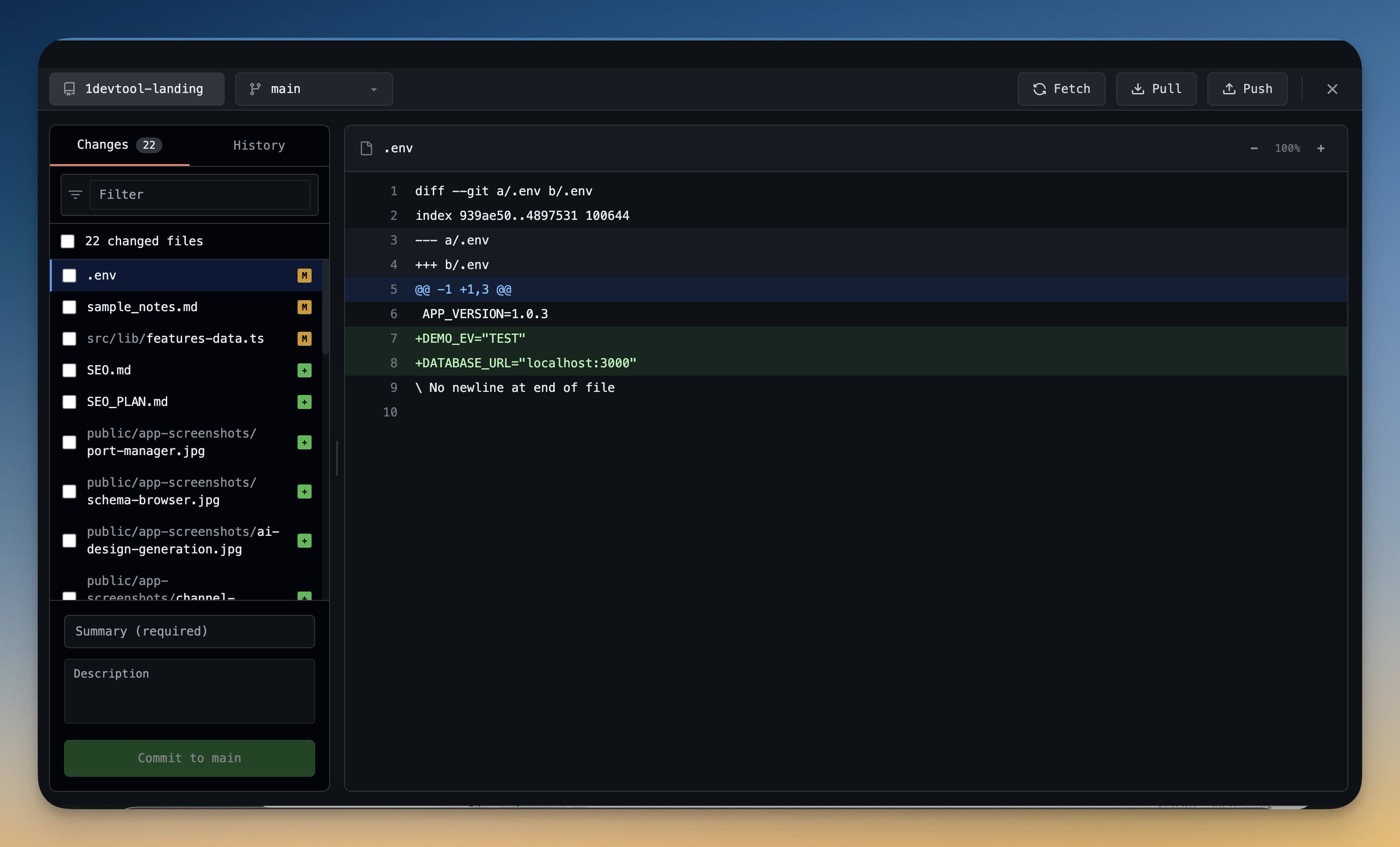
Before you commit anything your AI agent wrote, read the diff. It takes 30 seconds and it will save you from shipping broken or unexpected changes. The Git Client makes this easy with a clear, color-coded view of every change.
Opening the Diff View
- Press Cmd+G (Mac) or Ctrl+G (Windows/Linux) to open the Git panel
- The left sidebar lists all files with uncommitted changes — unstaged changes appear in the lower section
- Click any file name to open its diff on the right
The diff view opens immediately. No extra steps.
Reading the Diff
The diff uses standard color coding:
- Green lines — lines that were added by the agent
- Red lines — lines that were removed or replaced
- Gray lines — unchanged context around the edits (shown for reference)
Each changed section is called a hunk. A file can have multiple hunks if changes were made in different parts of the file. Scroll down to see all of them.
The line numbers on the left show the original file's line numbers, and the line numbers on the right show the new file's line numbers.
Jump From the Diff to the Code
Double-click to open a change in the editor:
- A changed file, whether in the file list, in the folder tree, among a commit's files or on the diff header's filename, opens that file in the editor.
- A diff line opens the file with the cursor on that exact line. Added and unchanged lines go to their own line, a removed line goes to the line now in its place, and a hunk header goes to the hunk's first line.
Unified vs Side-by-Side View
You can toggle between two diff layouts:
- Unified view — additions and removals shown in a single column, interleaved. Easier for reading sequential changes.
- Side-by-side view — the old file on the left, the new file on the right. Easier for comparing before and after when large blocks changed.
Click the view toggle button in the top-right corner of the diff panel to switch between them.
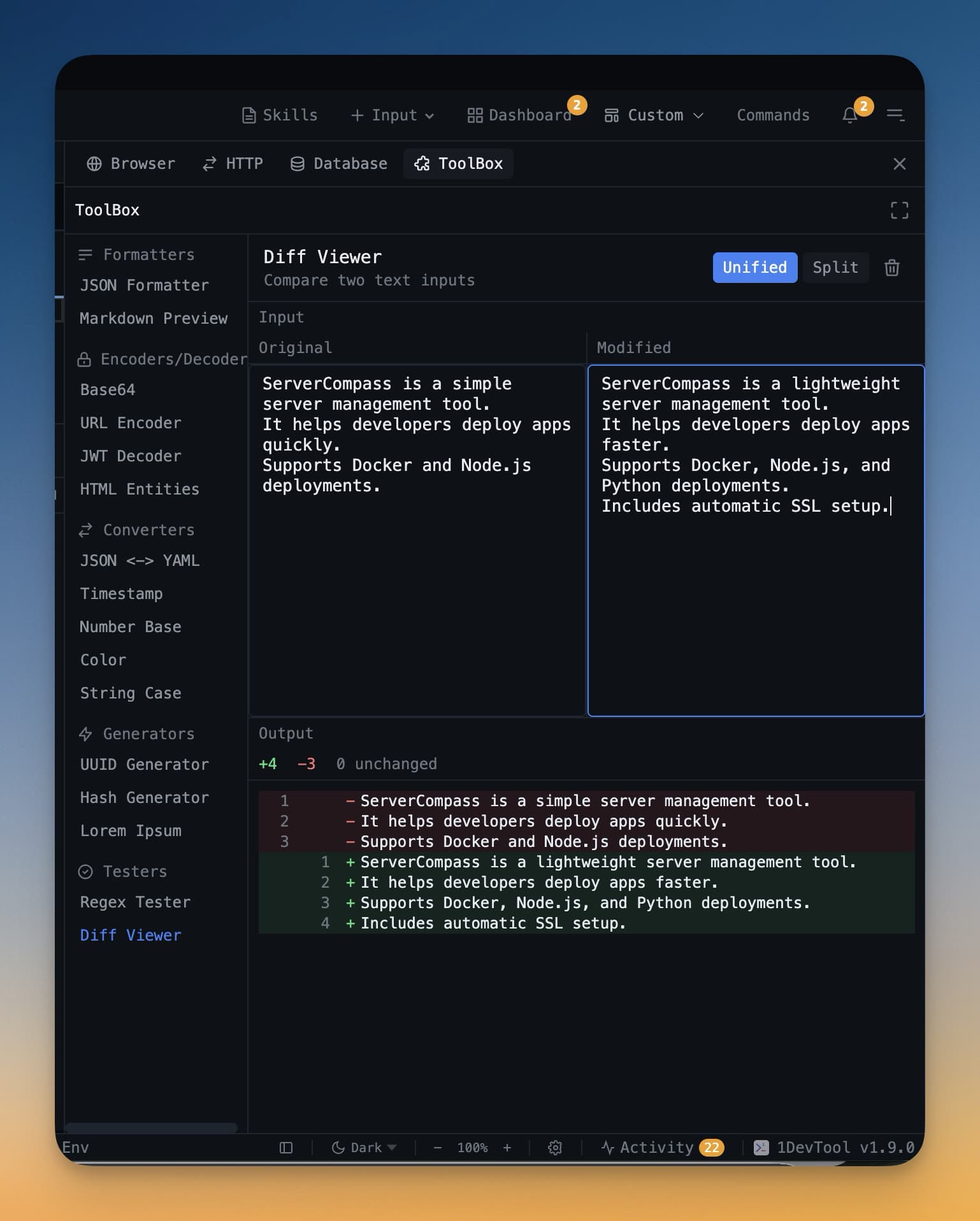
Image Diffs
If your project includes images and an agent modified a PNG, JPG, or other image file, the diff panel shows a visual before/after comparison. A slider lets you drag to reveal the old image underneath the new one — useful for catching unintended design changes.
Keyboard Navigation
Use these shortcuts to move through changed files quickly:
| Shortcut | Action |
|---|---|
] | Go to next changed file |
[ | Go to previous changed file |
↓ / ↑ | Scroll through the diff |
Cycling through files with ] and [ is much faster than clicking in the sidebar, especially when an agent has touched ten or fifteen files at once.
Why Review Before You Commit?
AI agents work fast and they're usually right — but not always. Common things to look for when reviewing a diff:
- Deleted lines that shouldn't be deleted — the agent might have removed a function or a comment by mistake
- Changed files you didn't ask about — the agent touched a config file or test file you didn't expect
- Placeholder values —
TODO,your-api-key-here, or hardcoded test data that wasn't meant to stay
A quick diff review before every commit keeps your git history clean and your codebase in a known-good state. It also helps you understand what the agent actually did, which makes you a better developer over time.