Add a Terminal
Create terminal panels for any shell or AI agent in seconds — one at a time, or a whole line-up at once.
Terminals are the heart of 1DevTool. Every AI agent you run, every shell command you type, every build process you watch happens inside a terminal panel. Adding one takes two seconds, and you can have as many open as your screen allows.
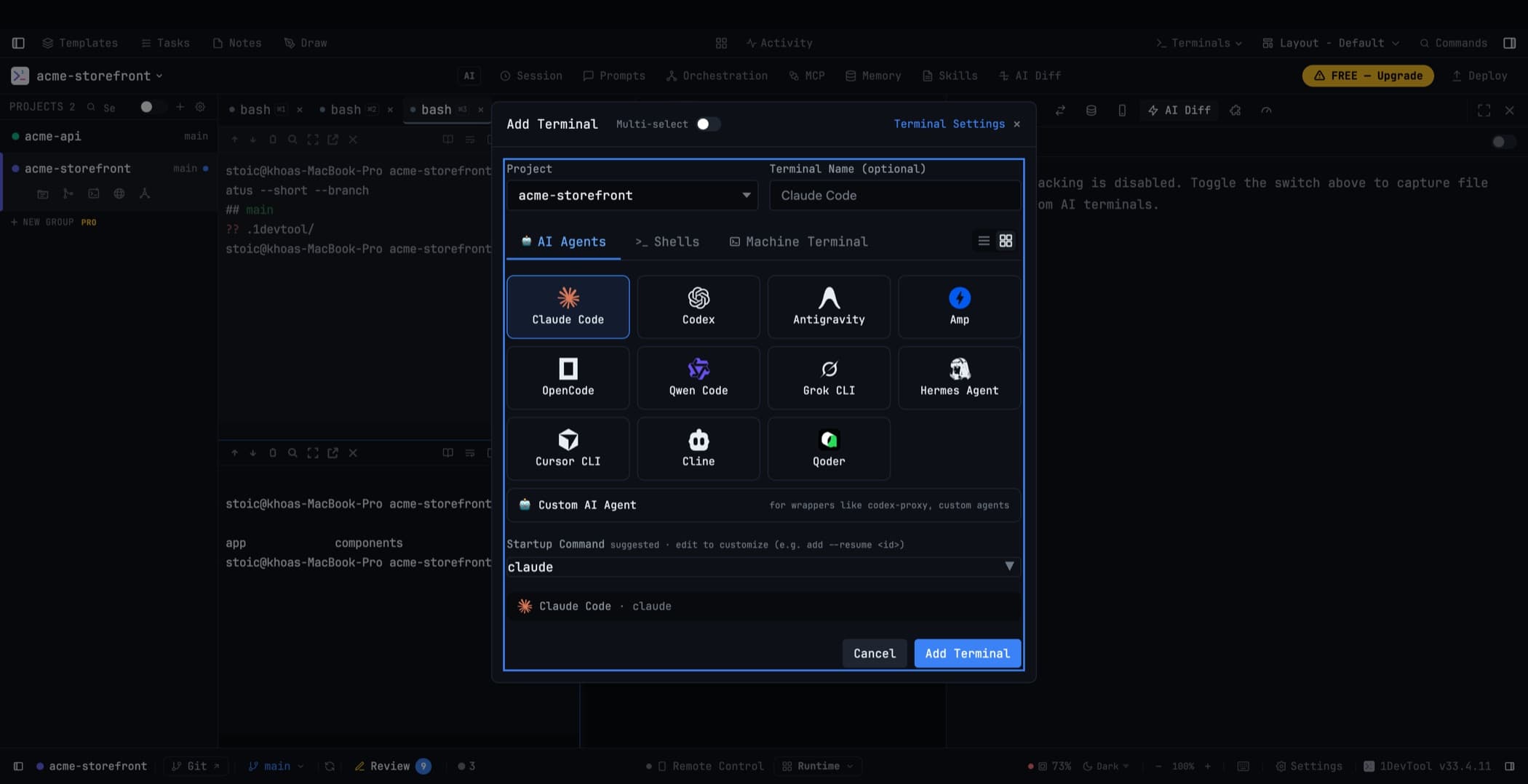
Two ways to open the dialog
The + button in the header bar of any terminal panel, or Cmd+T on macOS / Ctrl+T on Windows and Linux — which works no matter which panel is focused.
What you can open
AI agents. Claude Code, Codex, Gemini CLI, Grok, Devin CLI, Antigravity, Cursor CLI, Cline, Hermes, Amp, OpenCode, Qwen Code, Kimi Code, Pi, Qoder — anything you have installed. 1DevTool detects them on your machine; Scan My Machine in Settings → System re-checks if you install one while the app is running.
Shells. Bash, Zsh, Fish, PowerShell — a plain command line with no AI.
A custom command. Anything you want the terminal to run: a dev server, a test watcher, a REPL.
A machine terminal. Your installed native terminal apps — Ghostty, iTerm, Terminal, or Windows Terminal — launched at the selected project folder. The Machine tab also lists your startup commands, so the app can open with one already running: click a command to arm it for the app you open, or double-click to open with it right away. The list carries the same All / AI Agents / Normal split as Manage Commands, with counts, and the label tells you where it lands (opens in Ghostty). The app opens at the project root, runs the command, then drops to a normal shell. Pick nothing and you get a plain shell, exactly as before. See Batch Terminals & Sets.
A whole team. The Orchestration tab lists your saved charts, pipelines, and routing presets. One click opens the terminals, links them, and starts the team — see The Builder.
Whatever you pick opens in your project's root folder. In a multi-repo project you can choose which repository or worktree it opens in.
Naming
Give a terminal a name before it opens. Names matter once several are running — "UI agent" and "API agent" beat two panels both labelled "Claude Code". Rename later by double-clicking the tab.
AI tabs rename themselves to their conversation title once they have one, and a terminal opened on a worktree is named after the worktree. A name you set by hand is never overwritten.
Opening several at once
Flip Multi-select and every card becomes tickable, each with a −/N/+ counter — one batch can open ten Codex terminals and five Cline terminals together. Save a combination as a named set and reopen the whole line-up from a chip.
Double-click any card to open it immediately — the mouse equivalent of pressing Enter, and it does not disturb a multi-select you have in progress.
Full details in Batch Terminals & Sets.
Startup commands
A terminal can carry a command that runs when it opens. Multi-command sequences are supported and compile to one shell line, which is what keeps them working on Windows. Store them in the project so a teammate gets the same setup — see Project Configuration.
The command form checks your machine as you type: if the tool is not on your PATH it says so before you save, and Rescan picks up a CLI you just installed without restarting the app.
Choosing which account it starts on
With more than one account for a provider, ⚡ Auto (pool order) walks your provider chain and starts the terminal on the healthiest account of the first pool that can take work. The terminal then keeps that account for its whole life — see Spend & Quota Center.
Rearranging in the grid
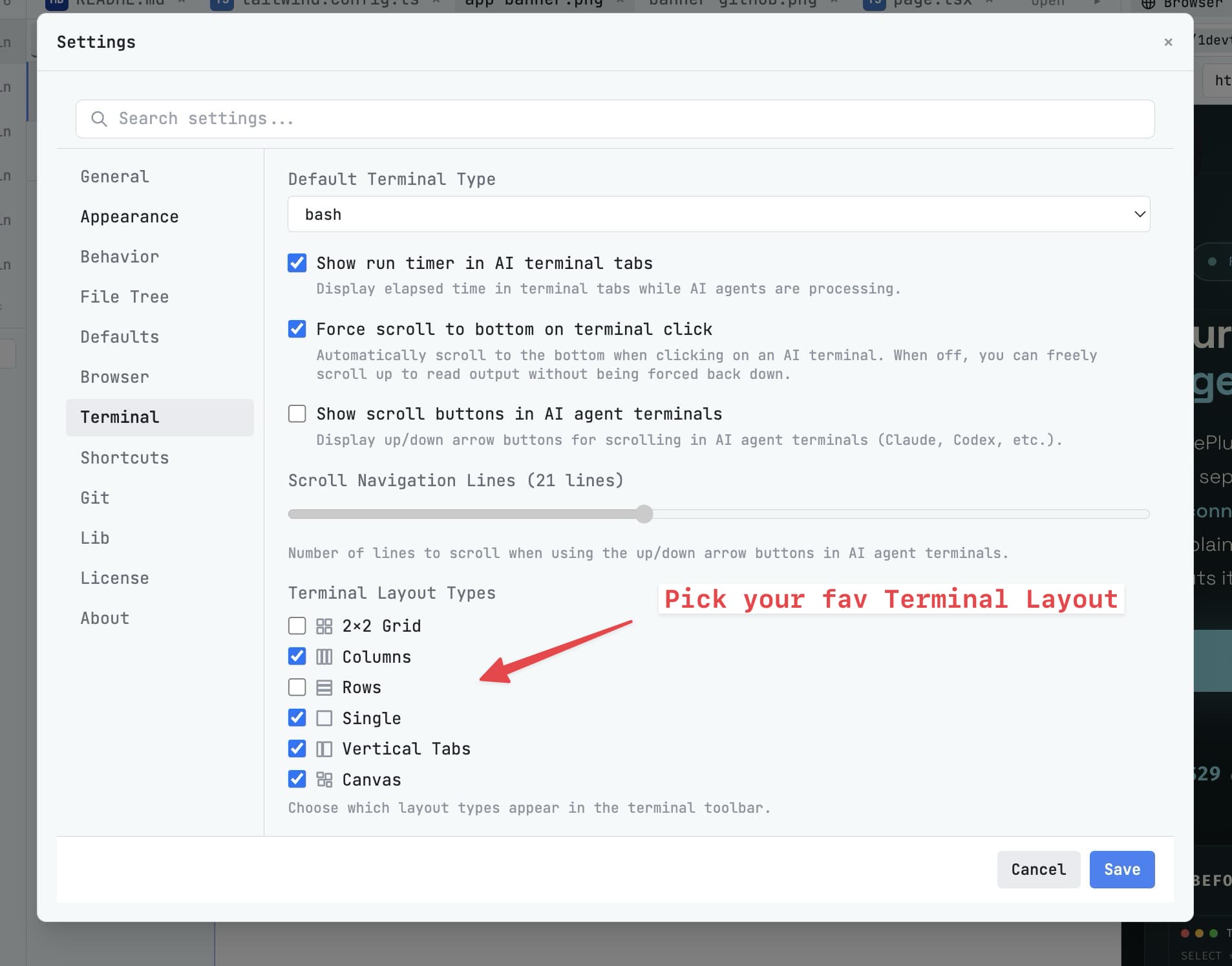
In the 2×2 grid, drag a panel's header bar to another slot and the two swap. Useful for putting the agent you watch most in the top-left, or keeping a terminal and its browser preview side by side.
Hiding a terminal
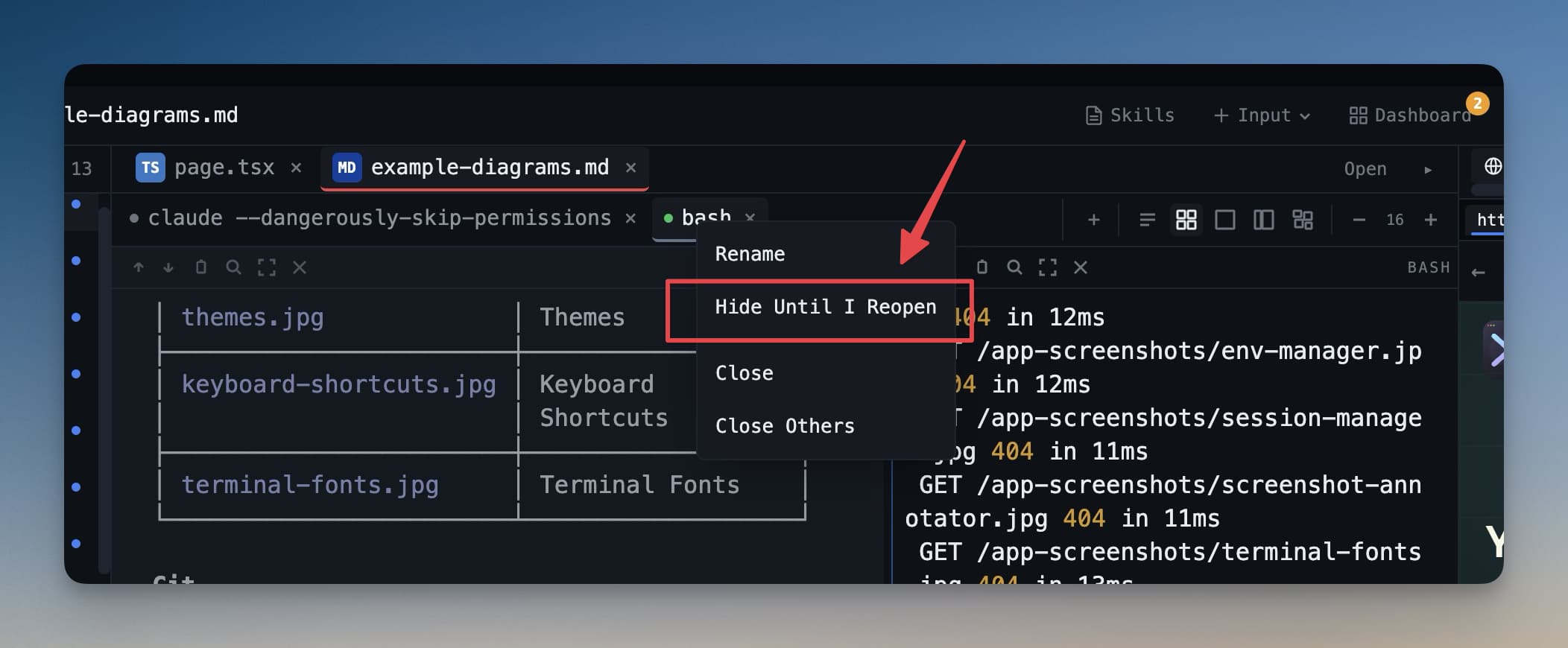
Click the eye icon in a terminal's header to hide it. The panel leaves the screen; the process keeps running, and the sidebar badge still shows it as active.
Bring it back from the session manager in the status bar, or from All Terminals. Hover any terminal to preview its current output without switching focus to it.
Closing one
Closing a terminal releases its system resources immediately — its native handle, its exit watcher, its saved status and timer state. Long multi-project sessions stay healthy, and other terminals on your machine keep starting normally.
Related
- Run an AI Agent
- Batch Terminals & Sets
- Session Persistence
- Spend & Quota Center — the account pools behind Auto