Terminal Tips & Tricks
Recording, colors, reader mode, and power features for your terminals.
Once you're comfortable with the basics of adding terminals and running agents, these features will help you get even more out of 1DevTool. Each one solves a specific pain point that comes up when you're doing serious AI-assisted development.
Terminal Recording
Sometimes you want to save exactly what happened in a terminal session — for debugging, for sharing with a teammate, or just to keep a record of what an agent did. Terminal recording captures everything: every character of output, every command, every agent response, with precise timing.
Recordings are saved as .cast files, which is the standard format used by asciinema. This means you can play them back anywhere that supports the format, share them as animated recordings, or upload them for others to view.
To start recording:
Click the record button in the terminal's header bar. A red indicator appears to confirm recording is active.
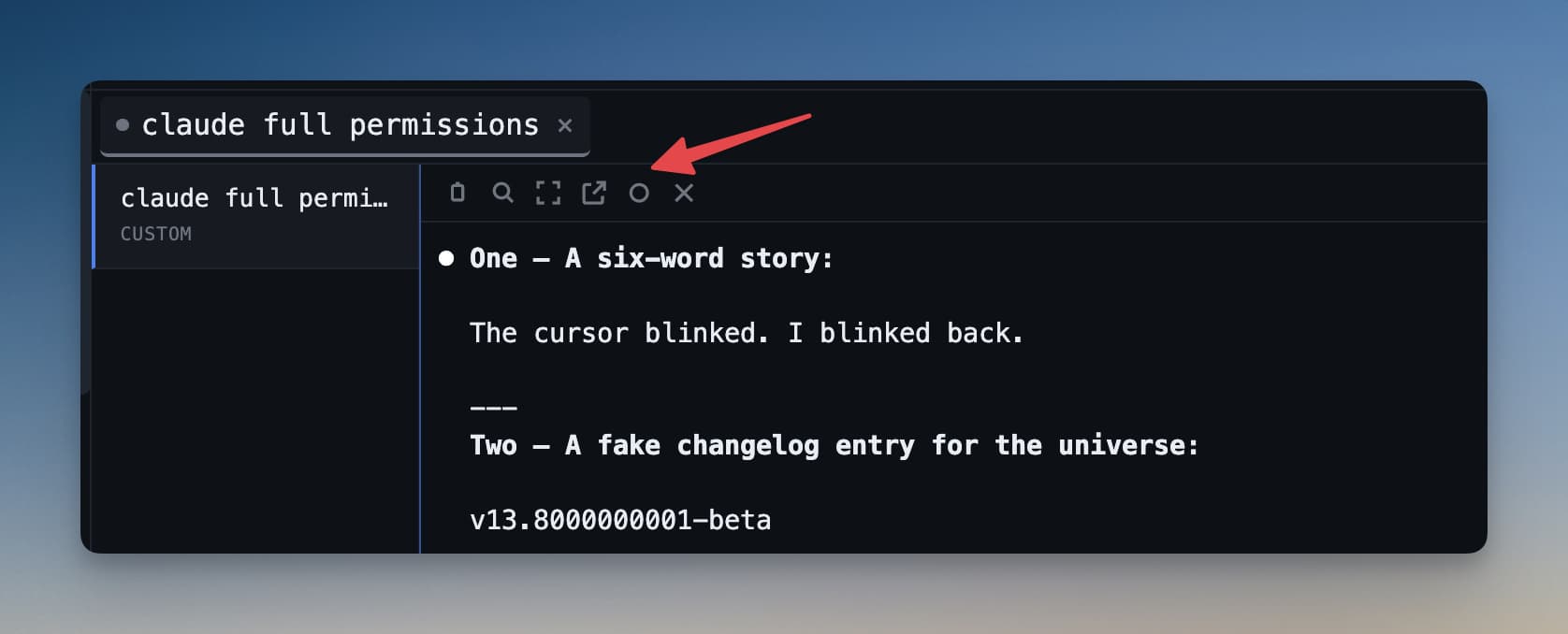
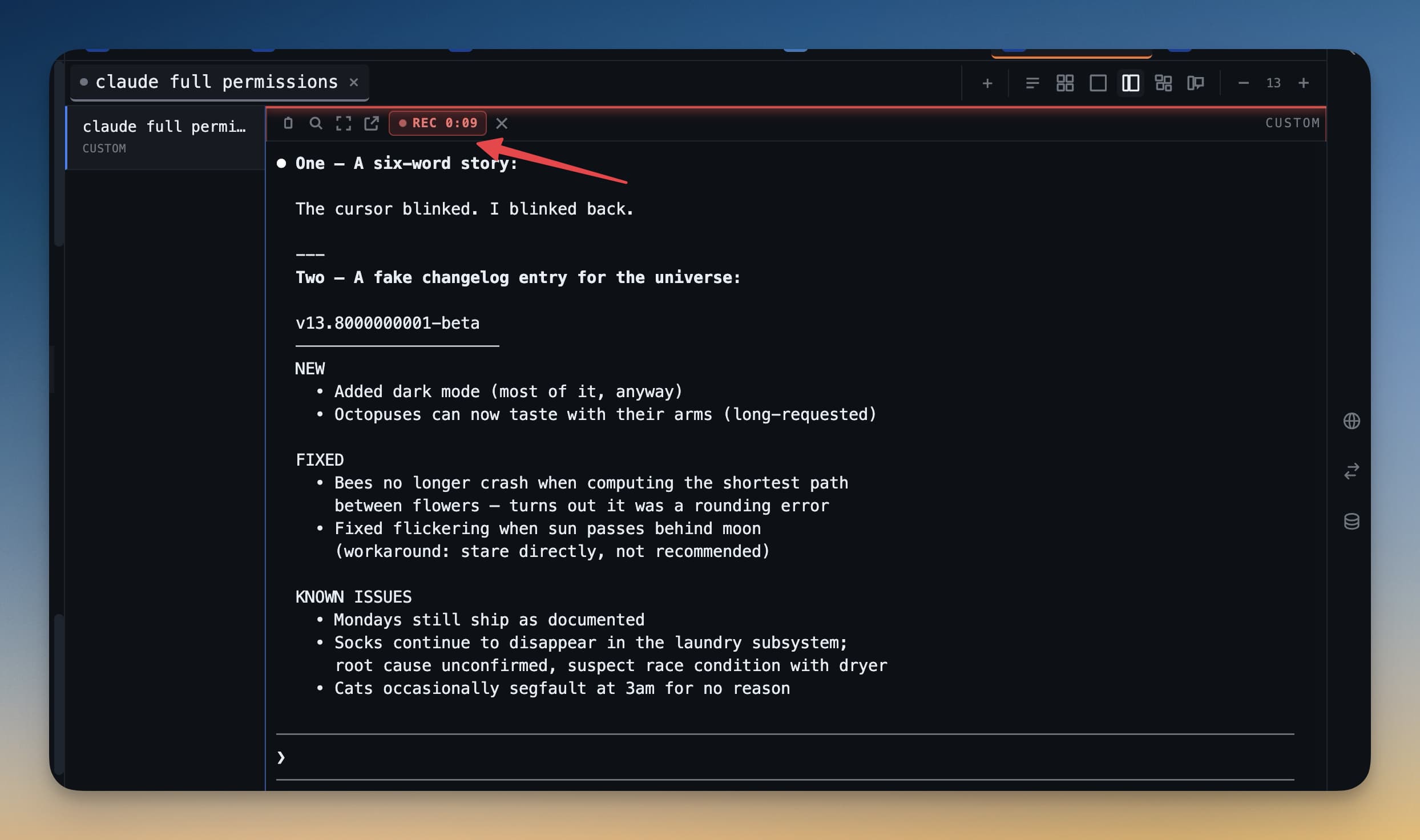
To stop recording:
Click the record button again. 1DevTool saves the .cast file and opens a preview so you can review the session before doing anything with it.
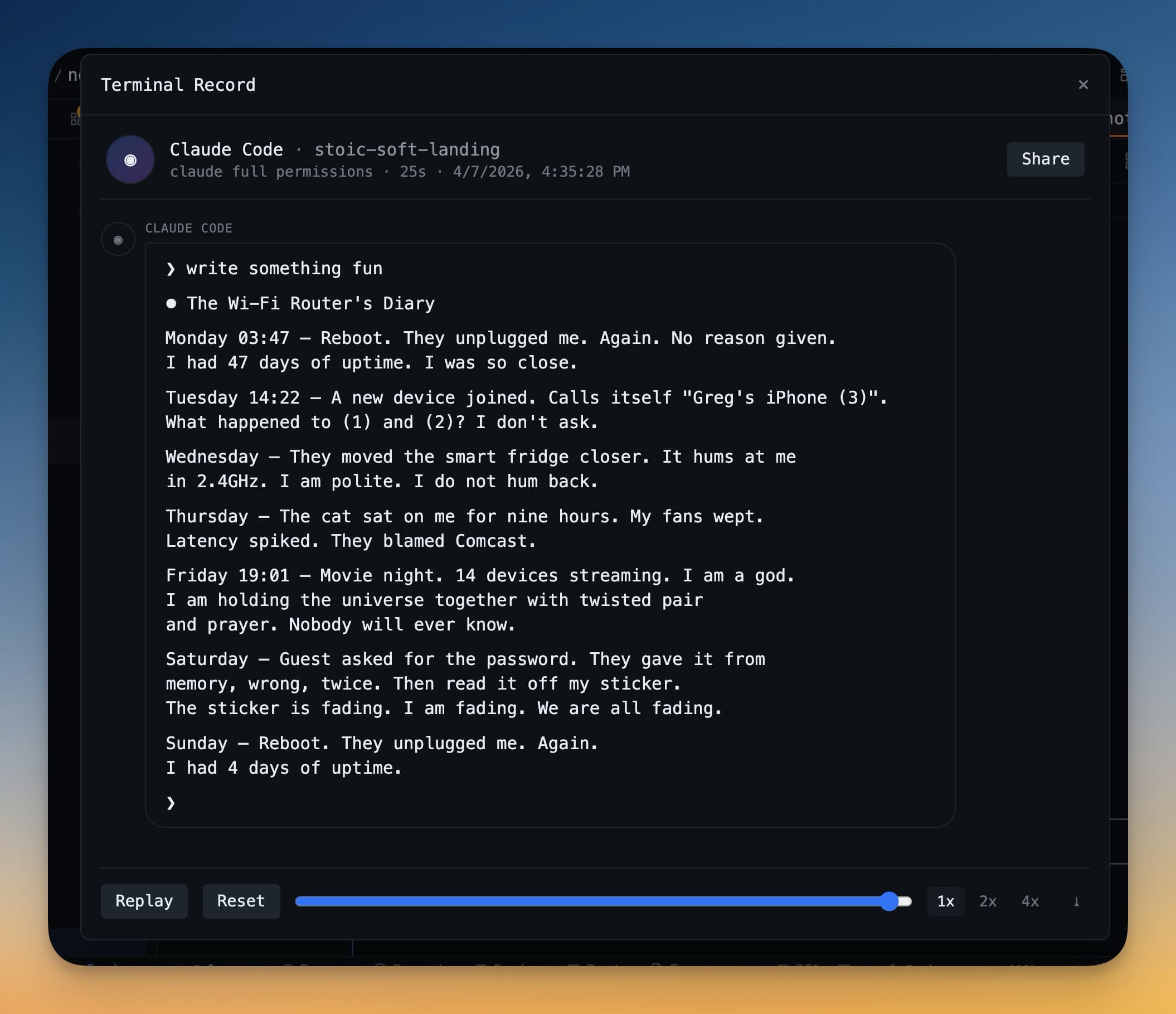
From the preview you can play back the recording, export it to a file location of your choice, or discard it.
Terminal Color Themes
The default terminal colors are fine, but 1DevTool comes with six built-in color palettes that can make your terminals easier to read and more pleasant to look at over long sessions.
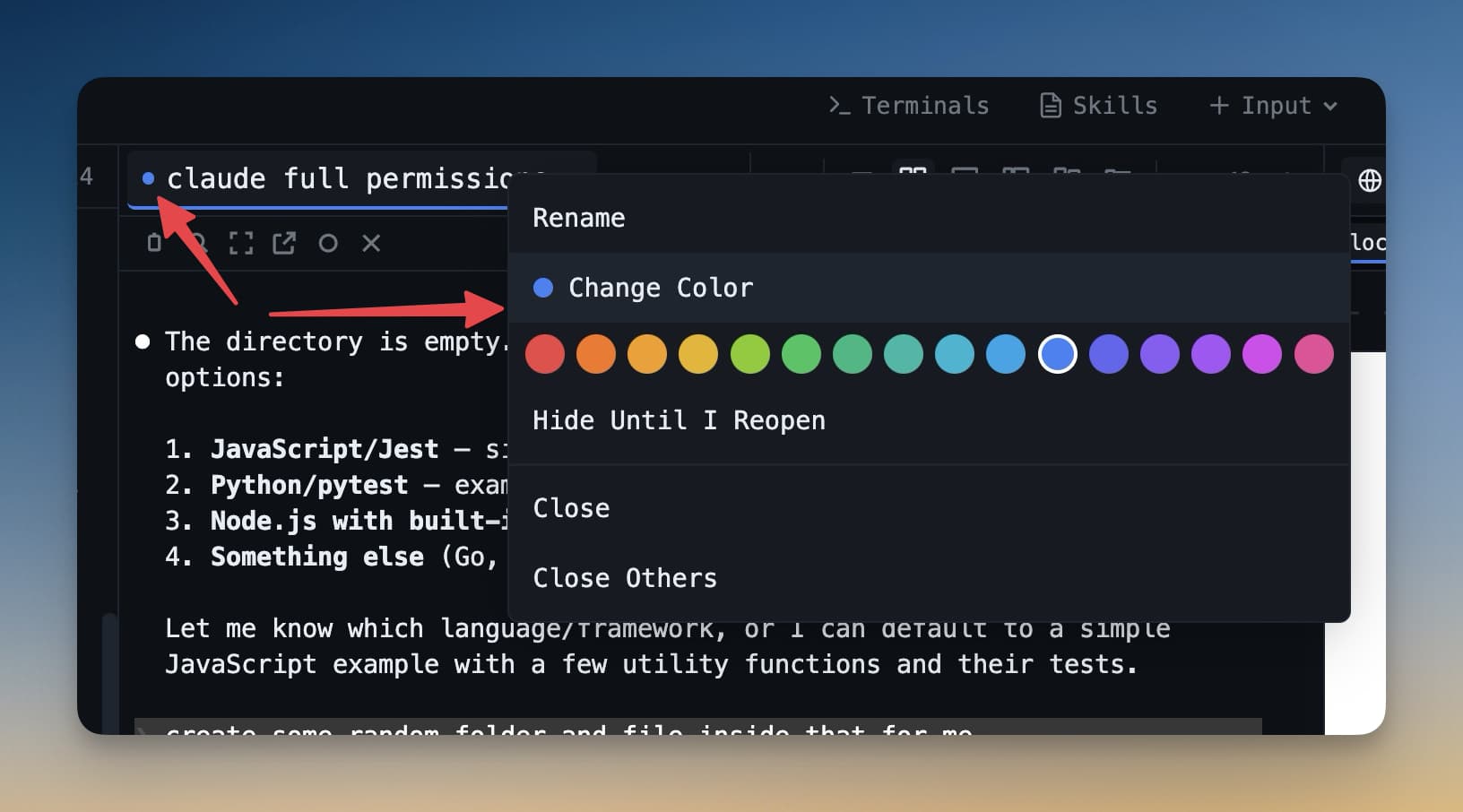
To change the color theme for a terminal:
- Right-click inside the terminal panel.
- Select Color theme from the context menu.
- Pick one of the six palettes — a preview shows instantly so you can compare before committing.
Color themes are set per terminal, so you can give each agent a different look if that helps you tell them apart visually.
Customize the Context Menu
Settings → Terminal → Context Menu decides what the terminal's menu does. You can also reach it from Context Menu Settings… at the bottom of any terminal's menu.
- Show context menu on right-click controls both the right-click menu and the menu that opens when you click a link. Turn it off and neither appears.
- Show menu after selecting text pops the same menu where your drag ends. Turn it off and selecting text stays quiet, while right-click still opens the menu.
- Menu items toggles each entry on its own: Copy, Look Up selection (macOS), Paste, Send to AI, Add task, File actions (Open in Editor or Reveal in Finder, when the selection looks like a file path), Set Title…, Copy Session ID (AI terminals), Copy Terminal ID and Copy Pane ID (tmux-backed terminals).
Everything is on by default. Context Menu Settings… can't be turned off and always stays at the bottom of the menu, so the way back to this tab is never hidden.
Reader Mode
AI agents produce a lot of output. When an agent writes a long explanation, generates a file summary, or displays a detailed plan, the raw terminal output can be hard to read — the text is dense, monospaced, and mixed with control characters.
Reader mode reformats the terminal's text output into clean, readable prose. It strips out formatting characters, adds proper line spacing, and displays the content as if it were a document rather than a terminal dump.
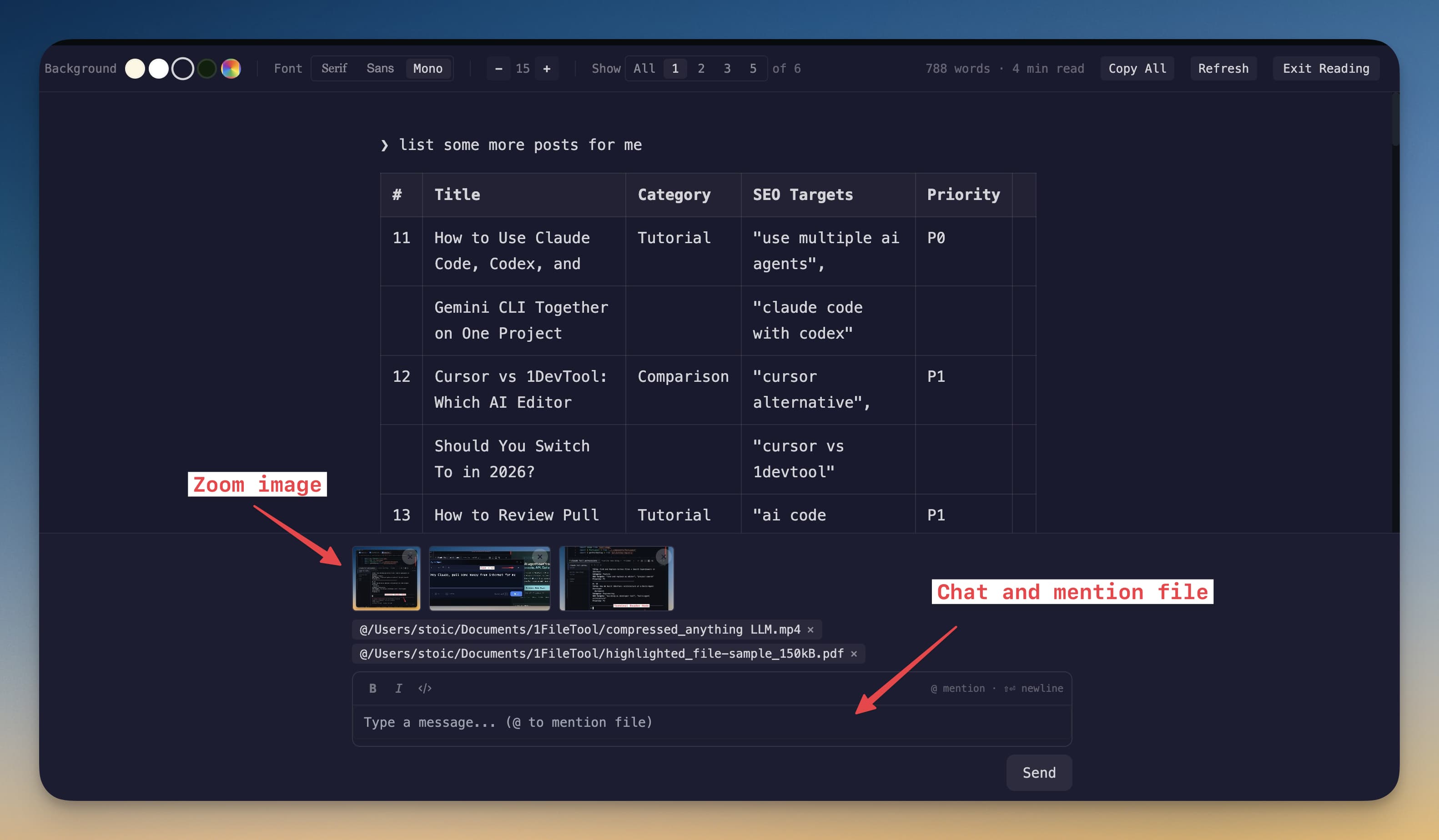
Click Open in Reader Mode in the terminal's header bar, or press Cmd+Shift+E, to toggle reader mode on or off. See Reader Mode for canvases, the Prompts rail and the reader's composer. This works best on text-heavy output like agent explanations, documentation generation, or long error messages. For interactive sessions where you're actively sending commands, keep reader mode off.
Send File Path to Agent
When you want an agent to look at a specific file, you don't need to type the path manually. You can drag a file from the IDE Strip or your system file explorer and drop it into the Agent Input Overlay.
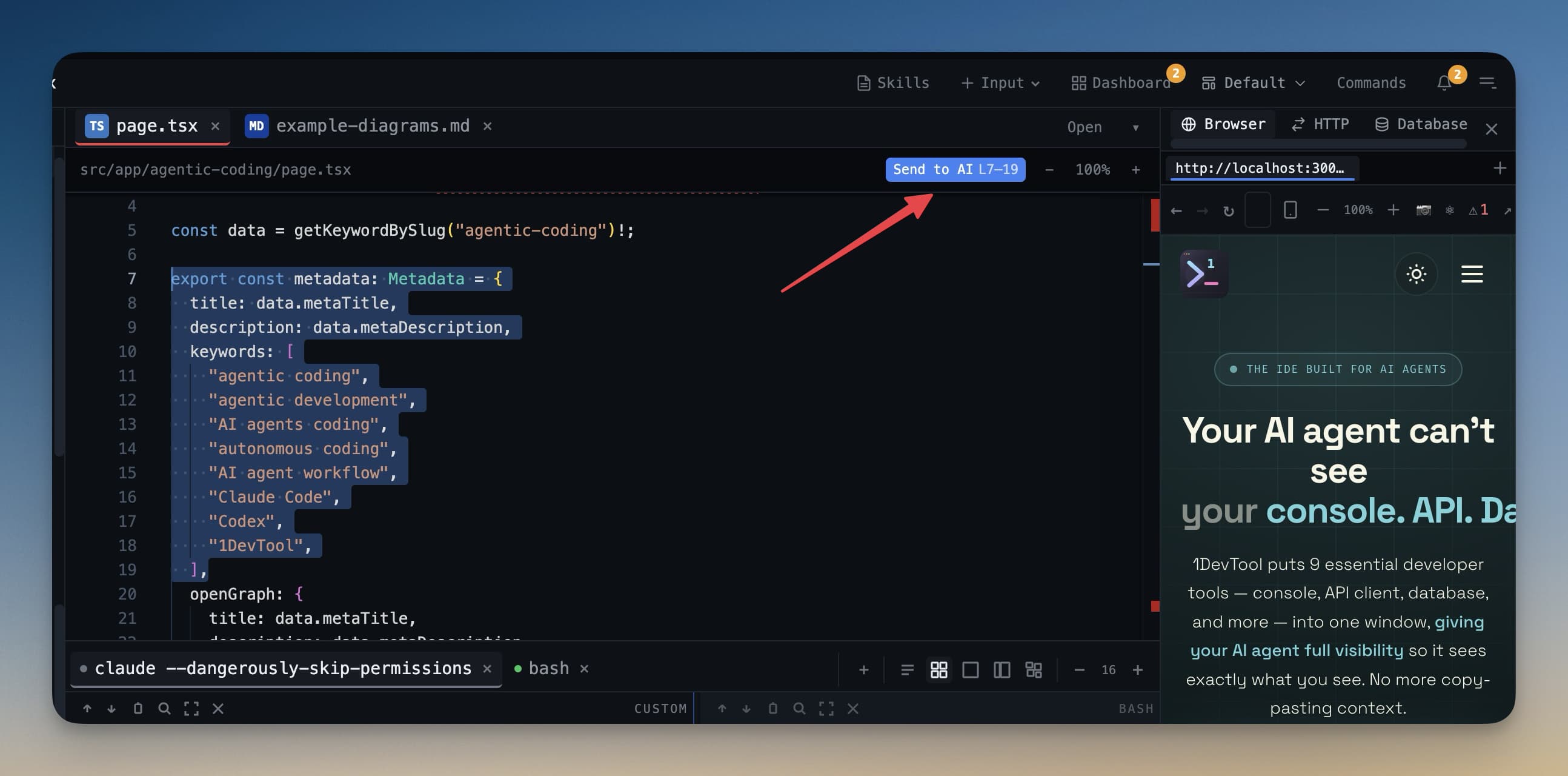
The file's path is automatically inserted into the input field. You can then add context around it before sending — for example: "Review the logic in [path/to/file.ts] and suggest optimizations."
This saves time and eliminates typos in file paths, especially in deep directory structures.
Combine Sessions
If you have two related terminals that you want to view side by side within a single panel, the combine sessions feature lets you merge them into a split view.
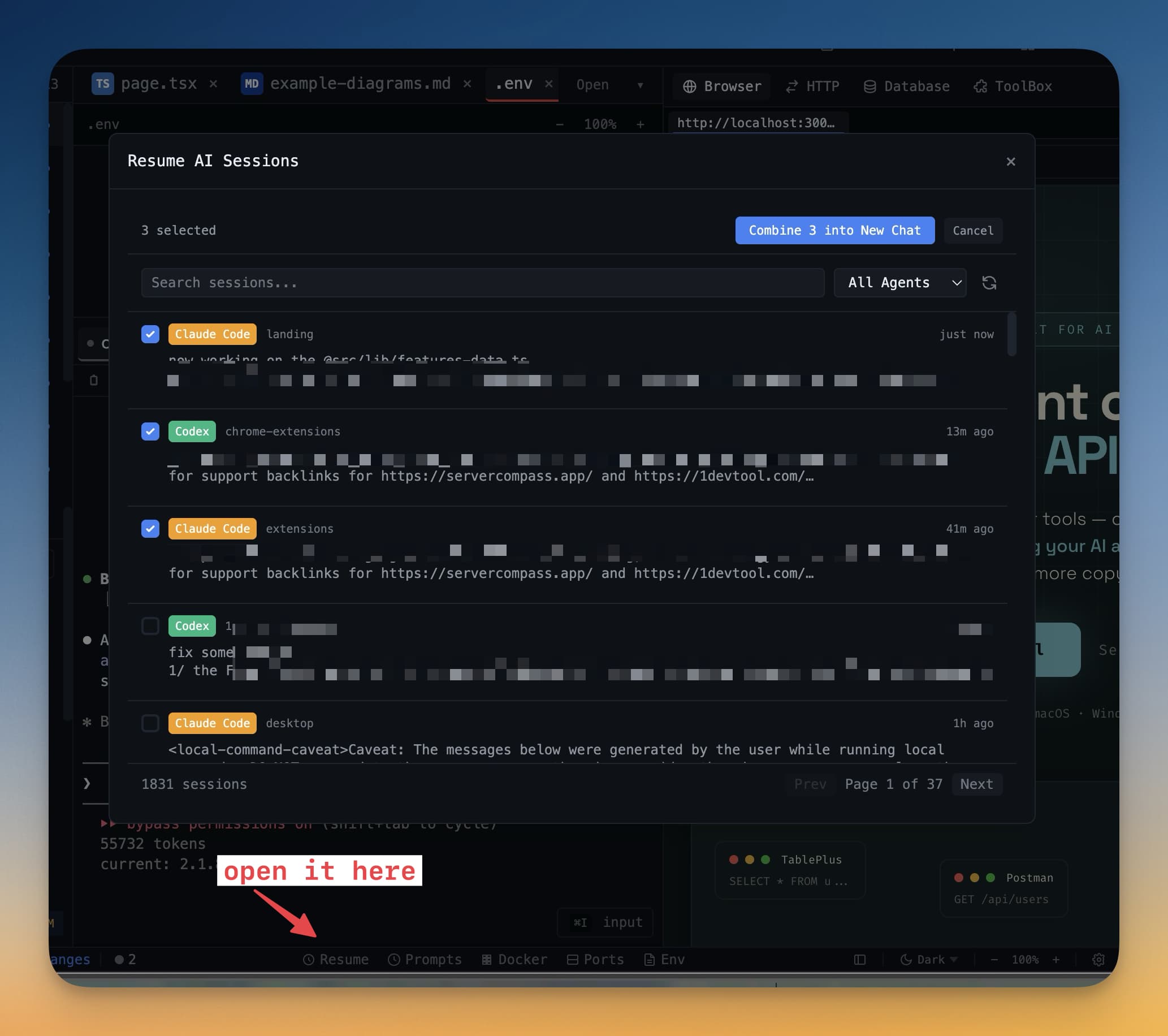
To combine two terminals:
- Click the combine icon in the terminal header (it looks like two overlapping rectangles).
- Select the other terminal session you want to pair it with.
The two terminals appear stacked vertically within the same panel slot. You can interact with either one independently. This is useful when you want to compare the output of two agents working on similar tasks, or when you want to watch a dev server's logs alongside an agent that's making changes.
Terminal Fonts
Reading terminal output for hours is much easier when the font is one you find comfortable. 1DevTool lets you change the terminal font independently of any system setting.
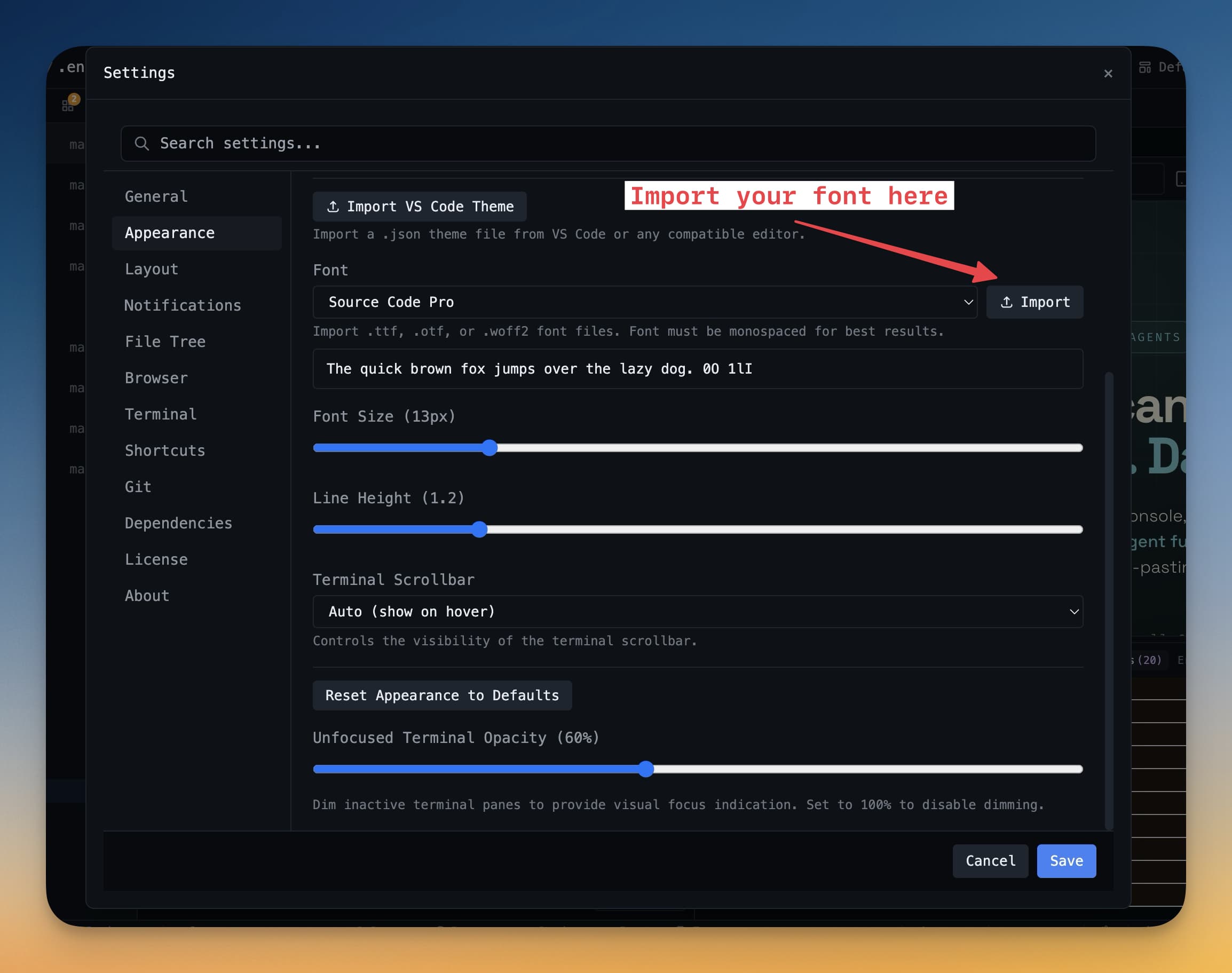
To change the terminal font:
- Open Settings (gear icon in the sidebar, or
Cmd+,/Ctrl+,). - Go to Terminal → Font.
- Choose from the list of available monospace fonts, or type the name of a font installed on your system.
- Adjust the font size using the size slider next to the font picker.
Changes apply immediately to all terminals, so you can preview the result without closing settings.