Workspace Overview
Understand the three zones of 1DevTool and how panels work together.
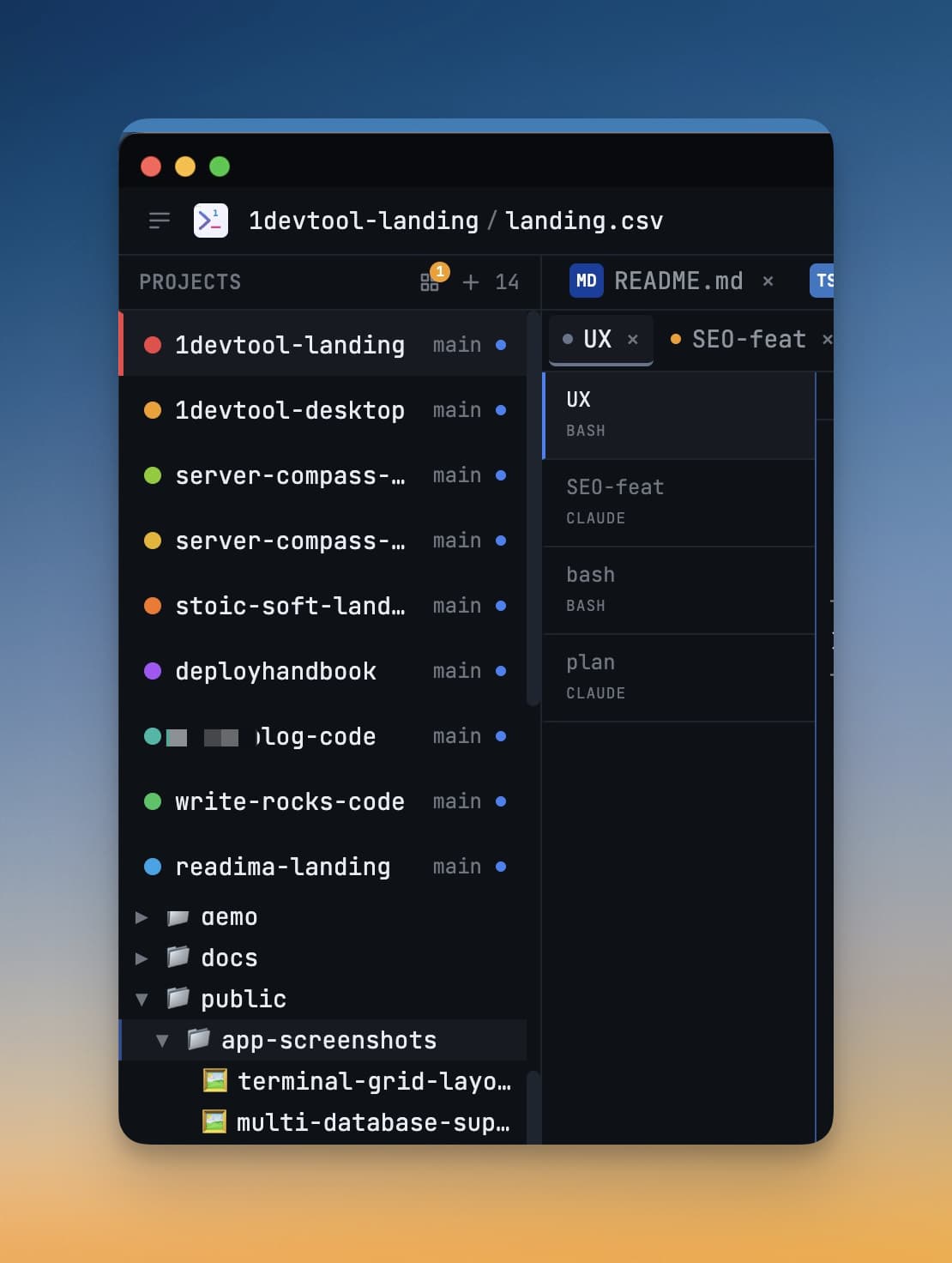
When you open 1DevTool for the first time, the screen is divided into three distinct zones. Each zone has a specific job, and once you understand what lives where, you'll feel at home within minutes.
The Three Zones
Left Sidebar
The left sidebar is your project hub. It displays a vertical stack of color-coded icons — one icon per project. The color makes it easy to tell your projects apart at a glance without having to read any text.
At the bottom of the sidebar you'll find navigation icons for global settings, the session manager, and other app-level controls.
To switch projects, simply click any project icon. 1DevTool instantly restores the exact set of panels and terminals you had open when you last worked in that project. Your previous project keeps running silently in the background — nothing is killed.
Main Area
The main area is the large center region where everything happens. It is made up of panels — individual windows that each serve one purpose. You can have several panels open at the same time, arranged side by side or in a grid.
Here are the panel types available in 1DevTool:
| Panel | What it does |
|---|---|
| Terminals | Full terminals where you run AI agents (Claude Code, Codex, Gemini CLI, Grok, Cursor…) or any shell command |
| File Tree + Editor | Browse the project and edit files in one workspace — or split them apart with a standalone File Explorer |
| Mission Control | The live orchestration cockpit — participants, counters, and one-click recovery |
| Quota Center | Live AI usage and quota per provider |
| Database | Browse and query your databases visually without needing a separate GUI app |
| HTTP Client | Send API requests and inspect responses, like a built-in Postman |
| Git | Stage changes, write commit messages, and view diffs — across several repositories if your project has them |
| Browser | A real browser panel so you can preview your app as you build it — and let an agent drive it |
| ToolBox | The small developer utilities — JSON, JWT, hashes, passwords, converters |
| Mobile | A mobile emulator for checking your app at phone sizes |
| AI Diff | Watch what an agent changed, file by file |
Panels are placed by your layout. Any panel can go fullscreen over the window and come back with Escape, and panel groups in the right sidebar each remember their own active tab.
Full-window workspaces — Tasks, the Git client, the Orchestration Dashboard — open over the whole window rather than into a slot.
Status Bar
The thin bar along the very bottom of the window is the status bar. It stays visible no matter what you're doing and shows:
- The current project name
- How many terminal sessions are active
- System resource usage (CPU and memory)
- The session manager icon — click it to see every running terminal session across all projects
Working with Panels
Adding a Panel
Click the + button in any panel's header to open the panel picker. Choose the panel type you want and it appears in the next available slot in the main area.
You can also use the toolbar at the top of the main area — it has quick-add buttons for every panel type so you can open what you need without navigating menus.
Resizing Panels
Hover your cursor over the divider between two panels. The cursor changes to a resize handle (a double-headed arrow). Click and drag to give more space to whichever panel you need.
Tip: For temporary focus, press
Cmd+Shift+F(Mac) orCtrl+Shift+F(Windows) to expand the active panel to fill the entire main area. Press the same shortcut again to return to the previous layout.
Closing a Panel
Click the × on the panel's tab, or press Cmd+W (Mac) / Ctrl+W (Windows) while the panel is focused. Closing a panel does not kill any process running inside it. Terminals keep running in the background and can be reconnected any time from the session manager in the status bar.
Switching Between Projects
Click any icon in the left sidebar to switch projects. 1DevTool handles the context switch instantly:
- Your panels for the new project are restored exactly as you left them
- The terminal sessions for the previous project continue running in the background
- The status bar updates to reflect the newly active project
Visible terminals are restored first, before editor groups, expanded folders, and Git status — so you are looking at a running agent while the heavier panels are still catching up.
You can also press Opt+1 through Opt+9 (Mac) or Alt+1 through Alt+9 (Windows and Linux) to jump directly to a project by its position in the sidebar — no mouse needed. Hold the modifier for a moment first and the app numbers the projects for you; see keyboard planes.
Two shortcuts for when the sidebar is not where you want it:
- Collapse it to a 40-pixel rail and every project avatar, colour, and emoji stays visible in the same order. Click one to switch without reopening the sidebar.
- Use the Horizon layout to move projects into a strip across the top of the window entirely.
Each project row also carries quick actions — jump straight to File Tree, Git Client, a new terminal, Browser, or Mission Control without switching projects first and then hunting for the panel.
The Top Toolbar
The toolbar sits at the top of the main area and gives you fast access to the most common actions:
- Layout picker — every built-in layout plus your saved ones (see Layout Modes)
- Tasks, Notes, Templates, Draw — the full-window workspaces
- Orchestration, MCP, Memory, Skills, AI Diff — the AI toolbelt
- Terminals — a list of everything running, across projects
- Commands — the command palette (
Cmd+K/Ctrl+K)