Projects Sidebar
Manage projects, switch codebases instantly, and stay organized with color-coded icons.
The projects sidebar runs along the left edge of the 1DevTool window. It's the command center for everything project-related — switching codebases, staying organized, and knowing at a glance how many agents are active in each project.
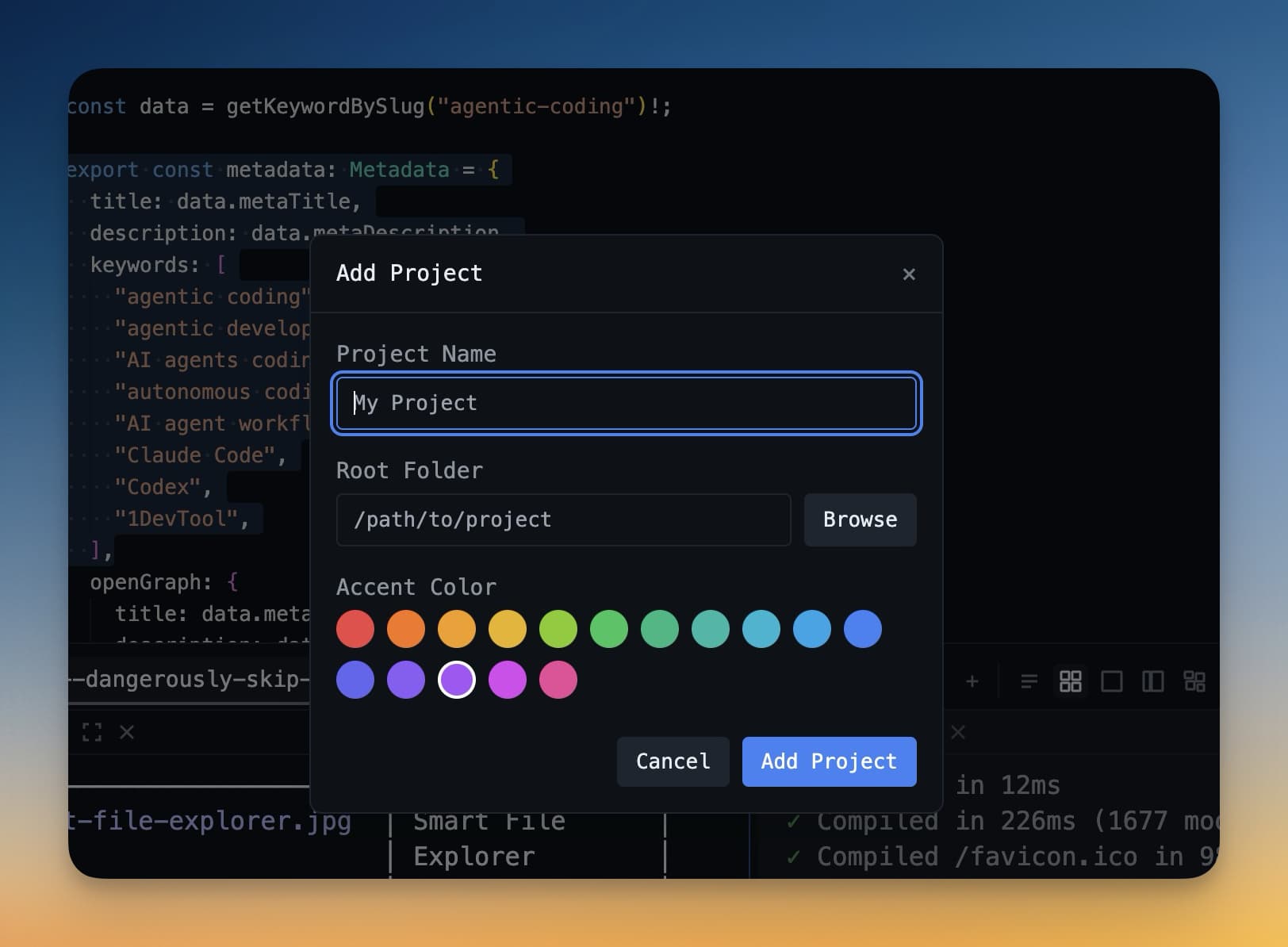
Color-Coded Project Icons
Each project in the sidebar gets a color-coded icon. The color is yours to choose, and it serves a real purpose: when you have five or six projects open, you stop reading names and start recognizing colors. Your "frontend" project might be teal, your "backend" project orange, and your "side experiment" purple.
To switch to a project, click its icon. 1DevTool immediately restores the panels and terminal sessions you had open the last time you worked in it. The switch is instant — there's no loading spinner.
Right-Click Menu
Right-clicking any project icon opens a context menu with the following options:
- Rename — change the project's display name
- Change color — pick a new icon color from the built-in palette
- Open in Finder / Explorer — opens the project's root folder in your system file browser
- Remove — removes the project from the sidebar (this does not delete your files — it just unpins it from 1DevTool)
Drag to Reorder
You can drag any project icon up or down in the sidebar to reorder your list. Put the projects you use most at the top so they're always within reach.
Project Groups
If you work with many related projects — for example, a monorepo with several apps, or a client's suite of services — you can nest them into a project group.
To create a group, drag one project icon on top of another. They collapse into a folder icon. Click the folder to expand or collapse the group. You can name groups the same way you name projects (right-click → Rename).
Groups help keep the sidebar clean when you're juggling more than five or six codebases.
Active Agent Badge
Each project icon shows a small badge in the corner when an AI agent is actively running inside it.
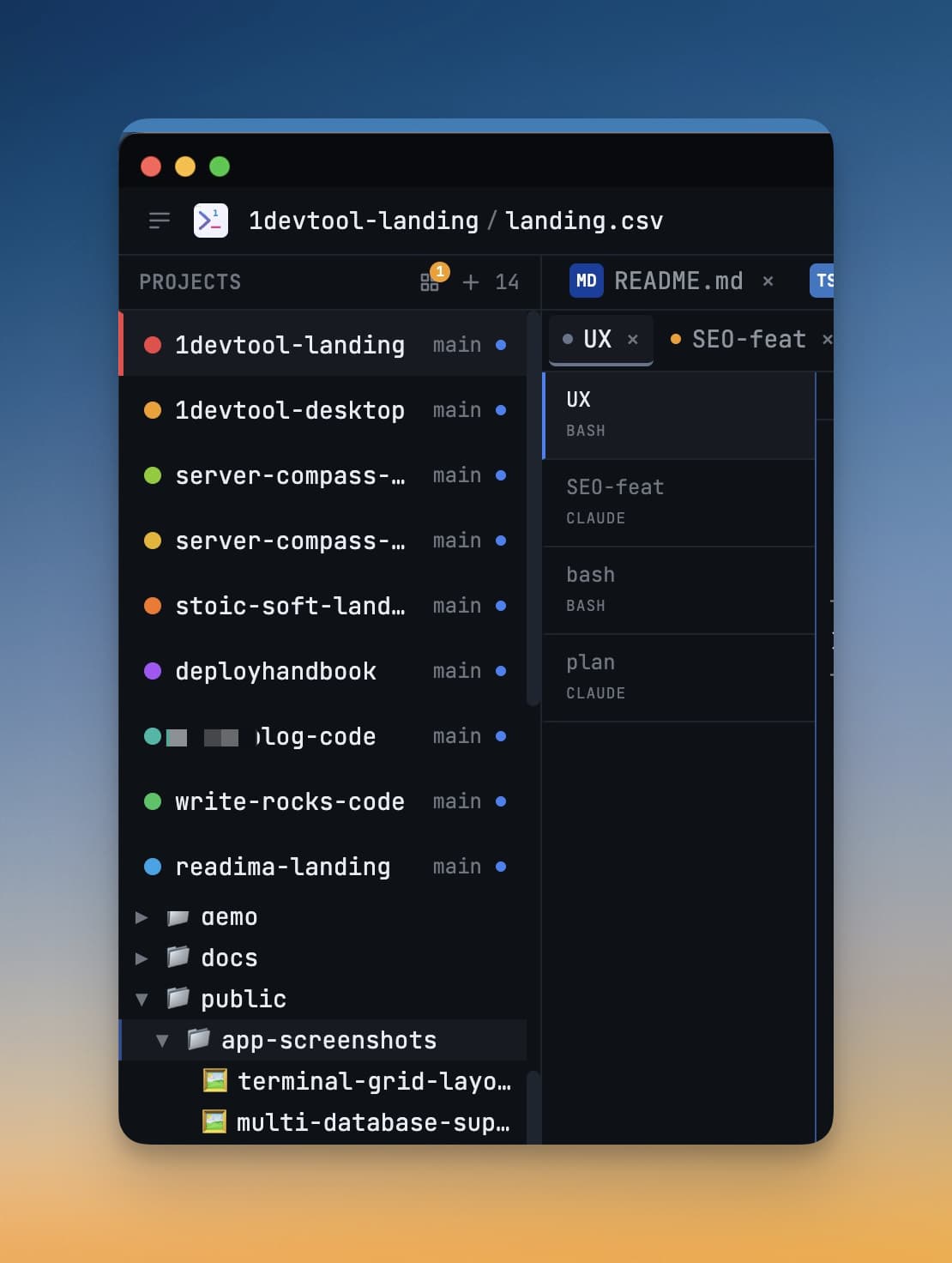
The badge displays the number of active agents. This means you can stay in your current project, glance at the sidebar, and know that your other project's agent is still running — without having to switch over to check.
If the badge is green, the agent is running. If it turns yellow, the agent may be waiting for input. If it disappears, the agent has finished.
System Tray
Even when 1DevTool is minimized or hidden behind other windows, you can switch projects from the system tray icon in your menu bar (Mac) or taskbar (Windows).
Click the 1DevTool tray icon to see a list of your projects. Click any project name to bring the app to the front with that project already active. This is handy when you're reading documentation in a browser and want to jump back to a specific codebase without hunting for the window.
Tips for Staying Organized
- Use distinct colors for projects in different domains (frontend, backend, infrastructure)
- Keep active projects at the top of the sidebar; archive stale ones by removing them
- Use groups to bundle microservices or related experiments so the sidebar doesn't become overwhelming