Channel Templates
Start a pre-built multi-agent workflow in one click — code review, bug fix, test writing, and more.
Setting up a multi-agent workflow from scratch takes thought: which agents play which roles, what's the initial prompt, what order do things happen in? Templates do this work for you. A template is a pre-configured channel with defined agent roles and a starting prompt, so you can kick off a proven workflow in one click.
What Is a Template?
A template packages three things together:
- Agent roles — who does what (e.g., "one agent investigates, one agent fixes")
- An initial prompt — the opening message that sets the workflow in motion
- A channel name prefix — so the channel is named something meaningful by default
When you start a template, you pick which of your open terminals fills each role, and then the channel opens with the initial prompt already sent.
Built-In Templates
1DevTool ships with four templates ready to use:
Fix Bug
Three agents work together to squash a bug. The first agent investigates the issue and identifies the root cause. The second agent applies the fix. The third agent runs the tests and verifies the fix works and doesn't break anything else. You provide the bug description and the template sets the rest in motion.
Code Review
One agent reads a diff or a file and posts a structured review: what looks good, what could be improved, and what might be a bug. Useful after you've made changes and want a second set of eyes before committing.
Write Tests
An agent reads your code and writes test cases covering the main logic paths, edge cases, and error conditions. Point it at a file or function and it produces a test file ready to run.
Document Code
An agent reads source code and writes clear documentation: function docstrings, README sections, or a full API reference. Good for catching up docs after a sprint of feature work.
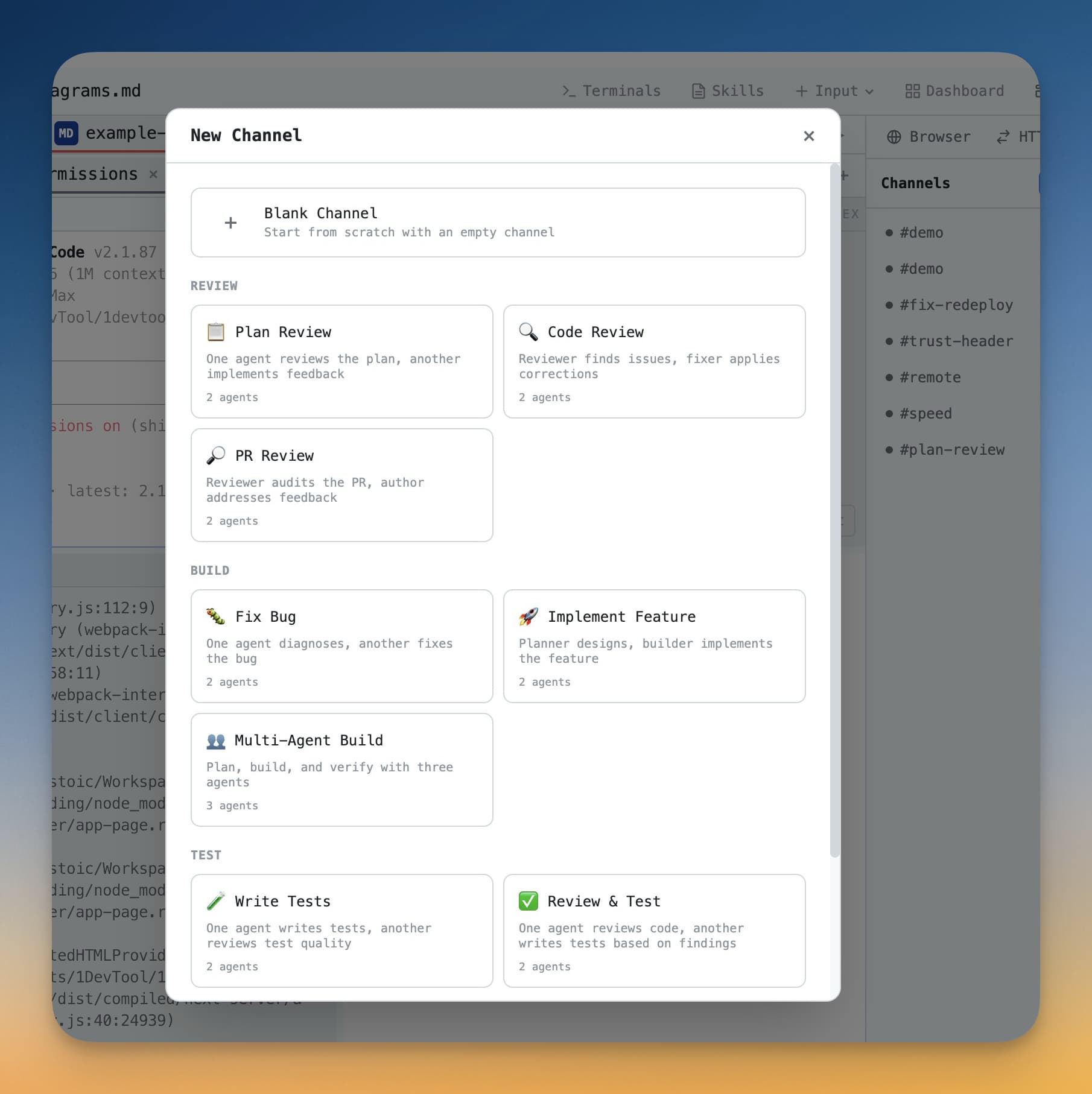
How to Use a Template
- Open the Channels panel from the left sidebar.
- Click the Templates button at the top of the panel.
- Browse the available templates and click the one you want.
- A setup dialog appears. For each role in the template, choose which of your open terminals fills that role.
- Add any specific context the template asks for (e.g., the bug description, the file to review).
- Click Start. The channel opens and the workflow begins automatically.
Create Your Own Template
Once you've set up a channel workflow you like, you can save it as a template for reuse:
- Open the channel you want to save.
- Click the ... menu in the channel header.
- Select Save as Template.
- Give the template a name and a short description.
- The template appears in your personal templates list the next time you open the Templates panel.
Custom templates are especially useful for team workflows — processes your team runs repeatedly that would benefit from a consistent starting setup every time.
Tip: When you create a template, include a clear initial prompt. The more specific the opening message, the less setup you'll need to do each time you use the template.