Connect with DATABASE_URL
The fastest way to connect any database — paste one URL string and you're in.
Instead of filling out a form with separate fields for host, port, username, password, and database name, you can connect to any database by pasting a single string called a DATABASE_URL. It is the fastest way to get connected, and most cloud database providers give you one you can copy straight from their dashboard.
What Is a DATABASE_URL?
A DATABASE_URL is a single line of text that encodes everything needed to open a database connection. It follows the same pattern as a web address (URL), which makes it easy to read and easy to share between tools.
Here is an example PostgreSQL DATABASE_URL:
postgresql://myuser:[email protected]:5432/myapp_production
Let's break each part down:
| Part | Example value | What it means |
|---|---|---|
| Engine | postgresql:// | The type of database. This tells 1DevTool which driver to use. |
| Username | myuser | The database user you are logging in as. |
| Password | mypassword | The password for that user. |
| Host | db.example.com | The server where the database is running. This can be a domain name or an IP address. |
| Port | 5432 | The network port the database listens on. PostgreSQL defaults to 5432. |
| Database name | myapp_production | The specific database (or schema) on that server you want to connect to. |
When you paste this URL into 1DevTool, it reads each part automatically and fills in all the connection fields for you. You never have to type anything manually.
Where to Find Your DATABASE_URL
Every cloud database provider exposes a connection string somewhere in its dashboard. Here is where to look for the most common ones:
Supabase
Go to your project → Project Settings (gear icon in the sidebar) → Database tab → scroll to Connection String → click the URI tab. Copy the string shown. It will look like postgresql://postgres:[YOUR-PASSWORD]@...supabase.co:5432/postgres.
Neon
Go to your Dashboard → select your project → click Connection Details in the right panel → copy the Connection string. Neon uses a postgresql:// URL with a serverless endpoint.
PlanetScale
Go to your database → click Connect → select "Other" from the framework dropdown → copy the connection string. PlanetScale uses a mysql:// URL with an SSL certificate embedded or required via parameter.
Railway
Open your project → click on the database service → go to the Variables tab → find DATABASE_URL. Railway automatically injects this variable into your app as well, so you may already have it in your environment.
Heroku
Go to your app → Settings tab → scroll to Config Vars → look for DATABASE_URL. Heroku automatically sets this for any Heroku Postgres add-on.
Local PostgreSQL (running on your own machine) If you installed PostgreSQL locally and have not changed the defaults, your URL is:
postgresql://postgres:password@localhost:5432/mydb
Replace password with your actual postgres user password and mydb with the name of the database you created.
Local MySQL
mysql://root:password@localhost:3306/mydb
Step-by-Step: Connect in 1DevTool
- Open your project in 1DevTool, then click the Database icon in the left toolbar (the cylinder symbol), or press Cmd+D on Mac / Ctrl+D on Windows.
- Click the + button in the connection rail on the left side of the database panel. A dialog titled Add Connection will open.
- At the top of the dialog you will see a field labeled "Paste DATABASE_URL". Click into that field.
- Paste your DATABASE_URL. As soon as you paste, 1DevTool reads the URL and automatically fills in the Host, Port, User, Password, and Database fields below. You can see them populate in real time.
- Click "Test Connection". 1DevTool will attempt to open a connection to your database. If it succeeds, you will see a green checkmark and the message "Connection successful".
- Click "Save". The connection is stored for this project. It will be there the next time you open 1DevTool.
- Your tables and collections will appear in the left sidebar. You are connected and ready to query.
DATABASE_URL Format for Every Engine
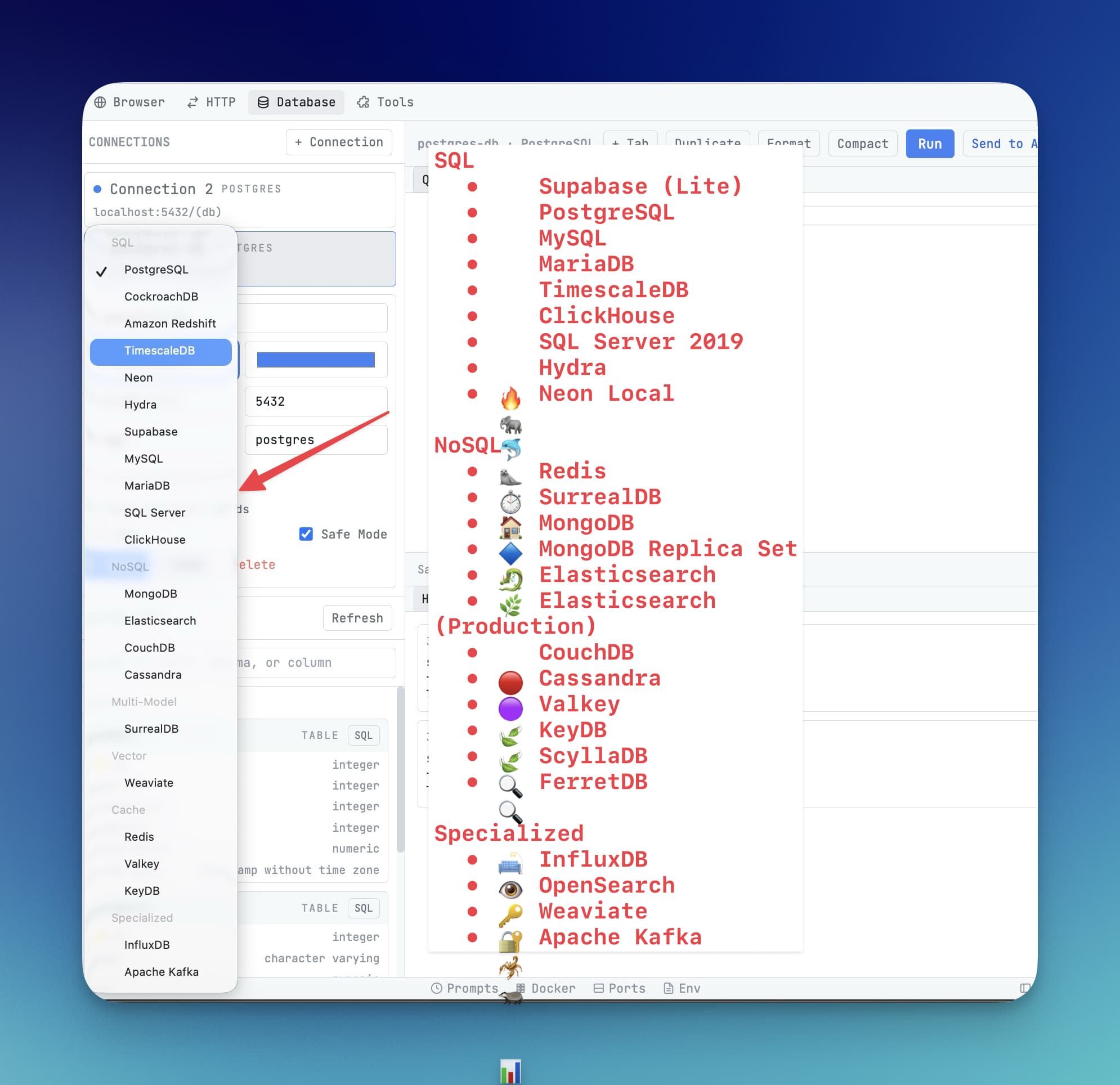
Here are the URL formats for all supported engines so you can construct or verify one manually:
# PostgreSQL (also Supabase, Neon, Timescale, CockroachDB)
postgresql://username:password@host:5432/database

# MySQL (also MariaDB)
mysql://username:password@host:3306/database

# Microsoft SQL Server
mssql://username:password@host:1433/database

# MongoDB (standard)
mongodb://username:password@host:27017/database

# MongoDB Atlas (cloud — use the SRV format)
mongodb+srv://username:[email protected]/database

# Redis (no auth)
redis://host:6379

# Redis (with password)
redis://:password@host:6379

# Redis with TLS/SSL
rediss://:password@host:6380

# ClickHouse
clickhouse://username:password@host:9000/database

# Elasticsearch (no auth)
elasticsearch://host:9200

# Elasticsearch (with auth)
elasticsearch://username:password@host:9200

# CouchDB
couchdb://username:password@host:5984/database
Common Connection Errors
If the test connection fails, this table will help you figure out what went wrong:
| Error | Why it happens | How to fix it |
|---|---|---|
| Connection refused | The database is not running, or the port number is wrong | Make sure the database server is started. Verify the port matches what your DB is configured to use. |
| Authentication failed | The username or password is incorrect | Double-check the credentials. If you copied from a dashboard, make sure you did not accidentally include extra whitespace. |
| SSL required | The cloud database requires an encrypted connection but the URL does not request one | Add ?sslmode=require to the end of your PostgreSQL URL, or ?ssl=true for MySQL. |
| Unknown host / could not resolve host | The hostname is misspelled or your machine cannot reach it | Check for typos in the hostname. If connecting to a private database, make sure your VPN is connected. |
| Timeout | The database host is unreachable (firewall or wrong IP) | Check that your IP address is in the database's allowlist. Most cloud providers have a section called "Network" or "Trusted IPs" in their settings. |
Warning: Never commit your DATABASE_URL to Git. It contains your database password in plain text. Store it in a
.envfile and add.envto your.gitignore. If you accidentally commit it, rotate the password immediately in your database provider's dashboard.
Tip: 1DevTool stores your connection details encrypted on your local machine. They never leave your computer and are never sent to any server.