SSH Keys
Manage your SSH keys — view, generate, and use them for Git and remote servers.
What are SSH Keys?
SSH keys are a way to prove your identity to remote servers and services without typing a password. They work in pairs: a private key that stays on your machine and a public key that you share with the server (like GitHub or a remote Linux box).
When you connect, the server checks that your private key matches the public key on file. If they match, you are let in — no password required. This is more secure than passwords and much more convenient, especially for Git operations that happen dozens of times a day.
View Existing SSH Keys
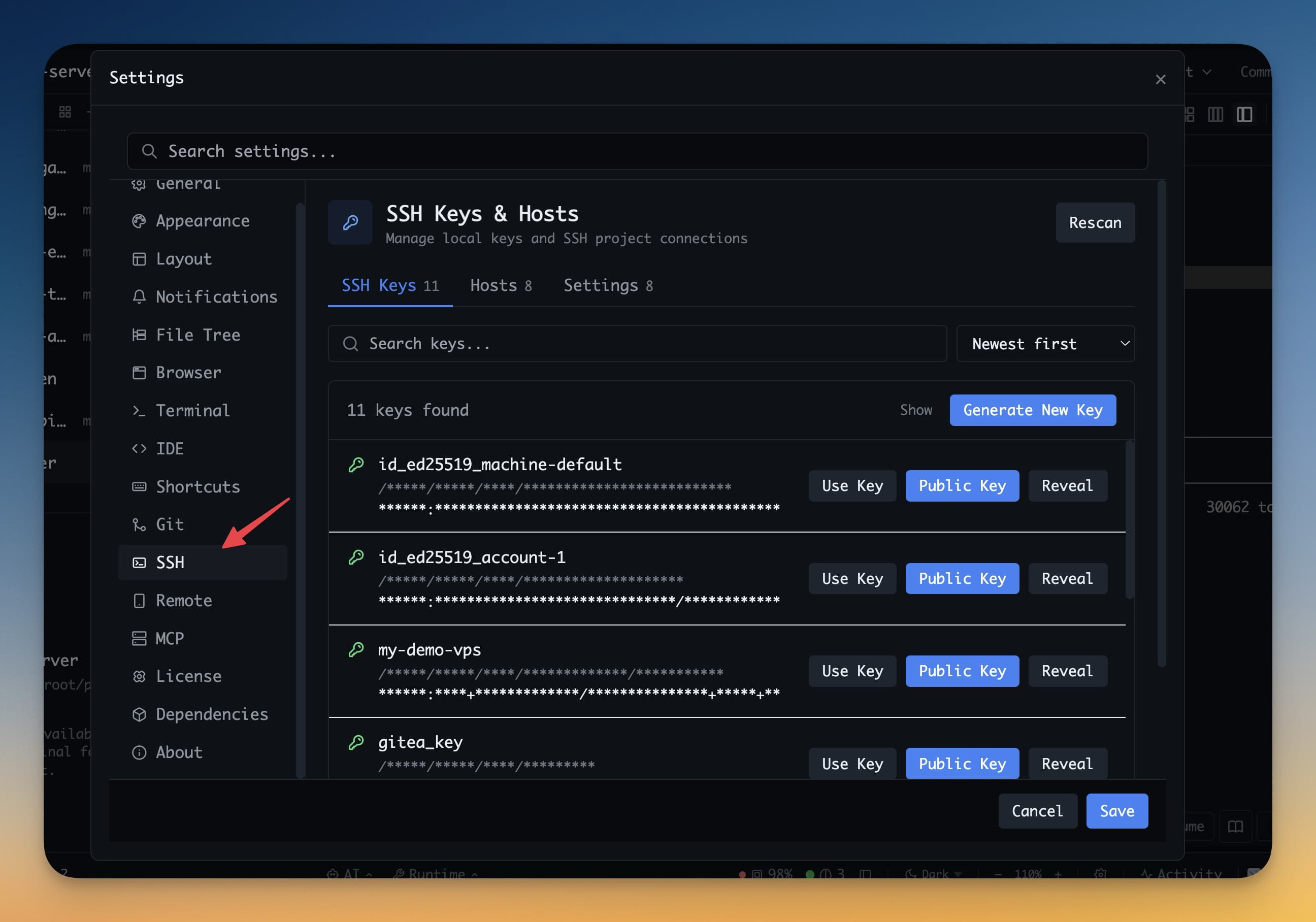
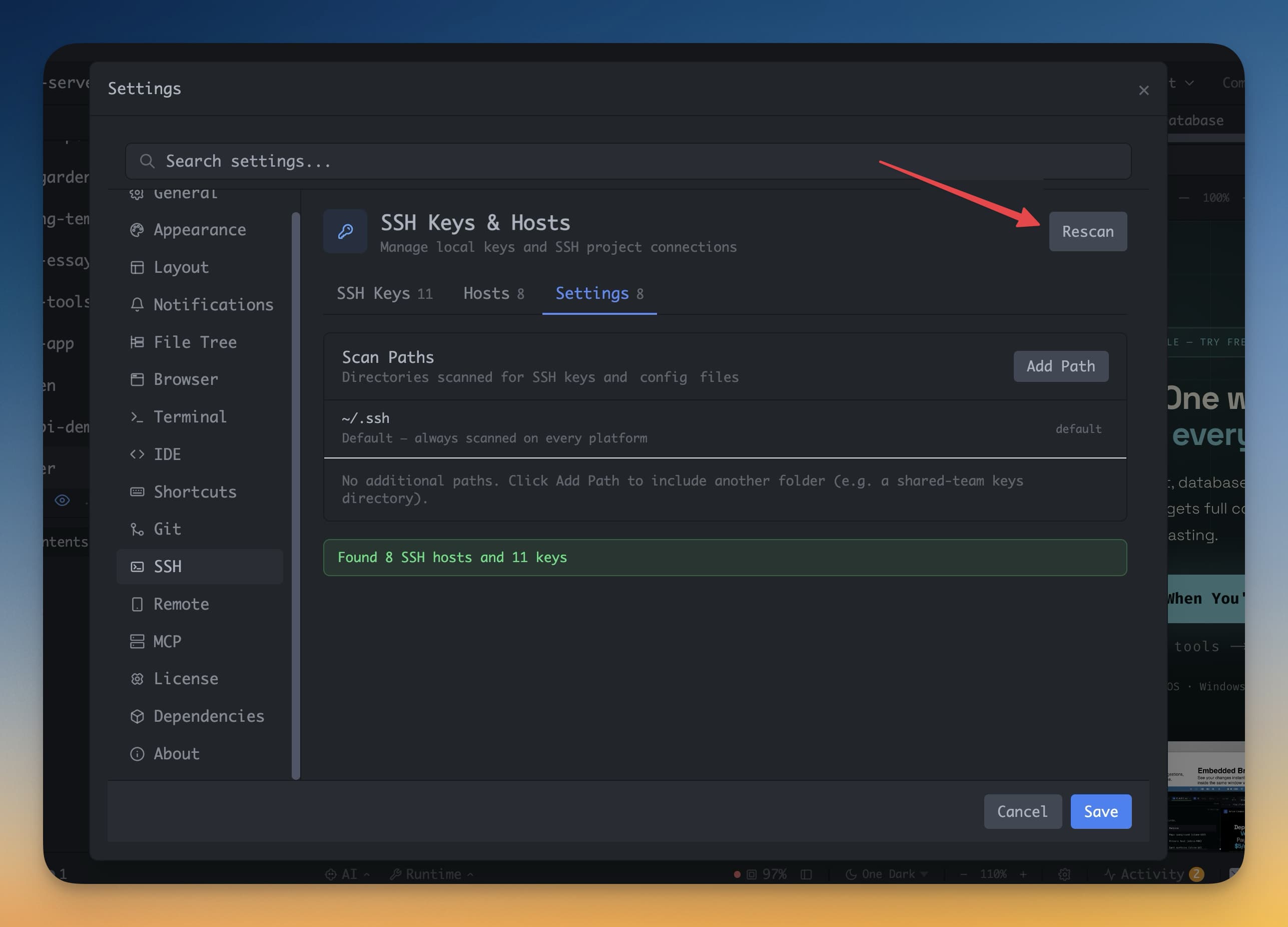
1DevTool scans your ~/.ssh directory automatically when you open the SSH Keys manager. To open it, go to Settings → SSH Keys.
You will see a list of all key pairs found on your system, with the key name, algorithm, and creation date. If you have already set up SSH keys for GitHub or another service, they will appear here right away — no import needed.
Generate a New Key
If you do not have an SSH key yet, or you want a separate key for a specific service:
- Click + Generate Key
- Choose an algorithm:
- Ed25519 — recommended. Shorter, faster, and more secure than RSA.
- RSA 4096 — compatible with older servers that do not support Ed25519.
- Optionally add a passphrase — this encrypts the private key on disk so it is protected even if someone gets access to your files.
- Click Generate
The key pair is saved to ~/.ssh/ with standard naming (id_ed25519 and id_ed25519.pub, or similar).
Add to GitHub or GitLab
After generating a key, you need to tell GitHub or GitLab about the public key:
- Click Copy Public Key next to your key in 1DevTool
- Go to github.com → Settings → SSH and GPG Keys → New SSH Key
- Give it a name (e.g., "MacBook Pro 2024"), paste the public key, and click Add SSH Key
For GitLab: go to Preferences → SSH Keys and follow the same steps.
Use an SSH Key for Git
To tell 1DevTool which SSH key to use when pushing and pulling from a repository:
- Open the Git panel
- Click the account badge (your username or avatar) near the top
- Select the SSH key you want to use for this repo
The setting is saved per-repository.
Connect to a Remote Server
When adding a project via SSH (click + → Add via SSH), you can select which SSH key to use for the connection from a dropdown list. 1DevTool will use that key every time it connects to that server.