Import Collections
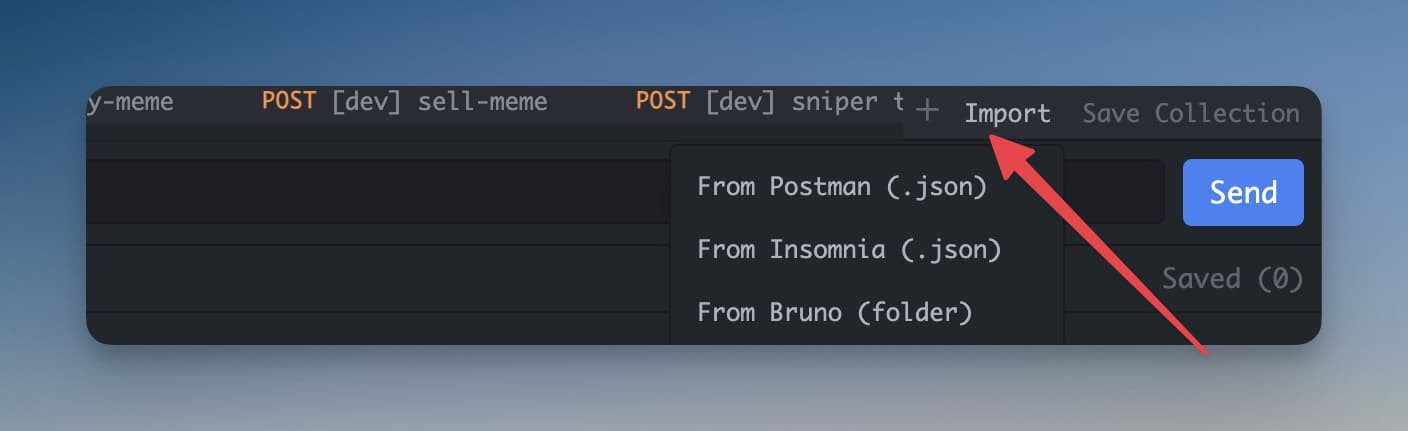
Import Postman, Insomnia, or Bruno collections to get your saved requests instantly.
If you already have API requests saved in another tool, you don't need to recreate them from scratch. 1DevTool can import collections from the most popular API clients, so you can bring your existing work with you.
Supported Formats
| Tool | Format |
|---|---|
| Postman | Collection v2.1 (JSON) |
| Insomnia | Export v4 (JSON or YAML) |
| Bruno | .bru files |
| OpenAPI / Swagger | JSON or YAML spec |
If you have an OpenAPI spec for an API you want to test, importing it automatically creates a request for every endpoint defined in the spec — a huge time saver when working with third-party APIs or when your AI agent generates an OpenAPI file.
How to Import
- Open the HTTP Client — press Cmd+H or click the HTTP icon in the left strip
- Click the Import button in the HTTP client toolbar (the icon with an arrow pointing in, or look for "Import" in the collection sidebar)
- A file picker dialog opens — either drag and drop your collection file into the dialog, or click Browse to find the file on disk
- 1DevTool reads the file and imports all requests
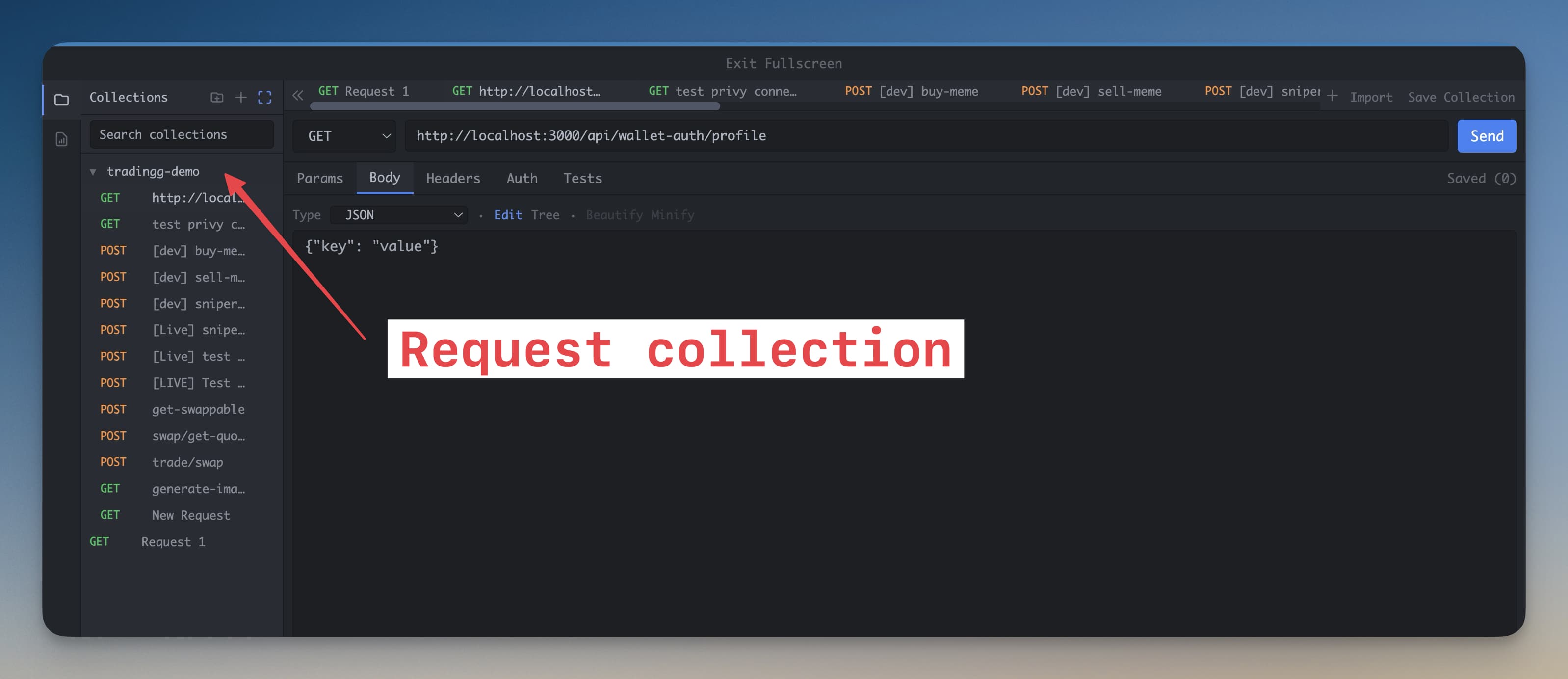
Once the import completes, all your requests appear in the left sidebar, organized into the same folder structure they had in the original tool. Click any request to load it — the URL, method, headers, and body are all restored.
Navigating Your Imported Collection
Your imported requests live in the left sidebar, grouped by collection and folder. Click a folder to expand it. Click a request to load it into the editor. From there you can send it as-is or modify it before sending.
How to Export from Postman
If your collection is in Postman and you need to export it first:
- Open Postman and find your collection in the left sidebar
- Click the ... (three dots) menu next to the collection name
- Select Export
- Choose Postman Collection v2.1 as the format
- Click Export and save the JSON file to your computer
- Import that file into 1DevTool as described above
Tip: Postman Collection v2.1 is the recommended format — it preserves folder structure, headers, body, and pre-request scripts better than older formats.
How to Export from Insomnia
In Insomnia, go to Application → Preferences → Data → Export Data and select Current Collection. Save the file as JSON. Insomnia v4 JSON is fully supported.
Importing OpenAPI / Swagger Specs
Got a openapi.json or swagger.yaml file? Import it the same way — 1DevTool reads the spec and creates one saved request per endpoint, pre-filled with the correct method, path, and parameter structure. This is especially useful when your AI agent generates an OpenAPI spec as part of building an API.