Add Your First AI Agent
Launch Claude Code, Codex, or Gemini inside your project and start building with AI.
Once you have a project open, you can launch an AI agent inside it in just a few clicks. This page walks you through opening your first AI terminal, typing your first prompt, and understanding why running multiple agents at once is 1DevTool's biggest superpower.
What is an AI Terminal?
An AI Terminal is a regular terminal window pre-configured to start your AI agent automatically. When you add a "Claude Code terminal", 1DevTool opens a terminal in your project folder and runs claude for you. The agent starts up immediately — ready to read your files, write code, run commands, and answer questions.
You don't have to type any startup command. You don't have to navigate to the right folder. 1DevTool handles all of that so you can get straight to building.
Before you start: You need at least one AI agent CLI installed on your machine. Here's how to install each:
Install Claude Code:
npm install -g @anthropic-ai/claude-codeInstall Codex:
npm install -g @openai/codexInstall Gemini CLI:
npm install -g @google/gemini-cliIf you're not sure which to start with, Claude Code is a great first choice.
Add a Terminal
With your project open in 1DevTool:
- Find the terminal panel — it's the section of the workspace where your terminals live, usually taking up the main area of the screen.
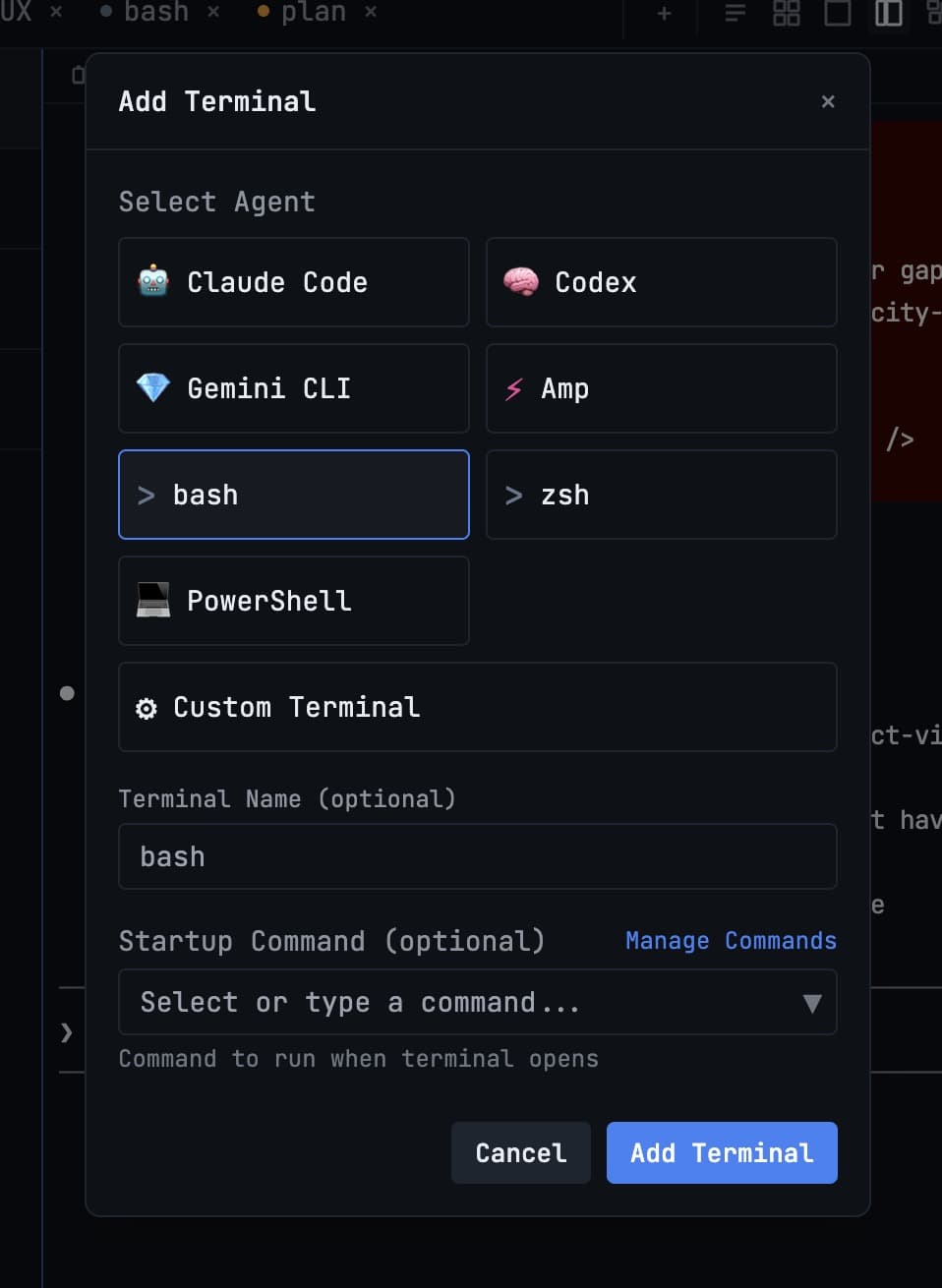
- Click the + button in the terminal panel header. This is the "add terminal" button.
- A menu appears with options for the type of terminal to open. Choose from:
- Claude Code — starts
claudein your project folder - Codex — starts OpenAI Codex
- Gemini CLI — starts Google's Gemini CLI
- Bash — a plain terminal with no AI agent, useful for running commands
- Custom command — run any command you choose when the terminal opens
- Claude Code — starts
- The terminal opens and your agent starts. You'll see the agent's startup banner and a prompt waiting for your first message.
Type Your First Prompt
Click anywhere inside the terminal to make sure it's focused, then type your request in plain English. AI agents understand natural language — you don't need special syntax or commands.
Some examples to try:
Build a REST API endpoint that returns the current time as JSONAdd input validation to the signup form in src/components/SignupForm.tsxExplain what the code in utils/db.js doesWrite unit tests for the functions in lib/helpers.py
Press Enter to send your prompt. The agent will read your project's files, figure out what needs to be done, and start working. You'll see it thinking, planning, and making changes in real time.
If the agent asks you a clarifying question or needs confirmation before making a change, just type your answer and press Enter to continue.
Run Multiple Agents at Once
This is where 1DevTool becomes genuinely different from working in a regular terminal.
You can open as many AI terminals as you want, all running at the same time, all working on your project in parallel. A common setup for a focused work session looks like this:
- Terminal 1 — Feature agent (Claude Code): "Build me a user authentication system with login, logout, and session management"
- Terminal 2 — Test agent (Claude Code): "Write end-to-end tests for the authentication flow as it gets built"
- Terminal 3 — Dev server (Bash): Running
npm run devso you can see your changes live in the embedded browser - Terminal 4 — Codex (for a second opinion): Reviewing the changes being made and suggesting improvements
All four run simultaneously. While the feature agent is writing auth code, the test agent is already writing tests. Your dev server keeps running. You watch everything happen in real time.
This kind of parallel workflow would be chaotic without 1DevTool — you'd have four separate terminal windows scattered across your desktop with no clear organization. Inside 1DevTool, you see all four in a clean grid layout, each labeled, each scoped to the same project.
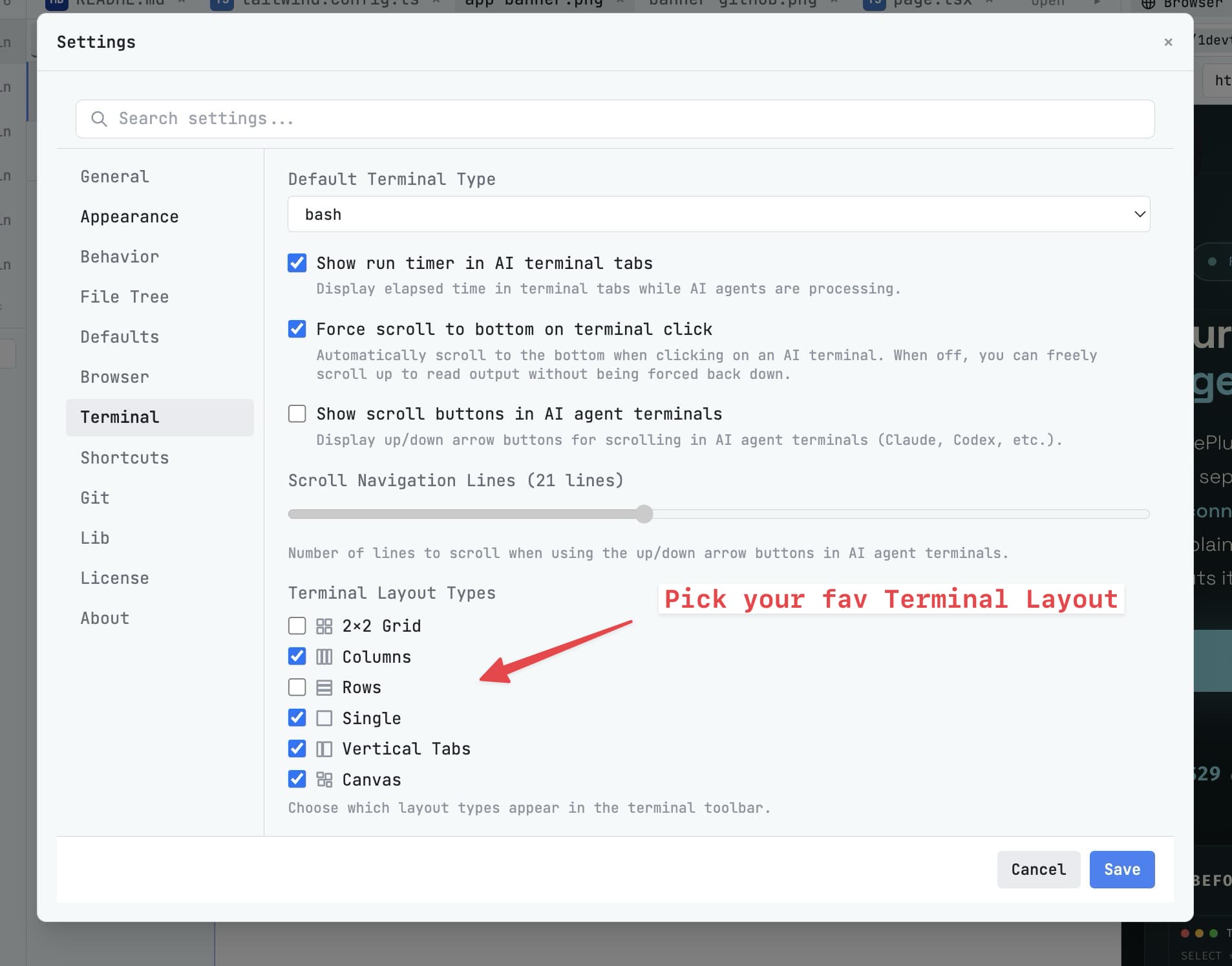
You can resize the terminals by dragging the dividers between them. Arrange them however works best for your workflow — two side by side, four in a grid, or a large main terminal with a smaller one below it.
Next Step
Now that you have an AI agent running, explore the rest of the workspace to see what else 1DevTool can do.
Continue to Workspace Overview →