Keyboard Shortcuts
Every keyboard shortcut in 1DevTool — memorize the ones you use most.
Keyboard shortcuts are the fastest way to move around 1DevTool. Once you learn the handful you use most often, you'll rarely need to reach for the mouse. This page lists every shortcut in the app.
All Shortcuts
| Action | macOS | Windows / Linux |
|---|---|---|
| Open Command Palette | Cmd+K | Ctrl+K |
| Add Terminal | Cmd+T | Ctrl+T |
| Select Terminal 1–9 | Cmd+1 … Cmd+9 | Ctrl+1 … Ctrl+9 |
| Switch to Project 1–9 | Opt+1 … Opt+9 | Alt+1 … Alt+9 |
| Search Projects | Opt+F | Alt+F |
| Terminal Overview | Cmd+Shift+O | Ctrl+Alt+O |
| Layout Presets 1–7 | Cmd+Ctrl+1 … Cmd+Ctrl+7 | Ctrl+Shift+1 … Ctrl+Shift+7 |
| Open Database Panel | Cmd+D | Ctrl+D |
| Open HTTP Client | Cmd+H | Ctrl+H |
| Open Git Panel | Cmd+G | Ctrl+G |
| Toggle Sidebar | Cmd+B | Ctrl+B |
| Toggle Layout Mode | Cmd+Shift+L | Ctrl+Shift+L |
| Agent Input Overlay | Cmd+I | Ctrl+I |
| Previous Prompt in History | Cmd+Up | Ctrl+Up |
| Next Prompt in History | Cmd+Down | Ctrl+Down |
| Close Panel | Cmd+W | Ctrl+W |
| Fullscreen Active Panel | Cmd+Shift+F | Ctrl+Shift+F |
| Quick Open File | Cmd+P | Ctrl+P |
| Open Analytics | Cmd+Shift+A | Ctrl+Shift+A |
| New Project | Cmd+N | Ctrl+N |
The Shortcuts Worth Memorizing First
If you're new to 1DevTool, don't try to learn all of these at once. Start with these five — they cover most of what you'll do every day:
Cmd+K/Ctrl+K— The Command Palette is a searchable list of every action in the app. When you don't remember a shortcut, open the palette and type what you're looking for. It's faster than hunting through menus.Cmd+T/Ctrl+T— Add a new terminal instantly. You'll do this constantly when spinning up agents.Cmd+I/Ctrl+I— Open the Agent Input Overlay. AI terminal UIs take over the keyboard, so this overlay gives you a separate, comfortable place to type long prompts.Opt+1–9/Alt+1–9— Jump directly to a project by its sidebar position. Hold the modifier for a moment first and the app numbers the projects for you, so you never have to count. (Cmd+1–9/Ctrl+1–9selects a terminal in the current project.)Cmd+Shift+L/Ctrl+Shift+L— Cycle through layout modes. Use this to go from grid view to column view or fullscreen without touching the toolbar.
Finding a terminal, and switching project
Past a dozen tabs the tab strip stops being navigation. Three bindings replace it.
Cmd+L — all terminals, searchable
Opens every terminal as one list, grouped Running / Done / Idle / Hidden. You can also click the tab strip's All N button.
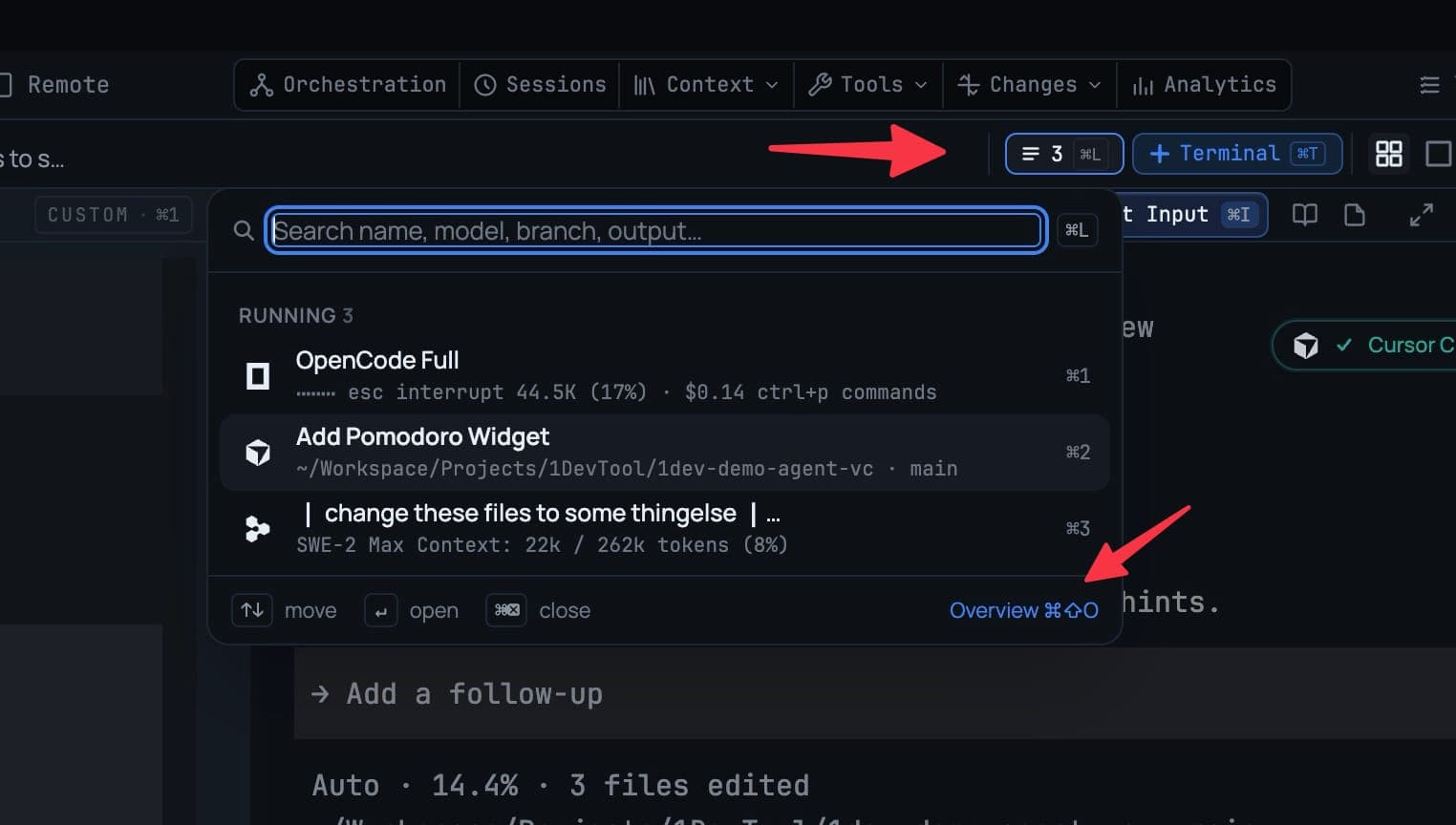
The field reads Search name, model, branch, output… — so a terminal is findable by its agent, model, branch, account, or the last line it printed. Each row shows its agent, worktree or machine, context use and that last line.
Move with Up/Down, open with Enter, close with Cmd+Backspace. Picking a hidden terminal brings it back.
Cmd+Shift+O — every terminal as a card
Each terminal becomes a card with its latest output, status, model, worktree, account and context use. Filter by state, click to jump, drag a card to reorder your tabs.
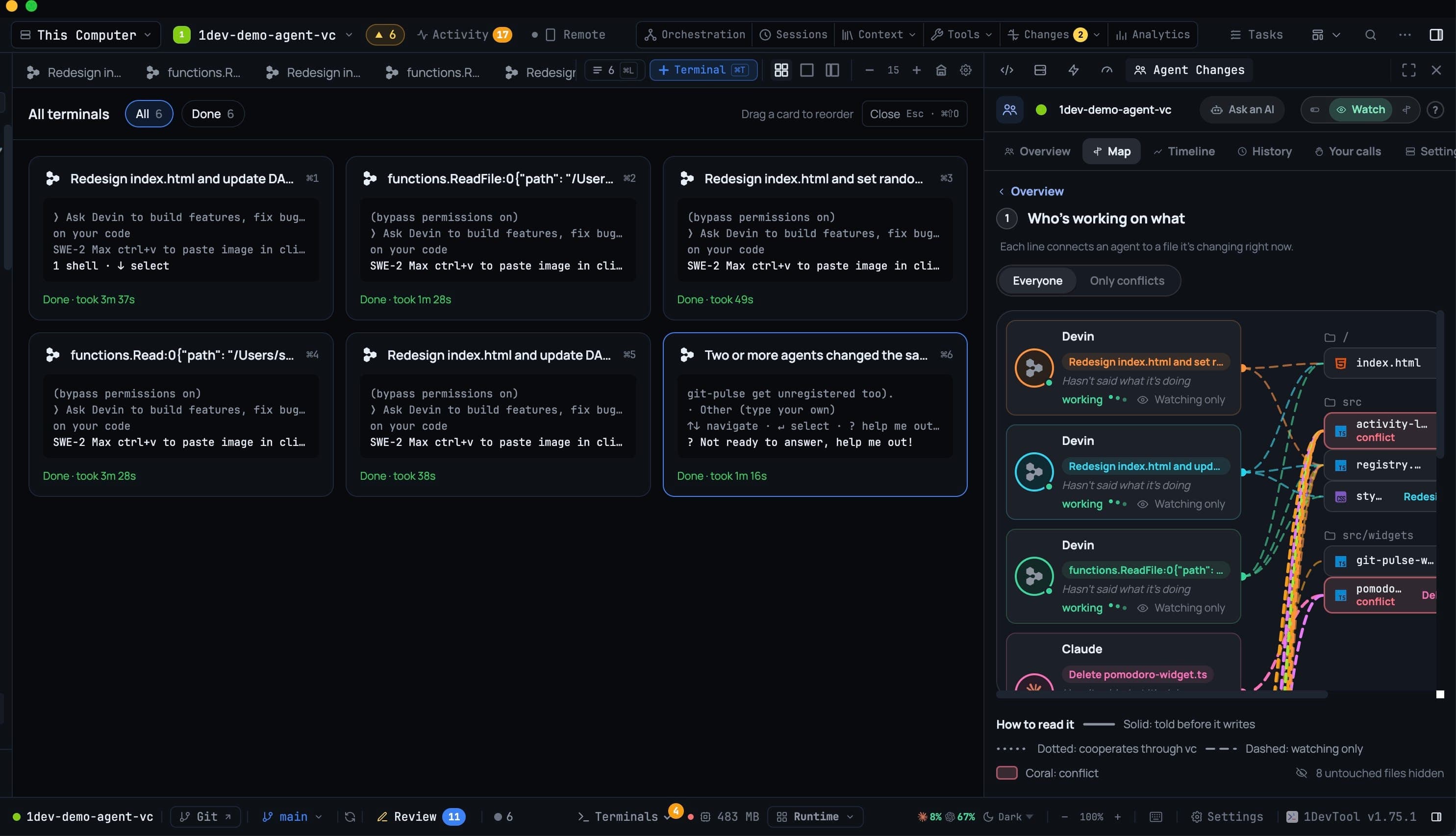
Cmd+Shift+O opens the overview with the terminal you came from already selected. Left/Right walk the cards and wrap around the ends, Up/Down move by row, Home and End jump to the extremes, and Enter opens the highlighted card. The overview keeps the keyboard while it is open and hands it back when it closes, so nothing leaks into the terminal underneath.
Terminals whose AI run finished since you last looked are flagged needs review in amber, with their own filter pill — the same set the dashboard board and the notification bell report. Opening one from the list clears the flag.
Keyboard planes — hold a modifier, read the numbers
A numbered shortcut only helps if you already know the number. Hold a modifier for about a quarter of a second and 1DevTool paints the numbers onto the thing you want.
- Hold
Cmd— numbered badges appear over the tab strip and the terminal list. Press the digit to jump. - Hold
Opt(Alton Windows and Linux) — the badges appear over the projects sidebar instead.
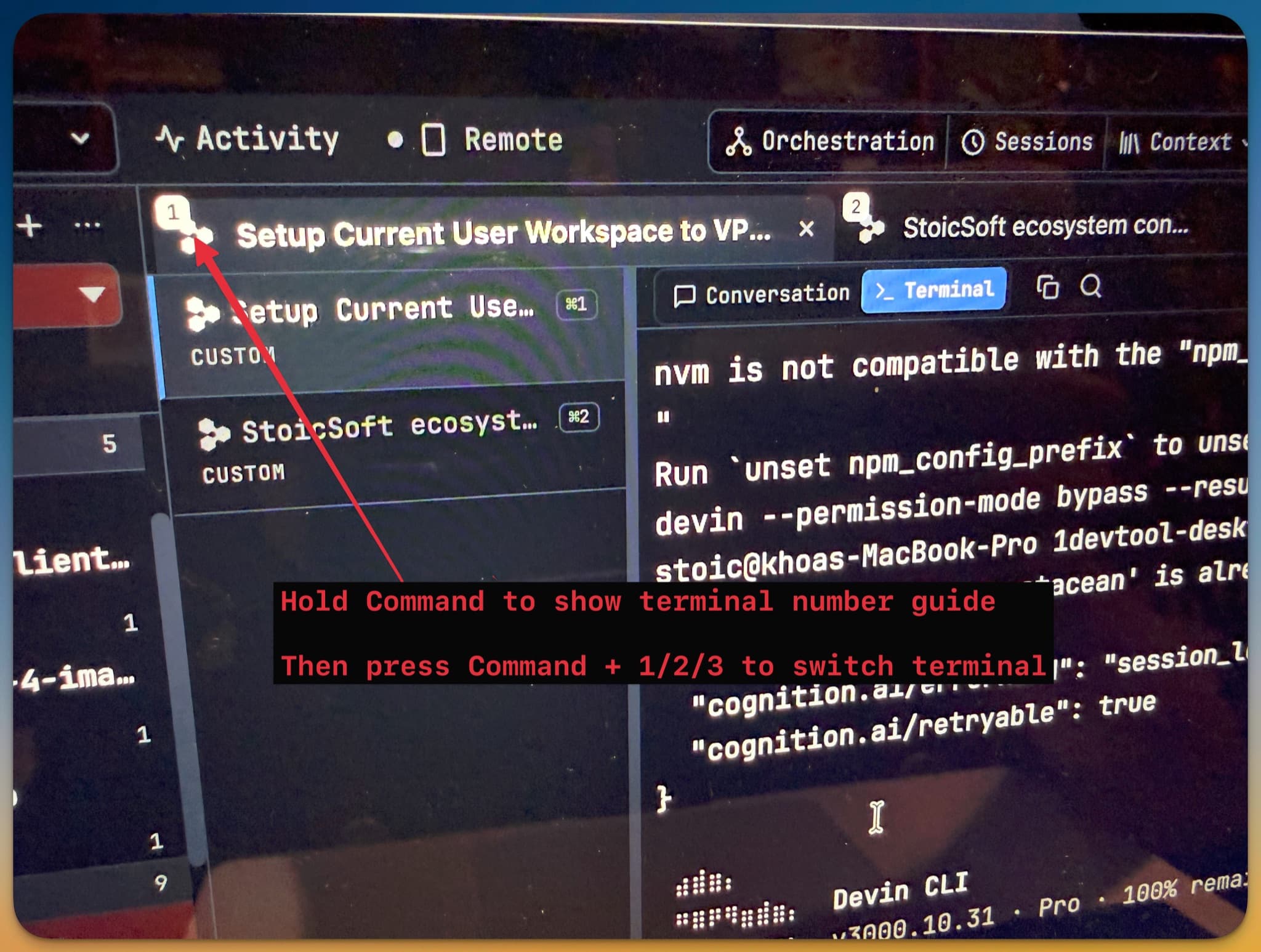
The two planes hand over instead of cancelling: while Cmd is held for the terminal numbers, adding Opt switches straight to the project badges, and each plane advertises the other's key right where you are looking. A quick press and a held press always agree — Opt+3 means the third entry of whatever level you are on, badges or no badges.
Project groups are addresses
Press a digit on a group and it opens — a collapsed group expands — and its children renumber for the next digit. So Opt 2 4 reaches a nested project in two keystrokes. Backspace steps back out a level, and once part of an address is typed, letting go of Opt keeps the plane up rather than throwing it away.
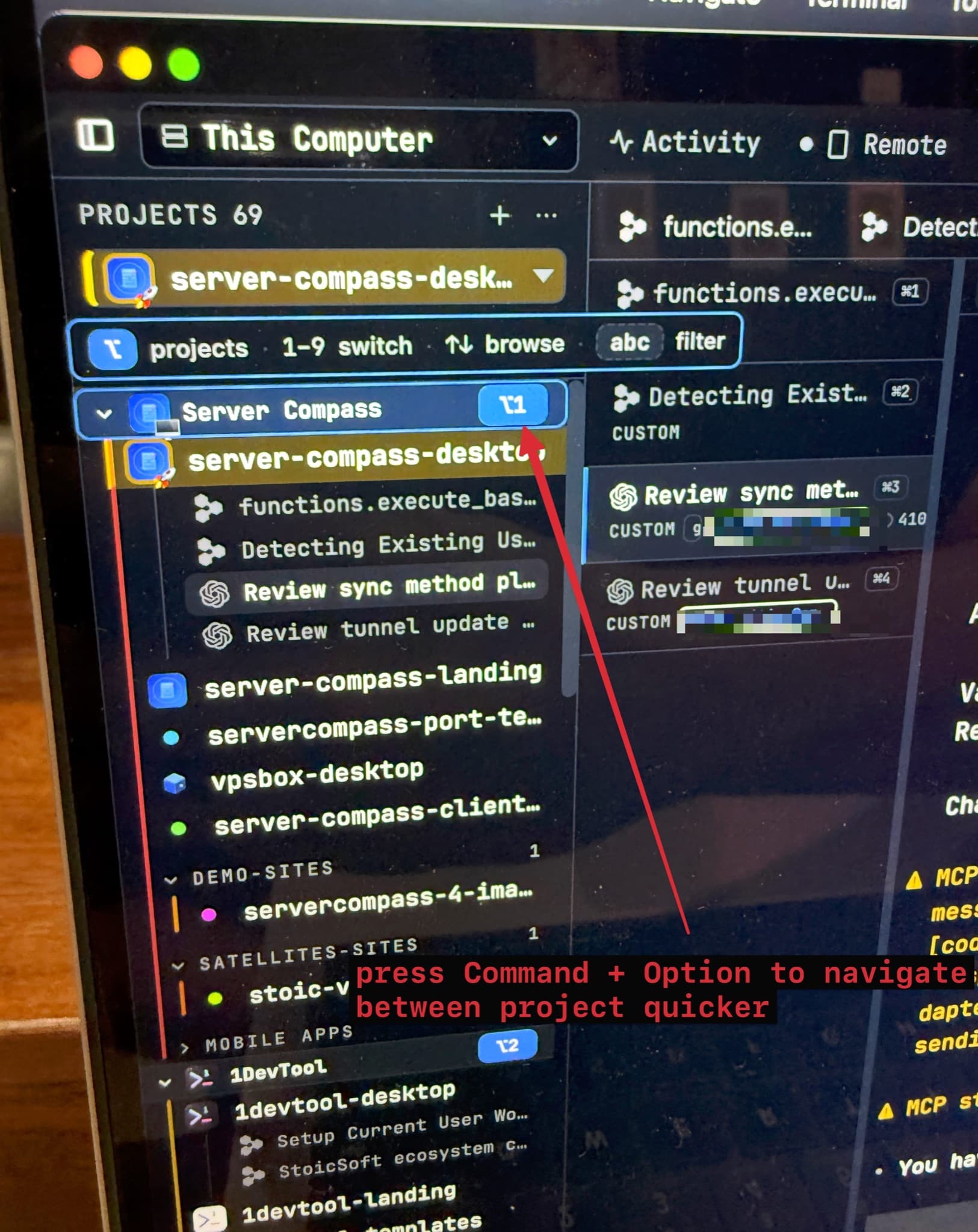
Type letters while Opt is held and the sidebar's own search narrows the list, with the badges renumbering onto the rows that survive — which is also how you reach a project whose name starts with a digit. Up/Down browse the level, Enter opens, Esc or a click dismisses. If your layout shows no project list at all, the numbers float instead and select the same projects.
Where the digits moved, and why
Opt+1–9 switches projects on every platform now. On macOS projects used to sit on Ctrl+1–9, which is exactly where Mission Control switches desktops — the app never saw those keys. Project search moved to Opt+F to match.
To hand the Opt digits to projects, layout presets moved to Cmd+Ctrl+1–7 (Ctrl+Shift+1–7 on Windows and Linux). Existing setups are re-keyed once, automatically, and a key you chose yourself is never touched.
All of these sit in the shortcut guide and in Settings → Shortcuts.
Customizing Shortcuts
Every shortcut in 1DevTool can be changed to something that feels more natural to you.
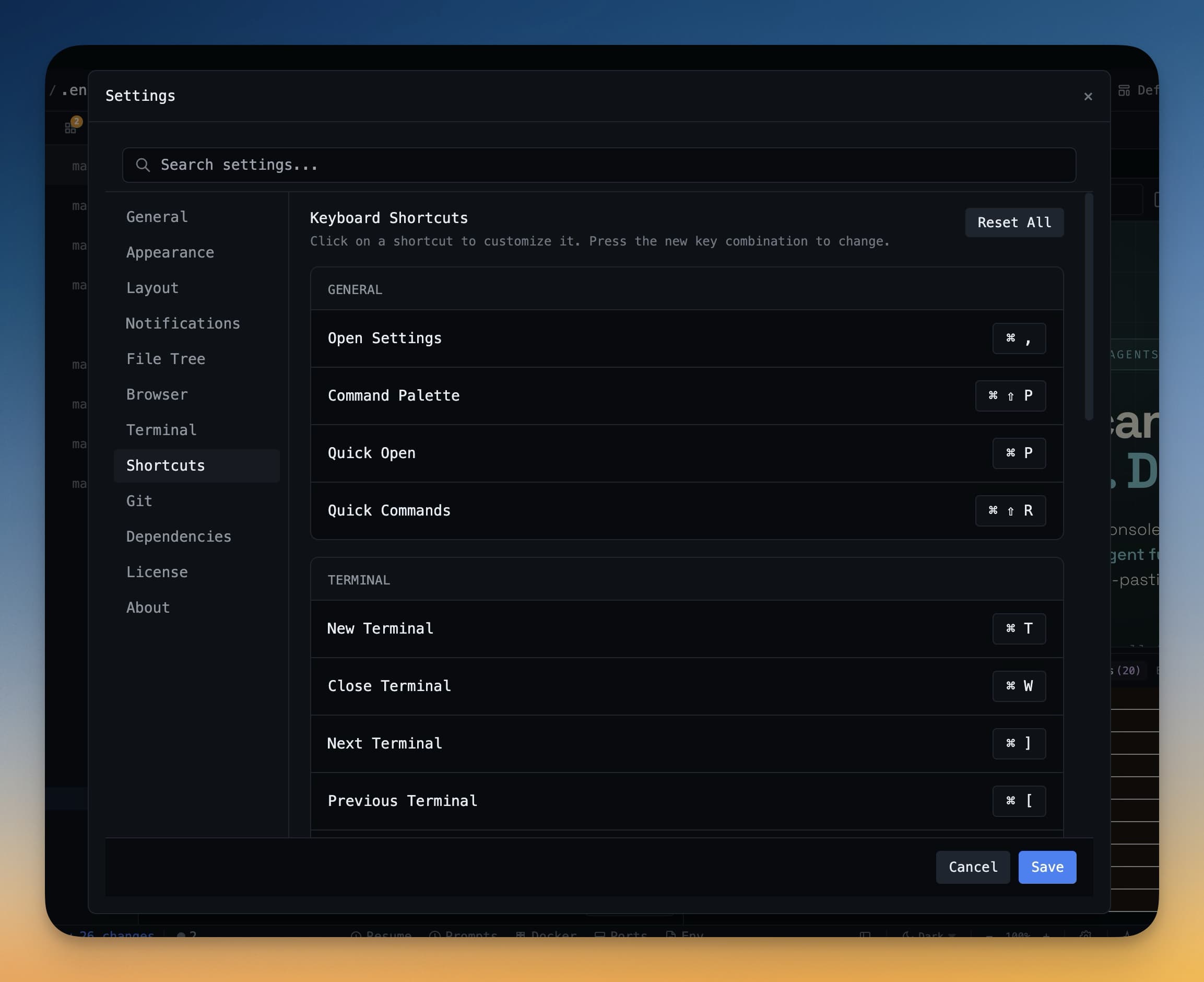
To customize a shortcut:
- Open Settings (click the gear icon in the sidebar, or press
Cmd+,/Ctrl+,). - Go to the Keyboard tab.
- Find the action you want to remap. Click the shortcut field next to it.
- Press the new key combination you want to use.
- Click Save.
If the combination you choose is already used by another action, 1DevTool will warn you and ask which binding should take priority. You can also reset all shortcuts back to defaults at any time with the Reset to defaults button at the bottom of the Keyboard settings page.
Tip: If a shortcut isn't working, check whether your operating system or another app has claimed that combination globally. System-level shortcuts take priority over app-level ones.