Run Queries
Write and run SQL or NoSQL queries with autocomplete, results grid, and query history.
Once you are connected to a database, you can open the query editor and start writing queries immediately. The editor is fast, smart, and designed to stay out of your way.
The Query Editor
The query editor in 1DevTool is powered by Monaco — the same code editor engine that VS Code uses. That means you get the same editing experience you are already used to: syntax highlighting, multi-cursor editing, bracket matching, and keyboard shortcuts all work exactly as you would expect.
The editor understands your database. It knows the names of your tables, columns, and keywords, and it will suggest them as you type.
Running a Query
Write your query in the editor, then press Cmd+Enter on Mac or Ctrl+Enter on Windows/Linux to run it. You do not need to select the text first — 1DevTool will run the entire contents of the editor, or the single statement your cursor is in if you have multiple statements separated by semicolons.
Results appear in the grid below the editor within milliseconds for most queries.
Autocomplete
As you type, 1DevTool suggests:
- Table names — start typing and matching table names appear in the dropdown
- Column names — after you type a table name and a dot, you get a list of that table's columns
- SQL keywords —
SELECT,WHERE,GROUP BY,ORDER BY, and all other standard keywords are suggested automatically
Press Tab or Enter to accept a suggestion. Press Escape to dismiss it.
Results Grid
Query results are displayed in a grid directly below the editor. Each row is a database row, each column header matches the column name from your query. You can:
- Sort by clicking any column header
- Resize columns by dragging the column borders
- Click a cell to edit it and save changes inline — supported for PostgreSQL, MySQL, and MariaDB when querying a single table
Row Detail Drawer
Some rows have many columns, and the grid can feel cramped for wide tables. Click the expand icon at the left edge of any row to open the Row Detail Drawer. It shows all fields in a vertical list with the column name on the left and the value on the right — much easier to read for rows with 20+ columns, JSON fields, or long text values.
Query History
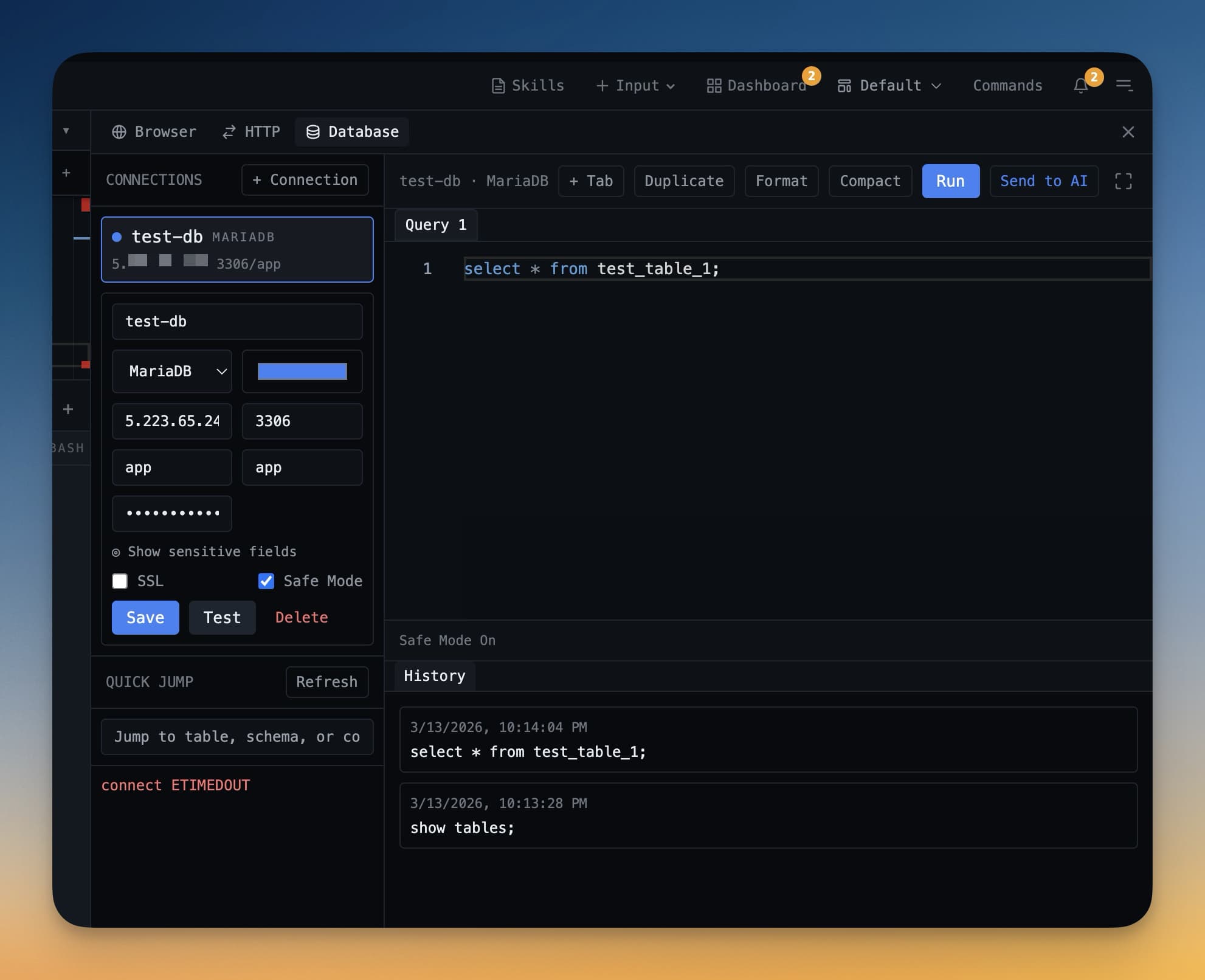
Every query you run is saved automatically to your query history. To access it:
- Click the History button (clock icon) in the editor toolbar
- A list of your past queries appears, most recent at the top
- Click any entry to load it back into the editor
- Press Cmd+Enter to run it again
History is saved per connection, so queries you ran against your production database are kept separate from queries you ran against your local database.
Tips for Writing Queries
- Add a LIMIT clause while exploring data so you do not accidentally load millions of rows:
SELECT * FROM orders LIMIT 100 - Use the schema browser on the left to check column names before writing a query — hover over a column to see its data type
- Multiple statements can live in the same editor, separated by semicolons — place your cursor inside one statement and press Cmd+Enter to run just that one