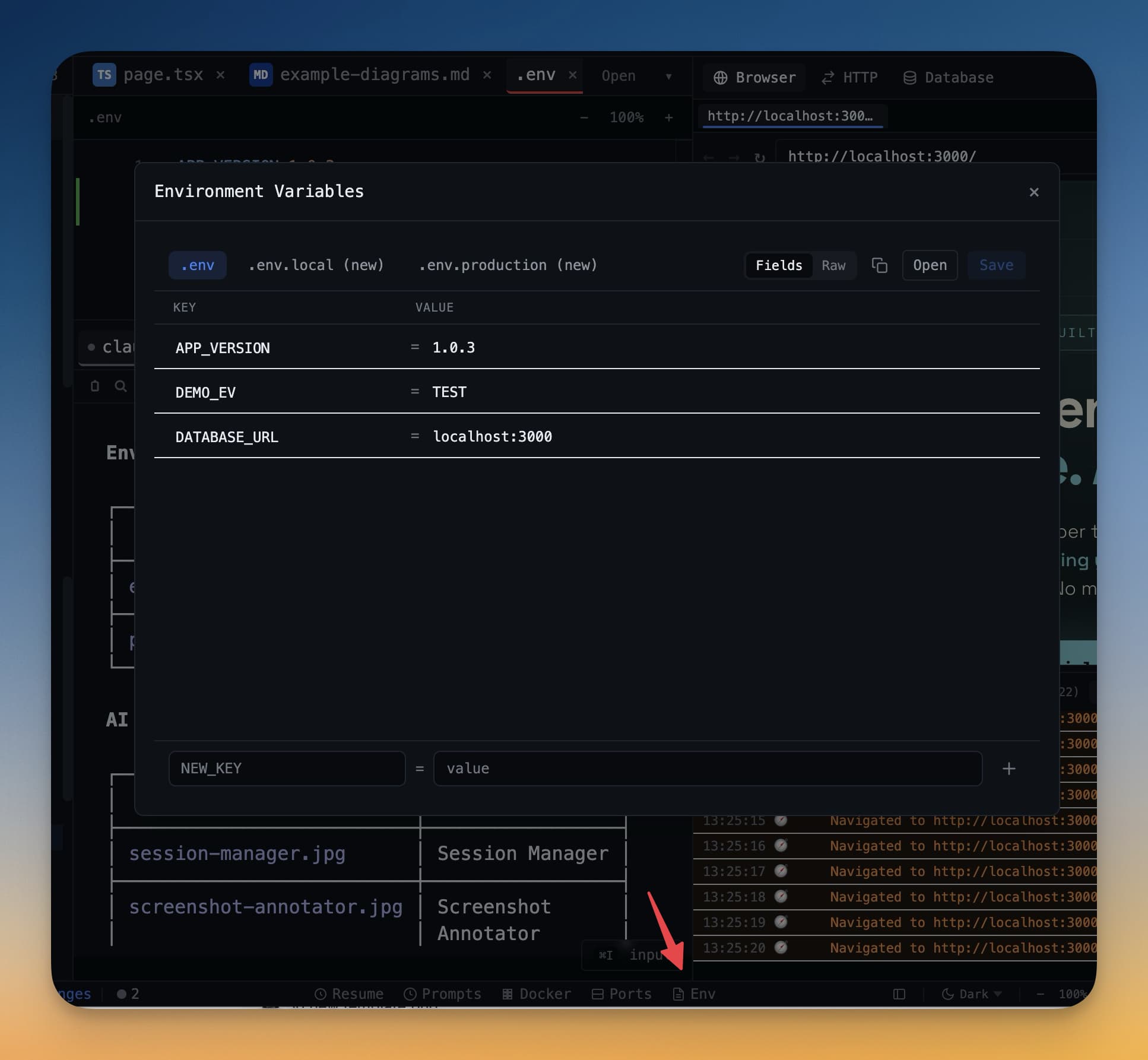
Environment Variables Manager
View, edit, and manage your .env files visually — no text editor needed.
What is it?
The Environment Variables Manager is a visual editor for .env files. These files store configuration values that your app needs at runtime — things like API keys, database connection strings, and feature flags. Because they often contain secrets, .env files are kept off of Git and out of your source code.
Editing .env files in a plain text editor works, but it is easy to make mistakes: a missing quote, a stray space, or accidentally committing the file to Git. The Env Manager gives you a clean table interface so you can edit, add, and reveal variables safely.
Open the Env Manager
There are two ways to open it:
- Go to Settings → Environment Variables
- Or click the env icon in the project toolbar (the small key icon near the top of the project panel)
The manager opens for the currently active project automatically.
View and Edit Variables
The manager displays all key-value pairs from your .env file in a table. Each row shows the variable name on the left and its value on the right.
By default, values are hidden (shown as dots, like a password field) to protect secrets on your screen. Click the eye icon on any row to reveal that value, or click the eye icon in the column header to reveal all values at once.
To edit a value, click on it directly in the table. The cell becomes editable — type your new value and press Enter to save. The .env file is updated immediately.
To add a new variable, click the + button at the bottom of the table, type the key name, press Tab, type the value, and press Enter.
Per-Project Files
Most projects have more than one .env file. A common setup looks like:
.env— shared defaults.env.local— your local overrides (not committed).env.production— production values
Use the file selector dropdown at the top of the Env Manager to switch between these files. Each file is displayed and edited separately.
Auto-reload
When you save a change in the Env Manager, the updated value is written to the file immediately. If your dev server supports hot-reload (for example, Next.js and Vite both do), the new value will be picked up without restarting the server. For servers that do not hot-reload environment variables, use the restart button in the terminal.
Security
Your .env files stay on your local machine. 1DevTool never uploads environment variable values to any server.
When you add a project, 1DevTool checks whether .env is listed in .gitignore. If it is not, the app adds it automatically to help you avoid accidentally committing secrets.
Tip: Your AI agent can read environment variable names (but not values) to understand your project config — so it knows to use
DATABASE_URLwithout you explaining it.