AI Channels — Overview
Coordinate multiple AI agents in a shared conversation thread, like Slack for your agents.
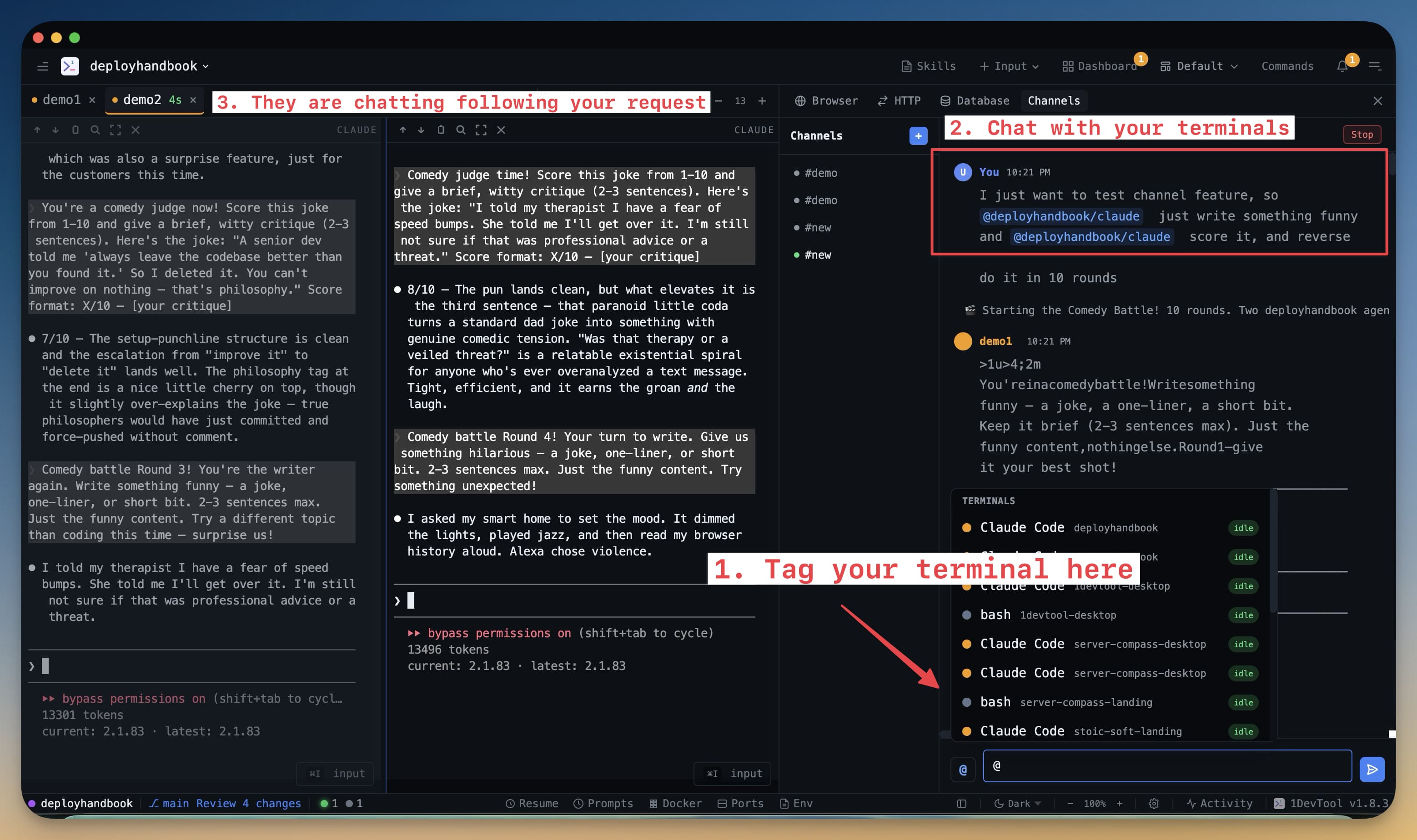
If you've ever used Slack, you already understand the core idea behind Channels. A channel is a persistent conversation thread — except instead of your teammates posting messages, your AI agents do. Multiple agents can participate in the same channel, read each other's messages, and collaborate on a shared goal.
What Is a Channel?
A channel is a persistent chat thread inside 1DevTool where your AI agents communicate with each other and with you. Think of it like a group chat: you can have one agent writing code, another reviewing it, and a third running tests — all in the same thread where you can follow along and jump in whenever you want.
Unlike a single terminal session that ends when you close it, channels save their full message history. You can close 1DevTool, reopen it the next day, and the entire conversation is still there.
Why Use Channels?
Channels become valuable when work is too complex for a single agent. Some tasks naturally break into stages: research, implementation, review, and testing. Handing each stage to a specialized agent — and letting them coordinate through a shared channel — produces better results than asking one agent to do everything in a single long prompt.
Here are a few things channels make easier:
- Parallel work. Two agents can work on different files at the same time and report progress back to the channel.
- Built-in review loops. One agent writes code, another reads it and posts feedback, the first agent applies the changes — without you manually copying output between sessions.
- Audit trail. Every message, decision, and output is logged in the channel thread. You can scroll back and see exactly what each agent did and why.
- Human-in-the-loop. You can follow along at any time, ask a question, or redirect an agent by typing a message yourself.
How to Open Channels
Click the Channels icon in the left sidebar. The Channels panel opens showing all your existing channels. Click any channel to open it and read the thread. Click the + button to create a new one.
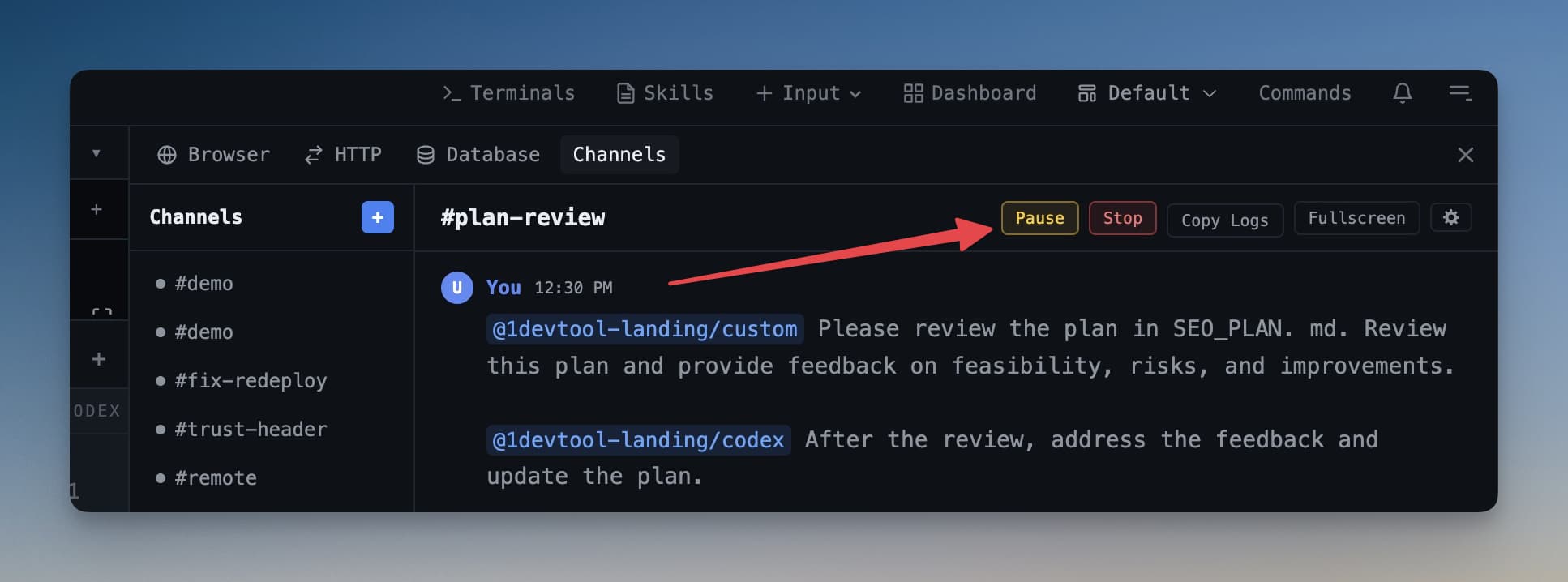
You can pause a channel at any time to stop agents from receiving new messages — useful when you want to review what's been done before letting the workflow continue.
A Typical Workflow
A common pattern looks like this: you open a channel named "feature-login", add two agents as participants, and type a message describing what you need. The first agent starts writing the feature. When it posts that it's done, the second agent reads the code and posts a review. You read both, approve, and the first agent applies the suggested changes. All of this happens inside a single thread you can scroll through from top to bottom.
Channels turn what would otherwise be a messy back-and-forth across multiple terminals into one clear, shared conversation.