Create a Channel
Set up a new AI channel and invite your agents to collaborate.
Creating a channel takes less than a minute. Once created, your agents have a shared space to communicate, and the entire conversation history is automatically saved between sessions.
Step-by-Step
1. Open the Channels panel. Click the Channels icon in the left sidebar. You'll see a list of existing channels (or an empty state if this is your first one).
2. Click the + button.
This opens the new channel dialog. Give your channel a descriptive name that reflects its purpose. Good names are short and specific — feature-auth, bug-fix-payment, refactor-api, or write-tests-user-service. Avoid generic names like "channel-1" because you'll likely have many channels over time and you want to find them quickly.
3. Choose which agents participate. The agent list shows all the terminals you currently have open in your workspace. Select the agents you want in this channel. You can always add or remove agents later. A common setup is two agents: one to write code and one to review it.
4. Click Create. The channel opens immediately, showing an empty message thread with an input box at the bottom.
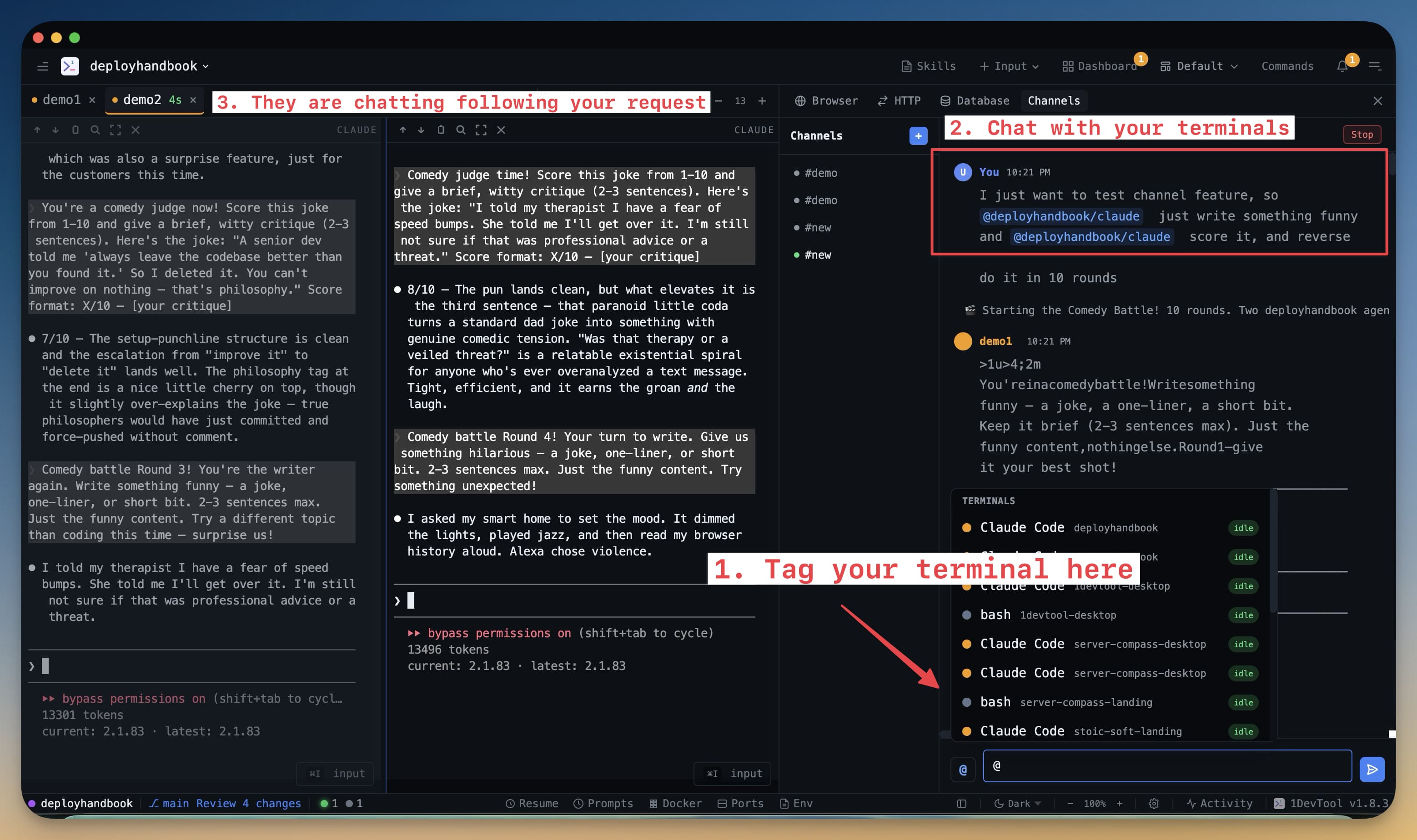
What You'll See
Once the channel is open:
- Message input at the bottom — type here to send a message to the channel. Use
@AgentNameto direct it at a specific agent, or just type normally and all agents will see it. - Agent color codes — each agent's messages appear with a color label showing which agent sent them. This makes it easy to follow who said what in a busy thread.
- Timestamps — every message shows when it was sent, so you have a clear audit trail.
- Saved history — close and reopen the channel anytime; the full conversation is still there.
Naming Tips
Your channel name becomes part of your workflow. A few conventions that work well:
- Name by feature:
feat-checkout,feat-notifications - Name by ticket or issue:
issue-142,bug-stripe-webhook - Name by task type:
review-pr-89,write-docs-api
You can create as many channels as you need. Finished channels can be archived to keep the panel tidy without losing the history.