Embedded Browser — Overview
Preview your running app inside 1DevTool — no need to switch to Chrome.
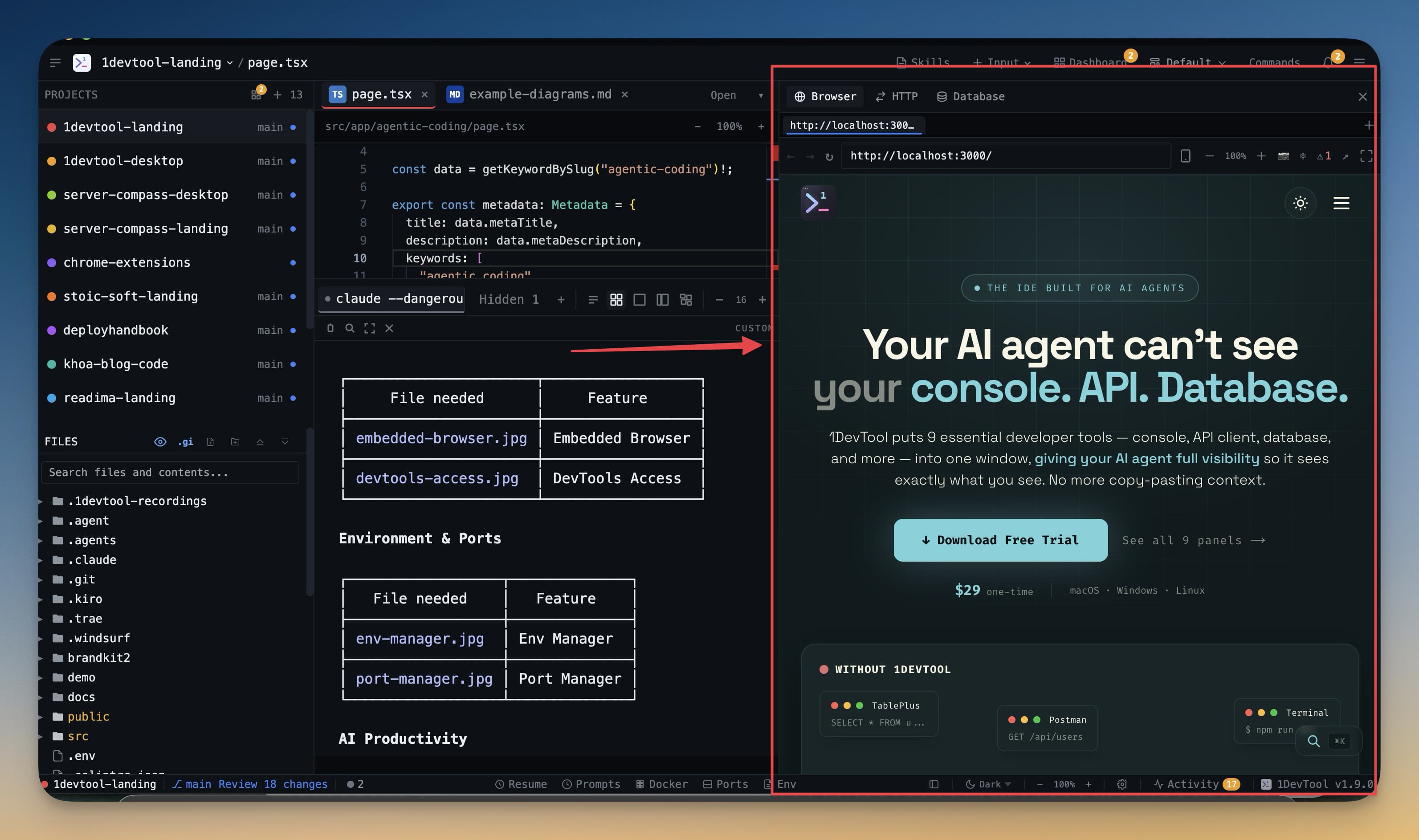
The embedded browser is a full Chromium webview built into 1DevTool as a dockable panel. You can run your development server in a terminal and see your app in the browser panel — both visible at the same time, in the same window. No more Alt-Tab or Cmd-Tab between your terminal and Chrome.
Why It Matters
The typical development loop without an embedded browser looks like this: edit code, switch to the terminal, run the server, switch to Chrome, reload the page, spot something broken, switch back to the terminal, and repeat. Every context switch costs time and breaks your focus.
With the embedded browser panel, the loop becomes: edit code, watch the terminal, glance at the browser panel. Everything is visible at once. When an AI agent is building a feature for you, you can watch it code in the terminal and see the result appear in the browser panel without touching your keyboard.
What the Embedded Browser Supports
The browser panel uses a real Chromium engine, so it behaves exactly like Chrome:
- JavaScript — runs fully, including modern ES2020+ features
- Local storage and cookies — persists between page loads, so login sessions and preferences work
- WebSockets — live-reload and hot module replacement (HMR) work as expected with dev servers like Vite and Next.js
- CSS and animations — renders everything exactly as a browser would
This is not a simplified preview engine. If your app works in Chrome, it works in the embedded browser panel.
How to Open the Browser Panel
Click the Browser icon in the panel toolbar at the top of any panel area. The browser panel opens and shows an address bar at the top. Type a URL and press Enter to navigate.
Alternatively, use the Add Panel menu to add the browser to any area of your workspace layout.
Positioning in Your Layout
The browser panel can be placed anywhere in your workspace. Common layouts:
- Side by side with the terminal — terminal on the left, browser on the right. Great for watching an AI agent build a UI in real time.
- Bottom panel — browser below your terminals. Gives more vertical space to the editor and terminal while keeping the browser accessible.
- Floating panel — drag the browser panel out to float it as a separate overlay over your workspace.
Resize any panel by dragging the divider between panels. Make the browser wide for reading, or narrow for quickly checking responsive behavior.