Commit & Push
Stage files, write a commit message by hand or with an AI agent, and push to your remote in a few clicks.
Once you've reviewed the diff and you're happy with what the AI agent changed, it's time to commit and push. This guide walks through the full workflow from staging to pushing to your remote repository.
Stage Changes
Staging lets you choose exactly which changes go into this commit. You might want to commit the feature code separately from a config change, for example.
In the Git panel, every modified file appears in the Unstaged Changes section:
- Check the checkbox next to a file to stage it individually
- Click Stage All to stage every changed file at once
- To unstage a file, uncheck it — it moves back to Unstaged
Staged files move into the Staged Changes section at the top of the sidebar. Only staged files will be included in the commit.
You can also stage individual hunks (sections of a file) instead of the whole file. In the diff view, hover over a hunk and click the + button that appears to stage just that section. This is useful when a file has two unrelated changes and you only want to commit one of them now.
View Changes as a Folder Tree
Agents produce wide, shallow diffs — a change touching four directories and eighteen files is ordinary. A flat list turns that into eighteen rows of near-identical paths.
A toggle next to the Filter box switches the Changes list between the flat list and a VS Code style folder tree, and your choice sticks the next time you open the dialog.
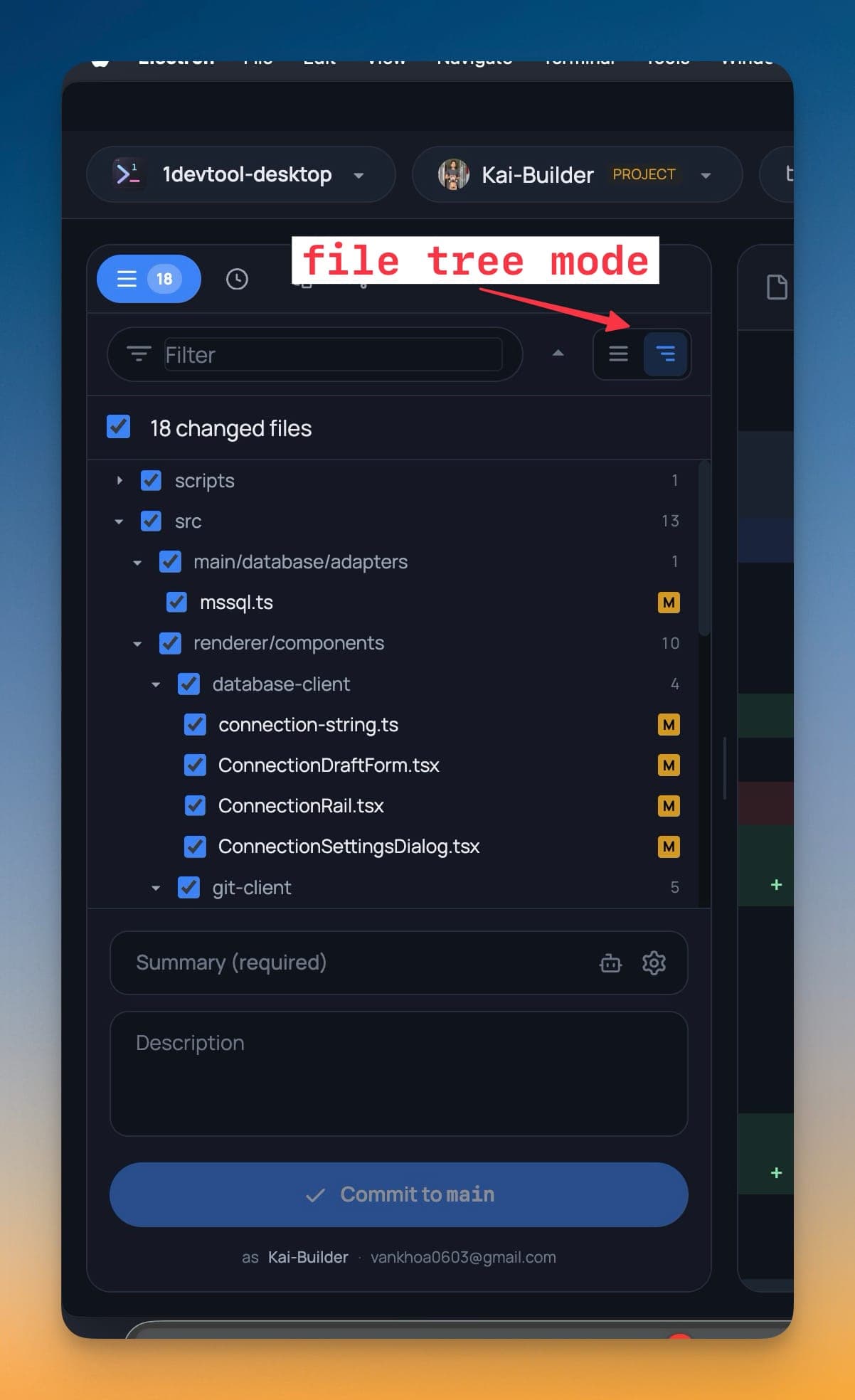
- A folder checkbox stages or unstages everything beneath it in one click, so reviewing by area and staging by area are the same gesture.
- A dash on a folder means it is partially staged. Partial staging is easy to create by accident and nearly invisible in a flat list; the tri-state checkbox surfaces it at the directory level.
- Collapse all / expand all handle a change set that spans many directories.
The flat list is untouched and still shows the full path on every row, for when the change set is small enough that grouping is just an extra click.
Write a Commit Message
With files staged, type your commit message in the text field at the bottom of the Git panel.
A good commit message makes your history readable — for your future self and for anyone else on the project. A few tips:
- Use imperative tense — write "Add login form" not "Added login form" or "Adding login form"
- Describe what changed and why — "Fix null check in user.ts" is more useful than "fix bug"
- Keep the first line under 72 characters — most git tools truncate longer messages in list views
- Add a body if needed — press Enter twice after the first line to add a longer explanation below
Examples of clear commit messages:
Add email validation to signup formFix crash when user list is emptyUpdate API base URL for production
Let an agent write it
The sparkle button in the commit summary hands your diff to an installed AI CLI and asks it for a message.
- Pin which agent writes it, or let 1DevTool use the first one you have installed.
- Choose a style: Conventional, Plain, or Gitmoji.
- With nothing staged yet, it falls back to the working-tree diff — so you can get a message before you decide what to stage.
The result lands in the message field as ordinary editable text. It is a draft, not a commit.
Commit
Click the Commit button below the message field. The staged changes are saved to your local git history as a new commit, and the staged files section clears.
The commit now appears in your branch history. If you need to undo it, right-click the commit in the history view and select Undo Commit — this puts the changes back into your unstaged files without losing them.
Push to Remote
Committing saves changes locally. To send them to GitHub, GitLab, or your other remote:
- Click the Push button in the Git panel toolbar (the up-arrow icon)
- If the branch already exists on the remote, your commits are pushed immediately
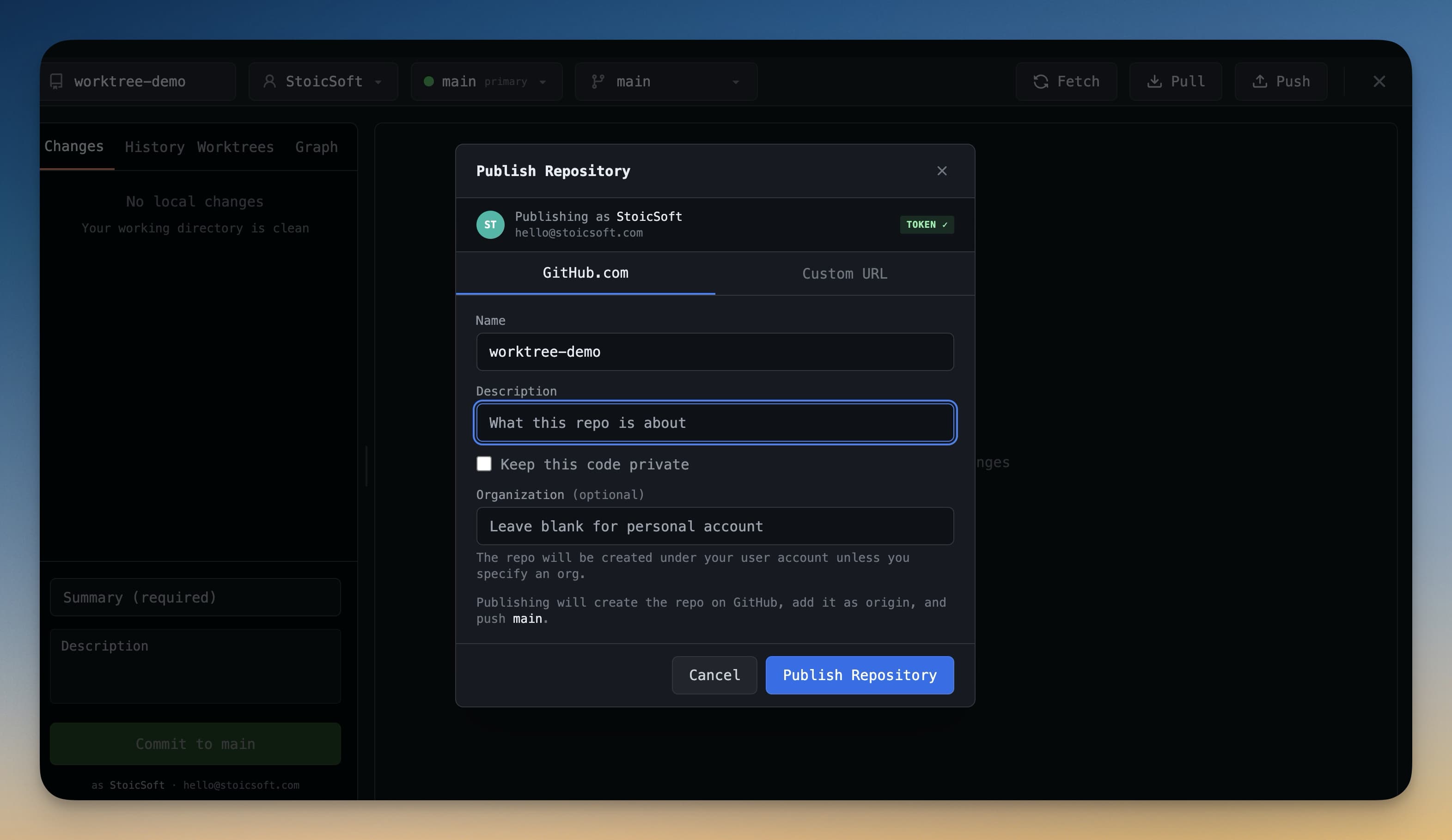
- If it's a new branch that doesn't exist on the remote yet, click Publish Branch — this creates the branch on the remote and pushes your commits
If you're prompted for credentials, you can enter them or switch to SSH key authentication. See Git Accounts for how to connect your GitHub account so credentials are handled automatically.
Pull Changes
To bring in changes from the remote (for example, if a teammate pushed something):
- Click the Pull button (the down-arrow icon) in the toolbar
- Remote changes are fetched and merged into your local branch
If there are merge conflicts, the Git panel highlights the conflicting files. Open each one to resolve the conflict, then stage and commit the resolution.
After pushing, your changes are on the remote and available to your team or ready for a pull request. The Git panel shows your branch is up to date with the remote.