Database Client — Overview
A full SQL and NoSQL database client built into your workspace — no extra app needed.
1DevTool includes a full-featured database client right inside the application. You do not need TablePlus, DBeaver, DataGrip, or any other standalone database tool. Everything — your terminal, browser, AI assistant, and now your database — lives in one workspace, side by side.
What Is the Database Client?
The database client lets you connect to a database, browse its tables and collections, write and run queries, and explore your data — all without leaving 1DevTool. It works the same way dedicated database GUI apps do, but because it is built into your development workspace, you stay in context while you work.
Think of it this way: instead of switching between a terminal, a browser, and a database app every few minutes, you open one window and everything is already there. The database panel docks next to your code editor and terminal. You can run a migration in the terminal, then immediately click over to the database panel to verify the schema changed — no switching apps, no losing your place.
Supported Database Engines
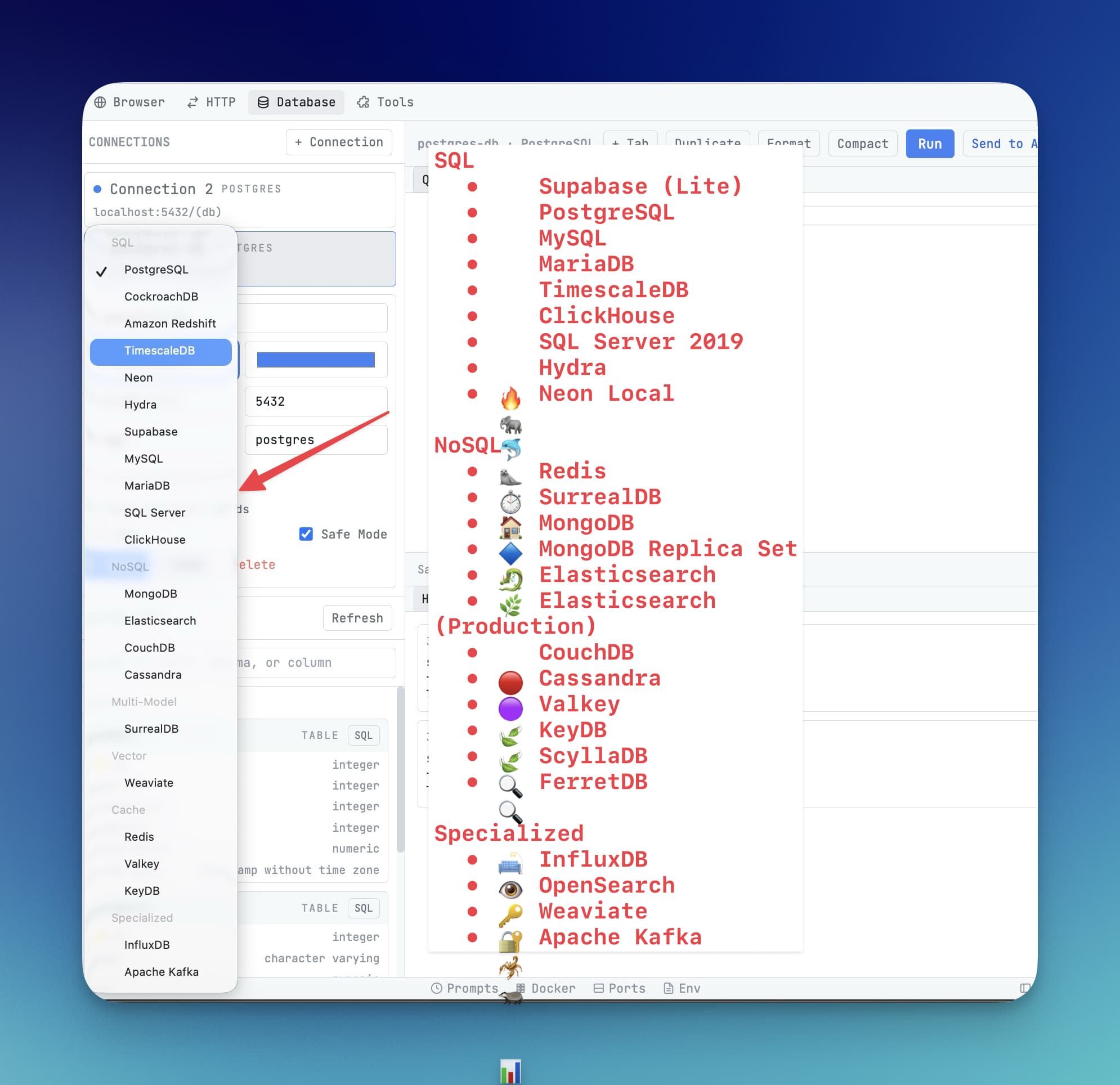
1DevTool connects to 14 database engines across every category:
Relational (SQL)
- PostgreSQL — including Supabase, Neon, Timescale, and CockroachDB
- MySQL
- MariaDB
- Microsoft SQL Server (including Azure SQL)
Document & Key-Value (NoSQL)
- MongoDB — including Atlas clusters
- Redis — including TLS/SSL connections
- CouchDB
Analytics & Time-Series
- ClickHouse
- InfluxDB
- Cassandra
Search & AI
- Elasticsearch
- Weaviate (vector database)
Multi-Model & Streaming
- SurrealDB
- Kafka (browse topics and messages)
If your project uses any of these engines, you can connect to it from inside 1DevTool today.
How to Open the Database Client
There are two ways to open the database panel:
- Click the database icon in the panel toolbar on the left side of the workspace. It looks like a cylinder (the classic database symbol).
- Press Cmd+D on Mac (or Ctrl+D on Windows/Linux) from anywhere in the workspace.
The panel slides open and shows your saved connections on the left. If this is your first time, the list will be empty and you will see a + button to add your first connection.
What You Can Do
Once connected, the database client gives you:
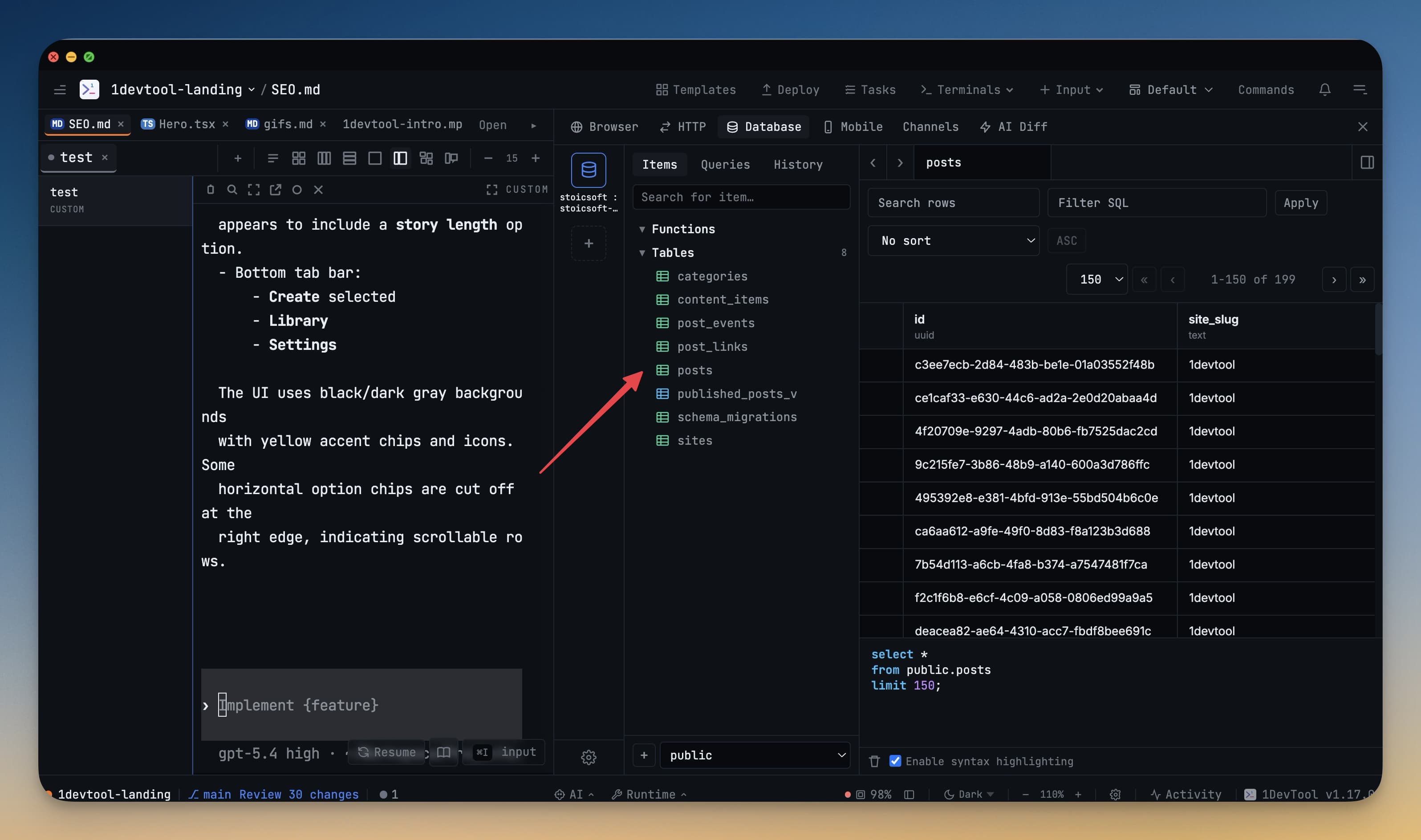
- Schema browser — see all your tables, columns, indexes, and relationships in a sidebar tree
- Query editor — write SQL or NoSQL queries with autocomplete and syntax highlighting powered by the same Monaco editor used in VS Code
- Results grid — view, sort, and filter query results in a spreadsheet-style table
- Data export — export results or entire tables as CSV, JSON, or NDJSON
- Query history — re-run any past query with one click
Next Steps
Ready to connect your first database? The fastest way is to paste a DATABASE_URL — a single connection string that contains everything 1DevTool needs. Start with the Connect with DATABASE_URL guide.