Markdown Editor
Write and preview Markdown with a split editor — great for README files, docs, and notes.
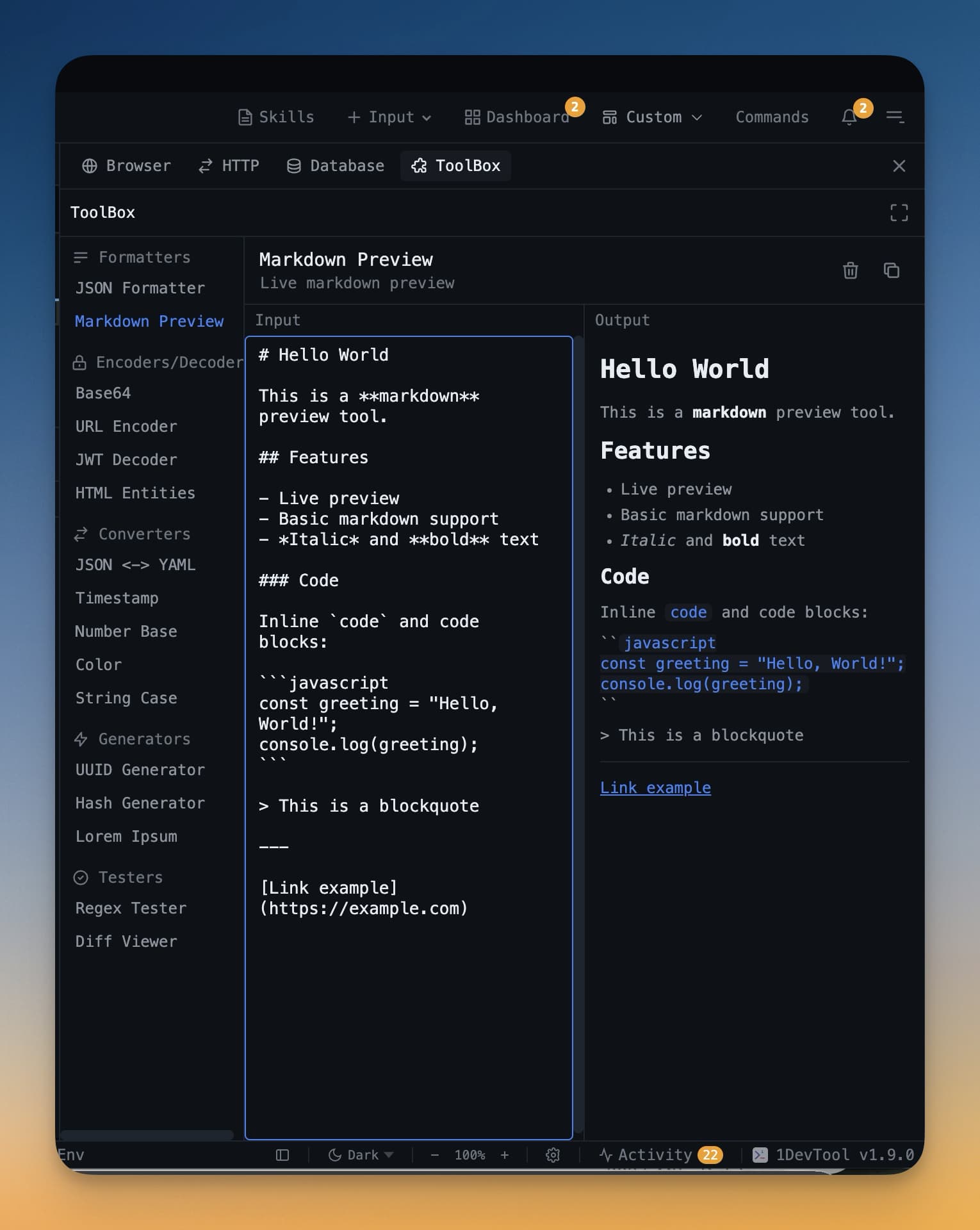
When you open a .md file in the IDE Strip, you get more than a plain text editor. A split view appears: the left side shows the raw Markdown source you can edit, and the right side shows a live rendered preview that updates as you type. There's no save-and-refresh cycle — changes appear in the preview instantly.
Split View
The left pane is a full Monaco editor with Markdown syntax highlighting. Headings, bold text, code blocks, and links are all colored distinctly so the source stays readable even without the preview.
The right pane renders the Markdown exactly as it would look in a browser. As you type in the left pane, the preview on the right catches up in real time.
You can resize the split by dragging the divider between the two panes. If you want to focus on writing, drag it fully to the right to give the editor more room. If you want to read the rendered output, drag it fully left.
What Gets Rendered
The preview supports all standard Markdown syntax:
- Headings (
# H1,## H2,### H3) - Bold and italic (
**bold**,*italic*,***both***) - Bullet and numbered lists
- Code blocks with syntax highlighting — specify the language after the triple backtick:
```python - Inline code with backticks
- Tables
- Links and images
- Blockquotes (
> text) - Horizontal rules (
---) - Task lists — checkboxes rendered from
- [ ] itemand- [x] done
Task lists are particularly useful for tracking work. Create a checklist in a Markdown file, open it in the IDE Strip, and you can check off items directly in the preview by clicking the checkboxes.
Sticky Notes
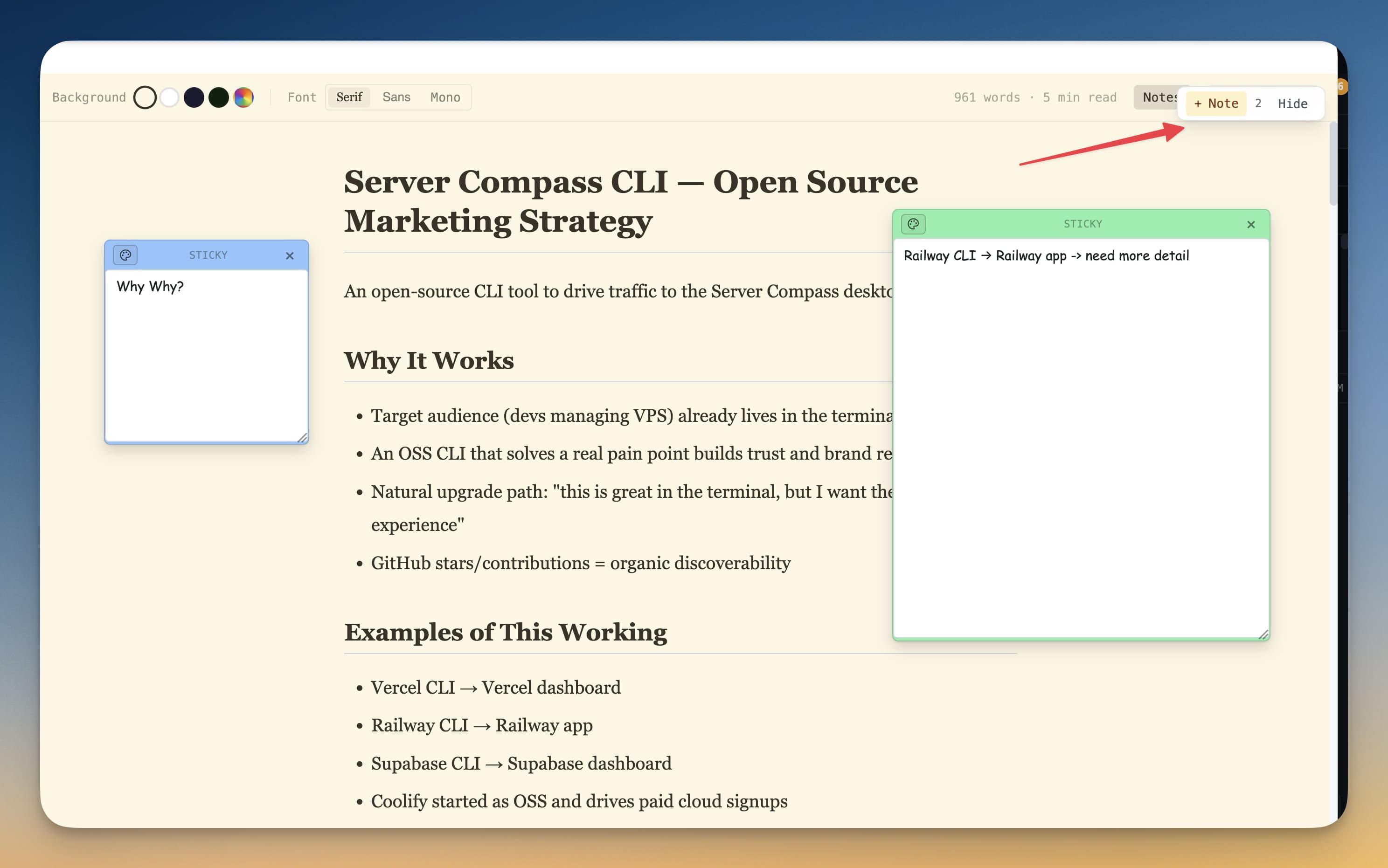
In reading mode (preview-focused), you can add floating sticky notes to annotate sections of the document. These are useful for leaving comments on a README or spec that you don't want to embed in the actual file content.
Click the Add Note button and place the sticky note anywhere on the preview. Notes are stored separately from the file, so they won't show up when anyone else opens the same file.
Common Use Cases
- README files — edit and preview your project README before committing it
- Project specs — write a feature spec in Markdown and review the formatted output alongside your code
- Changelogs — keep a running changelog in Markdown format and preview it as you update it
- Meeting notes — quick structured notes during a planning session, formatted for sharing
Tip: If an AI agent generates a Markdown document, open the file in the IDE Strip to read the nicely formatted version instead of raw text in the terminal output.