Schema Browser
Explore your database structure — tables, columns, indexes, and relationships.
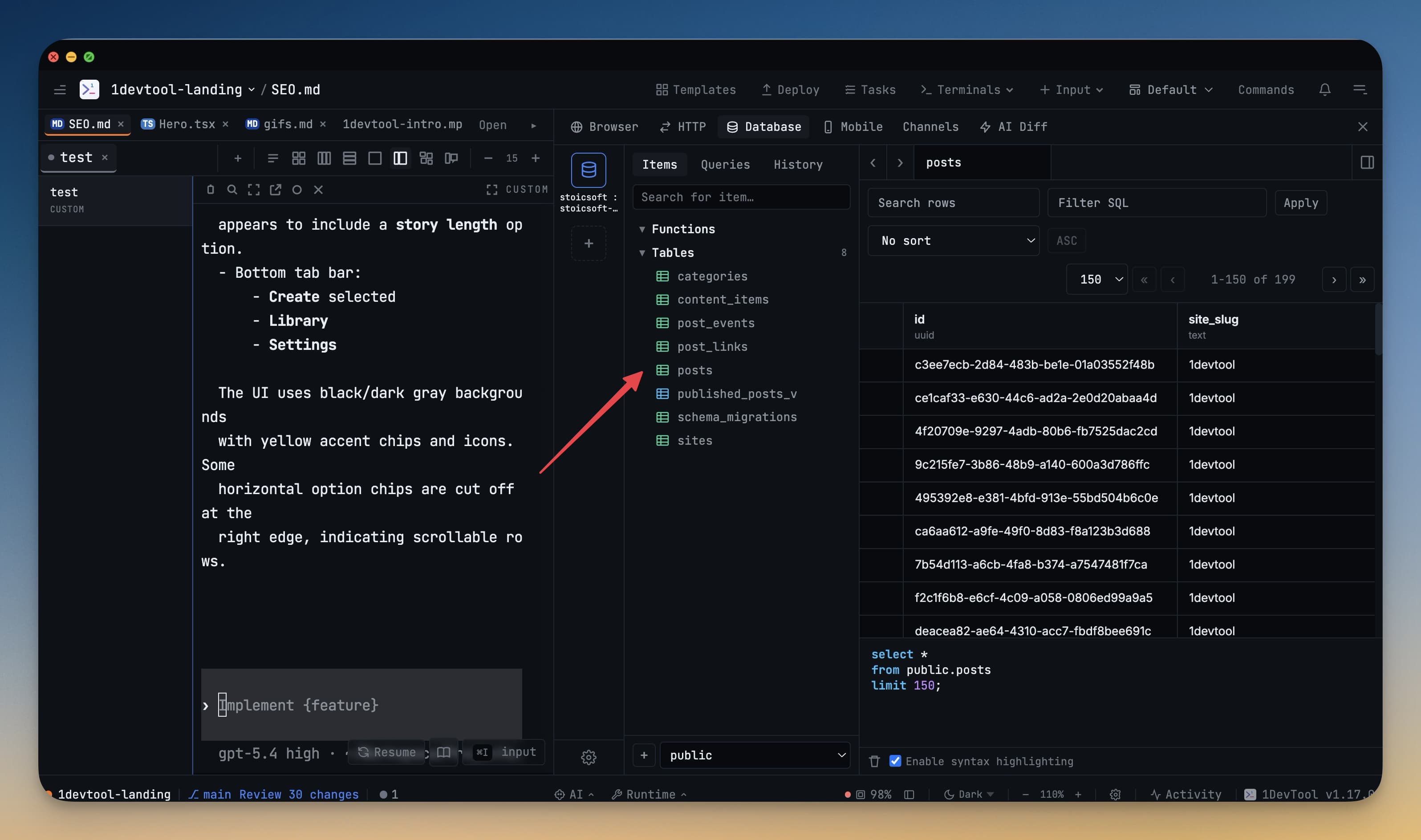
The schema browser is the left sidebar inside the database panel. It gives you a live, navigable view of your database structure without writing a single query. Everything about your database — its tables, columns, data types, indexes, and keys — is one or two clicks away.
What the Schema Browser Shows
When you connect to a database, the schema browser automatically loads and displays:
- Schemas (for PostgreSQL) — the top-level namespaces like
public,auth, orstorage - Tables — every table in the schema, listed alphabetically
- Views — virtual tables defined by a saved query
- Indexes — the indexes on each table, useful for spotting missing indexes that slow down queries
Click the arrow next to any table to expand it and see its columns.
Exploring a Table's Structure
Click on any table name in the sidebar to open its structure panel on the right. You will see:
- Column names listed in order
- Data types — such as
integer,varchar(255),boolean,timestamp,jsonb - Constraints — which columns are
NOT NULL, which have default values - Primary key — marked with a key icon
- Foreign keys — shown with an arrow icon indicating which table and column they reference
This is especially useful when you are writing queries and need to remember the exact column name or understand what data type to pass in a WHERE clause.
Quick Data Preview
You do not always need to write a query just to peek at what is in a table. Right-click any table in the schema browser and choose "SELECT * LIMIT 100" from the context menu. 1DevTool will instantly run that query and display the first 100 rows in the results grid. This is the fastest way to check if a table has data or see what it looks like.
Hovering on Columns
Hover your mouse cursor over any column name in the expanded table view to see a tooltip with additional details: the full data type, whether the column accepts null values, and its default value if one is set. This saves you from having to run \d tablename or a separate information schema query just to confirm one detail.
Searching for a Table
If your database has many tables, scrolling to find one by hand is slow. Click the search box at the top of the schema browser and start typing the table name. The list filters in real time, showing only tables whose names match what you typed. Press Escape to clear the search and return to the full list.
Refreshing the Schema
When you run a migration or create a new table in a terminal, the schema browser does not update automatically. Click the Refresh button (circular arrow icon) at the top of the sidebar to reload the schema from the database. The updated table list appears immediately.