Run an AI Agent
Start any supported coding agent — Claude Code, Codex, Gemini, Grok, Devin, Antigravity and more — and watch it build your project.
Running an AI coding agent in 1DevTool is straightforward: you open a terminal, pick an agent, type a prompt, and the agent gets to work. This page walks through everything that happens in that process, including the tools that make it easier to manage agents as they run.
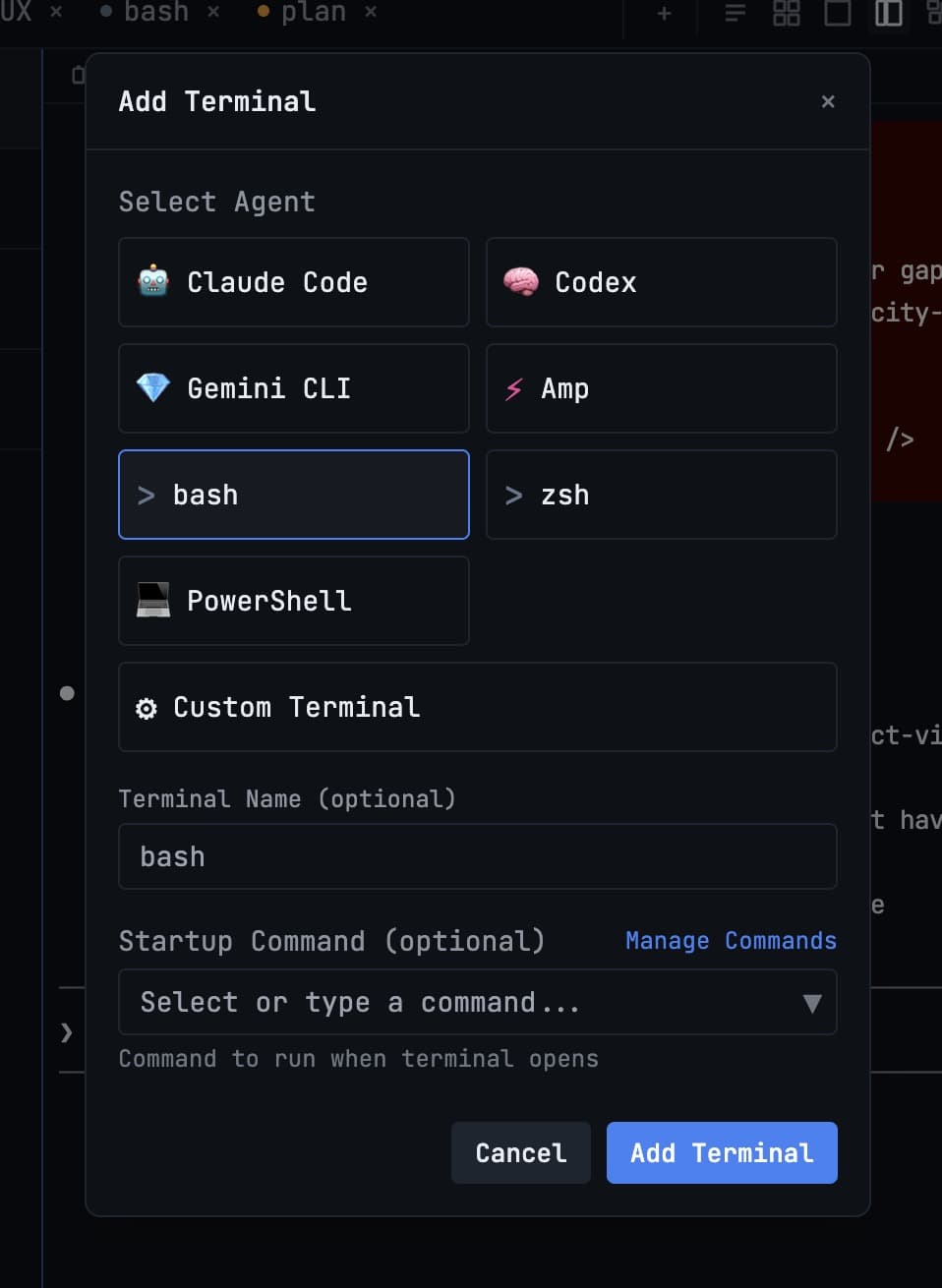
Choosing an Agent
1DevTool treats every supported coding agent as a first-class terminal — the same prompt handling, session resume, and usage tracking apply no matter which one you pick. When you add a terminal, choose from:
- Claude Code (Anthropic)
- Codex (OpenAI)
- Gemini CLI (Google)
- Grok (xAI)
- Antigravity (Google)
- Amp (Sourcegraph)
- Kimi Code (Moonshot)
- Pi
- Devin CLI (Cognition)
- Cursor CLI, Hermes Agent, OpenCode, Qwen Code, Cline, Qoder, and Windsurf
- A plain Bash, zsh, or PowerShell shell when you just want a terminal
Agents you haven't installed yet show a Setup badge instead of launching a broken terminal — use Scan My Machine from the empty workspace or Settings → System to detect the CLIs you already have. Any command not in the list can be added as a custom agent so it launches with full AI handling too.
Newer arrivals get the same treatment as the ones that shipped first — model chips, slash commands, skills, headless sends, team delegation, Resume, and Sub-agent History all work the same way:
- Kimi Code — install the
kimiCLI, then open it from Add Terminal, Change AI, Vibe Coder, or any other agent picker. Design, Prototype, and MCP surfaces can target Kimi when it is installed. - Pi — install the
piCLI and open it the same way. Past Pi sessions resume from the Resume panel and read turn by turn in Sub-agent History. - Devin CLI — install Cognition’s
devinbinary and open it from any agent picker. Devin names its own sessions (quiver-socksrather than a UUID) and the Resume panel lists them that way, with title, folder and message count from every project on the machine; rename one here and Devin’s own/titlepicks it up. Models come from your Devin account, reasoning-effort variants included — if the list comes back empty you are signed out, and Settings will tell you to rundevin auth login. MCP servers install into Devin’s config alongside the other agents, and skills andAGENTS.mdrules are read from both your user directory and the project.
Cursor renamed its command. Recent Cursor installs ship the CLI as
agent; older ones shipcursor-agent. 1DevTool recognizes both on macOS, Linux, and Windows, tells Cursor apart from other tools that install a command with the same name, and treats either as a real AI terminal with the agent overlay, session detection, and resume. Plaincursoris the editor launcher and is never the agent.
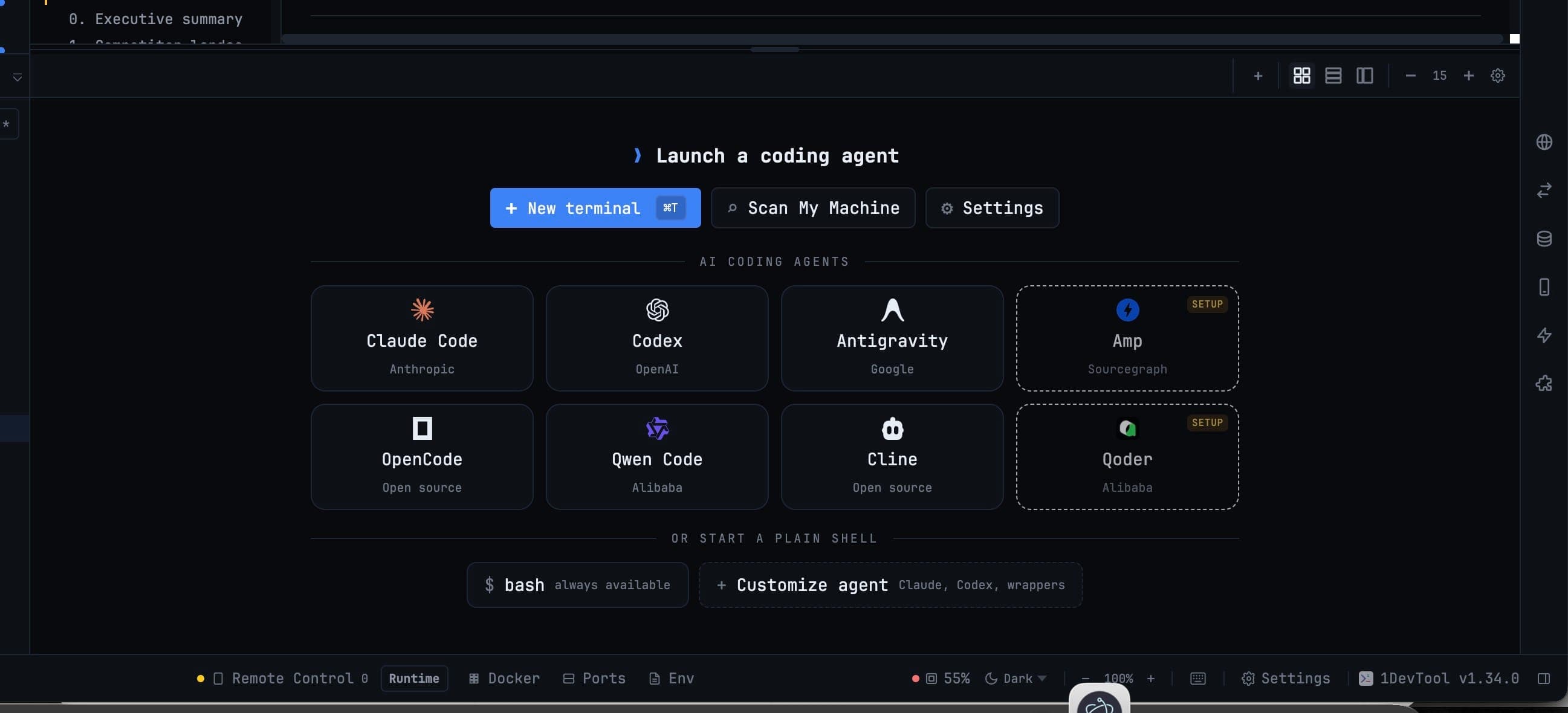
Starting an Agent
When you add a new terminal and select an agent type, the terminal opens automatically in your project's root folder. You don't need to navigate there — 1DevTool uses the folder you set when you added the project to the sidebar.
The agent starts and displays its welcome prompt, waiting for your first instruction.
Typing a Prompt
Click inside the terminal to focus it, then type your prompt as you would in any terminal. AI agents accept natural language, so you don't need to remember any special syntax. Just describe what you want:
Add a search bar to the homepage that filters the product list in real time
Press Enter to send the prompt. The agent reads your codebase, plans its approach, and begins making changes. You can watch it work in real time — it shows the files it's editing and the commands it's running.
The Agent Input composer
AI agent terminals use a full-screen text interface (a TUI) that takes over normal keyboard input, so cursor movement, paste, and multi-line editing behave unpredictably inside the terminal itself.
Agent Input gives you a real text box outside the terminal. Press Cmd+I on macOS, or Ctrl+Alt+I on Windows and Linux. Write your prompt with all the normal editing shortcuts, then send with Cmd+Enter / Ctrl+Enter.
It floats and resizes, keeps unsent drafts, takes @ mentions for files, agents, terminals, templates, and skills, and verifies that your prompt actually left the composer before reporting the run as started. Full details in Agent Input.
Knowing how full the context is
A context chip sits next to the model chip on terminal tabs and pane headers, showing how much of the context window the last turn used. It draws as a progress ring, turns amber at 80% and red at 90%, names the token counts in its tooltip, and says plainly when the window size is unknown.
When a long session starts producing worse answers, this is usually the reason.
Live run timers
A running agent shows an elapsed timer on its tab, so you can tell "thinking hard" from "stuck" without switching to it. Timers update only while visible and pause when 1DevTool is in the background.
Prompt History
Every prompt you've sent to an agent is saved in your prompt history. Press Cmd+Up (Mac) or Ctrl+Up (Windows/Linux) to scroll back through previous prompts and reuse or edit them.
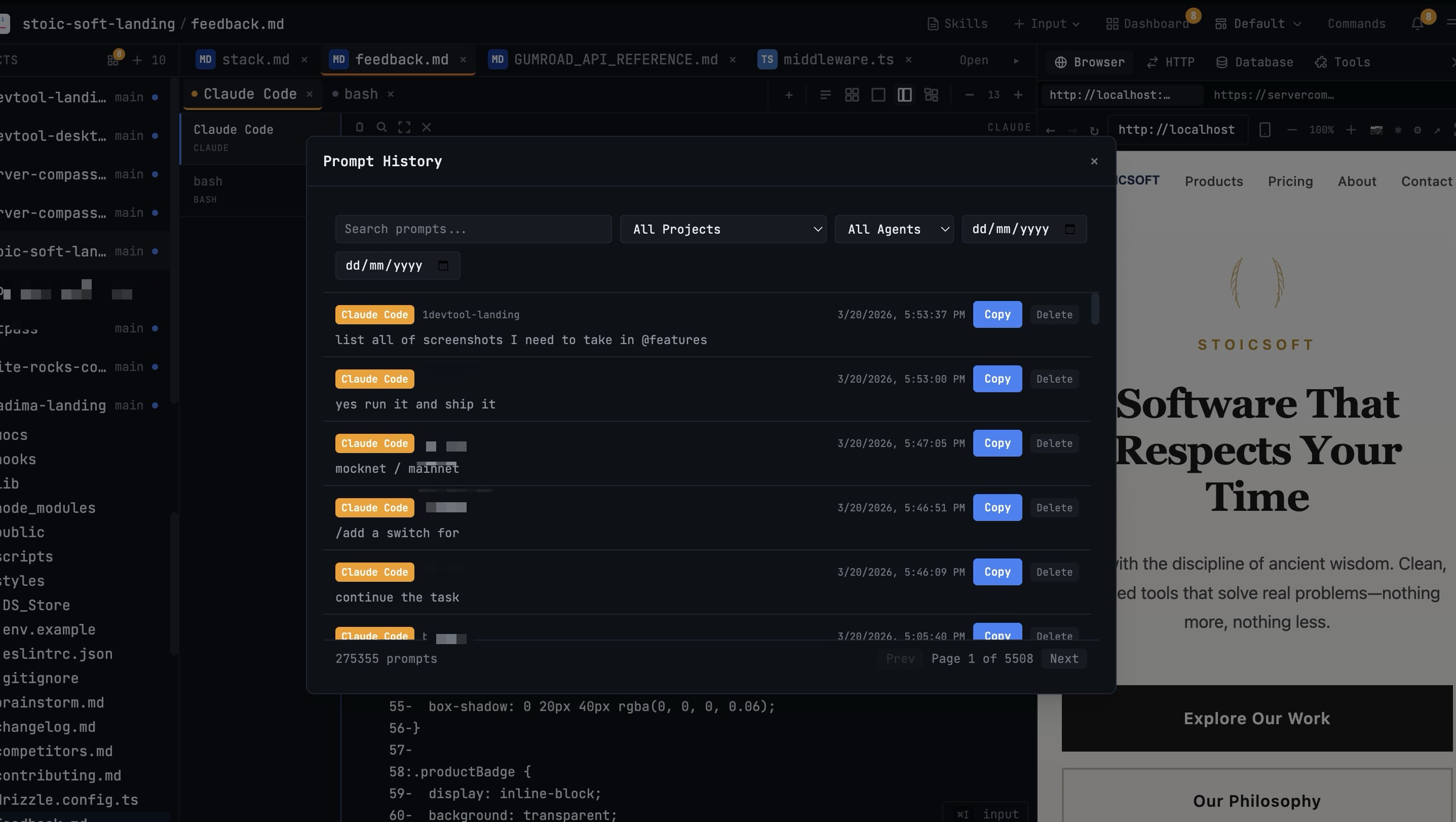
This is handy when you're iterating on a task and want to re-send a slightly modified version of a prompt you already typed, without rewriting it from scratch. Press Cmd+Down / Ctrl+Down to move forward through the history again.
Switching Agents Mid-Session
You're not locked into the agent you started with. From the terminal you can switch to another AI agent and continue in the same tab — useful when you want a second model's take on the same problem, or when one agent hits a wall. Your recent session can be resumed across agents where a matching conversation exists, so you don't lose the thread.
AI terminal tabs also name themselves after the current session, so a row of running agents reads as what each one is doing rather than "Terminal 2, Terminal 3."
The command wins over the preset. When a saved preset names one agent but the startup command launches another, 1DevTool follows the command — so the label, the readiness check, prompt delivery, and resume all agree on the same agent instead of one of them waiting on a composer that does not exist.
Delegating Between Agents
For larger tasks, one agent can delegate work to another. Mention an open AI terminal in Agent Input and your prompt is delivered into that live agent, with a reply channel back to you — see Linked Terminals. For bigger jobs, start an Agent Team or a Swarm.
A delegated run shows up as a sub-agent badge so you can follow the chain of who did what, and Mission Control shows the whole picture live.
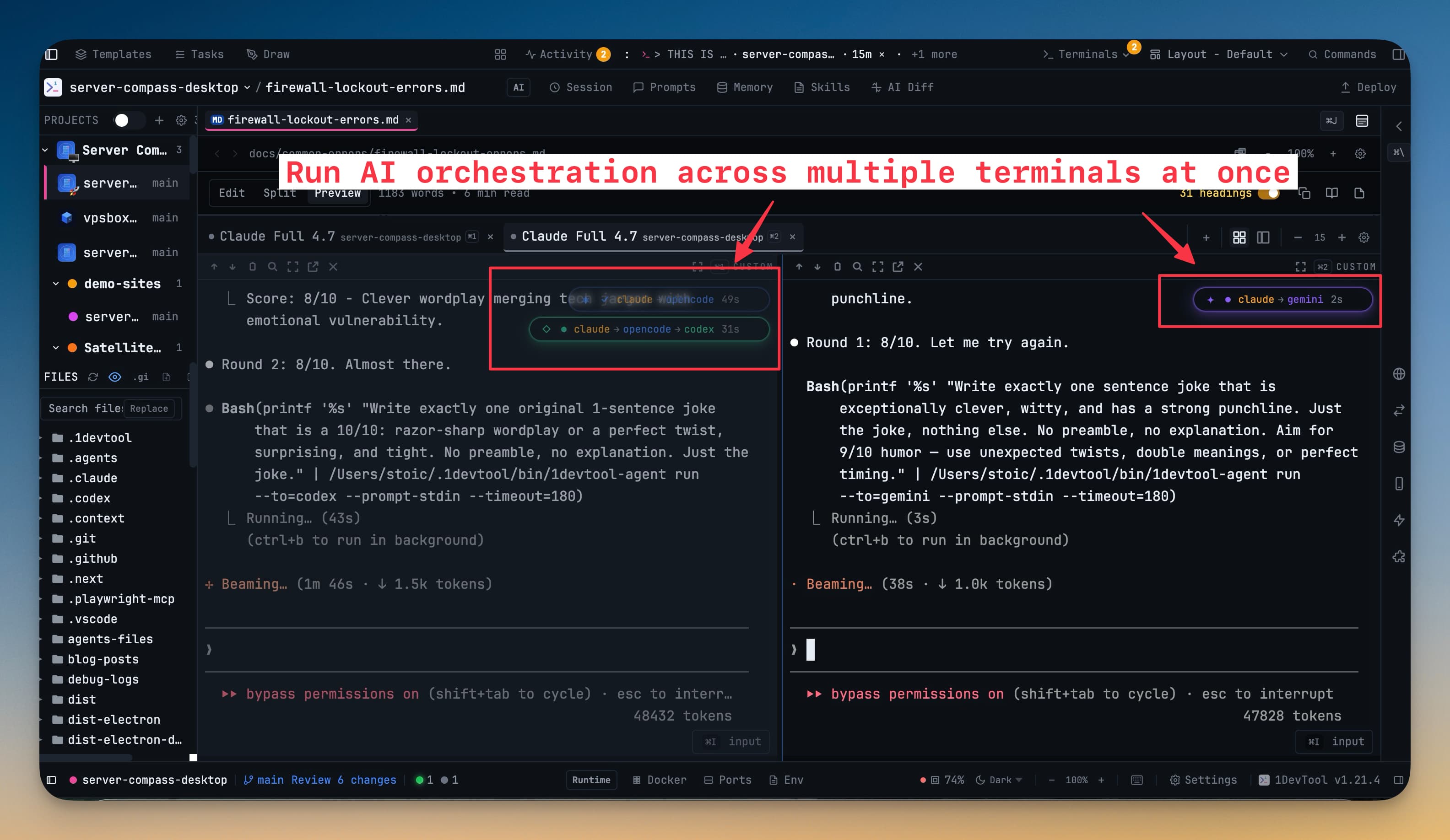
Running Multiple Agents Simultaneously
This is the feature that makes 1DevTool fundamentally different from running AI agents in a regular terminal app.
You can have several agents running at the same time — each in its own terminal panel, each working on a different part of your project. For example:
- Top-left: Claude Code is adding a new API endpoint
- Top-right: Codex is writing tests for the feature it built earlier
- Bottom-left: A Bash terminal is running your dev server so you can see changes live
- Bottom-right: A Browser panel shows the app as it updates
All four are active simultaneously. You can send a new prompt to any agent at any time, check the output of another, and watch your app update in the browser — all without switching windows or losing context.
The 2×2 grid layout is specifically designed for this kind of parallel work. See Layout Modes for how to set it up.
Keeping an Eye on Usage
When you run several paid agents at once, it's easy to lose track of how much quota you have left. 1DevTool surfaces live usage and reset times right in the status bar — see AI Usage & Quota — and gathers every account you own into the Spend & Quota Center (Cmd+Shift+U). And when you step away from your desk, you can keep prompting these same agents from your phone with Remote Control.