Preview Your Local App
See your dev server running in a browser panel right next to your terminal.
The most common use of the embedded browser is previewing your app while it's running locally. Here's how to go from nothing to a running app visible in your workspace.
Step-by-Step Setup
Step 1: Start your dev server in a terminal.
Open a terminal in 1DevTool and start your development server. The command depends on your tech stack:
- React / Next.js / Vite:
npm run dev - Django:
python manage.py runserver - Rails:
rails server - Rust (with a web framework):
cargo run - Go:
go run main.go
Wait for the server to output its local URL — typically something like http://localhost:3000, http://localhost:8000, or http://localhost:8080.
Step 2: Open the Browser panel.
Click the Browser icon in the panel toolbar, or open it from the Add Panel menu. The browser panel appears with an empty address bar.
Step 3: Navigate to your local URL.
Click the address bar, type the URL your dev server is running on (e.g., http://localhost:3000), and press Enter. Your app loads in the panel.
Step 4: Refresh when needed.
Press Cmd+R (macOS) or Ctrl+R (Windows/Linux) to reload the page. If your dev server supports hot module replacement (HMR) — like Vite or Next.js — the page updates automatically when files change, with no manual refresh needed.
Step 5: Resize to test layouts.
Drag the panel divider to make the browser panel narrower or wider. This is a quick way to see how your app looks at different widths without setting up a separate responsive testing tool.
Test Responsive Layouts
Drag the panel divider to make the browser narrow and check your mobile layout. For more precise responsive testing, 1DevTool includes a Mobile Simulator: click the phone icon in the browser panel header to preview your app at standard mobile breakpoints (375px for iPhone, 768px for tablet, etc.).
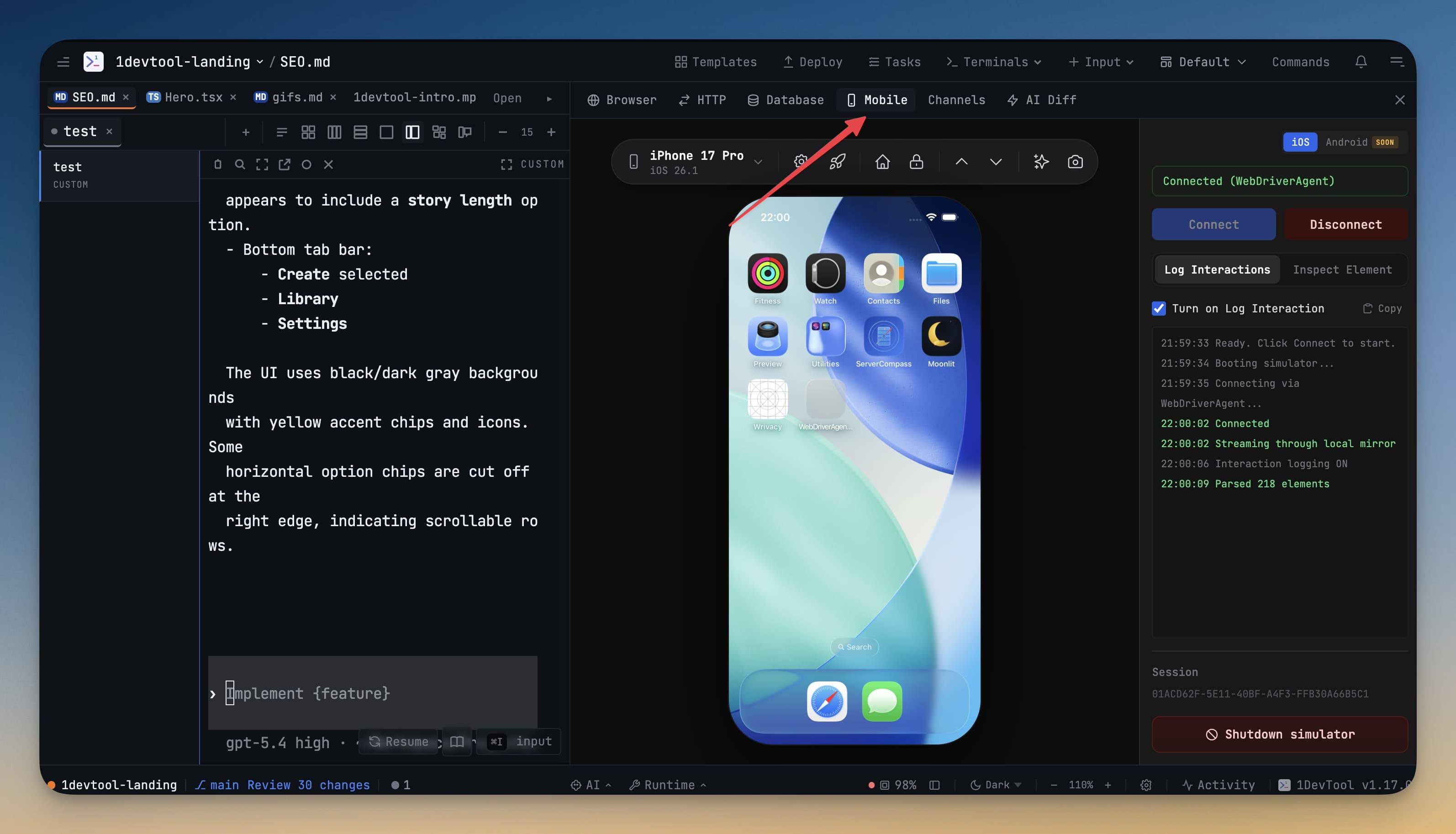
The Mobile Simulator also lets you toggle device orientation between portrait and landscape, so you can verify your layout works in both modes without a physical device.
Use with AI Agents
The embedded browser really shines when working alongside AI agents. Here's a workflow that eliminates almost all context switching:
- Open a Claude Code terminal and give it a task: "Build the login page with a form that validates the email and password fields."
- Watch the terminal as Claude writes the code.
- When Claude reports it's done, press
Cmd+Rin the browser panel to reload. - The login page appears in the panel. If something looks wrong, describe it to Claude without switching apps: "The submit button is too close to the password field, add more spacing."
- Claude fixes it. Reload. Repeat.
This loop — code in the terminal, verify in the browser, describe fixes — is much faster than switching between a terminal window, a code editor, and a browser tab.
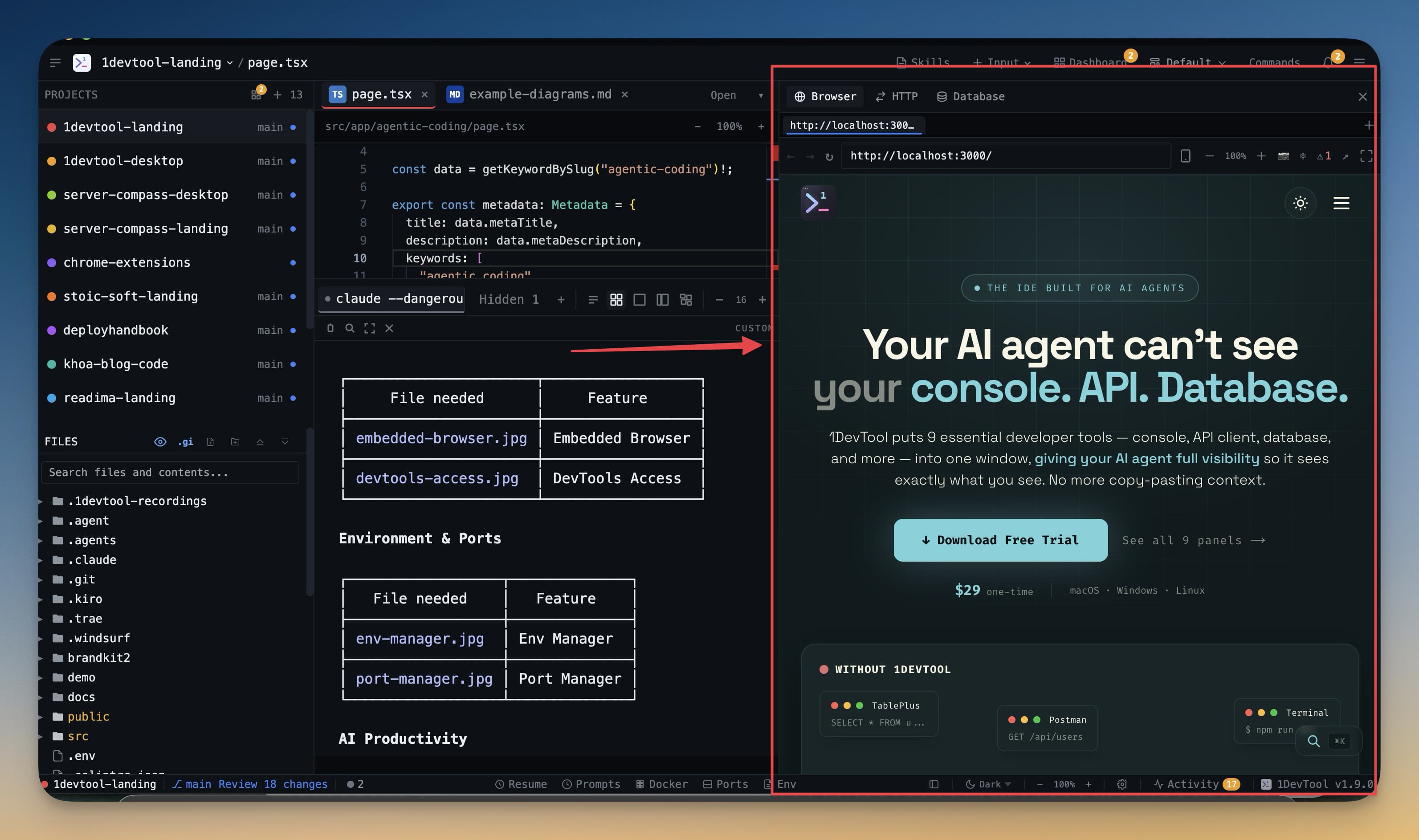
Tip: Position the browser panel and the terminal side by side so you can watch the agent work and see results at a glance. For projects with hot reload, you won't even need to press refresh.