Themes
Switch between dark and light themes and customize your terminal colors and font.
App Theme
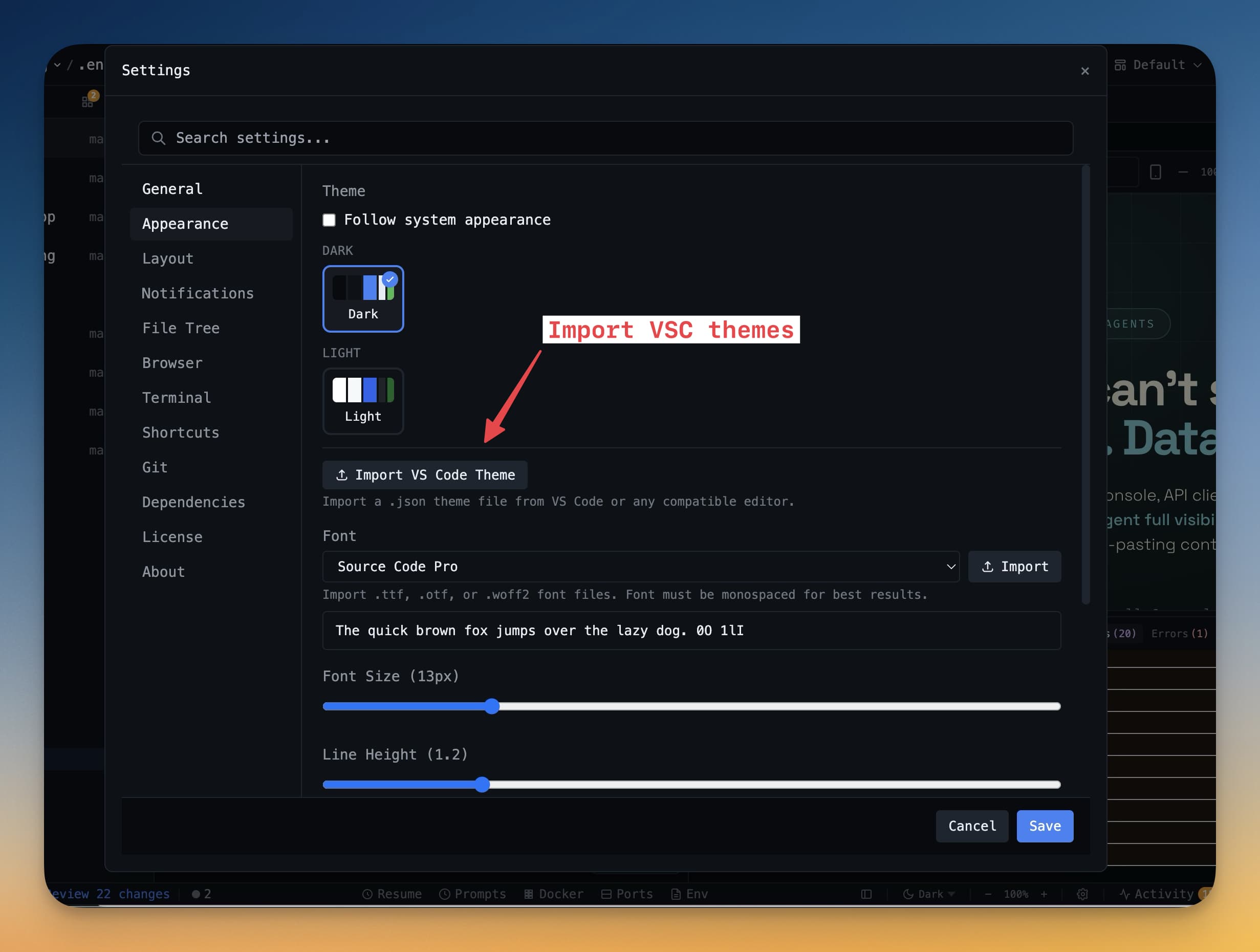
1DevTool ships with two app-wide themes: Dark and Light.
Dark is the default. It uses deep gray backgrounds across every panel — editor, terminal, database viewer, and browser — making it easy on the eyes during long coding sessions and reducing eye strain in low-light environments.
Light flips the entire interface to a bright, high-contrast layout. It works well in sunny offices or on monitors with strong ambient lighting where dark text on a white background is easier to read.
To switch themes, go to Settings → Appearance → Theme and select Dark or Light. The change applies instantly — every panel, sidebar, and modal updates at the same time. There is no need to restart the app.
Terminal Color Themes
Your terminal can use a different color palette from the rest of the app. 1DevTool includes six built-in palettes:
- Default Dark — a balanced dark palette that pairs well with the default app theme.
- Monokai — vibrant reds, greens, and yellows on a dark chocolate background. Popular with developers who like strong color contrast.
- Solarized Dark — a carefully calibrated palette designed to reduce eye strain while keeping colors meaningful.
- Nord — cool blues and arctic whites on a dark slate background. Calm and minimal.
- Gruvbox — warm retro tones with earthy browns and muted yellows.
- GitHub Dark — the color scheme used in GitHub's own code editor, familiar if you spend a lot of time on GitHub.
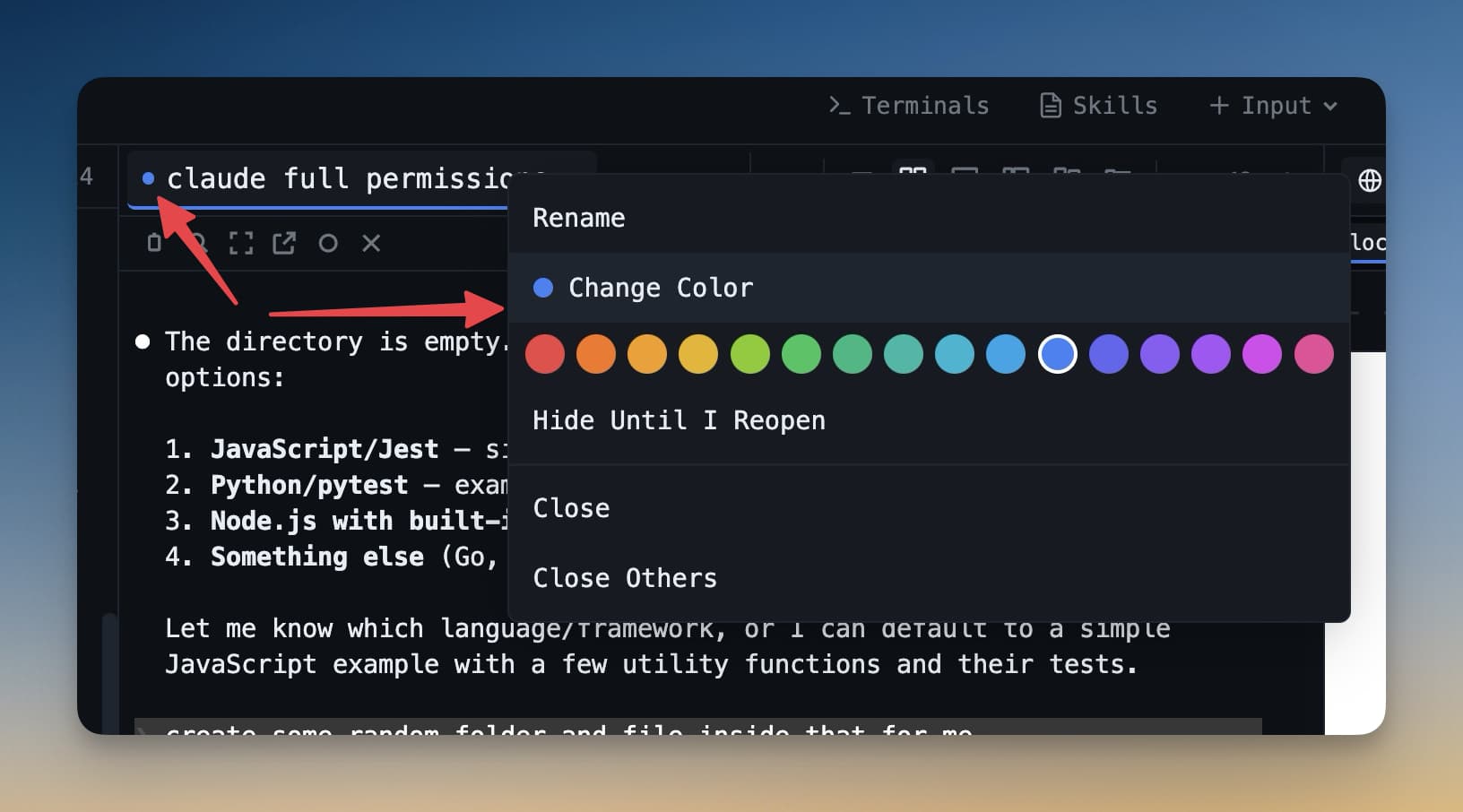
To change the color theme for a specific terminal, right-click anywhere in the terminal and choose Terminal Colors, then pick a palette. To set a default for all new terminals, go to Settings → Terminal → Colors.
Terminal Font
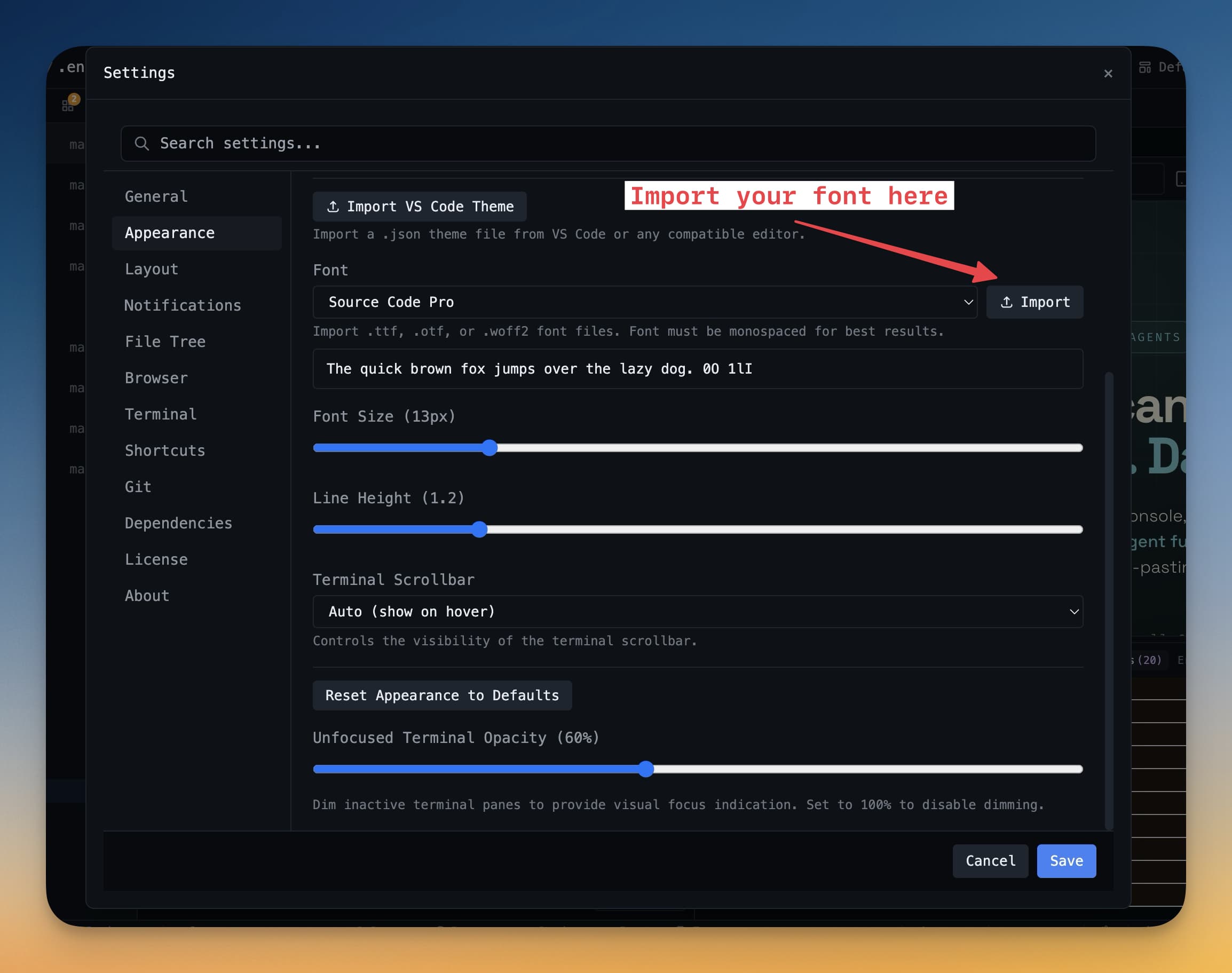
The terminal uses a monospace font so that code, tables, and command output line up correctly. By default it uses the system monospace font, but you can change it to any font installed on your machine.
Go to Settings → Terminal → Font and pick from the built-in list or type the name of a font you have installed. Popular choices include JetBrains Mono, Cascadia Code, and Hack.
To adjust font size without opening Settings, use the keyboard shortcuts:
- Cmd + + (or Ctrl + + on Windows/Linux) — increase font size
- Cmd + - (or Ctrl + - on Windows/Linux) — decrease font size
Changes apply immediately to all open terminals.
Editor Font
The IDE Strip (the code editor embedded in 1DevTool) uses Fira Code by default. Fira Code is a monospace font with programming ligatures — it renders =>, !=, and === as clean symbols rather than multiple characters.
To change the editor font, go to Settings → Editor → Font and select a different font. You can also disable ligatures here if you prefer standard character rendering.
Font size in the editor follows the same Cmd++/Cmd+- shortcuts as the terminal, or you can set a fixed size in the settings panel.