Layout Modes
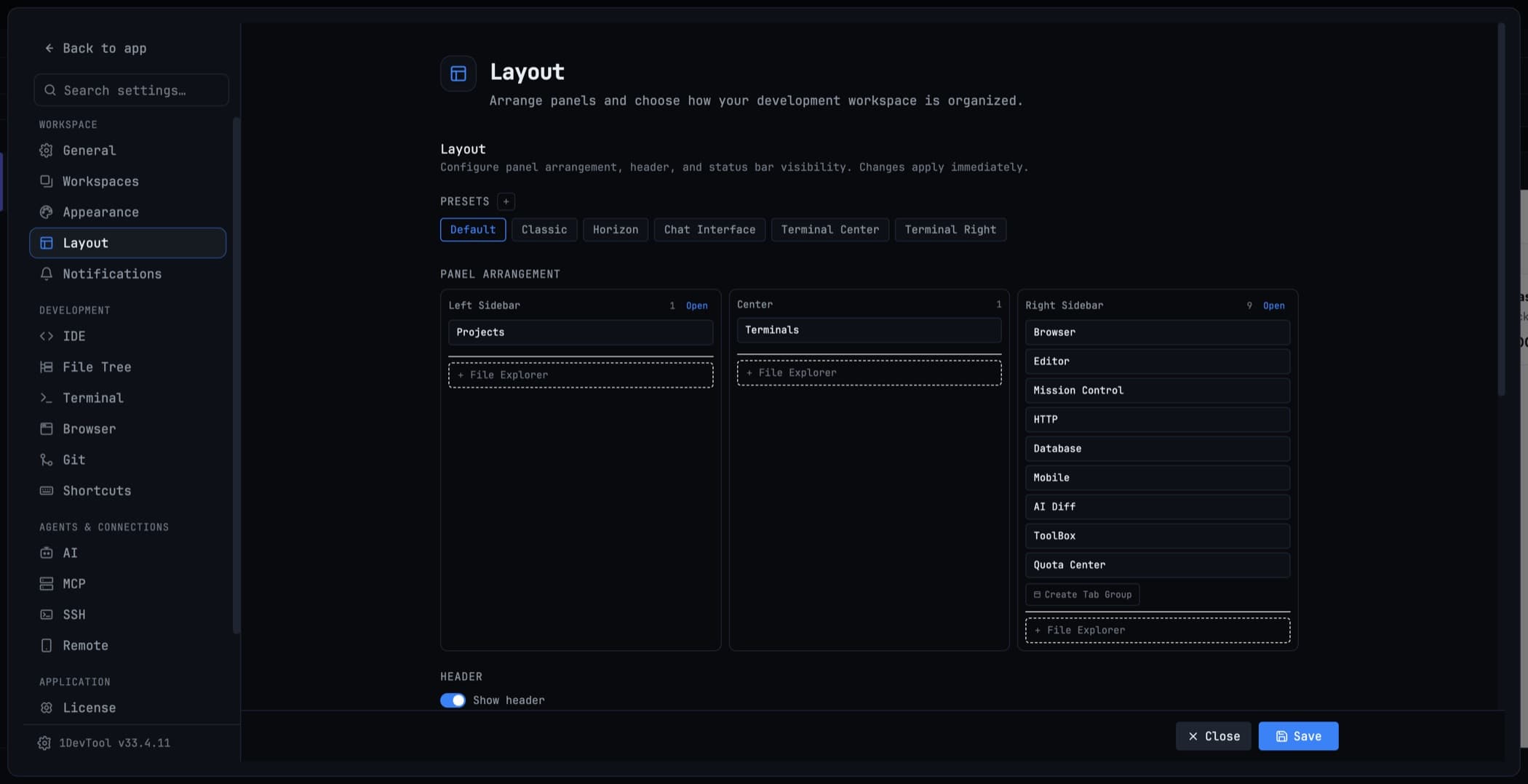
Pick a built-in layout — Default, Classic, Horizon, Chat, Terminal Center, Terminal Right, Mosaic or Vibe Coder — or arrange your own and apply it everywhere.
A layout decides where every panel sits: projects, file explorer, editor, terminals, and the tools on the right. 1DevTool ships several, and switching between them never closes anything — panels rearrange, they do not restart.
Open the picker from Layout in the header.
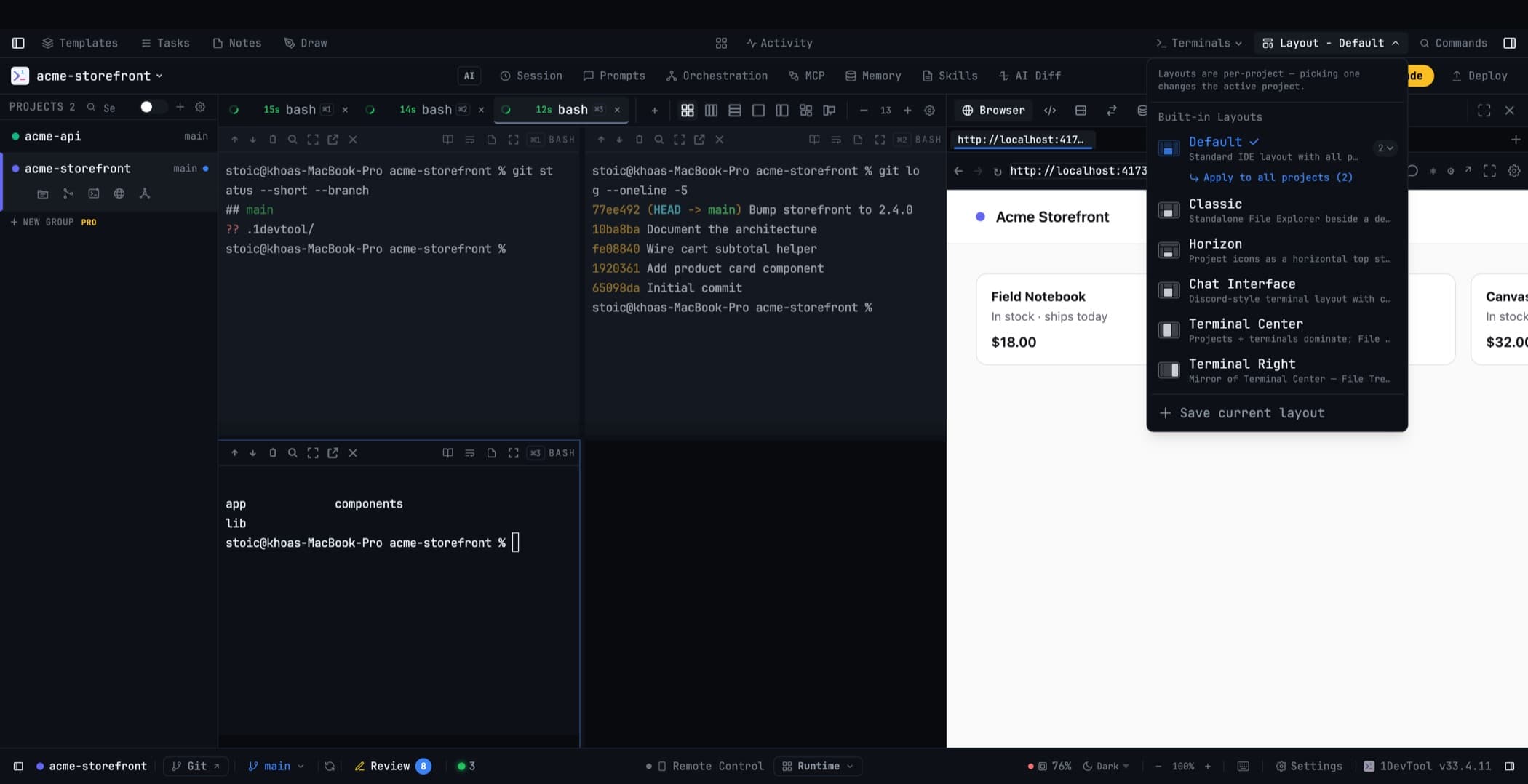
Each entry shows a small glyph of the arrangement and a count of how many projects currently use it, so you can see at a glance which layout is your habit. Tiling and panel layouts are grouped separately in the list, so Mosaic is never mistaken for another sidebar preset.
The built-in layouts
Default
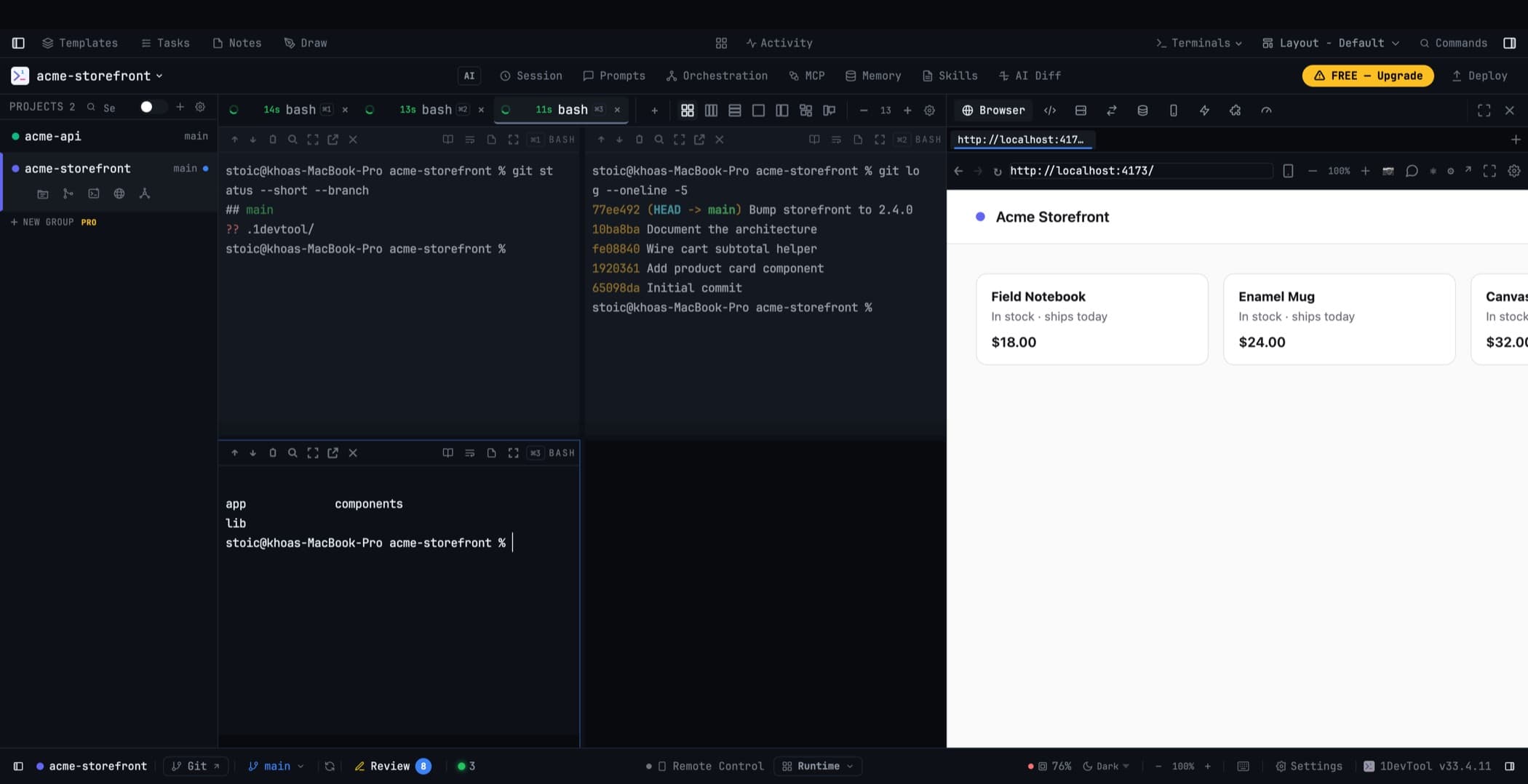
The composed workspace: File Tree + Editor in one tab, terminals in the center, tools on the right. Opening a file does not send you between two separate panels.
This is the layout most people stay in.
Classic
The file tree returns as a standalone panel beside a dedicated Editor — the way it worked before the two were merged.
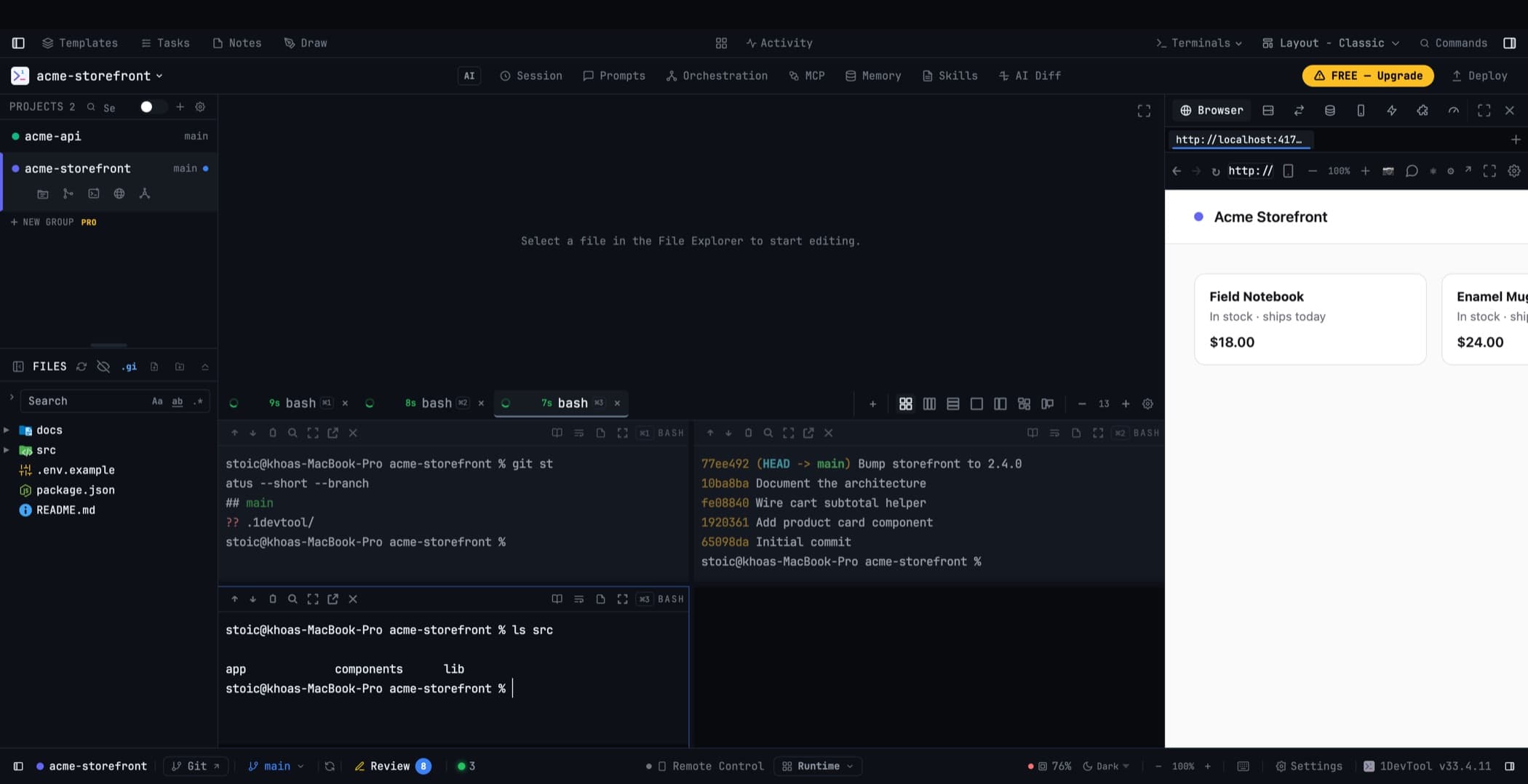
The editor drops its embedded tree automatically whenever a standalone File Explorer is placed anywhere in your layout; put the explorer in the left, center, or right slot from Settings → Layout and the editor adapts. Remove the standalone panel and the editor takes its tree back. The two can never both disappear.
The explorer keeps its own width and collapse state, and follows you across projects like every other panel.
Horizon
Projects become a row of icons along the top of the window, freeing the entire left sidebar for the File Explorer.
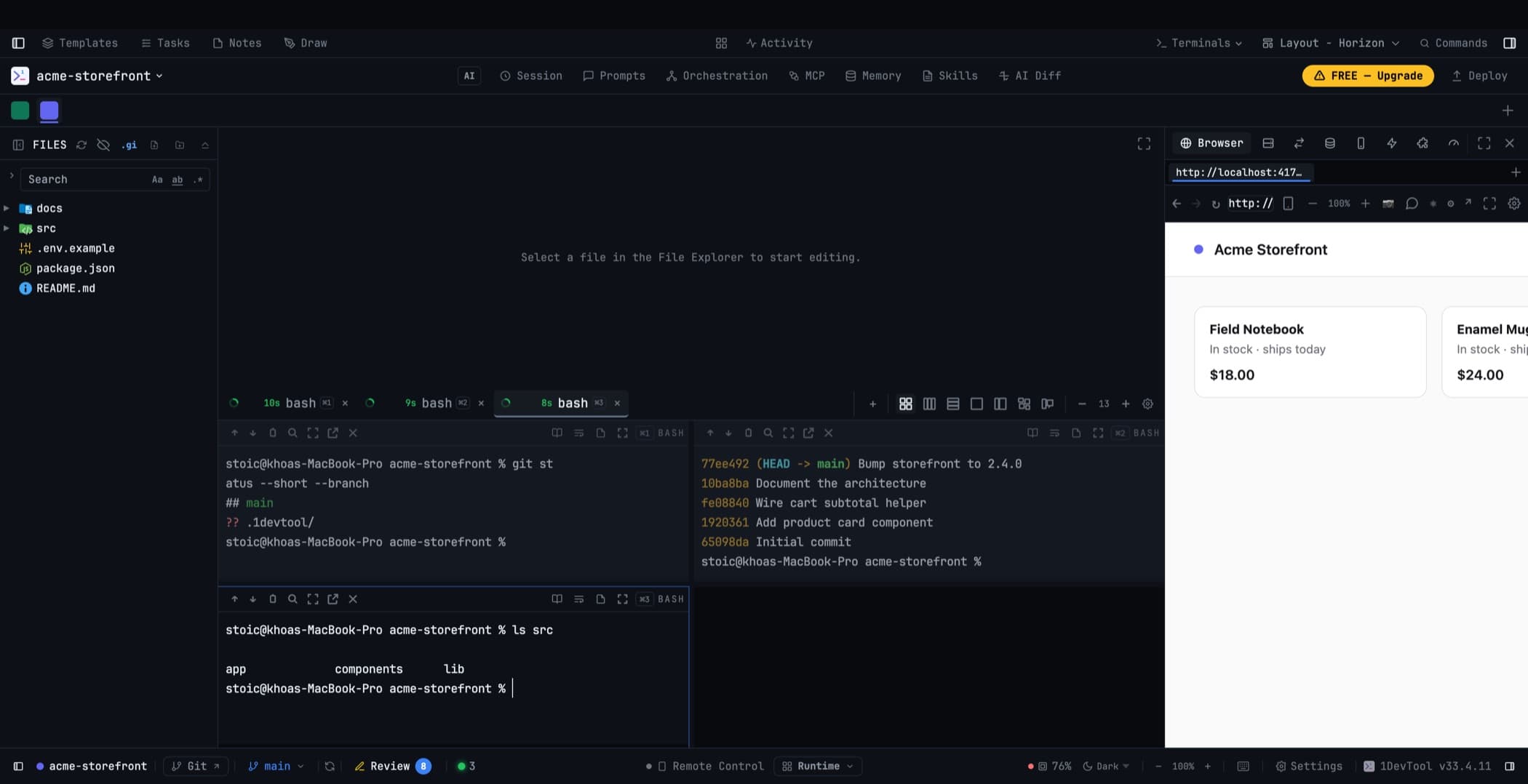
Below the strip it reads like Classic: File Explorer on the left, Editor above Terminals in the center, tools on the right.
The strip appears in any layout with no Projects panel placed — so a custom arrangement that drops the panel keeps its projects reachable instead of losing them. Put the panel back and the strip steps aside.
Each project shows its avatar, colour, and emoji, with the active one underlined in its own colour. Scroll the strip sideways with a normal mouse wheel, and add a project from the + at the end. Hover an icon for a card with the project's name, current branch, and how many terminals it has open — enough to tell two similar projects apart without switching. Right-click for the same project menu the sidebar gives you, including renaming, colours, and group membership.
Chat Interface
A Discord-style arrangement built around AI Channels: a channel list on the left, the conversation in the middle.
Terminal Center
Projects plus terminals dominate; the file tree and editor step back. The layout for a day of prompting rather than a day of editing.
Terminal Right
The mirror of Terminal Center. The active terminal has the full set of actions — copy as Markdown, search, Reader Mode, reformat, notes, pop out, fullscreen, close — and the channel-list divider can be dragged to give names or output more room. Your preferred width is remembered per project; double-click the divider to reset it.
Mosaic
Not a slot arrangement at all: the sidebars disappear and the window becomes a tree of tiles you split, stack, resize, and magnify yourself. Several named arrangements can live in one project.
Full details in Mosaic Layout.
Vibe Coder
A prompt-first layout built around a full-size composer, with Preview, Changes, and Code side by side on the right. The terminal is still real and one click away.
Full details in Vibe Coder.
Applying a layout to every project
Layouts are per project, so picking one changes only the project you are looking at.
When you want the same arrangement everywhere, use Apply to all projects (N) — an action that appears right under the layout you are currently using. It asks once before overwriting ("Overwrite N project layouts?"), and it only ever offers to broadcast a layout you have already applied and can see.
Apply to future projects is the companion setting: everything you add from then on opens in that layout, without touching the projects you already have.
Building your own
Settings → Layout places individual panels into slots: left, center, right, and the panel groups inside each sidebar. Panel groups in the right sidebar render as separate work areas, and each one remembers its own active tab.
Any panel can go fullscreen over the window without losing the rest of its tabs; Escape returns.
Once you have an arrangement you like, Save current layout turns it into a named preset that appears in the picker beside the built-ins.
Related
- File Explorer & Editor — the panel Classic and Horizon split out
- Workspace Overview
- Mosaic Layout — the tiling layout
- Vibe Coder — the prompt-first layout
- Agent Office — a view mode for the terminal area, available in any layout
- Keyboard Shortcuts