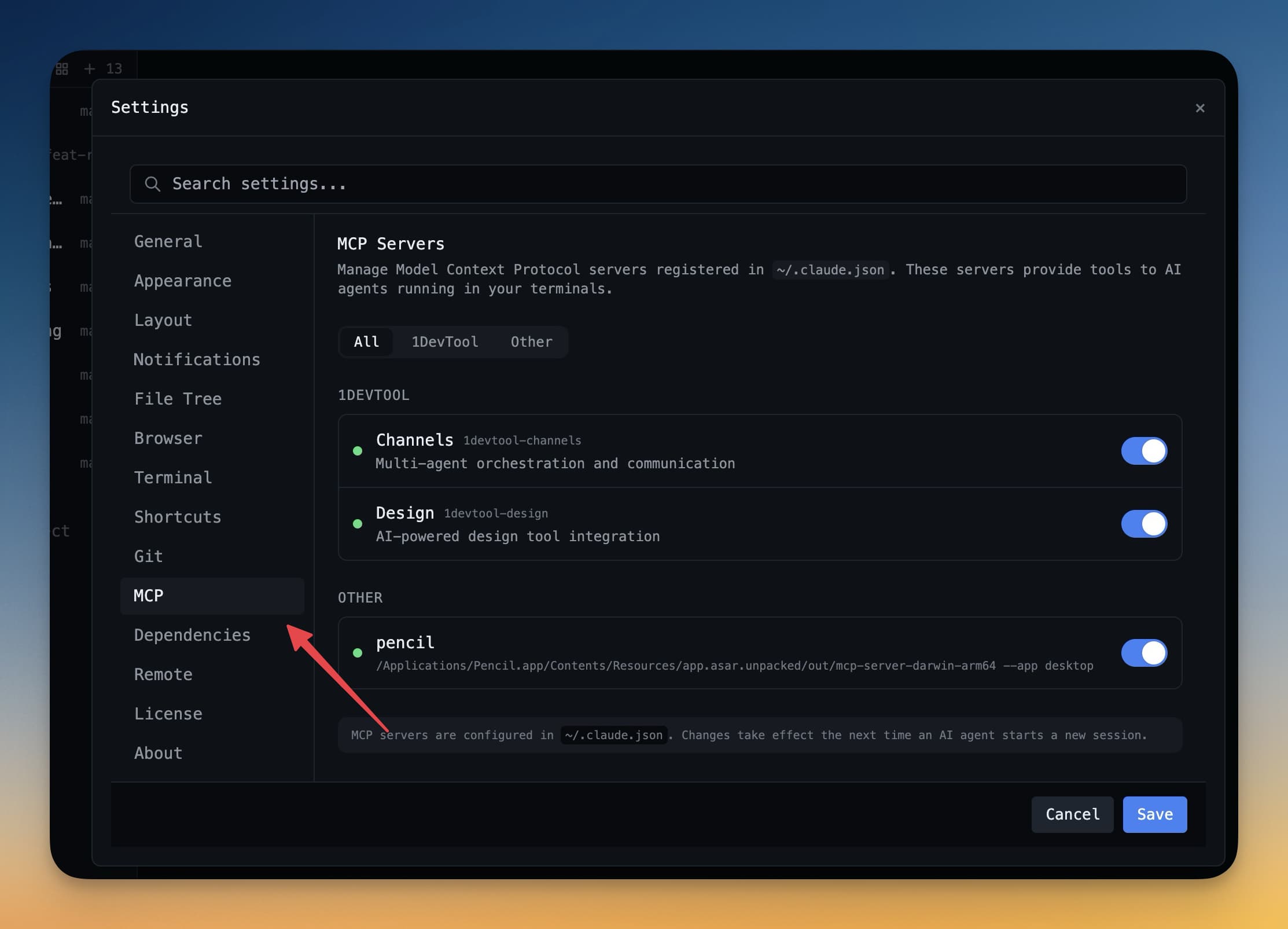
MCP Servers
Configure Model Context Protocol servers to give your AI agents access to external tools.
What is MCP?
Model Context Protocol (MCP) is an open standard that lets AI agents connect to external tools and services. Think of it as a plugin system for your AI: without MCP, an agent like Claude Code can only read and write files. With MCP, it can search the web, query your database, call APIs, and interact with design tools — all within the same conversation.
An MCP server is a small program that runs in the background and exposes a set of tools the agent can call. When you ask the agent "what is the current weather?" it can call a weather MCP tool and get a real answer, rather than guessing from its training data.
MCP servers communicate over a standard protocol, so any agent that supports MCP (Claude Code, Cursor, Windsurf, and others) can use the same servers.
Built-in MCP Servers
1DevTool ships with several MCP servers ready to use out of the box:
- Database access — the agent can run queries against your connected databases and explain results. It knows your schema automatically.
- File system — the agent can read and search files in your project directory, giving it full context of your codebase.
- HTTP client — the agent can make API calls, fetch JSON from endpoints, and inspect responses. Useful for testing your own APIs or calling third-party services.
- Design tools — integration with Figma and Pencil, so the agent can inspect design files, read component specs, and suggest code that matches your designs.
These servers start automatically when you open a terminal session. You do not need to configure them.
Add a Custom MCP Server
The MCP ecosystem has hundreds of community-built servers you can plug in. To add one:
- Go to Settings → MCP Servers
- Click + Add Server
- Enter the server command — for example:
npx @modelcontextprotocol/server-brave-search - Add any required environment variables (like API keys) in the fields below
- Click Save
The server will start automatically the next time you open a terminal. You can test it by asking the agent to use the new tool.
Per-Project MCP Config
Different projects often need different tools. A frontend project might need a Figma server, while a backend project might need a Postgres or Redis server. You can configure MCP servers per project:
- Right-click the project in the sidebar
- Choose Settings → MCP
- Add or remove servers just for that project
Project-level MCP settings override the global defaults for that project only.
Tip: The MCP ecosystem has hundreds of community servers — for Slack, GitHub, Notion, databases, and more. Browse them at modelcontextprotocol.io