Open Files
Open, browse, and edit any file in your project from the file tree.
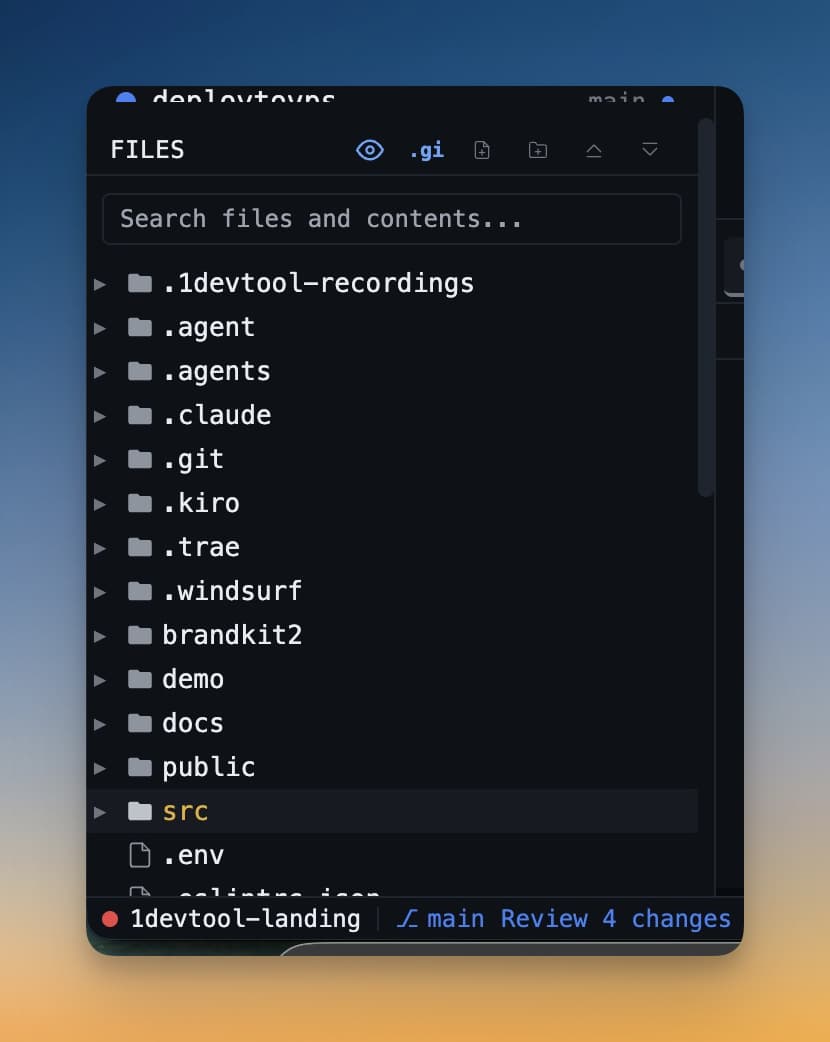
The file tree in the left sidebar shows the full directory structure of your project. From here you can browse folders, open files in the IDE Strip, and drag file paths into your terminals. Everything you need to navigate your codebase is one click away.
Browsing the File Tree
The file tree loads automatically when you open a workspace with a project folder selected. Folders are expandable — click the arrow next to a folder name to expand or collapse it. The tree shows all files and folders, including hidden ones like .env and .gitignore.
Click any file to open it in the IDE Strip. The file opens immediately in a new tab, with syntax highlighting applied based on the file extension.
Working with Tabs
When you open multiple files, they appear as tabs at the top of the IDE Strip. Click any tab to switch to that file. You can drag tabs left or right to reorder them.
An unsaved file shows a small dot (●) next to its name in the tab. This is a quick visual reminder that you have changes that haven't been written to disk yet.
- Save: Press
Cmd+S(macOS) orCtrl+S(Windows/Linux) - Close a tab: Click the × on the tab, or press
Cmd+W
Quick File Open
Don't want to hunt through the tree? Press Cmd+P (macOS) or Ctrl+P (Windows/Linux) to open the quick file search. Start typing any part of the filename and matching results appear immediately. This is fuzzy search — you don't need to type the exact name, just enough characters to narrow it down. Press Enter to open the selected file.
Drag File Paths into Terminals
One of the most useful tricks with the file tree: drag any file or folder from the tree and drop it into a terminal's input. Instead of opening the file in the editor, this pastes the full absolute path into the terminal. This saves time when you want to tell an AI agent to work on a specific file — drag it in rather than typing the path manually.
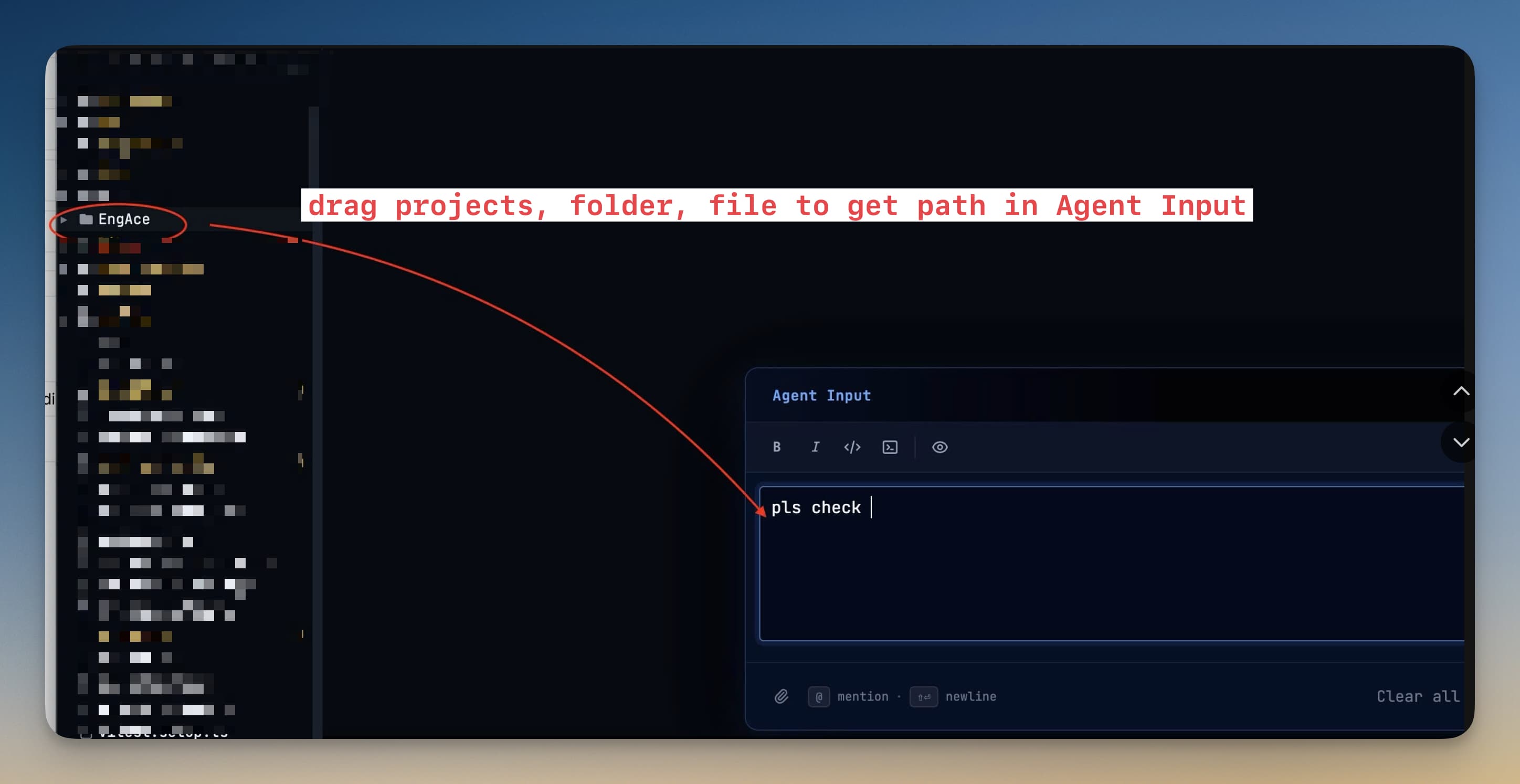
For example, drag src/components/LoginForm.tsx into a Claude Code terminal and type "refactor this component to use React hooks" — the agent gets the exact path without any manual copying.
Tips
- Unsaved changes persist across tab switches, so you can edit file A, switch to file B, and come back to file A without losing your edits.
- The file tree updates automatically when agents create or delete files — no need to refresh.
- Right-click a file in the tree to access options like Copy Path, Reveal in Finder, and Delete.