Session Persistence
Your terminals survive app restarts — pick up exactly where you left off.
One of the most frustrating things about running AI agents is losing your work when you close the app or restart your computer. 1DevTool solves this with session persistence — your terminals keep running and are restored exactly as you left them the next time you open the app.
What Session Persistence Means
When you quit 1DevTool, your terminal sessions don't die. They continue running in the background. When you reopen 1DevTool, each terminal panel reconnects to its session automatically. You'll see the full output history and be able to continue interacting with the process, right where you left off.
This means:
- An AI agent that was in the middle of a long task will still be running when you come back
- A dev server you started will still be serving your app
- The output history of every terminal is preserved so you can scroll back and see what happened while the app was closed
How It Works: tmux
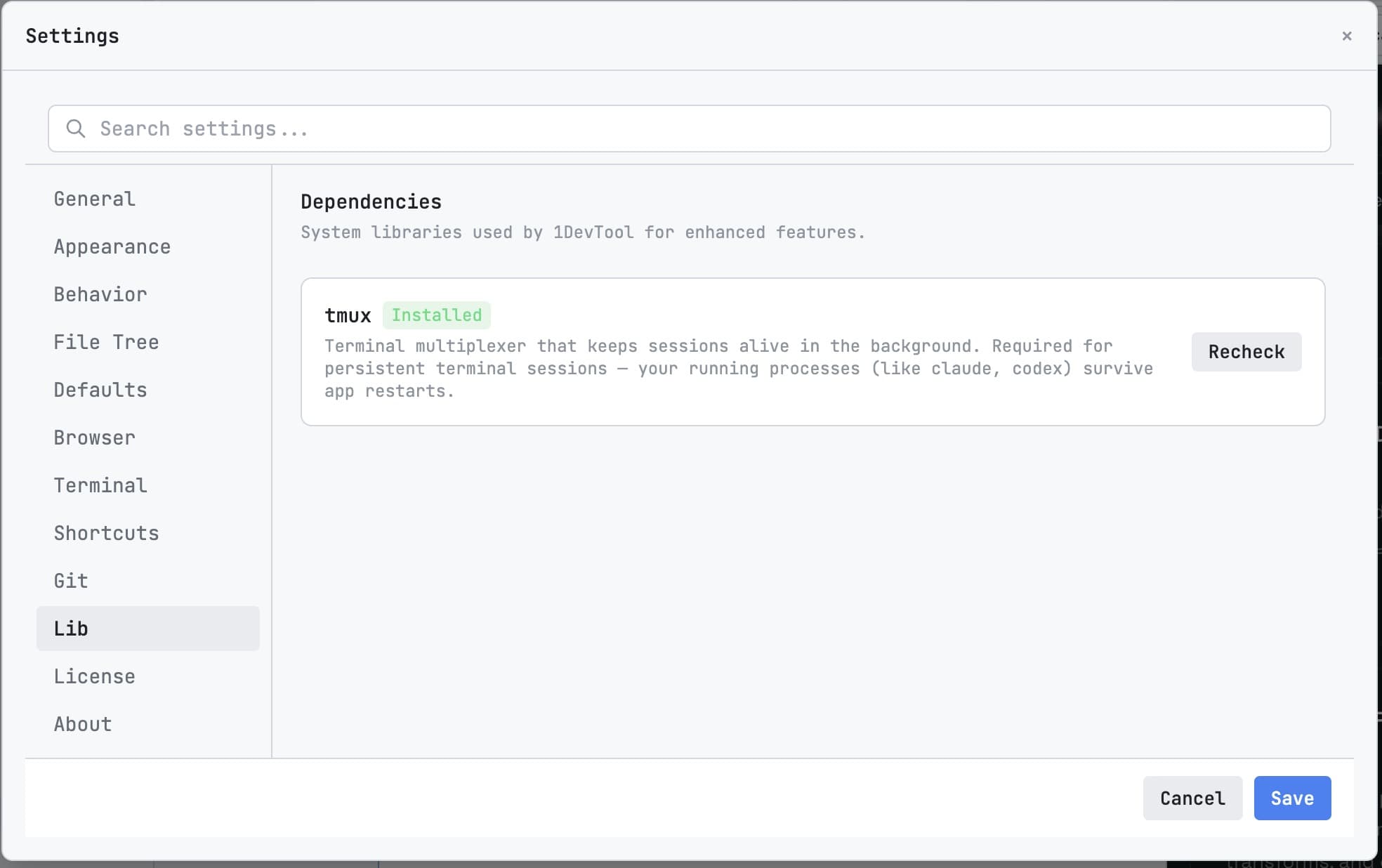
Session persistence is powered by tmux, a widely used tool that keeps terminal sessions alive independently of the app that started them. Think of tmux as a background process that acts as a host for your terminals. Even when 1DevTool's window closes, the tmux sessions keep running, waiting to be reconnected.
You don't need to know how to use tmux to benefit from it — 1DevTool manages it entirely behind the scenes. But it's useful to know it's there, because it's the reason this feature works so reliably.
Note: Install tmux if it's not already on your system. macOS:
brew install tmux. Ubuntu/Debian:sudo apt install tmux. 1DevTool will detect whether tmux is available and prompt you to install it on first launch if it's missing.
No Configuration Needed
Session persistence is on by default. You don't need to enable it, configure anything, or think about it. Just use your terminals normally, and they'll be there when you come back.
If you want to disable session persistence for a specific terminal (so it closes completely when you remove it), you can do so in Settings → Terminal → Session behavior.
The Session Manager
The Session Manager gives you an overview of every terminal session currently running, across all your projects.
To open it, click the session icon in the status bar at the bottom of the window. A panel slides in showing:
- All active sessions, grouped by project
- The session name and how long it has been running
- Whether a session is connected to a visible terminal panel or running in the background
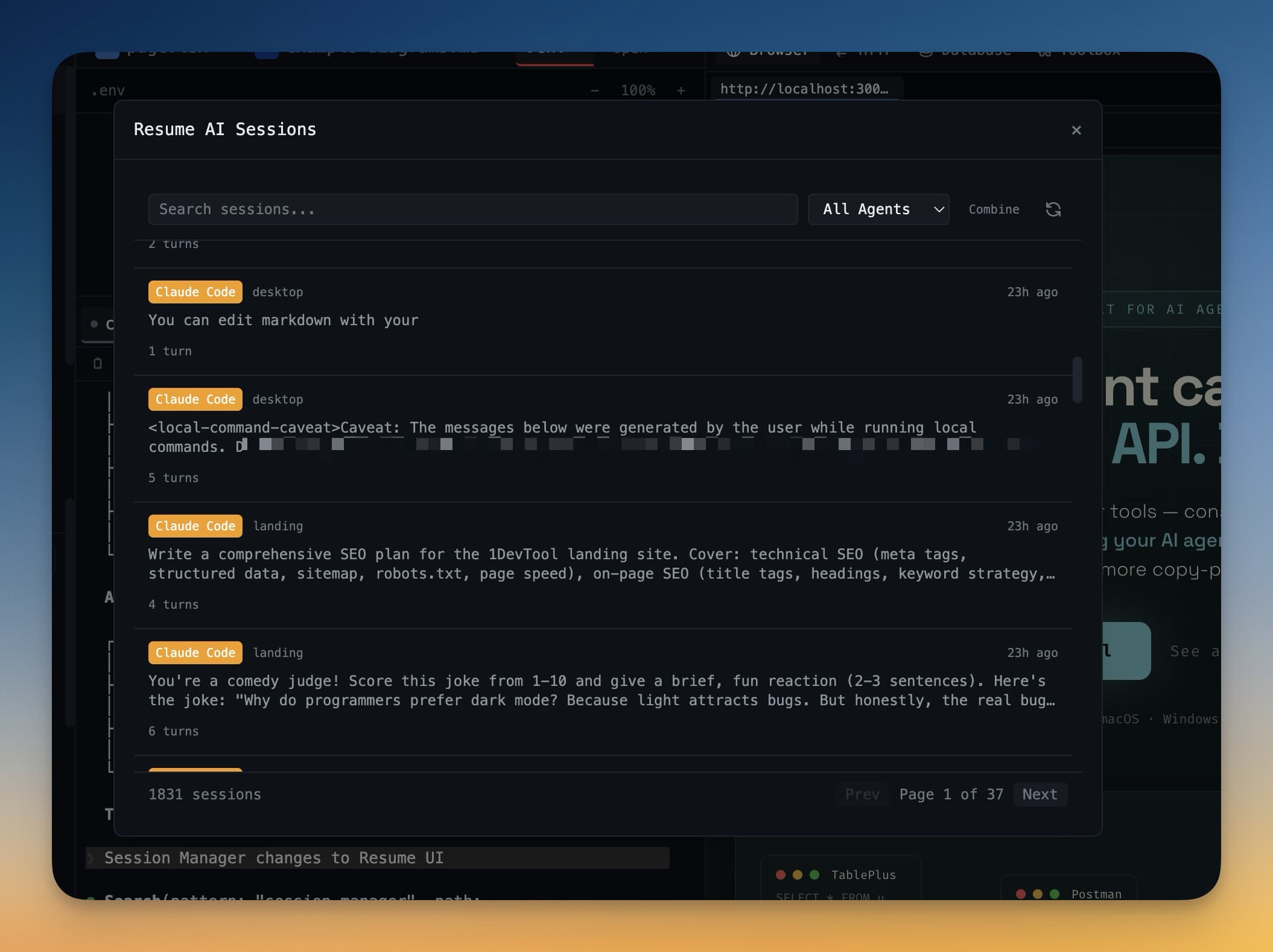
From the session manager you can:
- Reconnect a background session by clicking it — it opens as a new terminal panel in the current project view
- Kill a session entirely if you're done with it and want to free up resources
- Rename a session to something more descriptive
Reconnecting After a Restart
When 1DevTool reopens after a quit or a system restart, it automatically reconnects all sessions that were previously attached to visible panels. You'll see each terminal panel appear with its output history already loaded.
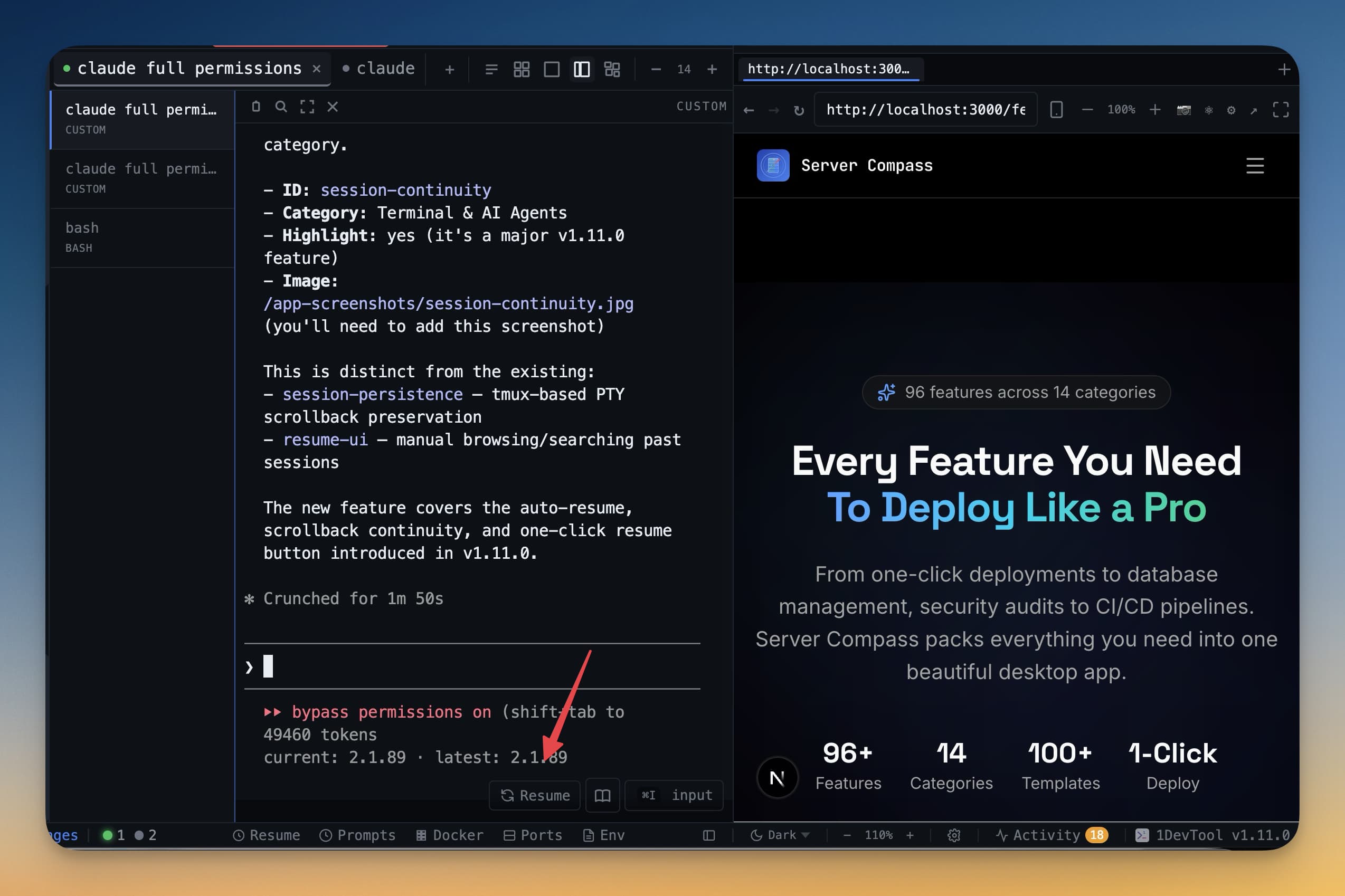
If a session was running in the background (hidden) when you quit, it will appear in the session manager as a background session. You can reconnect it from there whenever you're ready.
Tip: If an agent was waiting for your input when you closed the app, it will still be waiting when you come back. Check the session manager first after reopening 1DevTool to see if any agents need attention.