Batch Terminals & Terminal Sets
Open several terminals at once, and save your usual line-up as a named set.
Most sessions start the same way: a reviewer, a builder, and a shell. Opening those one at a time is four dialogs and four waits — and then you still have to click into each pane before the agent actually boots.
Multi-select turns that into one pass. A saved set turns it into one click.
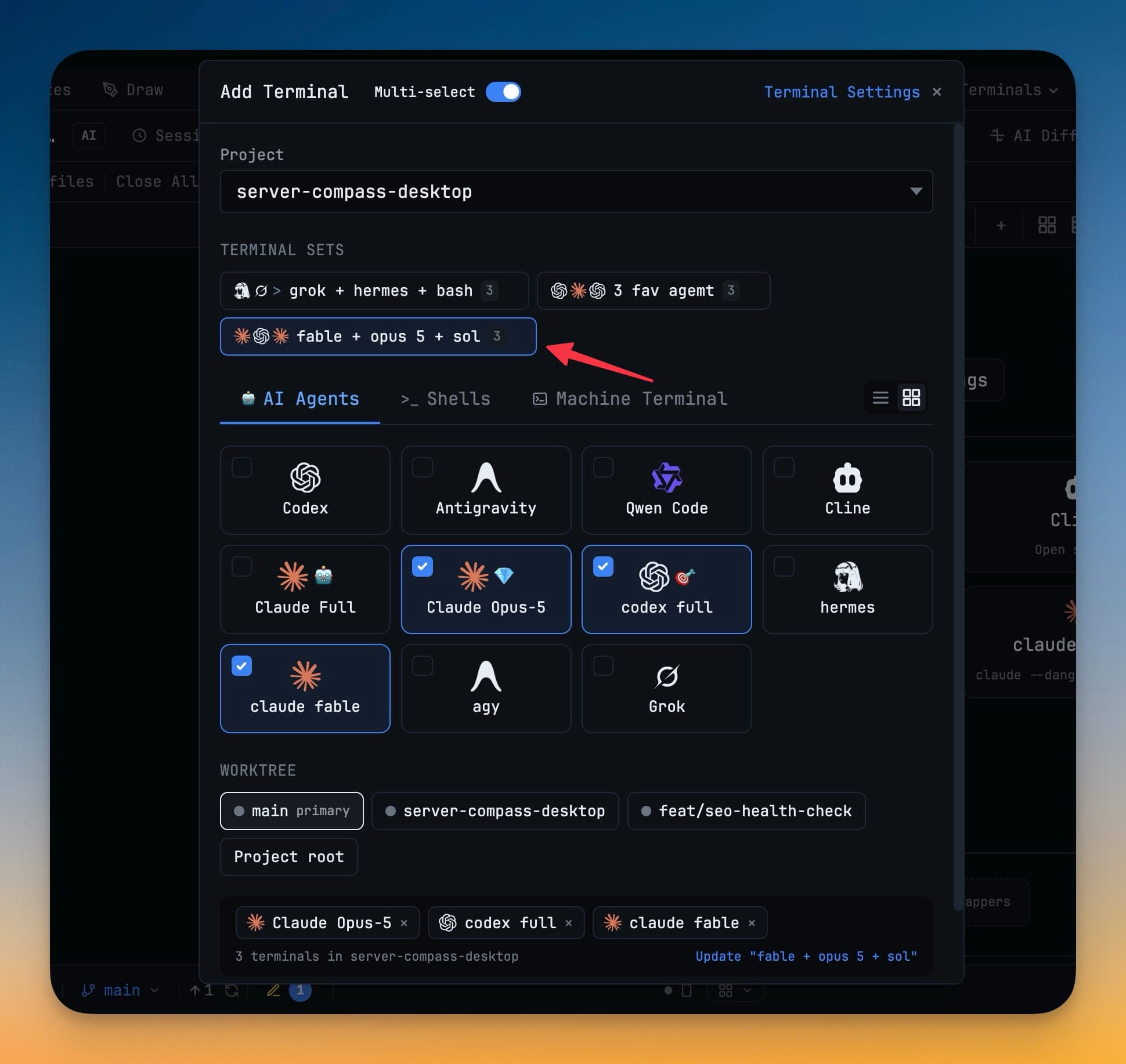
Open several terminals at once
- Open Add Terminal.
- Flip Multi-select at the top of the dialog. The terminal cards become checkboxes instead of one-shot picks.
- Tick any mix across the AI Agents, Shells, and Machine Terminal tabs — they all stay selectable in the same batch.
- Pick the worktree the batch should open in:
main, another worktree, or the project root. - Your selection appears as chips at the bottom with a count. One click opens the whole batch.
The selection starts empty, and an agent you hid in Terminal Settings is never ticked by default.
Every agent starts immediately
Terminals in a batch boot in the background at the right size. Switching to a tab shows a running agent, not an empty pane waiting for you to poke it.
Save a line-up as a terminal set
With a selection made, save it as a named set. It appears as a chip under TERMINAL SETS at the top of the Add Terminal dialog, with the number of terminals it contains.
- Click the chip to reopen that line-up.
- Update it in place after changing the selection.
- Delete it when it stops matching how you work.
A set stores the terminals, not the worktree — pick a different worktree and reopen the same set to place the line-up elsewhere.
Good sets to start with
| Set | Contents | Used for |
|---|---|---|
reviewer + builder + shell | Two AI agents and a plain shell | Write, review, and run in one project |
fable + opus 5 + sol | Three AI agents on different models | Cross-model review, ready to link |
grok + hermes + bash | Two agents and a shell | A second-opinion pass on a branch |
A set of two or three AI agents pairs naturally with Linked Terminals — open the set, then mention one terminal from another to start delegating.
Next
- Add a Terminal — the single-terminal flow
- Linked Terminals — delegate between the terminals you just opened