Control 1DevTool From Your Phone
Use Remote Control over your LAN, a Cloudflare tunnel, or Tailscale to run agents, review diffs, approve plans, and watch your teams — from your phone.
Remote Control turns your phone into a window onto the machine where 1DevTool is running. Kick off an agent from the couch, review a diff on the train, or reply to a prompt that's been waiting for your input — without opening your laptop. Everything runs on your own machine; your phone is just the remote.
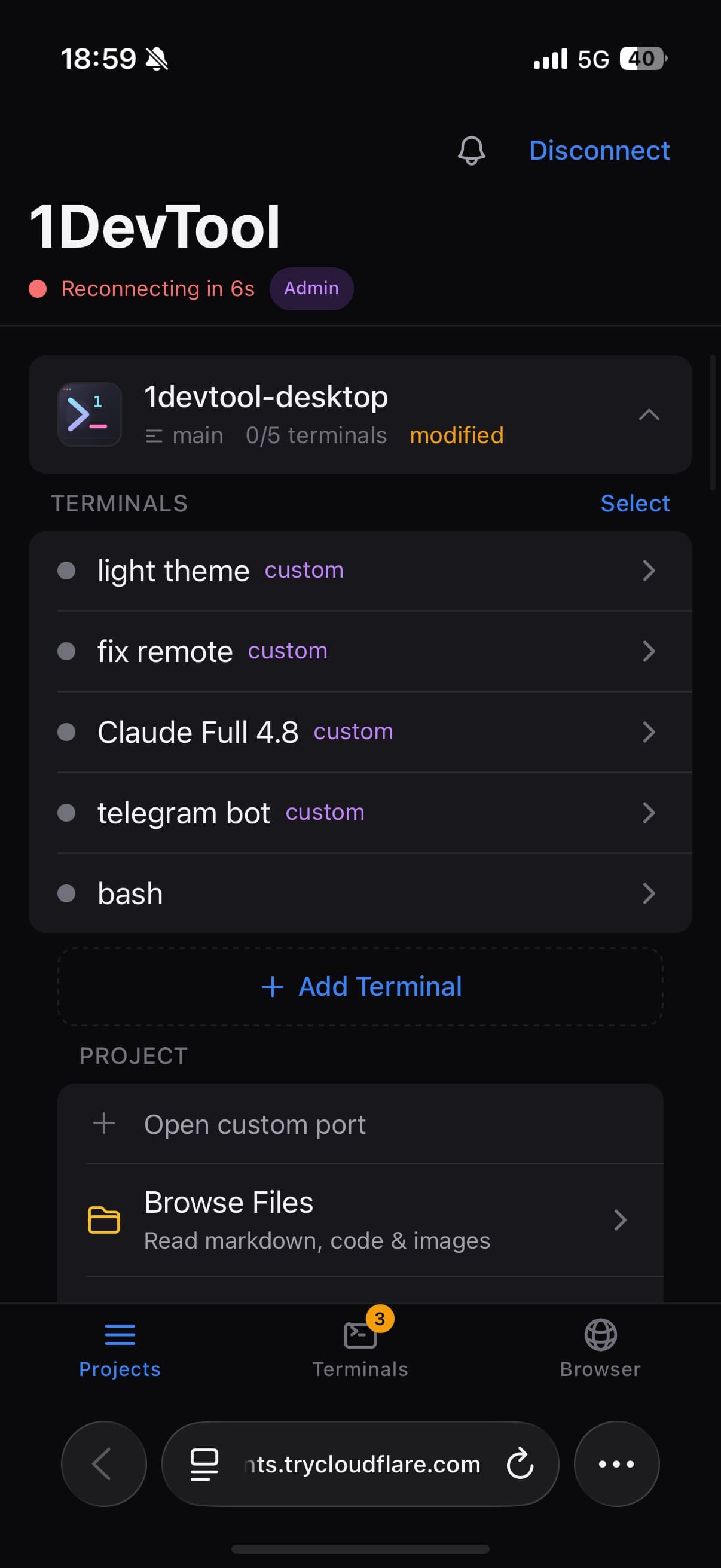
Turning It On
- On the desktop, open Remote Control from the status bar and enable it.
- 1DevTool generates a private URL and a QR code. Scan the code with your phone, or open the URL in your mobile browser.
- Sign in when prompted. The connection stays tied to your machine — only you can reach it.
Three connection modes
- Local Network — the phone and the desktop are on the same Wi-Fi.
- Cloudflare Tunnel — a secure Cloudflare tunnel, so you expose no ports and set up no VPN.
- Tailscale / VPN — your phone reaches the desktop over your own tailnet.
Tailscale is worth the setup if you have it: nothing is exposed to the public internet, there is no tunnel warm-up wait, and full iOS Safari works, so you are not pushed into the in-app scanner browser on a home network. The panel tells you plainly whether Tailscale is installed, running, and connected, and switches the QR code and pairing URL to the tailnet address. When your tailnet needs HTTPS enabled, a guided one-time step does it.
Pairing is single-use and read-only first
- A QR invite works once and expires after ten minutes. Scanning it consumes the code and a fresh one replaces it, so a photographed or stale code cannot be replayed. The pairing reply itself travels encrypted.
- A new phone connects as a Viewer. It can read this desktop's workspace, including files and transcripts, but actions need a broader role — see Permissions below.
How long a phone stays paired
Settings → Remote → Pairing Expiry offers 7 days, 30 days or 90 days max. There are no unlimited credentials any more.
Browser pairings expire at most 7 days after pairing, whichever option you pick, and activity never renews them. Using the phone every day does not extend its access; when the week is up, pair again. Changing the setting can shorten an existing pairing, never lengthen it.
On an HTTPS Remote URL the browser keeps its half of the pairing in protected storage as a non-extractable key, so a script reading the page's storage cannot walk off with it. Over plain HTTP the pairing lasts only for that tab — reloading needs a fresh pairing — so prefer the HTTPS URL.
Once connected, your projects appear on the phone exactly as they're organized on the desktop. Tap one to drop into its workspace.
What You Can Do From Your Phone
Remote Control mirrors the parts of 1DevTool that matter when you're away from the keyboard.
Prompt and steer your AI agents
Open any project's terminal, read the agent's latest output, and send a new prompt — including agents that have been sitting idle waiting for your go-ahead. You can:
- Scroll and copy terminal text in a mobile-friendly reader mode
- Attach an image from your phone straight into the prompt
- Mention a file in the repo so the agent has the right context
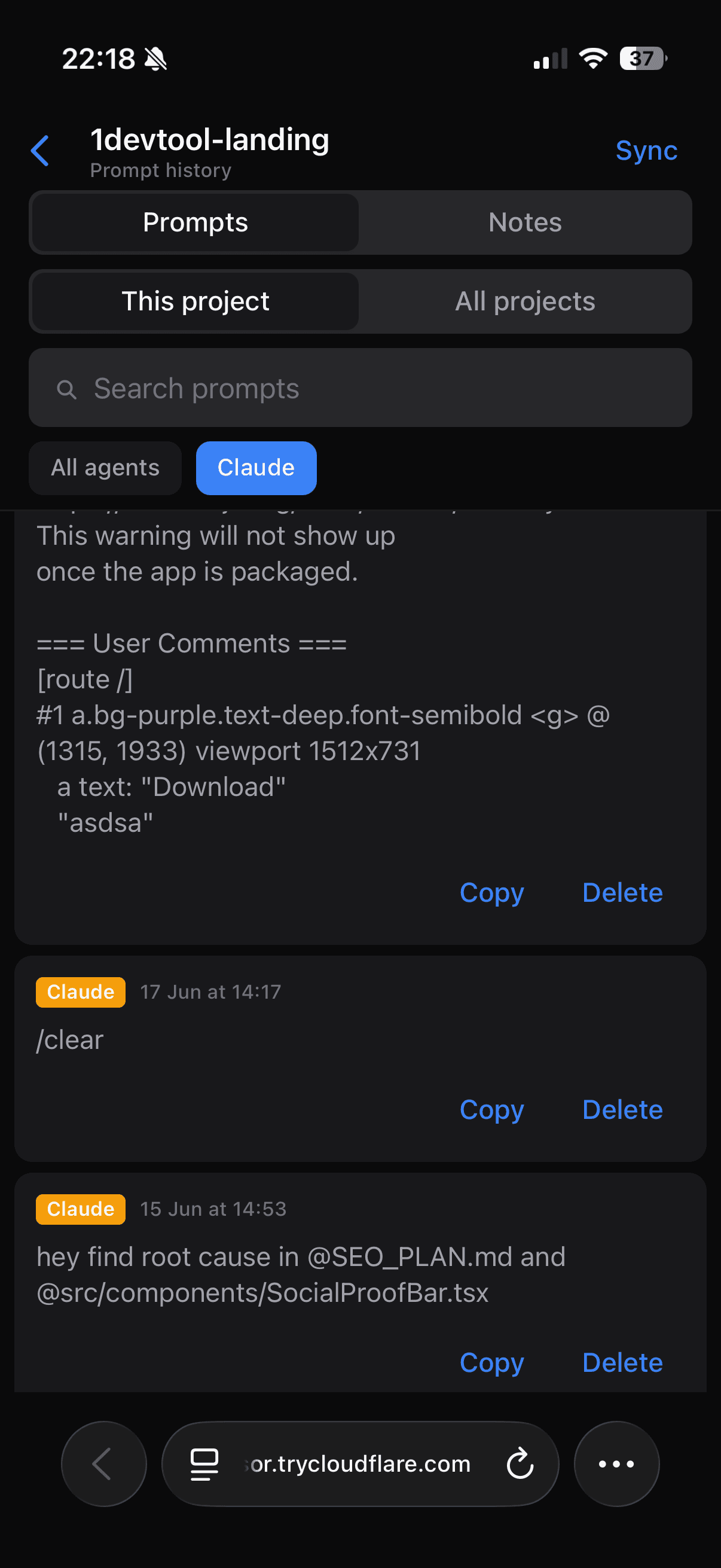
- Reuse a past prompt from your prompt history
Review code and ship with Git
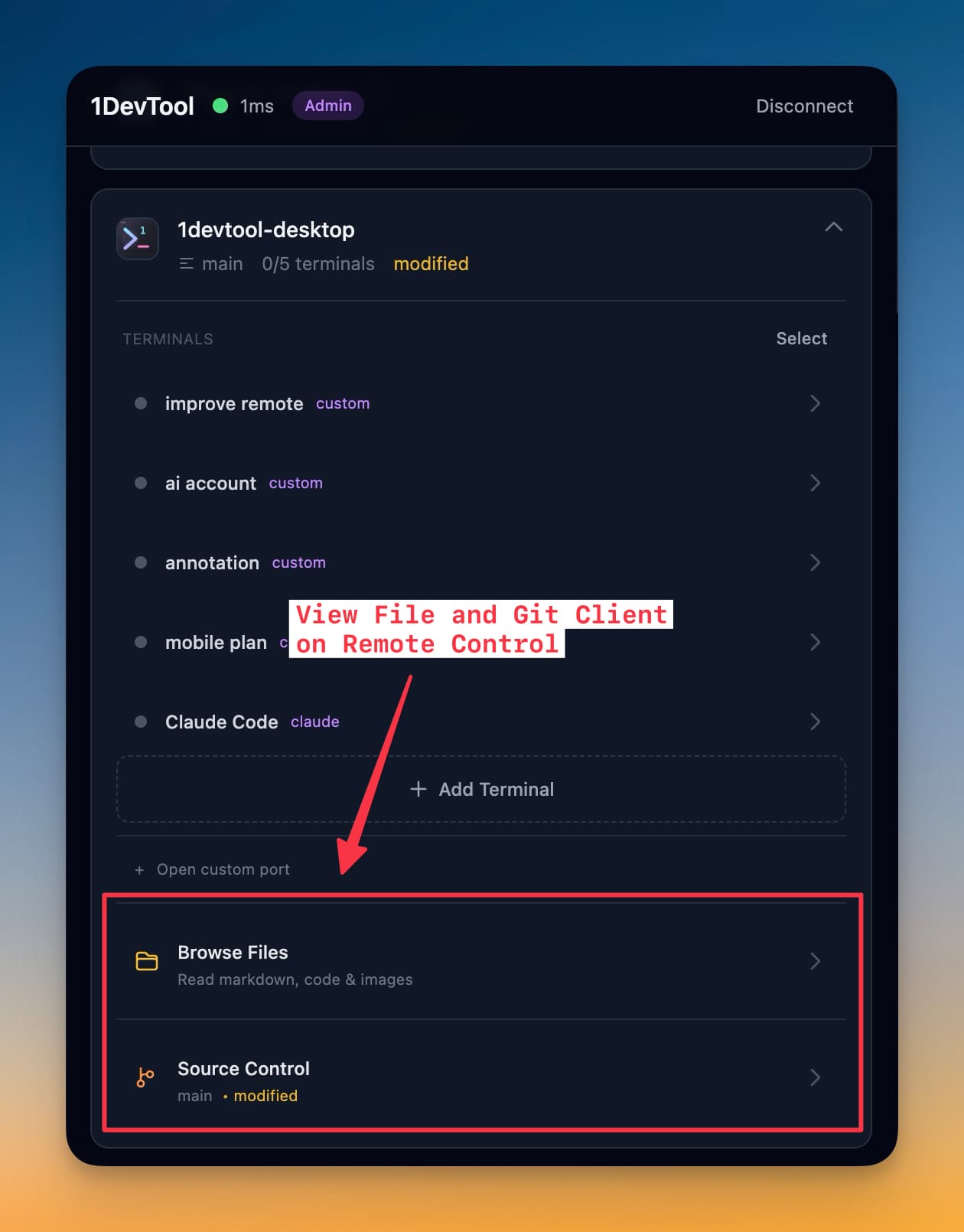
Browse the project's files, open a commit's details, and review diffs on your phone. When a change looks good, stage it, write a message, and push — a full source-control loop from the palm of your hand.
Test APIs and query databases
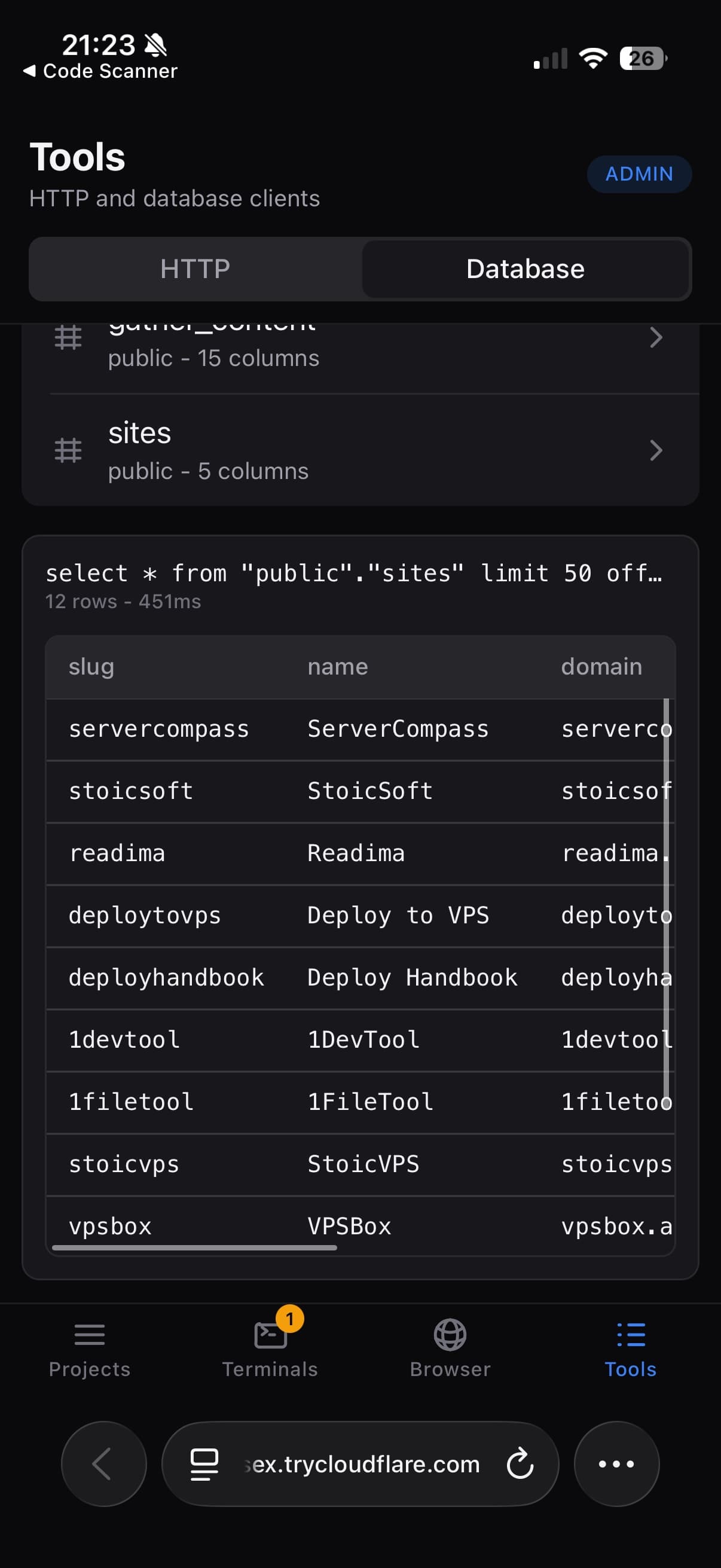
Send an HTTP request and inspect the response, or run a database query, using the same collections and connections you've set up on the desktop. Requests you save stay in sync between phone and desktop.
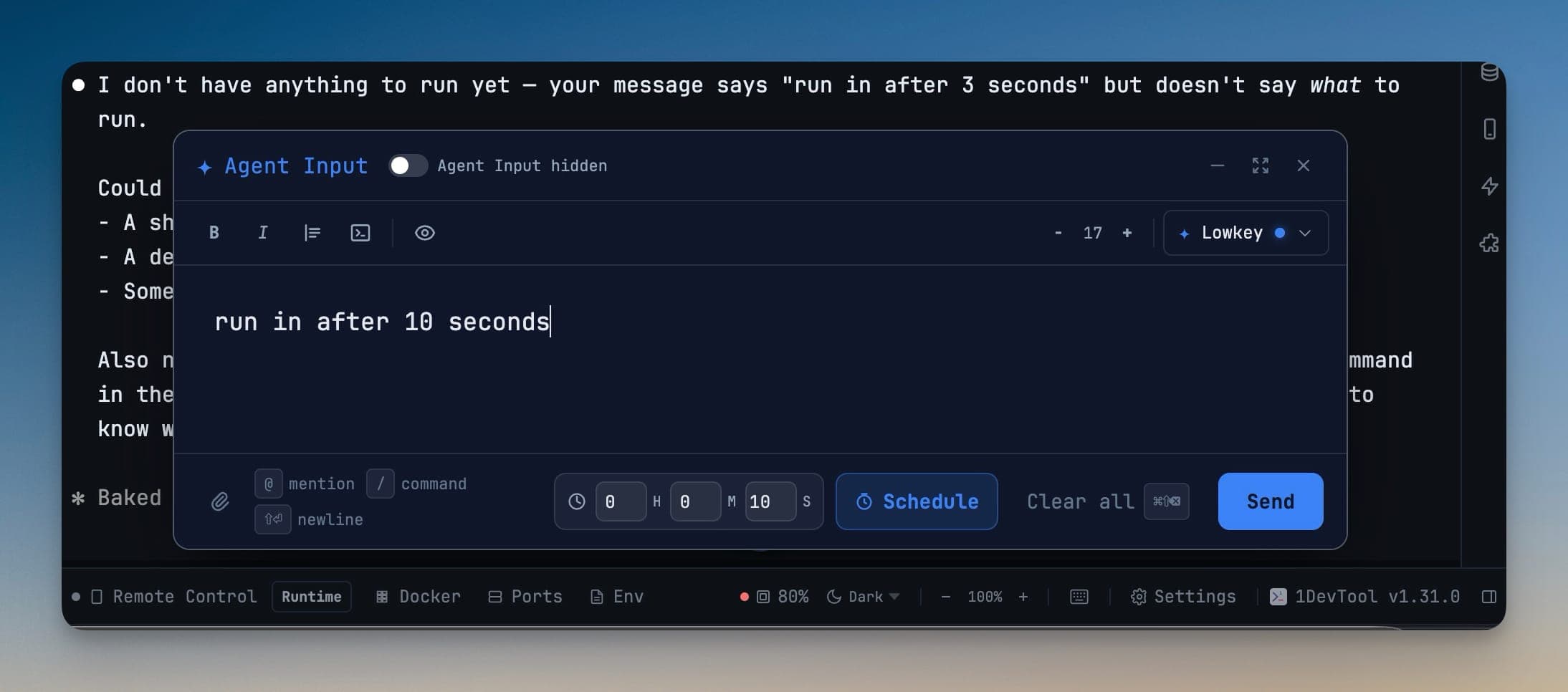
Schedule a prompt for later
Queue an Agent Input prompt to fire on a timer, at a specific time, or at the next quota reset — so a long task can start while you're away and be ready when you get back.
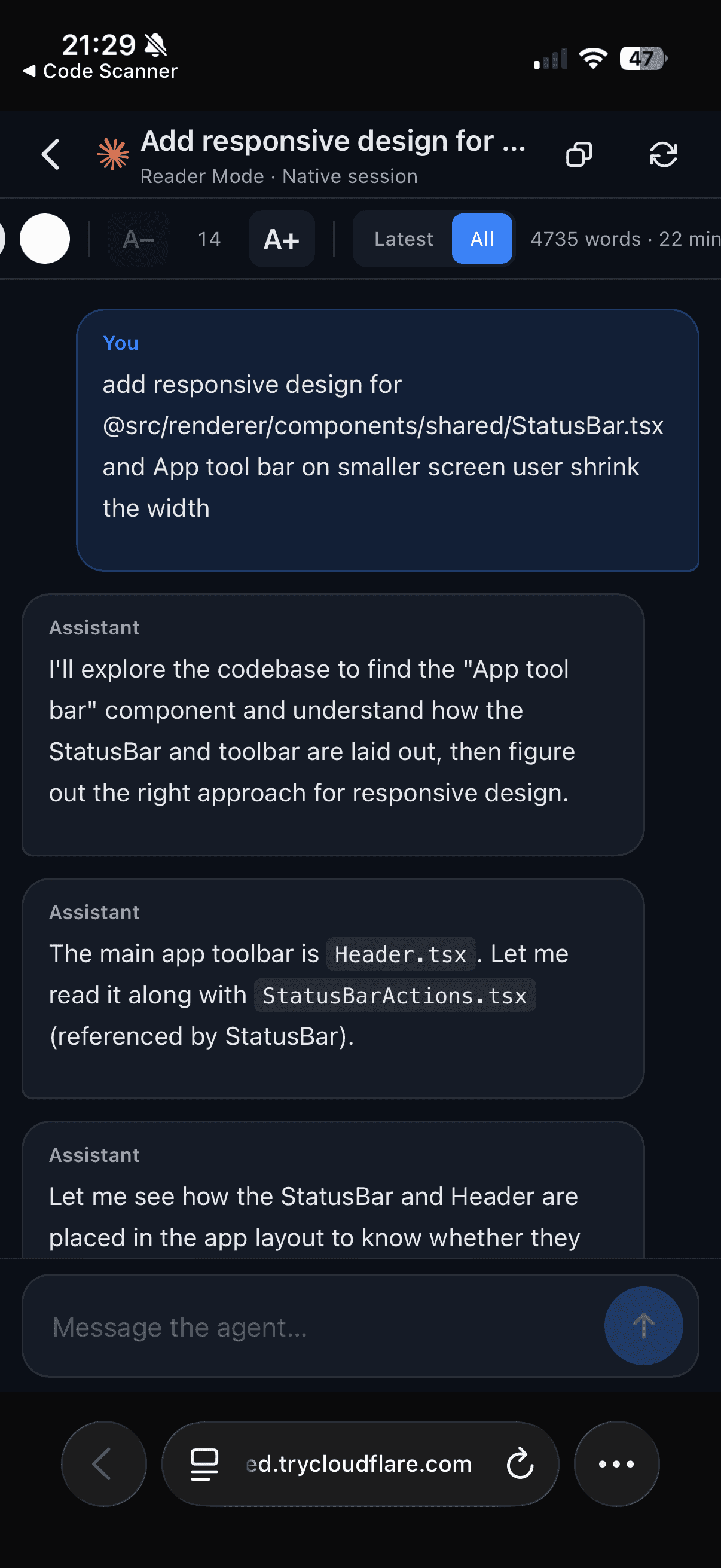
Read the transcript properly
Reader Mode re-renders an agent's conversation as a document, which is what makes catching up from a phone bearable. User messages, agent results, code, and raw terminal output are styled separately, with light, sepia, and dark reading surfaces and a default that follows your device theme.
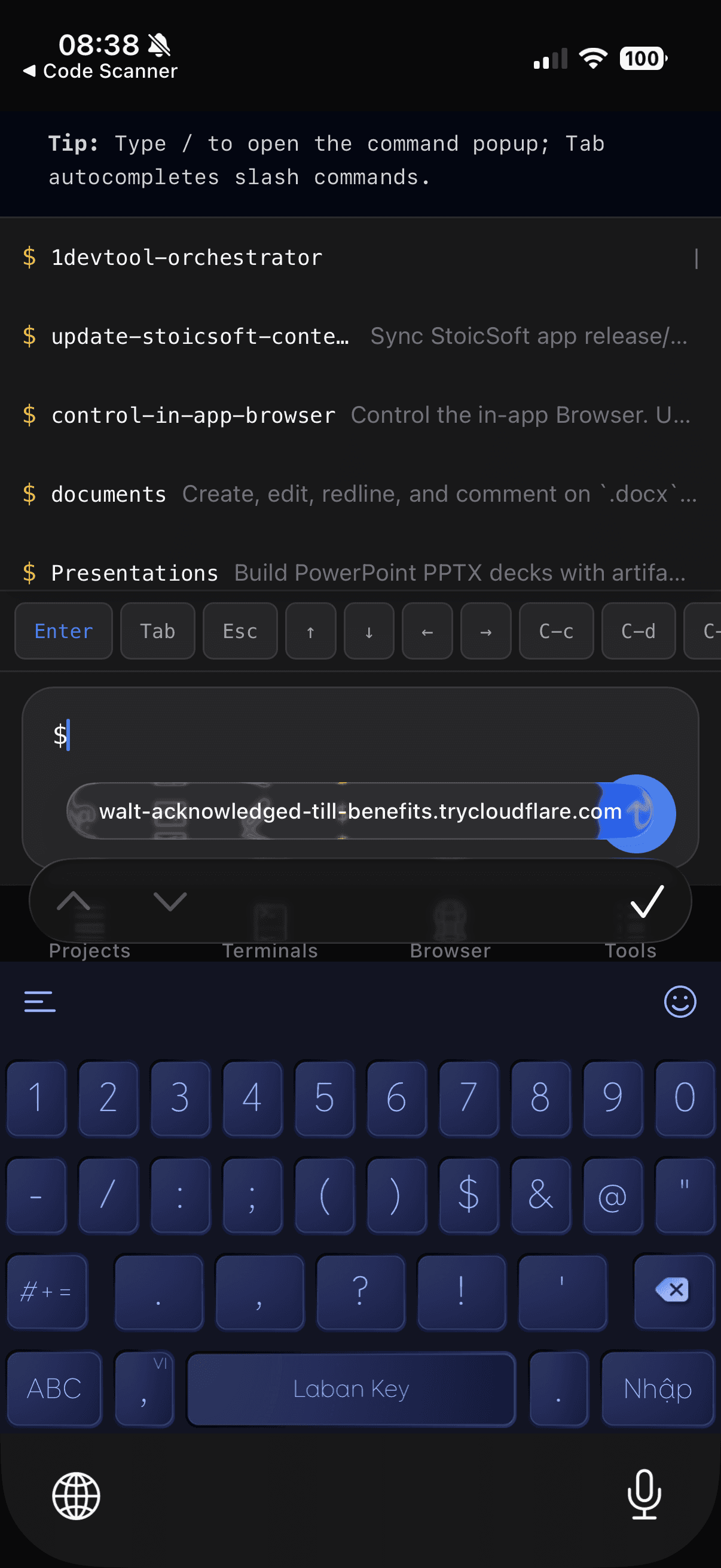
Terminals sized for your screen
Open a terminal on your phone and it reflows to fit: the phone that is actively looking at a terminal owns its width, so lines wrap for your screen instead of forcing you to pan across a desktop-width grid. The newest output and the agent's input box sit where you can see them.
Two phones viewing at once settle on a size that works for both, and the moment you close the terminal the desktop pane gets its own size back. While a phone is attached, the desktop pane says so with a Sized for phone badge and a shortcut into Reader Mode. Read-only viewers keep the previous mirrored view.
Approve a plan from the kitchen
Tasks waiting on your verdict get their own page. Read the plan, then Approve or Request changes — your words travel to the agent verbatim, and nothing auto-approves while you are away. See Approval Gates.
See what your agents are doing together
A Teams tab shows which agents are linked, what has been delivered, what is queued, what is waiting on a reply, and which links are broken. It is read-only by design: the phone shows you the picture, the desktop makes the changes. See Team Map.
Approve link requests and queued messages
An Approvals page, plus decision cards in the Teams tab, let you grant a link request or release a queued message from the phone — with permission chips so you can see what you are granting before you tap. Approver devices decide; view-only devices see the request and are told to confirm on the desktop.
Watch a hierarchy from your phone
The Teams page shows each active org by level — host on top, members below, each desk lit by the agent's real state, with the same office look as the desktop — and marks vacancies and routing violations. Approver devices can rebind a seat with one tap. See Agent Hierarchy.
Read orchestration run logs
Browse recent runs, open a run's files, and read the app log without walking back to the desk.
Check your AI quota
An AI Quota section shows headroom per provider and per account, so you can tell whether a long run will survive the night before you start it. See Spend & Quota Center.
Skills and slash commands
The skills picker is available on the phone too, so you can insert a skill or a slash command without typing its name from memory.
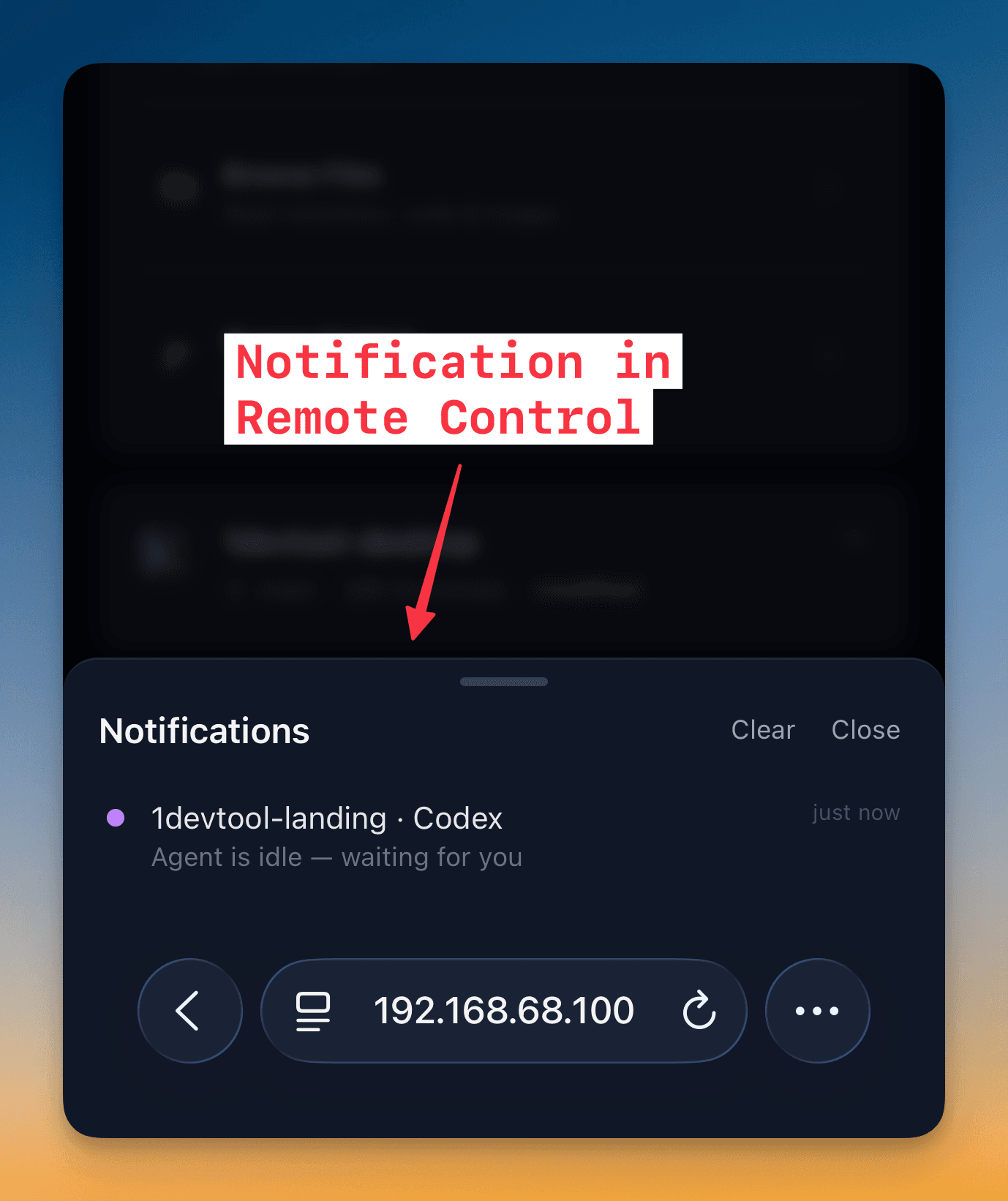
Notifications
Turn on activity notifications and your phone lets you know when an agent finishes, needs input, or a long-running command completes — so you don't have to keep the app open to know when to step back in.
Permissions
Every paired device has a role, set per device in Settings → Remote on the desktop:
| Role | What it allows |
|---|---|
| Viewer | Read the desktop's workspace, including files and transcripts. Every new pairing starts here. |
| Approver | Approve agent actions and task gates, which can have destructive consequences. |
| Operator / Admin | Broad command execution and write access to this desktop workspace, including opening previews of a localhost port. |
Raising a device above Viewer asks for confirmation on the desktop, naming the device and what it will be able to do. Lowering a device cuts its live connections straight away rather than letting them keep the old level, and a scheduled prompt re-checks the device's grant when it comes due. Devices paired before these roles existed were reset to Viewer — the desktop marks them so you can confirm any broader role deliberately.
Previews of a localhost port need Operator or Admin, and each one gets its own short-lived grant for that port instead of riding on the pairing. When it lapses the phone asks you to open the preview again.
A send the desktop cannot confirm is not retried blindly. If the phone cannot confirm a prompt reached the terminal, the composer warns Check terminal before resending, keeps your draft, and puts the raw error behind Details — so an innocent retry does not send the prompt twice.
Related
- Run an AI Agent — the desktop side of prompting and orchestrating agents
- AI Usage & Quota — your usage pill shows up on the phone too
- Reader Mode — reading a transcript on a small screen
- Approval Gates — answering an agent from anywhere
- Spend & Quota Center — the desktop view of the quota section
- Paired Devices — the same idea for a second computer rather than a phone