Machines
One roster for every computer your projects live on, and an explicit control for whether an AI CLI runs here against a mount or over SSH on the machine itself.
A Machine is a place a project can live: this computer, a host reached over SSH, another computer running 1DevTool, or both at once. Open Settings → Machines.
This Computer is always the first row. It is never created and cannot be removed.
What a machine row tells you
Each row reports what is actually true of that host, not what you hope is:
- Whether it is reachable, and how far away it is
- Its OS and shell
- Which AI CLIs are installed, and at what versions
- Whether
git,ripgrep,tmuxand Node are there
That last group is the one that saves an afternoon. "Claude is not installed on the mini" belongs on a settings row, not in a launch that was never going to work.
Adding a machine
Add an SSH host from a picker fed by your own ~/.ssh/config. When a machine is created from a Host alias, ssh is invoked with the alias — so ProxyJump, IdentityFile, port and the rest of your config apply, instead of being retyped into a form.
Adding a remote project is still one step: Add Project → SSH → host and path. The machine is created or matched for you.
With the top bar scoped to a machine, Add Project opens on that machine with its folders already listed, and the project takes the folder's name. A Machine picker above the tabs switches back to This Computer or to any other saved machine.
Paired computers appear in that picker as name · paired. A project added there lives on the other computer, and its agents run there with no SSH. See Projects that live on a paired computer.
A missing SSH key is named in plain words. If a machine's key file isn't on this computer, you see the file and where to choose it again (row menu → Choose key…) instead of a remote "Permission denied". Changing a key in SSH settings also updates the machine's copy.
Where the agent runs is a separate decision
The machine says where the files live. Agent placement says where the AI CLI process runs. Neither is a fallback for the other, and the app never switches between them on its own.
Add Terminal carries a This agent runs on control with two options:
- This Computer — the CLI runs here with your login, quota, memory, skills and MCP servers, reading the machine's files through a mount (
fuse-ton macOS,sshfselsewhere). - On the machine — the CLI runs over
ssh -tton the machine itself, with whatever is installed there.
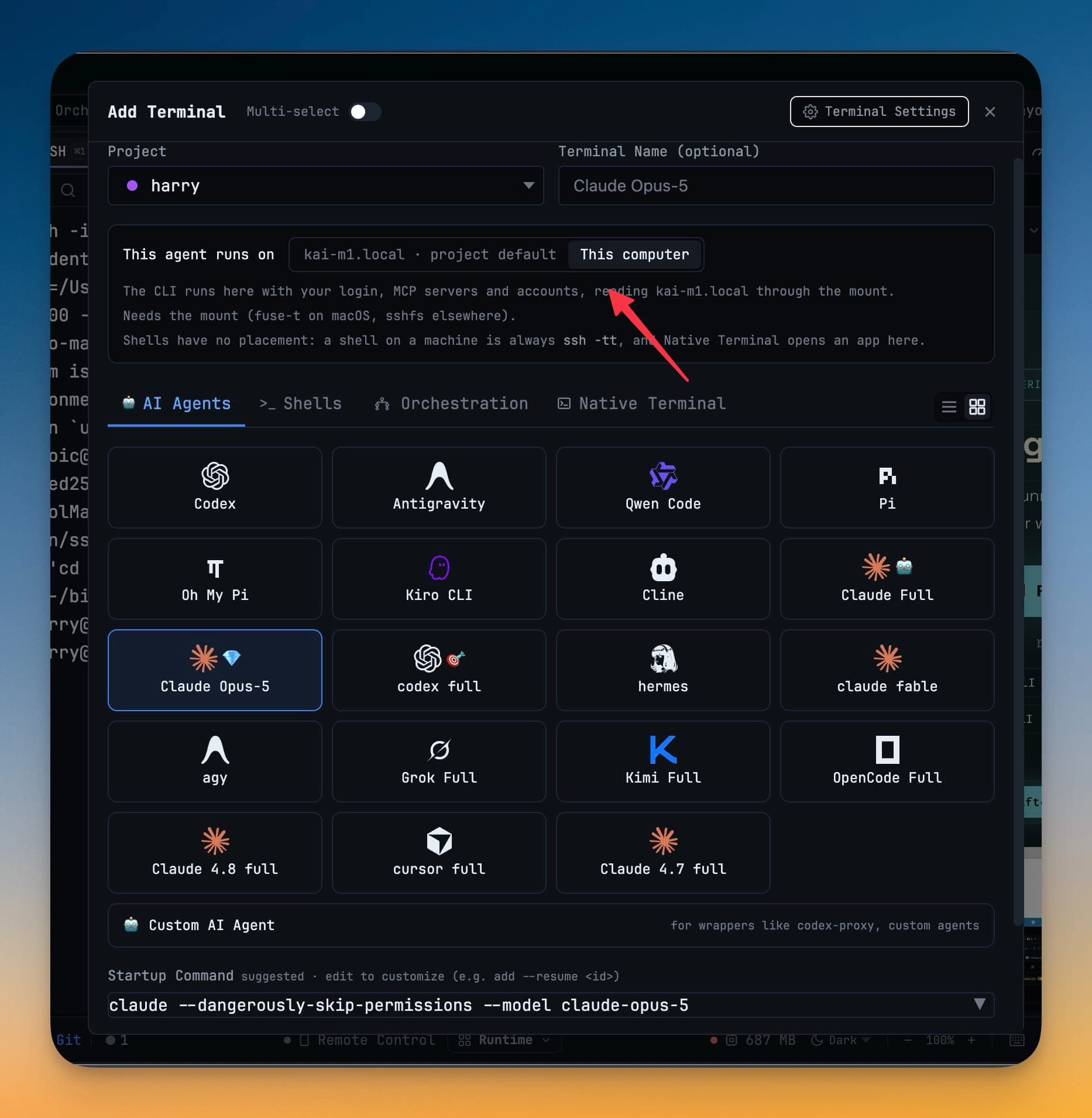
Set it per project and override it per terminal. An agent that is not installed on the target machine is greyed out with the reason, rather than accepting the launch and failing at the prompt.
Shells have no placement: a shell on a machine is always ssh -tt, and Native Terminal opens an app here.
Knowing where you are
Once a project has a machine, every surface says so:
- A machine badge on the project chip in the top bar
- Project rows grouped by machine in its dropdown
- A chip in the sidebar
- A machine pill in the status bar, with reconnect
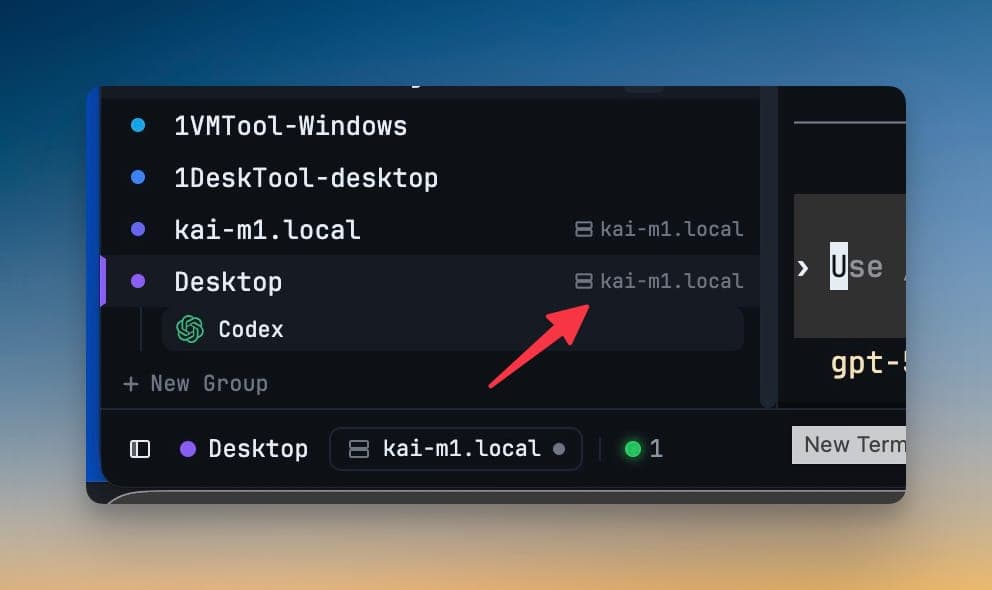
The file tree participates too: an unreachable machine shows an offline or sign-in required state with a Reconnect button, instead of an empty folder that looks exactly like a project you deleted.
Managing a machine
Rename it, remove it, choose a different SSH key, reconnect, or mount it. A machine that a project still points at refuses to be deleted rather than orphaning that project — move or remove the project first.
Devices folded in here
Paired computers and SSH hosts are one list now. The old Devices tab became part of Machines, and existing links still land in the right place. See Paired Devices for what pairing itself does.
Machine Terminal in the Add Terminal menu is now called Native Terminal.