MCP Control
See every tool your agents can reach through 1DevTool, turn individual tools on and off, and read what they actually called.
1DevTool exposes its own panels to your AI agents over MCP: the Browser you already have open, your database connections, the HTTP client, and the Tasks board. That's real power handed to a program, so it needs a switchboard rather than a settings tab three clicks deep.
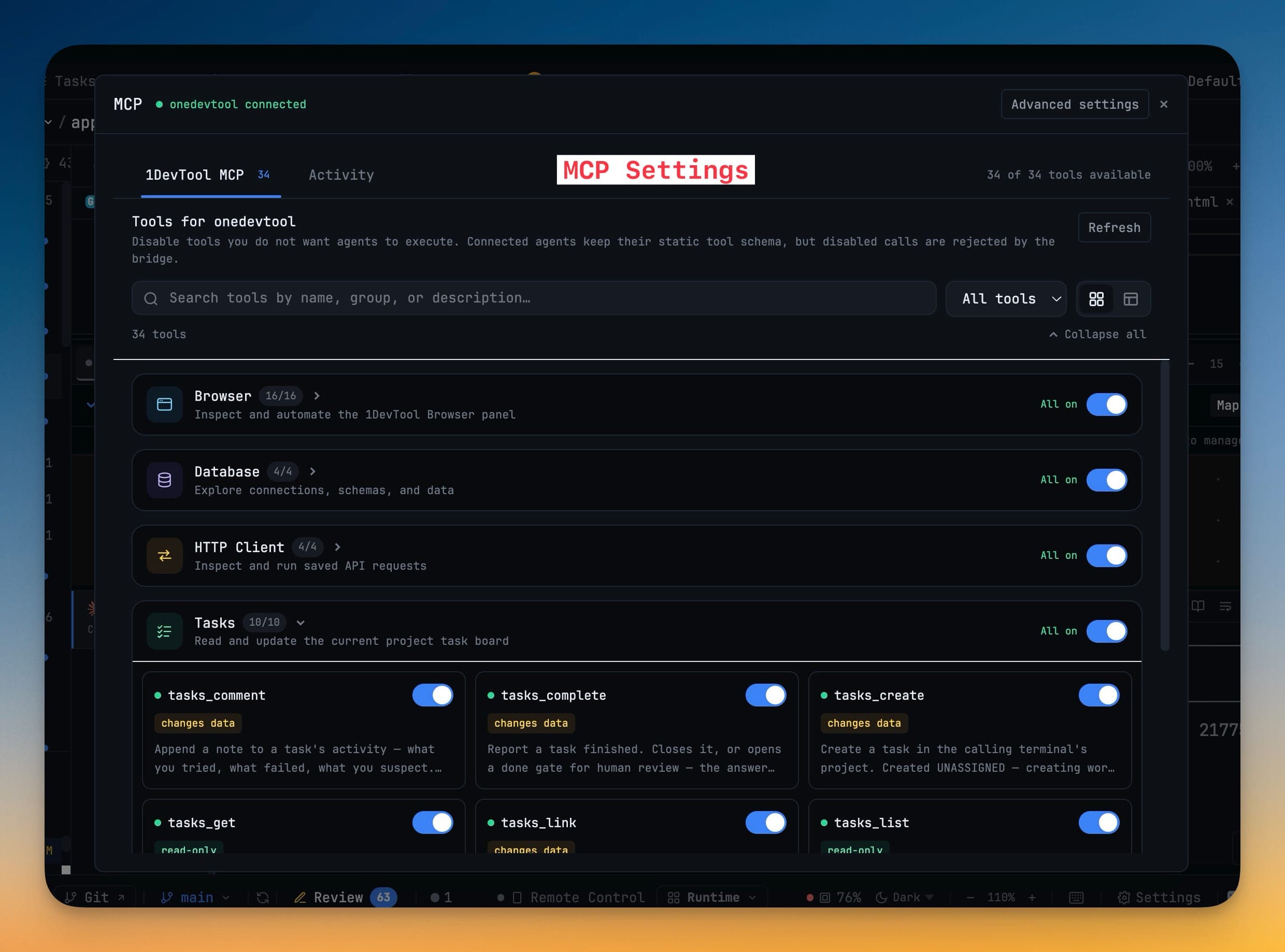
MCP Control is a button in the top bar. It shows every tool an agent can reach, what it touched, and lets you turn any of it off.
The tool groups
Tools are grouped by what they touch:
| Group | What agents can do |
|---|---|
| Browser | Open and select tabs, navigate, read page structure, click, type, press keys, wait, read console output, take a screenshot |
| Database | List connections, describe a schema, preview a table, run queries |
| HTTP Client | List environments and saved requests, send a request, run a saved one |
| Tasks | The ten tools behind the Tasks board — read, create, update, comment, request approval, complete |
| Core | The baseline handshake tools, always available |
Filter by enabled or disabled, and switch between cards and a dense table when you have a lot of them.
Turning a group off turns off every tool in it. Core stays on — it's what lets an agent discover anything at all.
When an agent hits a wall
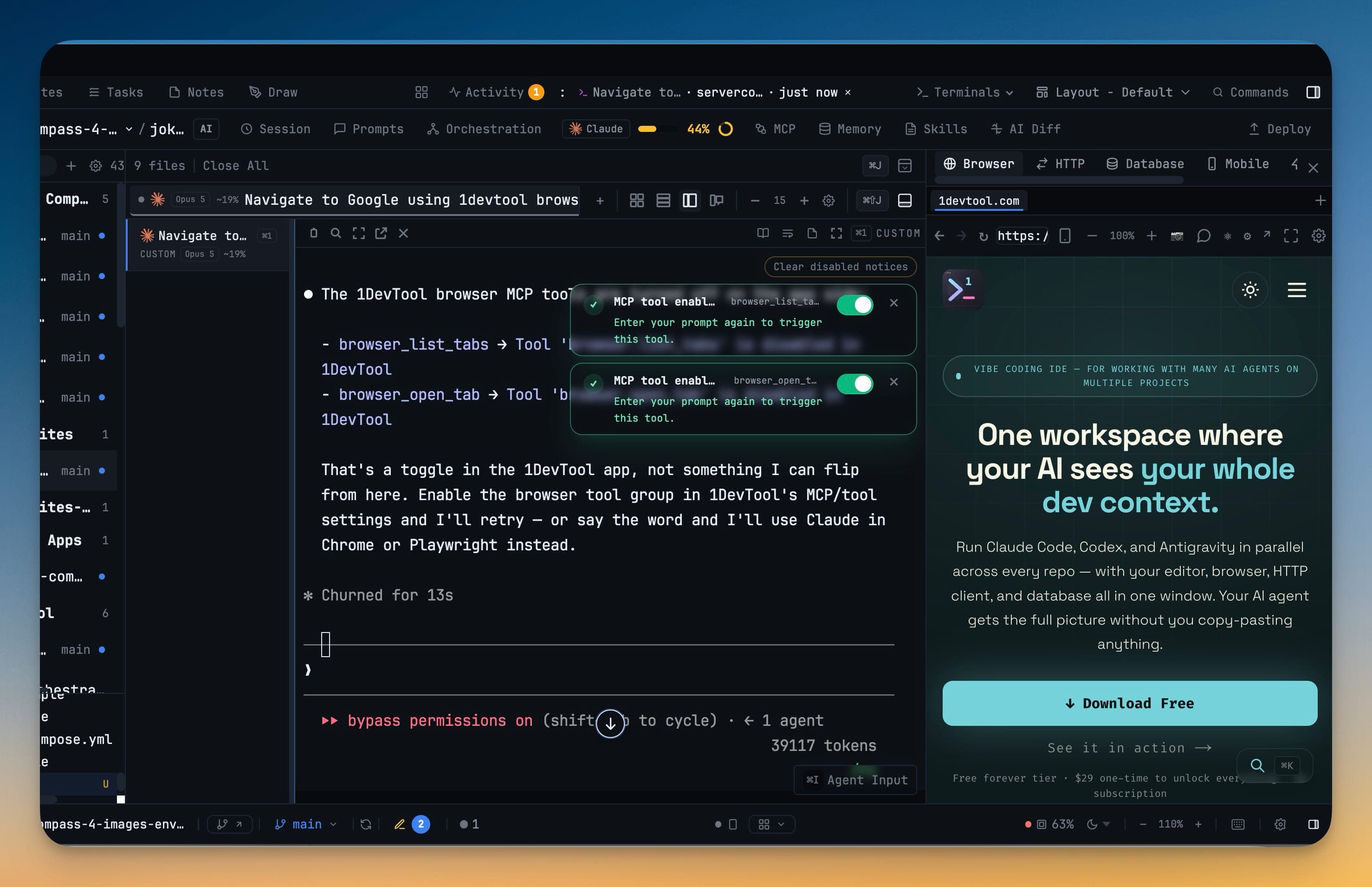
An agent that calls a disabled tool doesn't get a useful error and doesn't know to ask you. So the terminal tells you instead: a badge appears naming the tool it wanted.
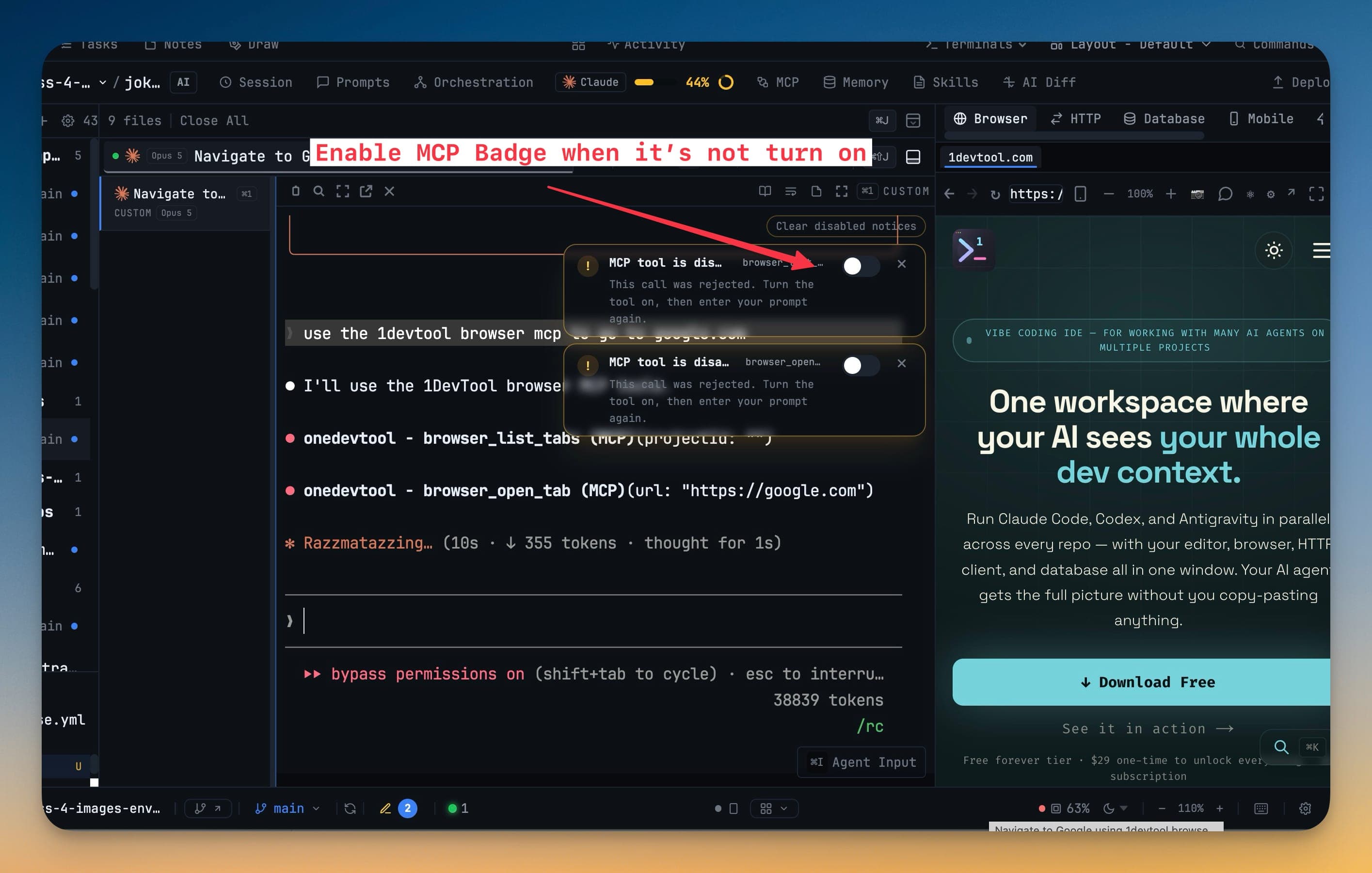
The badge carries a one-click Enable, so the agent can retry instead of guessing its way around the gap.
Activity — what agents actually called
The Activity tab logs every tool call with its result: tool name, status, duration, project, terminal, errors, and a safe preview of the input and output. It survives app restarts.
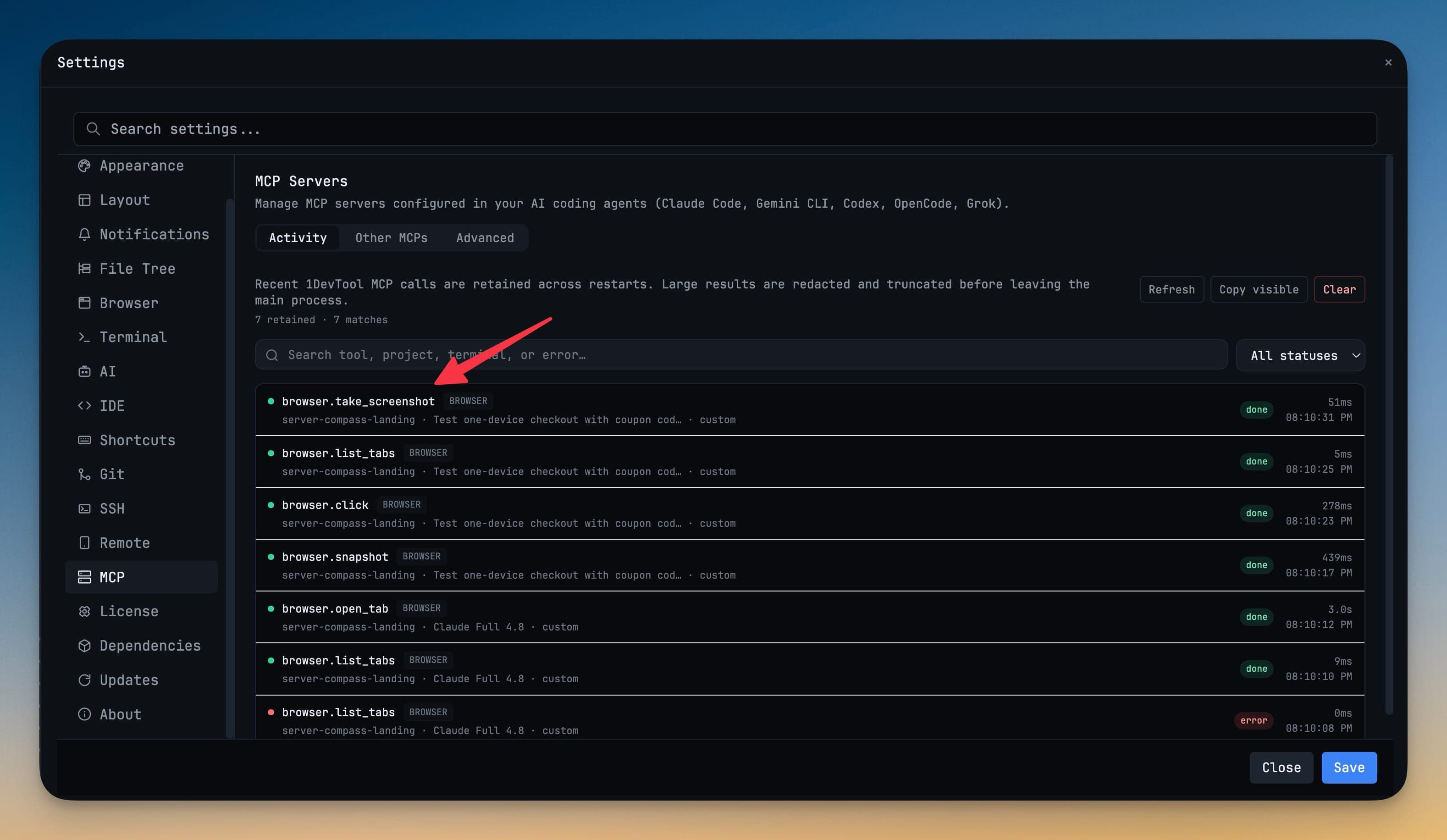
- Group by agent or by project
- Filter by status, expand an individual call, copy the visible history
- Load older entries, or clear retained activity entirely
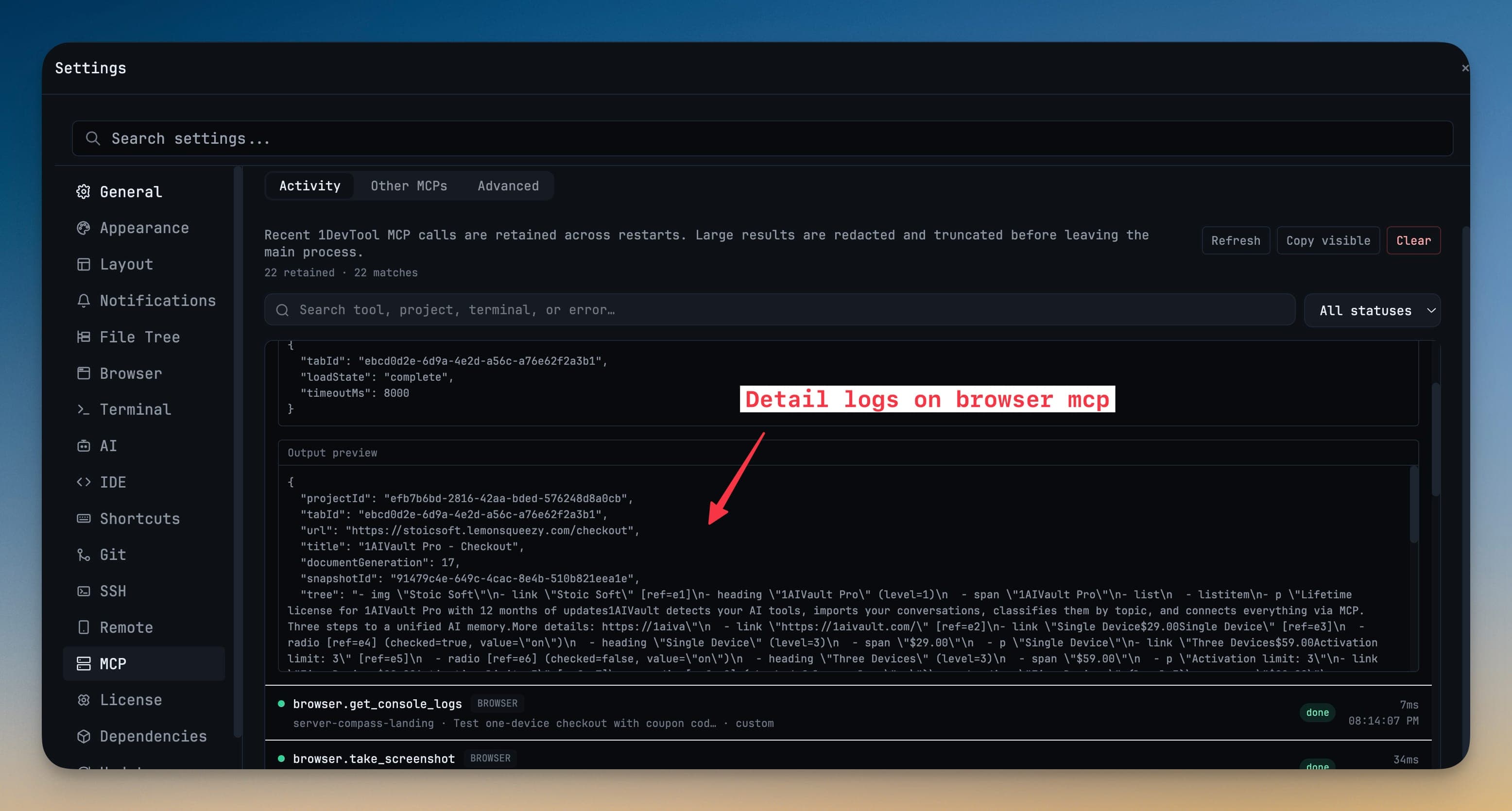
Sensitive values and large binary results are redacted or shortened before they reach the interface — the log is there to tell you what happened, not to become a second copy of your secrets.
Terminal badges stay quiet
Each terminal shows at most three recent tool calls, and completed badges clear themselves after a short confirmation period. You see that something ran without the transcript turning into a scoreboard.
Next
- Let Agents Drive the Browser — the Browser group in practice
- MCP Servers — connecting agents to 1DevTool and to third-party servers
- Tasks — what the Tasks tools operate on