Browser Automation
Let AI agents operate the Browser panel you already use — with your tabs, your history, and your signed-in sessions.
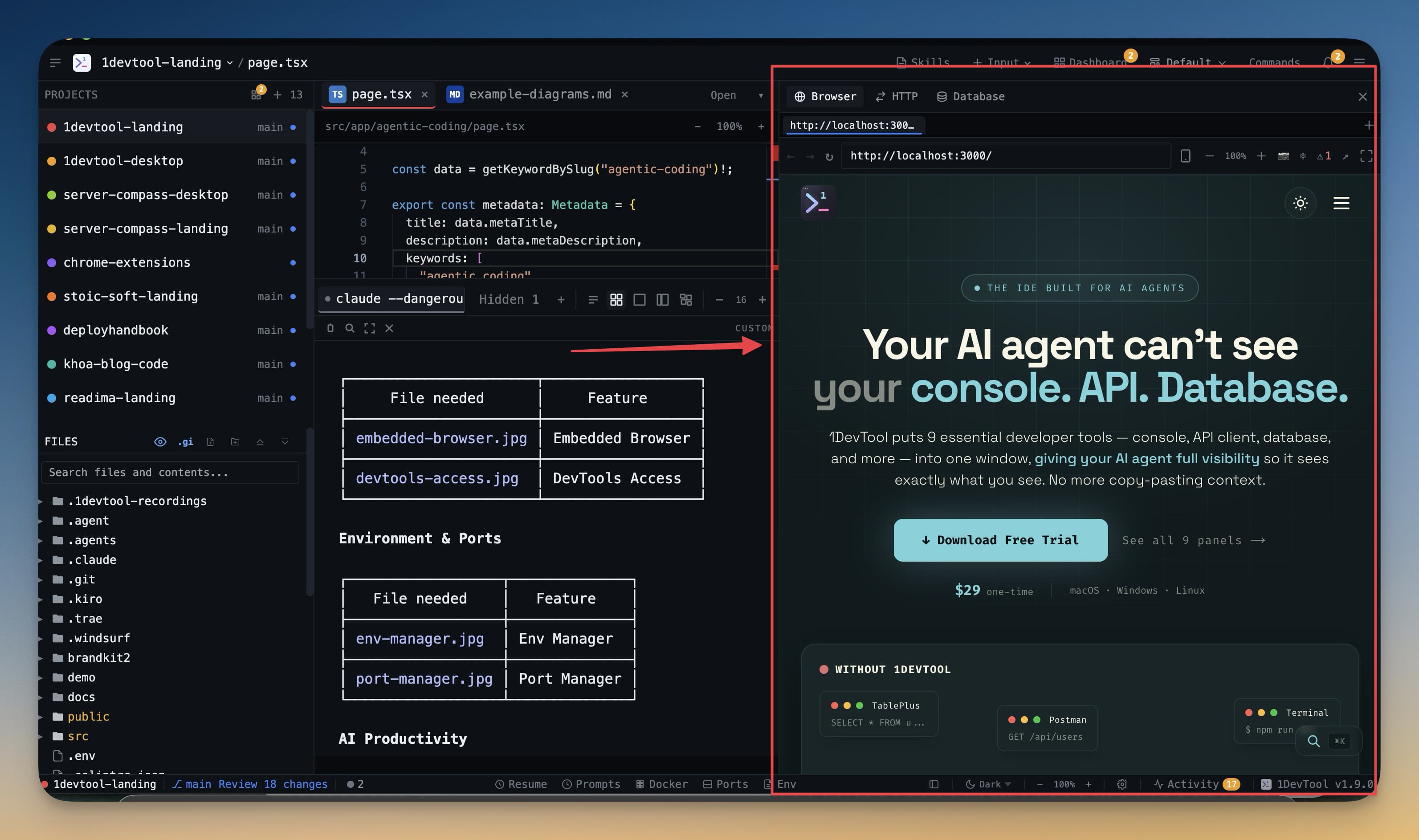
Most browser automation gives an agent a fresh, empty, signed-out browser. 1DevTool does the opposite: agents connected through 1DevTool MCP work in the same visible Browser panel you use, with its existing tabs, navigation history, and signed-in sessions.
That means an agent can check a page behind your login, reproduce a bug on your staging environment, or verify a fix in the app you already had open.
What an agent can do
- Open and select tabs
- Navigate to a URL, go back and forward, reload
- Inspect the page structure
- Click controls, type text, choose options from a select, press keys
- Wait for the page to change
- Read console output
- Capture an exact screenshot of the current tab when it needs visual context
How it stays under control
Scoped to a project and a tab. Automation is bound to an explicit project and tab rather than roaming your whole browser.
One automation tab per project. An agent driving the browser reuses the same automation tab across calls and retries. Explicitly asking for a new tab still opens one — but a loop of retries no longer leaves a trail of dozens of tabs behind it.
Page references refresh after navigation. An element handle from before a page load is not silently reused against the new page.
Password and file inputs are protected. The agent cannot type into a password field or attach a file through automation.
The window stays yours. Automation does not grab focus, and switching to another project no longer snaps you back every few seconds while a run is in progress.
Big pages and screenshots
A full-page payload or a large screenshot can be megabytes. The agent still receives the complete MCP result, while the desktop interface only processes a compact, safe preview — so a heavy call does not make the app or the AI terminal feel stalled.
Asking for it explicitly
If you want an agent to use the in-app Browser panel specifically, say so — "use the 1DevTool browser MCP". Supported agents then connect directly to the visible panel instead of opening an external Chrome session or spawning another agent terminal.
Turning it off
Every browser tool has its own switch in MCP Control. Disable the ones you do not want reachable; an agent calling a disabled tool gets a badge on its terminal naming the tool, with one-click Enable.
Related
- Browser Overview — the panel itself
- MCP Control — turning individual tools on and off
- Activity History — reviewing what an agent did