Extensions
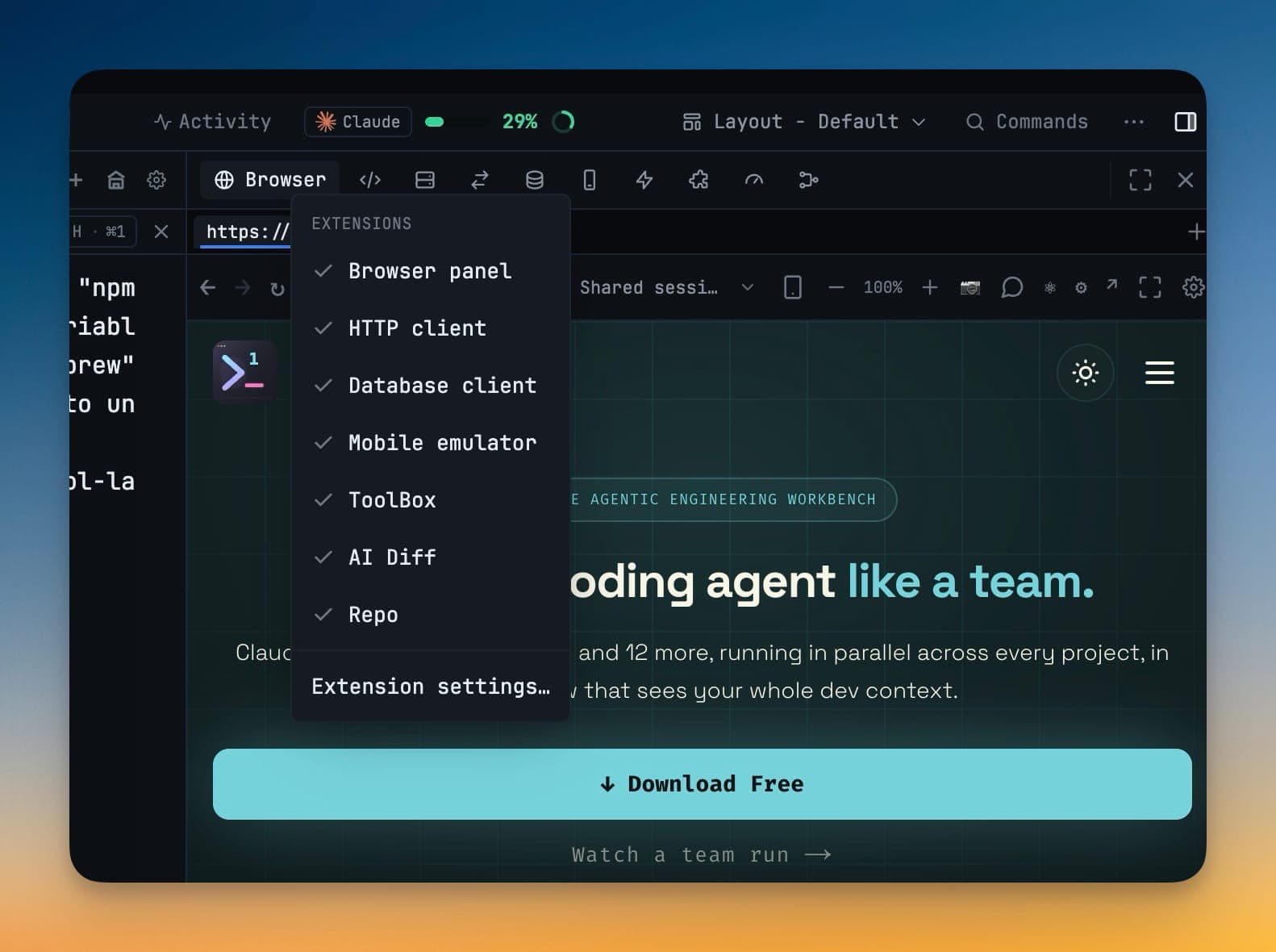
Switch off the panels you never open — Browser, HTTP client, Database client, Mobile emulator, ToolBox, AI Diff and Repo — and get your exact layout back when you switch them on again.
A workspace that does seven things should not charge you for the six you do not use. Open Settings → Extensions.
What you can turn off
One switch each:
- Browser panel
- HTTP client
- Database client
- Mobile emulator
- ToolBox
- AI Diff
- Repo
What "off" actually means
Turning an extension off is a real gate, not a cosmetic one:
- Its panels are removed from every layout
- Its tools stop reaching your agents — the MCP bridge no longer executes them
- Its tool namespaces answer feature disabled on your phone
- For the browser, its background work is skipped entirely
An extension cannot be half-off — a panel hidden while agents still call its tools is exactly the state this avoids.
Your layout survives the round trip
Saved layouts are never rewritten for a disabled extension. They are filtered when they are read, so turning the extension back on restores your arrangement exactly — every panel where you left it, with its connections, saved requests and browser tabs intact.
That means switching something off to try a leaner window costs you nothing if you change your mind.
The faster route
Right-click any right-sidebar tab strip for the same switches, plus Extension settings…, without opening Settings at all.
Defaults
- Existing installs keep every extension on. Nothing was switched off under you.
- New installs start lean — just the browser — so a first run is not seven panels you did not ask for.
Downloadable extensions
The SQL Server driver no longer ships inside the app. It downloads on first use (3.5 MB) and is checked against a signature built into the app before anything is installed — so everyone who never touches SQL Server stops paying for it in the download.
With no project open
The right panel now explains itself instead of opening an empty column: the project list, Open folder…, and a link back to Extensions.