Agent Input
A proper text box for writing prompts — floating, resizable, with drafts, mentions, attachments, and a verified send.
AI agents run inside full-screen terminal interfaces (TUIs) that take over the keyboard. Inside one, ordinary text editing — cursor keys, select-all, paste, multi-line — behaves unpredictably. Agent Input gives you a real text box outside the terminal, and delivers what you wrote into the agent.
Press Cmd+I on macOS, or Ctrl+Alt+I on Windows and Linux.
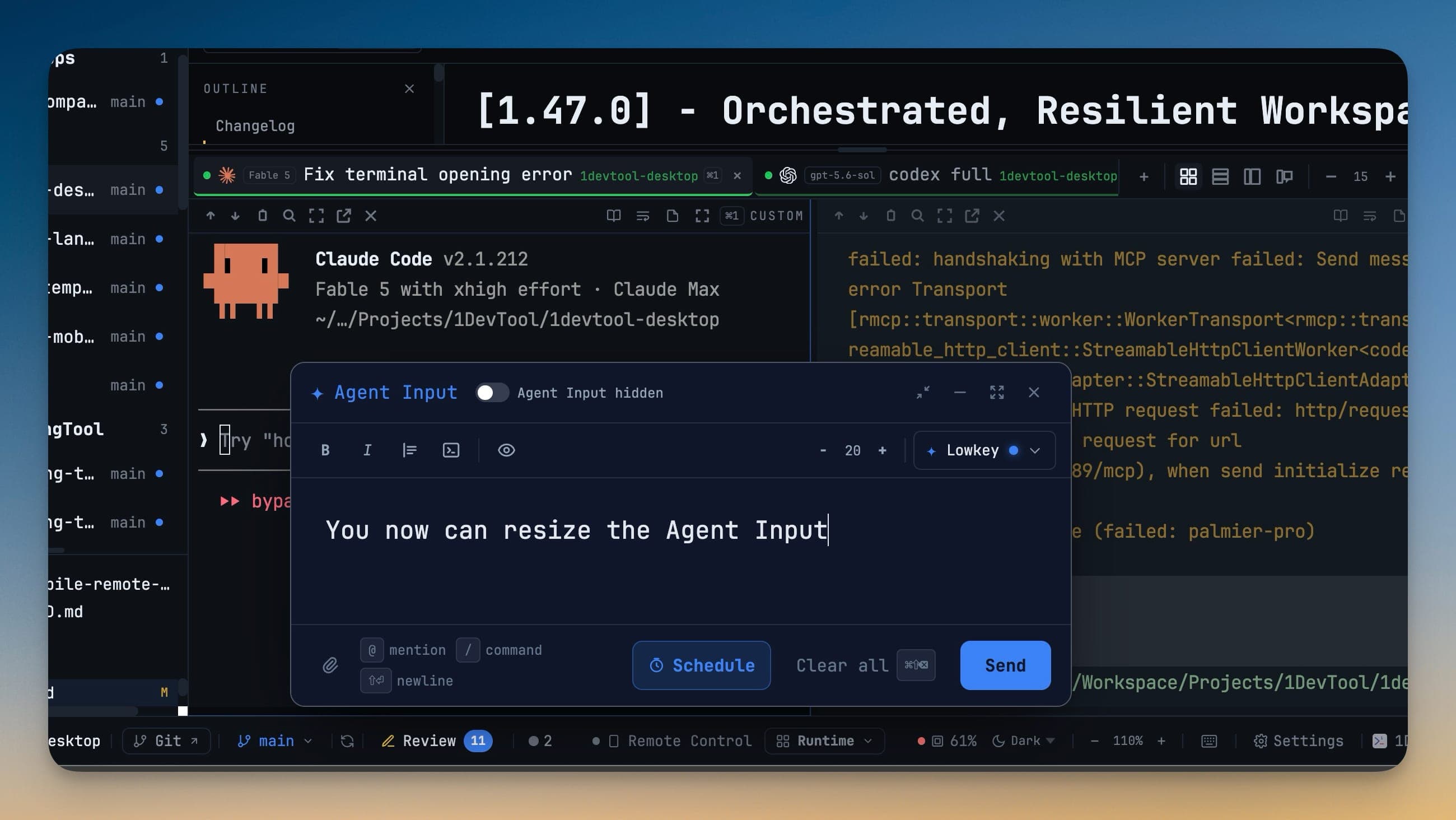
Floating and resizable
Detach the composer and put it wherever you want: drag it around the window, resize it from any edge or corner. It floats automatically when the terminal pane is too narrow to hold it comfortably, and your preferred size is remembered between sessions.
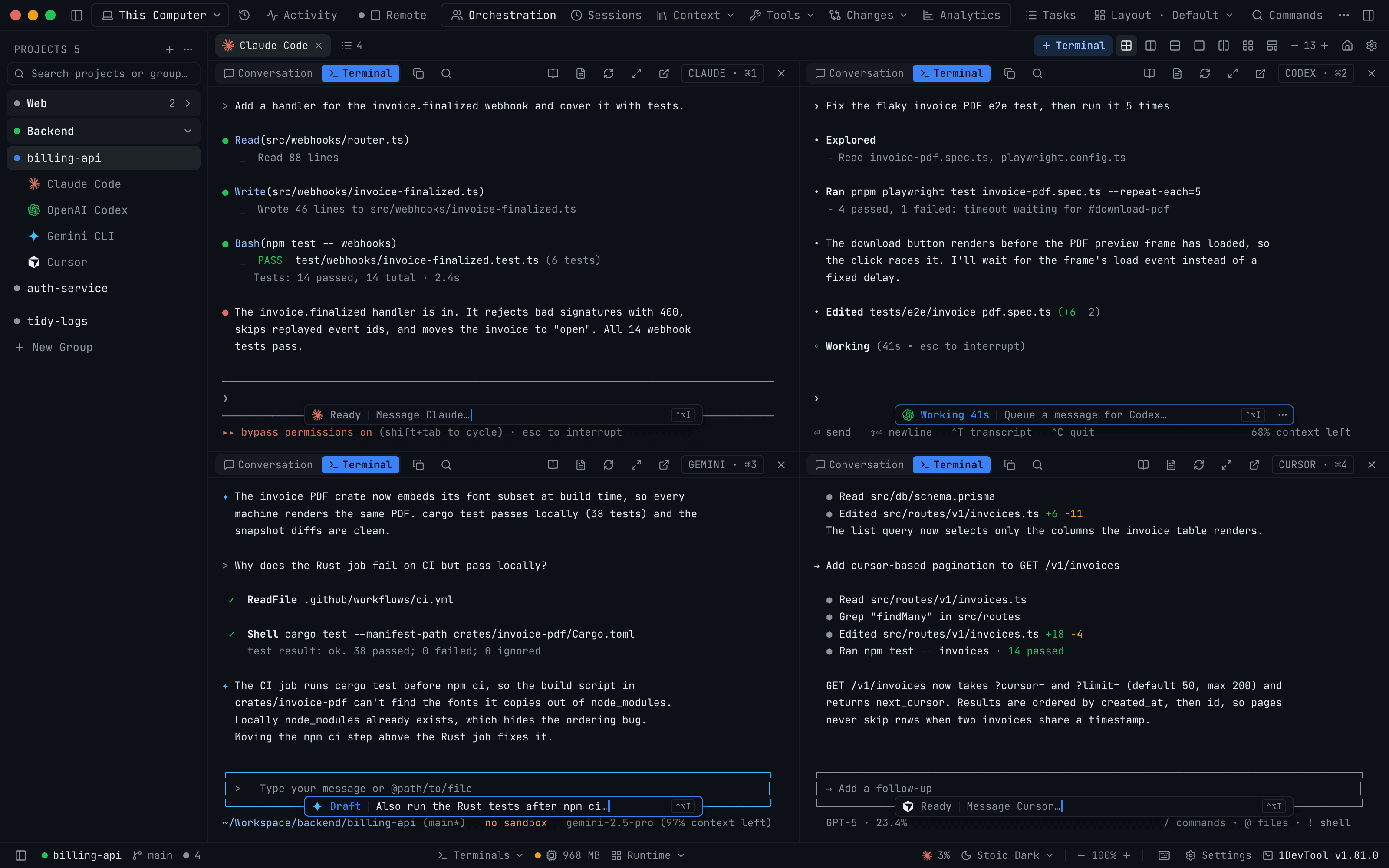
When the composer is closed, each AI terminal shows a small capsule on the divider just above the agent's own status line, so it never covers the footer the agent prints. The capsule shows the agent's logo and its state:
- Ready — the agent is idle, and the capsule reads Message Claude….
- Working — the agent is running. The elapsed time counts up beside the word, and the capsule reads Queue a message for Codex…, because what you type waits for the current turn.
- Draft — you have an unsent prompt here, and the capsule previews it.
Click it, or press the shortcut it shows, to open Agent Input. In 2×2 and 3×3 grids it shrinks to fit the pane. First the word becomes a status glyph, then the text gets shorter, and in the narrowest panes only the logo, the glyph and the shortcut are left. Its ⋯ menu has Hide in this pane, which leaves a small Agent Input button in the pane header for the rest of the session, and Turn off in all terminals, which you can undo in Settings → Terminal.
Drafts are never lost
Text you typed stays yours. Switch terminals, close the composer, restart — the draft comes back, with your cursor where you left it, and attachments return as chips. The terminal tab shows a small badge previewing an unsent draft so you do not forget it is there.
Opening the composer does not read your clipboard or prefill from it, and multi-line terminal pastes are not silently redirected into it.
Mentions
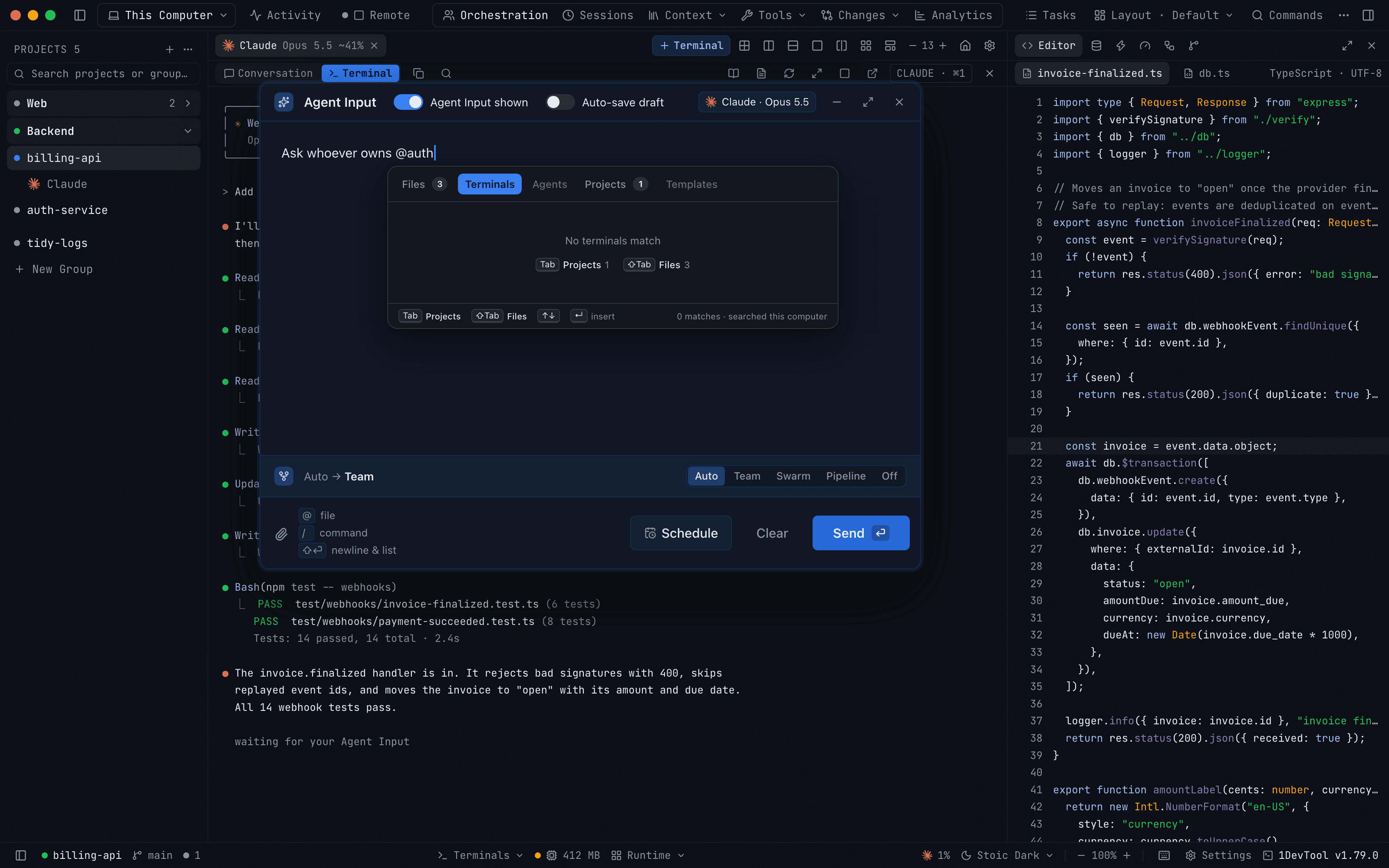
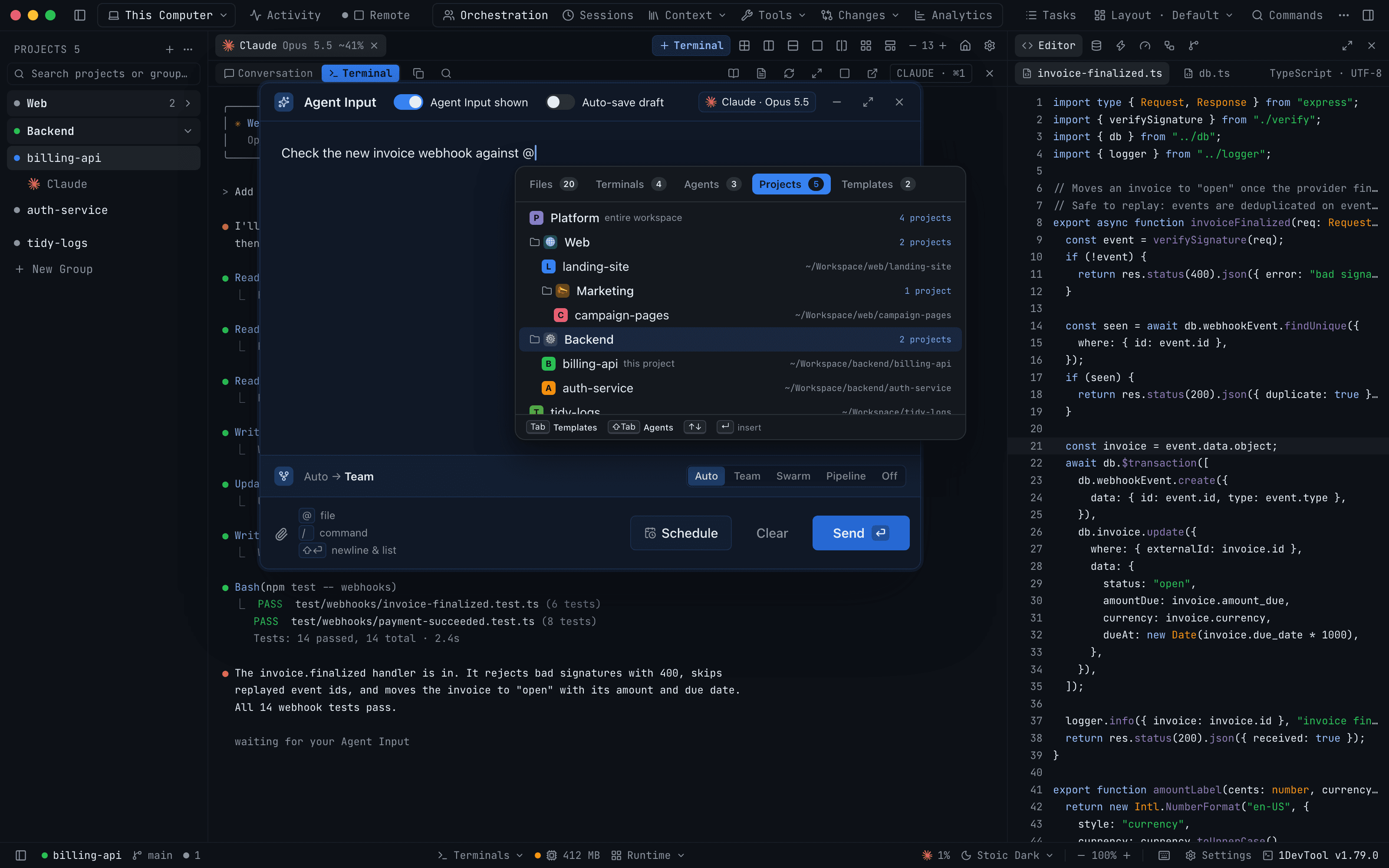
Type @ to open the picker:
- Files — insert a path from your project
- Agents — delegate to an agent, with a drill-in model picker
- Terminals — deliver this prompt into a linked terminal that is already open. Each paired computer gets its own section here too, marked online or offline since a time, with each terminal shown as ● ready, ○ stopped or ↻ last known
- Templates — insert one of your prompt templates at the cursor
- Skills — insert a skill or slash command; see Skills & Slash Commands
- Projects — hand your agent the context of another project, or of a whole sidebar group, without leaving the terminal you are in. See Mentioning a project or a group below
You can also drag a file, folder, or project from the sidebar into the composer to get its path.
What each chip shows
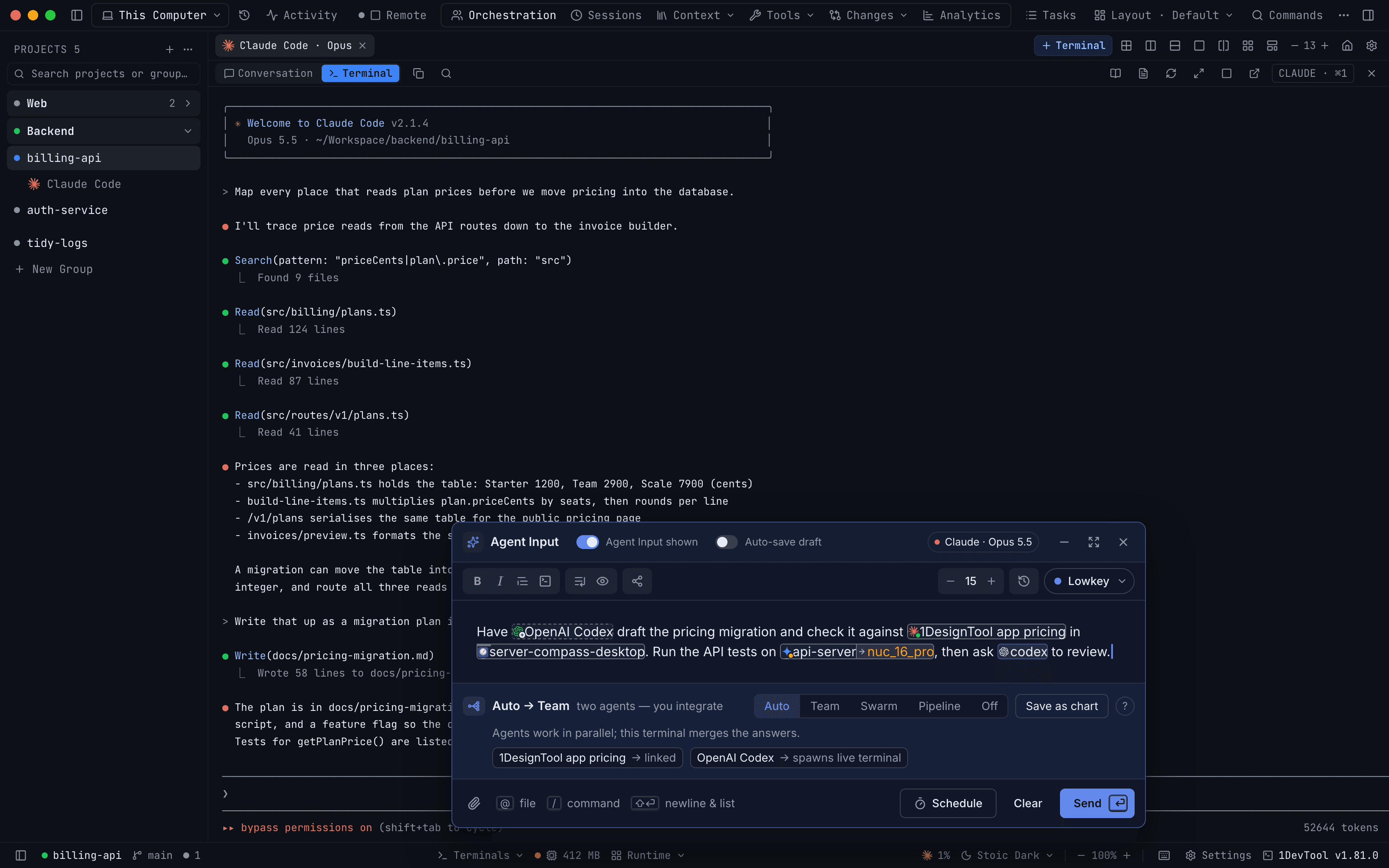
Every mention becomes a chip, and each kind has its own shape, so you can tell what Send will do before you press it:
- A new agent has a dashed outline and a + on its logo. Sending starts a new terminal for it. Flags such as
--dangerously-skip-permissionsare shown muted. - A linked open terminal has a solid outline and a live dot. Click it to jump to that terminal.
- A project shows its avatar and emoji under a folder tab. Its context goes with the prompt.
- A terminal on a paired computer shows that computer's name in a shaded segment, with a green dot when it is online and an amber one when it is offline. The arrow between the two segments shows → for Send once or ⇄ for Converse, and ↻ appears when the remote terminal restarted.
The chip's name stays the size of the text around it, and the brand colour is used only in the logo. Hover a chip to see exactly what Send will do with it. Drag a chip to move it, drop it on another chip to swap them, or drop an agent from the palette straight into the text.
A chip is written into the draft as @name, like a file mention. The @ is removed on Send, so the agent receives the same text it always did. Drafts saved before 1.81.0 keep their chips. Text saved without the @, such as a scheduled prompt or a prompt reused from Prompt History, still shows its chip shape but without the agent's logo.
The tabs are sized to their labels, with a count beside each one. A tab with nothing to show is dimmed. Tab moves to the next tab that has results and Shift+Tab moves back to the previous one, and the picker's footer names where each key will land. An empty tab says why it is empty and offers those same shortcuts, such as Tab Projects 1 and ⇧Tab Files 3. In a narrow pop-out terminal the picker shrinks to the window and its tabs scroll sideways.
Mentioning a project or a group
The Projects tab lists your projects the way the sidebar does, with the same groups and nested groups in the same order. You do not need a workspace for this.
- Pick a project to mention it. Your own project is marked this project.
- Pick a group to mention every project under it, nested groups included. The row shows how many projects that is, and the list is worked out again when you press Send.
- Workspaces this project belongs to lead the list as one row each, marked entire workspace, which mentions all of their projects.
When you send, each mentioned project reaches the agent as a short block with its name, root folder, the group it came from, and the AI terminals open in it. If the list gets too long, the last projects are left out and a line says how many.
If two mentions share a name, the chip tells them apart, such as Web · group next to Web · web. Mentioning exactly one other project also points the Files tab at that project's folder, so your @ file mentions can reach into it.
A terminal on another computer
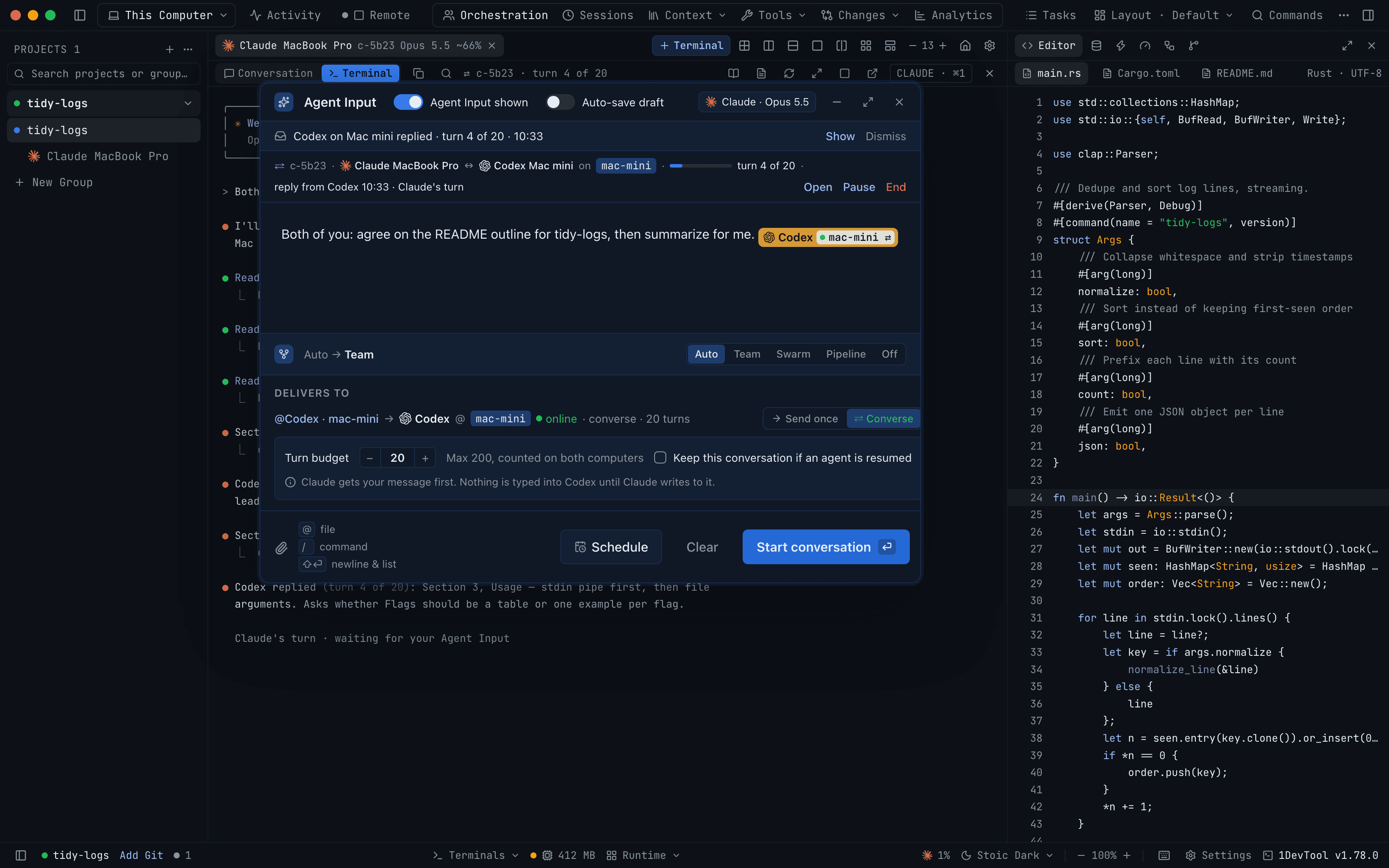
When you mention a terminal on a paired computer, Delivers to shows which computer it runs on, whether that computer is reachable, and how Send will deliver:
- → Send once types your message into that terminal one time, in that agent's own session.
- ⇄ Converse opens a conversation between your agent and that one under a Turn budget. Send becomes Start conversation, or Queue conversation when that computer is offline.
When Send can't run yet, the reason sits next to the button with the one way out, such as Open Settings → Machines when the other computer hasn't granted Control terminals, or Switch to Auto in Pipeline mode, where every stage must be a live local terminal. A terminal that restarted is marked ↻ refreshed, and pressing Send again confirms the new session.
While a conversation is running, a strip above the composer shows the live thread, each reply with its turn number, whether turns are queued, and Open, Pause, Resume and End.
Choosing an orchestration pattern
A mode control beside the composer decides what happens when you send: Auto / Team / Swarm / Pipeline / Off.
Auto reads what you are typing and applies the right pattern, then tells you why — Using Pipeline · you wrote "then". When it is not sure, it says so and asks you to pick rather than guessing.
Clicking any other mode is a lock. It stays put no matter what you type next, until you choose Auto again — and a choice you already made is kept as a lock, so nothing changes underneath you.
The ? beside the control opens the Pattern Guide: Team, Swarm, Hierarchy, Pipeline and Mesh side by side, with the one verb that separates each from the others.
Saved charts appear here too — picking a hierarchy preset applies and activates it from that one click.
Attachments
Attach an image and it travels with the prompt. From the phone you can attach a photo straight from the camera roll — see Remote Control.
A verified send
After Send, 1DevTool checks the agent's composer to confirm the message actually left it. If the text is provably still sitting there, one more Enter is attempted automatically.
If it still has not gone, the terminal says so rather than reporting a run that never started: Mission Control shows "not submitted — press Enter" and takes you to the terminal, and the tab keeps your text as a draft. Pressing Enter yourself clears the warning.
Starting the run, auto-naming the tab, and opening an AI Diff session all wait until the prompt is proven sent — so a delegation can never look live while the agent sits idle.
Scheduled prompts
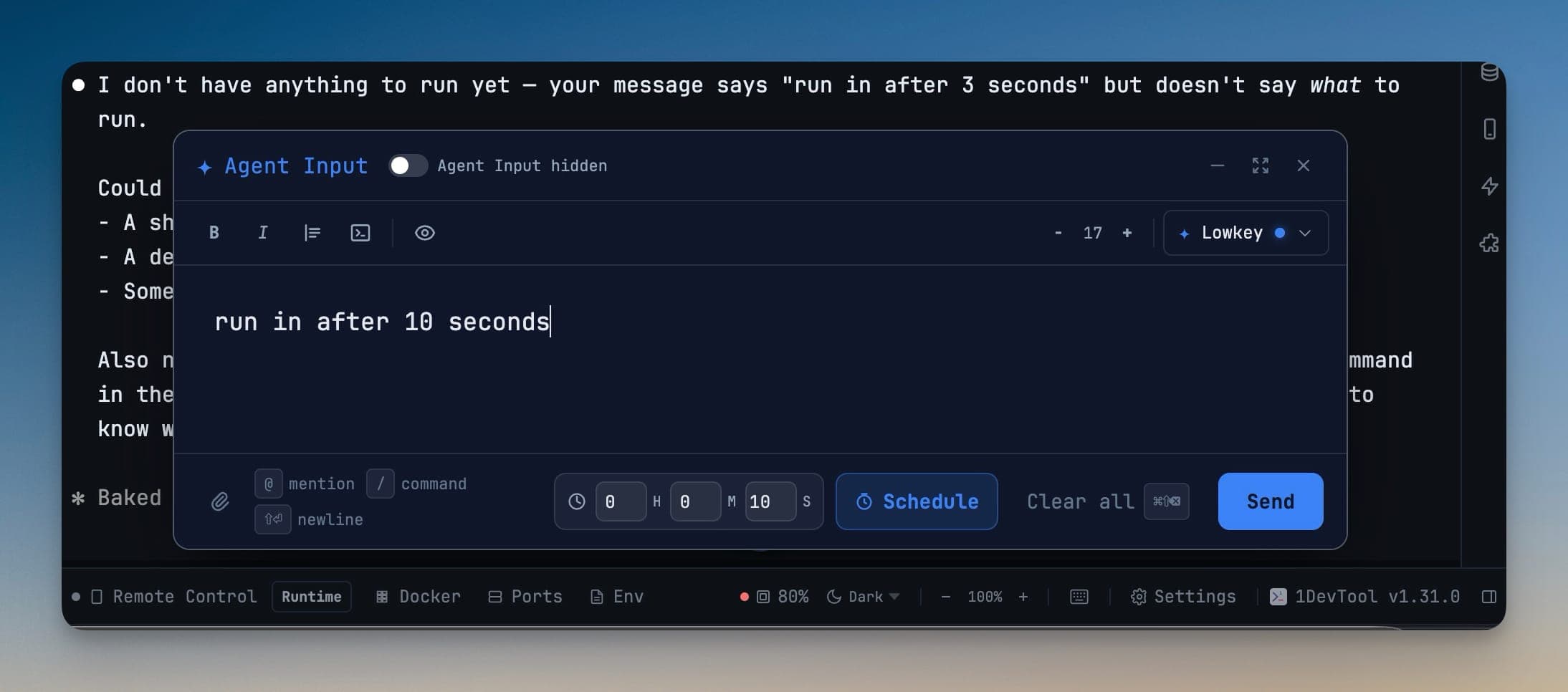
Set a prompt to send later. Choose how it fires:
- Timer — after a duration you set.
- At time — at a clock time today or tomorrow.
- AI reset — a few minutes after the terminal's AI quota window resets. The buffer is adjustable, with a two-minute minimum, because sending the instant a window reopens can error out.
The desktop owns the clock, so a scheduled prompt fires whether or not your phone is awake.
A queue per terminal
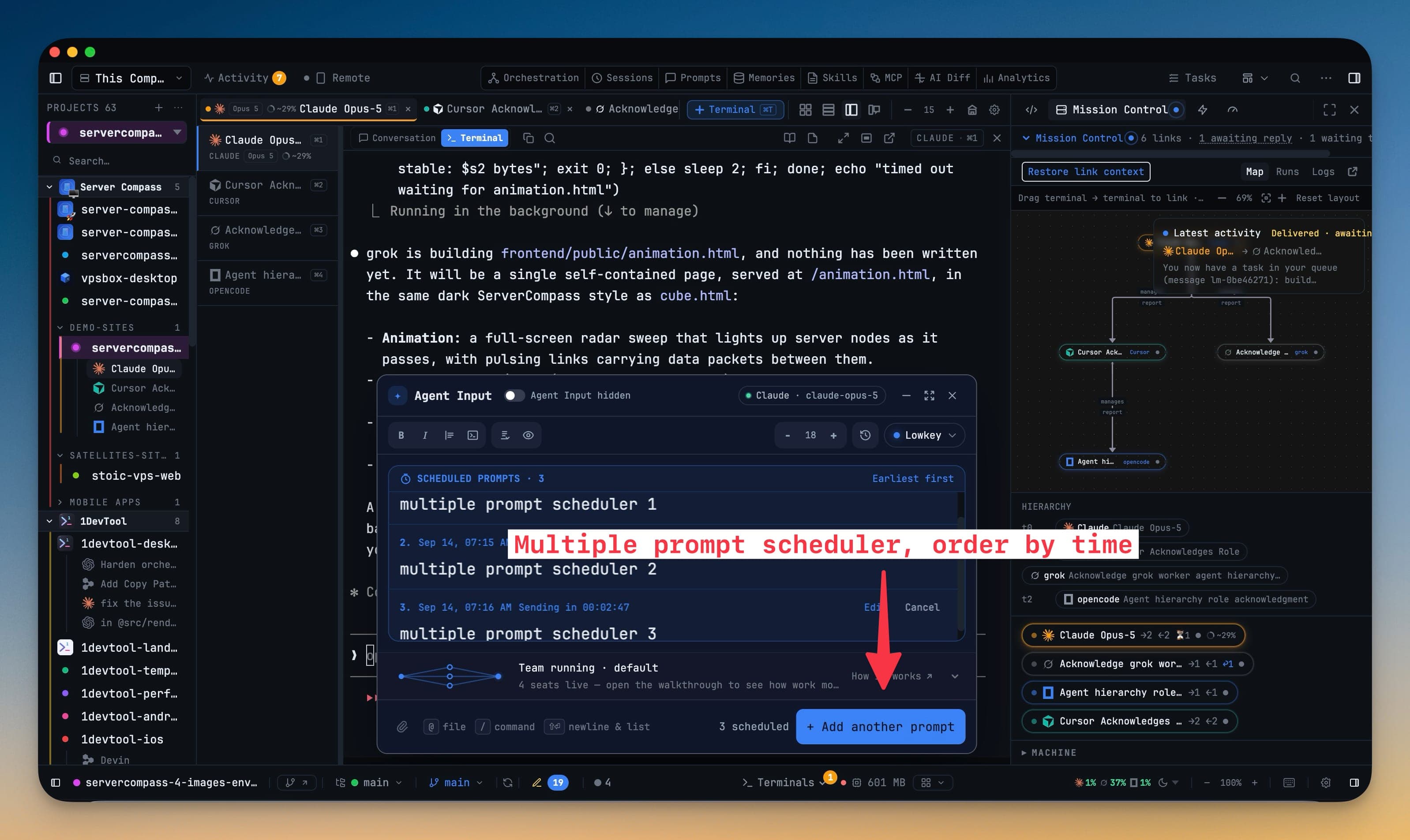
A terminal can hold more than one scheduled prompt. Schedule the next one with + Add another prompt and it joins the queue instead of replacing the prompt before it; the footer shows how many are scheduled.
The queue panel lists Scheduled prompts · N, Earliest first. Each entry shows its number, when it fires and what it is waiting on — a clock time or an agent's reset — and has two actions:
- Edit takes the prompt out of the queue and puts it back in the composer as a draft.
- Cancel removes that prompt on its own.
A failed send pauses that terminal's queue. The entry shows Delivery failed with Restore and Remove, and the panel reads Queue paused. Restore or remove the failed prompt to continue. Nothing else fires into a composer that may still hold a half-written prompt until you decide.
Waking from sleep catches up in order. Prompts that came due while the machine was asleep send one at a time, earliest first, instead of all at once.
Send to many
Send to many fans one draft out to every AI terminal you pick — across every project in the workspace, not just the one on screen.
Open it from the Agent Input toolbar. The picker reads Pick the agent terminals this prompt goes to and offers a Filter by terminal or project… box, Select all and Clear all. Tick a crew, then press Send to N terminals.
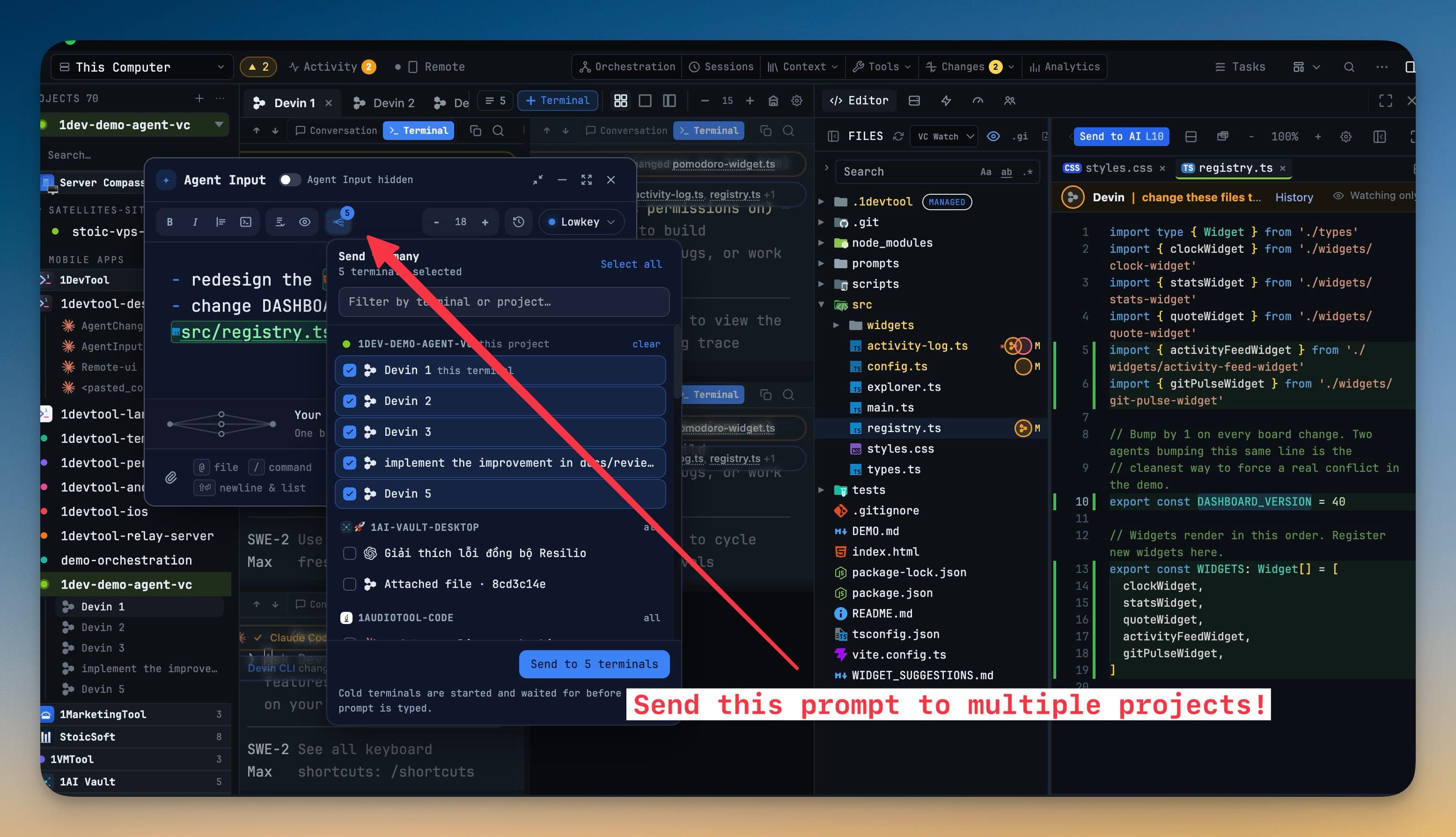
- Cold terminals start on their own. A tab that was only saved is launched, waited on until its composer is empty, and then typed into. It is never reported as sent if readiness failed.
- A partial send keeps your draft. Only a full success clears the composer. Failures offer a retry scoped to the terminals that missed, so a retry cannot double-send to the ones that already have it.
- Your crew is remembered. Closing the picker keeps the selection on the toolbar badge; reopen and the same terminals stay checked.
- Focus stays where you typed. A fan-out never pulls you into another project's tab while the delivery runs.
If the draft is empty the send is refused outright — Nothing to send — the draft is empty.
Prompt history
Every prompt you send is saved. Cmd+Up / Ctrl+Up scrolls back through previous prompts to reuse or edit them, and Cmd+Down / Ctrl+Down moves forward again. A prompt containing a file mention is recorded as the single prompt you actually sent, not several rows.
Related
- Prompt Templates — reusable instructions appended on send
- Linked Terminals — delivering a prompt to another agent
- Run an AI Agent
- The Builder — where the charts the mode control offers are drawn